> ## Documentation Index
> Fetch the complete documentation index at: https://sleekplan.com/llms.txt
> Use this file to discover all available pages before exploring further.
# Zapier integration
> Connect Sleekplan to Zapier to automate feedback, changelog, and user workflows across thousands of other apps, using triggers and actions with no code.
Zapier links Sleekplan to thousands of other apps so you can automate work without writing code. A **Zap** watches for a **trigger** (an event in one app) and runs an **action** (a task in another app). With the Sleekplan Zapier app you can start a Zap whenever something happens on your board, and you can push data back into Sleekplan by creating or updating posts and changelog entries. This article covers how to connect Sleekplan to Zapier and build your first Zap.
Connecting integrations is available to workspace **owners** and **admins**. Team members with the Member role won't see the Connect options. See [Roles and permissions](/help/account-security/roles-permissions).
The Sleekplan Zapier app is currently in **beta**. It appears as **Zapier (beta)** in your integrations list.
## Before you start
You'll need:
* A [Zapier account](https://zapier.com). The free plan is enough to build simple Zaps.
* Your Sleekplan **Workspace ID**. Find it on [**Settings → General**](https://app.sleekplan.com/settings/general) under **Workspace ID**. Zapier asks for this when you connect your account.
## Connect Sleekplan to Zapier
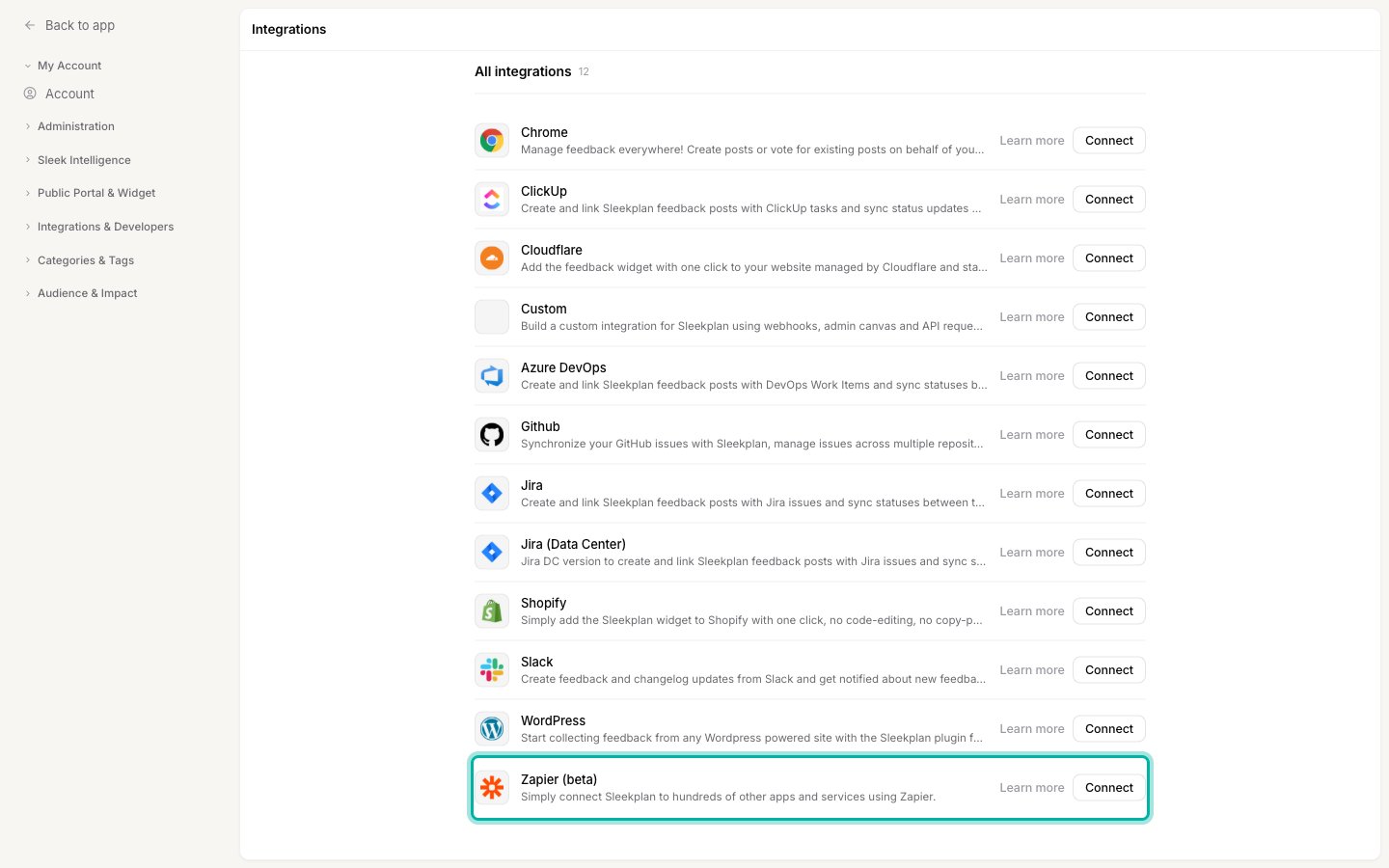
In Sleekplan, go to [**Settings → Integrations**](https://app.sleekplan.com/settings/integrations). In the Settings sidebar, this lives under **Integrations & Developers**.
Scroll to **Zapier (beta)** under **All integrations** and click **Connect**. This opens the Sleekplan app page on Zapier in a new tab.
 On the page that opens, sign in to your Zapier account (or create one). This is where you build and manage your Zaps.
## Build a Zap
Once you're in Zapier, you create the automation there. Sleekplan can act as the **trigger** (the event that starts the Zap) or the **action** (what the Zap does).
In your Zapier dashboard, select **Create → New Zap**.
Click the trigger or action step, search for **Sleekplan**, and select it. Then pick the event you want (see the lists below).
The first time you use Sleekplan in a Zap, Zapier asks you to connect your account. Enter your **Workspace ID** (from [**Settings → General**](https://app.sleekplan.com/settings/general)) and complete the sign-in flow to authorize the connection.
Fill in the fields for the event, then use Zapier's **Test** step to confirm data flows as expected. Turn the Zap on when you're happy with it.
## Available triggers
A trigger starts a Zap when the event happens in Sleekplan. The Sleekplan app provides these triggers:
| Trigger | Fires when |
| ------------------------------------ | ------------------------------------------------------------------------------ |
| **New feedback post** | Someone creates a post on your board. |
| **Update feedback post** | A post changes (for example, its status or category). |
| **Delete feedback post** | A post is deleted. |
| **New comment** | A comment is added to a post. |
| **Update comment** | A comment is edited. |
| **Delete comment** | A comment is deleted. |
| **New feedback vote** | Someone upvotes or downvotes a post. |
| **New feedback subscription** | Someone subscribes to a post for updates. |
| **New user** | A new [end-user account](/help/account-security/end-user-accounts) is created. |
| **Update user** | An end-user's details change. |
| **Delete user** | An end-user account is deleted. |
| **New changelog update** | You publish a changelog entry. |
| **New changelog subscriber** | Someone subscribes to your changelog. |
| **New satisfaction (CSAT) response** | A customer submits a CSAT rating. |
## Available actions
An action lets a Zap write data into Sleekplan when another app's trigger fires:
| Action | What it does |
| --------------------------- | ----------------------------------------------------------------------------------------------------------------------------------- |
| **Create feedback post** | Adds a new post to your board. You can set the title, description, category (type), and optionally attribute it to a user by email. |
| **Update feedback post** | Updates an existing post by its ID. Use it to change the status, category, or other fields. |
| **Create changelog update** | Publishes a new changelog entry. |
For the **Create feedback post** action, if you pass a user email, Sleekplan finds or creates that end-user and attributes the post to them. Leave the email blank to create the post without a specific author.
## Example workflows
* Post a message to a Slack or Microsoft Teams channel every time you get a **new feedback post**.
* Create a row in Google Sheets or Airtable for each **new CSAT response** to track satisfaction over time.
* When a deal closes in your CRM, use **Create feedback post** to log the customer's requested feature on your board.
* When a support ticket is tagged in your help desk, **Create feedback post** so the request is captured for your product team.
## Related
Bring existing feedback into Sleekplan from a CSV or another tool.
Download a CSV snapshot of feedback, votes, users, and surveys.
Control who can connect and manage integrations.
Build a deeper custom integration with the REST API and webhooks.
On the page that opens, sign in to your Zapier account (or create one). This is where you build and manage your Zaps.
## Build a Zap
Once you're in Zapier, you create the automation there. Sleekplan can act as the **trigger** (the event that starts the Zap) or the **action** (what the Zap does).
In your Zapier dashboard, select **Create → New Zap**.
Click the trigger or action step, search for **Sleekplan**, and select it. Then pick the event you want (see the lists below).
The first time you use Sleekplan in a Zap, Zapier asks you to connect your account. Enter your **Workspace ID** (from [**Settings → General**](https://app.sleekplan.com/settings/general)) and complete the sign-in flow to authorize the connection.
Fill in the fields for the event, then use Zapier's **Test** step to confirm data flows as expected. Turn the Zap on when you're happy with it.
## Available triggers
A trigger starts a Zap when the event happens in Sleekplan. The Sleekplan app provides these triggers:
| Trigger | Fires when |
| ------------------------------------ | ------------------------------------------------------------------------------ |
| **New feedback post** | Someone creates a post on your board. |
| **Update feedback post** | A post changes (for example, its status or category). |
| **Delete feedback post** | A post is deleted. |
| **New comment** | A comment is added to a post. |
| **Update comment** | A comment is edited. |
| **Delete comment** | A comment is deleted. |
| **New feedback vote** | Someone upvotes or downvotes a post. |
| **New feedback subscription** | Someone subscribes to a post for updates. |
| **New user** | A new [end-user account](/help/account-security/end-user-accounts) is created. |
| **Update user** | An end-user's details change. |
| **Delete user** | An end-user account is deleted. |
| **New changelog update** | You publish a changelog entry. |
| **New changelog subscriber** | Someone subscribes to your changelog. |
| **New satisfaction (CSAT) response** | A customer submits a CSAT rating. |
## Available actions
An action lets a Zap write data into Sleekplan when another app's trigger fires:
| Action | What it does |
| --------------------------- | ----------------------------------------------------------------------------------------------------------------------------------- |
| **Create feedback post** | Adds a new post to your board. You can set the title, description, category (type), and optionally attribute it to a user by email. |
| **Update feedback post** | Updates an existing post by its ID. Use it to change the status, category, or other fields. |
| **Create changelog update** | Publishes a new changelog entry. |
For the **Create feedback post** action, if you pass a user email, Sleekplan finds or creates that end-user and attributes the post to them. Leave the email blank to create the post without a specific author.
## Example workflows
* Post a message to a Slack or Microsoft Teams channel every time you get a **new feedback post**.
* Create a row in Google Sheets or Airtable for each **new CSAT response** to track satisfaction over time.
* When a deal closes in your CRM, use **Create feedback post** to log the customer's requested feature on your board.
* When a support ticket is tagged in your help desk, **Create feedback post** so the request is captured for your product team.
## Related
Bring existing feedback into Sleekplan from a CSV or another tool.
Download a CSV snapshot of feedback, votes, users, and surveys.
Control who can connect and manage integrations.
Build a deeper custom integration with the REST API and webhooks.