> ## Documentation Index
> Fetch the complete documentation index at: https://sleekplan.com/llms.txt
> Use this file to discover all available pages before exploring further.
# Slack integration
> Connect Sleekplan to Slack to get feedback, comment, survey, and changelog-subscriber notifications in a channel, and to create posts and changelog updates with slash commands.
The Slack integration sends a message to a Slack channel whenever something happens on your board, like a new feedback post, a comment, a satisfaction or NPS vote, or a new changelog subscriber. It also lets your team create feedback posts and publish changelog updates straight from Slack with slash commands. This article covers connecting Slack, choosing which notifications you receive, and using the commands.
You connect and manage integrations from your workspace **Settings**, so you need a team account with access to it. See [Roles and permissions](/help/account-security/roles-permissions). Slack is available on every plan.
## How notifications work
When you connect Slack, you pick **one channel** during the Slack authorization step. Every notification Sleekplan sends goes to that single channel. Feedback and comment messages include a link to the post (both the admin view and the public view), and comments are grouped with their post. Survey messages show the score with an emoji.
Only one Sleekplan workspace can connect to a given Slack channel at a time.
## Connect Slack
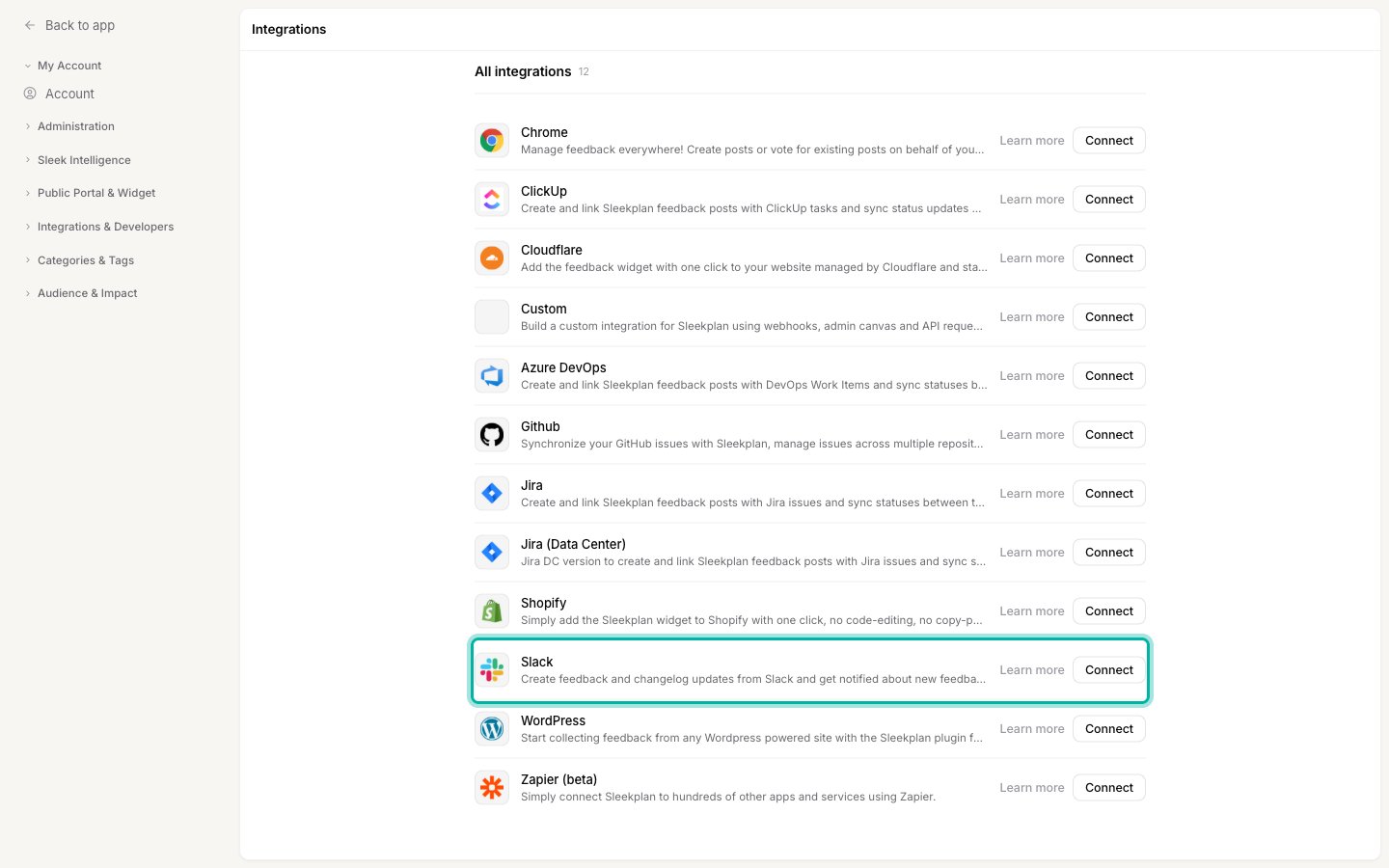
Go to [**Settings → Integrations & Developers → Integrations**](https://app.sleekplan.com/settings/integrations). Under **All integrations**, find **Slack** and click **Connect**.
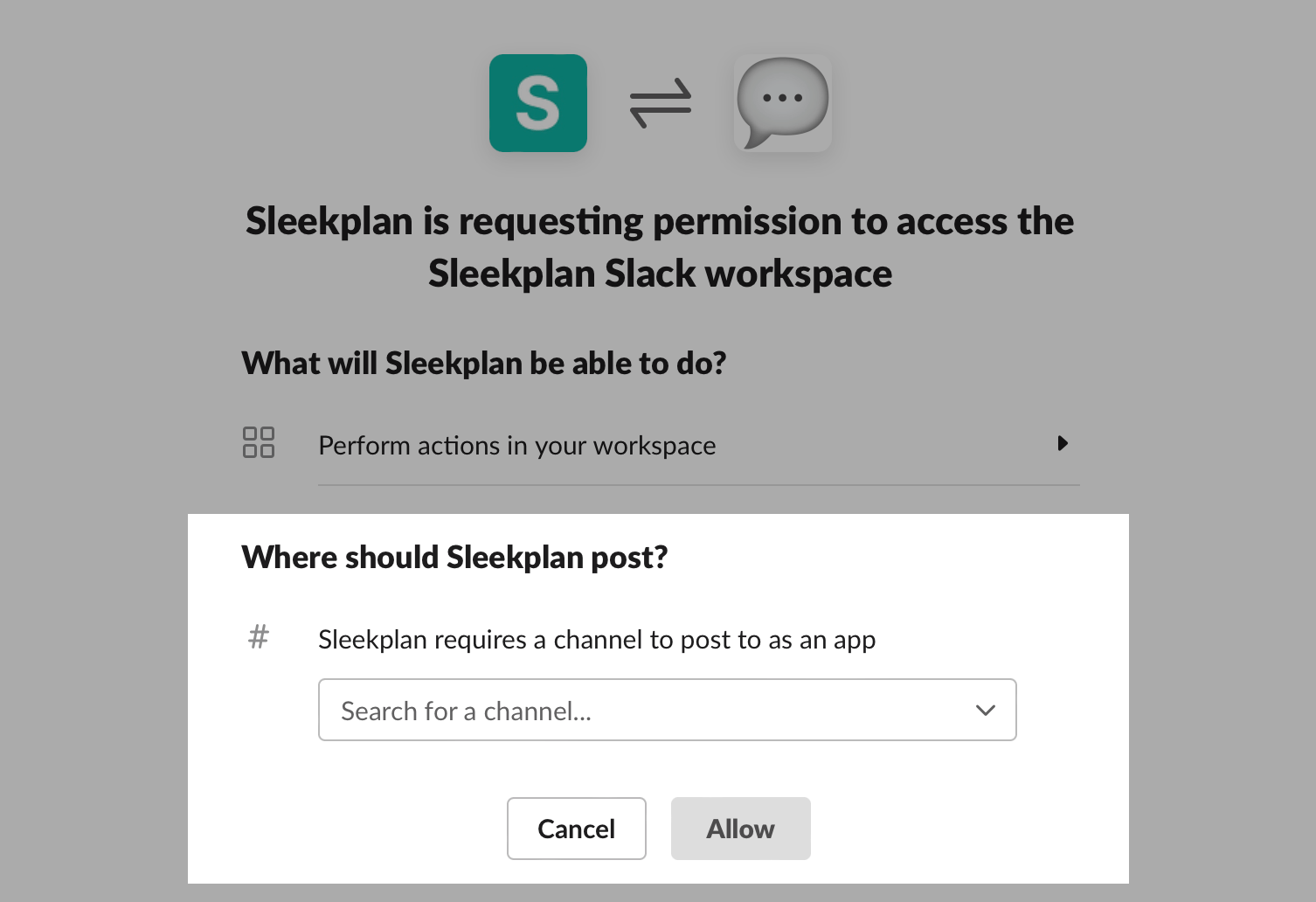
 A Slack window opens asking you to allow Sleekplan access. If you belong to more than one Slack workspace, select the one you want to connect (your most recent is preselected).
Slack asks which channel notifications should post to. Pick the channel, then click **Allow**. Sleekplan posts all notifications to this channel.
A Slack window opens asking you to allow Sleekplan access. If you belong to more than one Slack workspace, select the one you want to connect (your most recent is preselected).
Slack asks which channel notifications should post to. Pick the channel, then click **Allow**. Sleekplan posts all notifications to this channel.
 Slack returns you to Sleekplan and the integration activates. **Slack** now appears under **Connected** at the top of the Integrations screen, with all notification types turned on by default.
## Choose which notifications you receive
After connecting, open the notification settings to turn individual message types on or off.
On [**Settings → Integrations**](https://app.sleekplan.com/settings/integrations), find **Slack** under **Connected** and click **Manage**.
Turn each type on or off, then click **Save**. Every type is on by default.
| Notification | Sends a message when |
| -------------------------------------- | ------------------------------------------------------- |
| **Feedback notifications** | Someone posts new feedback |
| **Comment notifications** | Someone comments on a post |
| **CSAT vote notifications** | A new CSAT (customer satisfaction) survey vote comes in |
| **CSAT vote updates** | Someone changes an existing CSAT vote |
| **NPS vote notifications** | A new NPS (Net Promoter Score) survey vote comes in |
| **NPS vote updates** | Someone changes an existing NPS vote |
| **Changelog subscriber notifications** | Someone subscribes to your changelog |
## Create posts and updates from Slack
Once Slack is connected, your team can use the `/sleekplan` slash command inside Slack:
* **`/sleekplan post`** opens a form to create a feedback post. Fill in a title, category, and description. You can optionally enter a customer's email address to create the post on their behalf.
* **`/sleekplan update`** opens a form to publish a changelog update. Fill in a title, category, text, and a date. If you pick a future date, the update is scheduled instead of published immediately.
* **`/sleekplan help`** opens a short reference for the commands and notifications.
Posts and updates created from Slack show up in your workspace right away, the same as ones created in the admin dashboard.
## Disconnect Slack
To stop notifications and remove the connection, open [**Settings → Integrations**](https://app.sleekplan.com/settings/integrations), click **Manage** on the Slack row, then click **Disconnect**. You can reconnect at any time by connecting again.
## Related
How feedback posts work in the admin dashboard.
Add teammates who can manage integrations and act on notifications.
Control who can connect and manage integrations.
Move workspace data in and out of Sleekplan.
Slack returns you to Sleekplan and the integration activates. **Slack** now appears under **Connected** at the top of the Integrations screen, with all notification types turned on by default.
## Choose which notifications you receive
After connecting, open the notification settings to turn individual message types on or off.
On [**Settings → Integrations**](https://app.sleekplan.com/settings/integrations), find **Slack** under **Connected** and click **Manage**.
Turn each type on or off, then click **Save**. Every type is on by default.
| Notification | Sends a message when |
| -------------------------------------- | ------------------------------------------------------- |
| **Feedback notifications** | Someone posts new feedback |
| **Comment notifications** | Someone comments on a post |
| **CSAT vote notifications** | A new CSAT (customer satisfaction) survey vote comes in |
| **CSAT vote updates** | Someone changes an existing CSAT vote |
| **NPS vote notifications** | A new NPS (Net Promoter Score) survey vote comes in |
| **NPS vote updates** | Someone changes an existing NPS vote |
| **Changelog subscriber notifications** | Someone subscribes to your changelog |
## Create posts and updates from Slack
Once Slack is connected, your team can use the `/sleekplan` slash command inside Slack:
* **`/sleekplan post`** opens a form to create a feedback post. Fill in a title, category, and description. You can optionally enter a customer's email address to create the post on their behalf.
* **`/sleekplan update`** opens a form to publish a changelog update. Fill in a title, category, text, and a date. If you pick a future date, the update is scheduled instead of published immediately.
* **`/sleekplan help`** opens a short reference for the commands and notifications.
Posts and updates created from Slack show up in your workspace right away, the same as ones created in the admin dashboard.
## Disconnect Slack
To stop notifications and remove the connection, open [**Settings → Integrations**](https://app.sleekplan.com/settings/integrations), click **Manage** on the Slack row, then click **Disconnect**. You can reconnect at any time by connecting again.
## Related
How feedback posts work in the admin dashboard.
Add teammates who can manage integrations and act on notifications.
Control who can connect and manage integrations.
Move workspace data in and out of Sleekplan.