> ## Documentation Index
> Fetch the complete documentation index at: https://sleekplan.com/llms.txt
> Use this file to discover all available pages before exploring further.
# Linear integration
> Connect Linear to Sleekplan so you can link feedback posts to Linear issues, create issues from a post, and keep statuses in sync both ways.
The Linear integration connects your Sleekplan workspace to Linear so your product team can work feedback from Linear. From any feedback post you can link an existing Linear issue or create a new one, and a link back to the Sleekplan post is added to the issue automatically. You can also map statuses so that moving an issue through your Linear workflow updates the post, and changing a post's status updates the issue.
Integration settings live in the workspace Settings, which are available to workspace **owners** and **admins**. Team members with the Member role won't see the Integrations screen. See [Roles and permissions](/help/account-security/roles-permissions).
## Before you start
* You need a Linear account with access to at least one Linear team.
* Status sync uses your Linear teams' workflow states (the columns in a team's board, such as **Todo**, **In Progress**, and **Done**), so it helps to know which states you want to map.
## Connect Linear
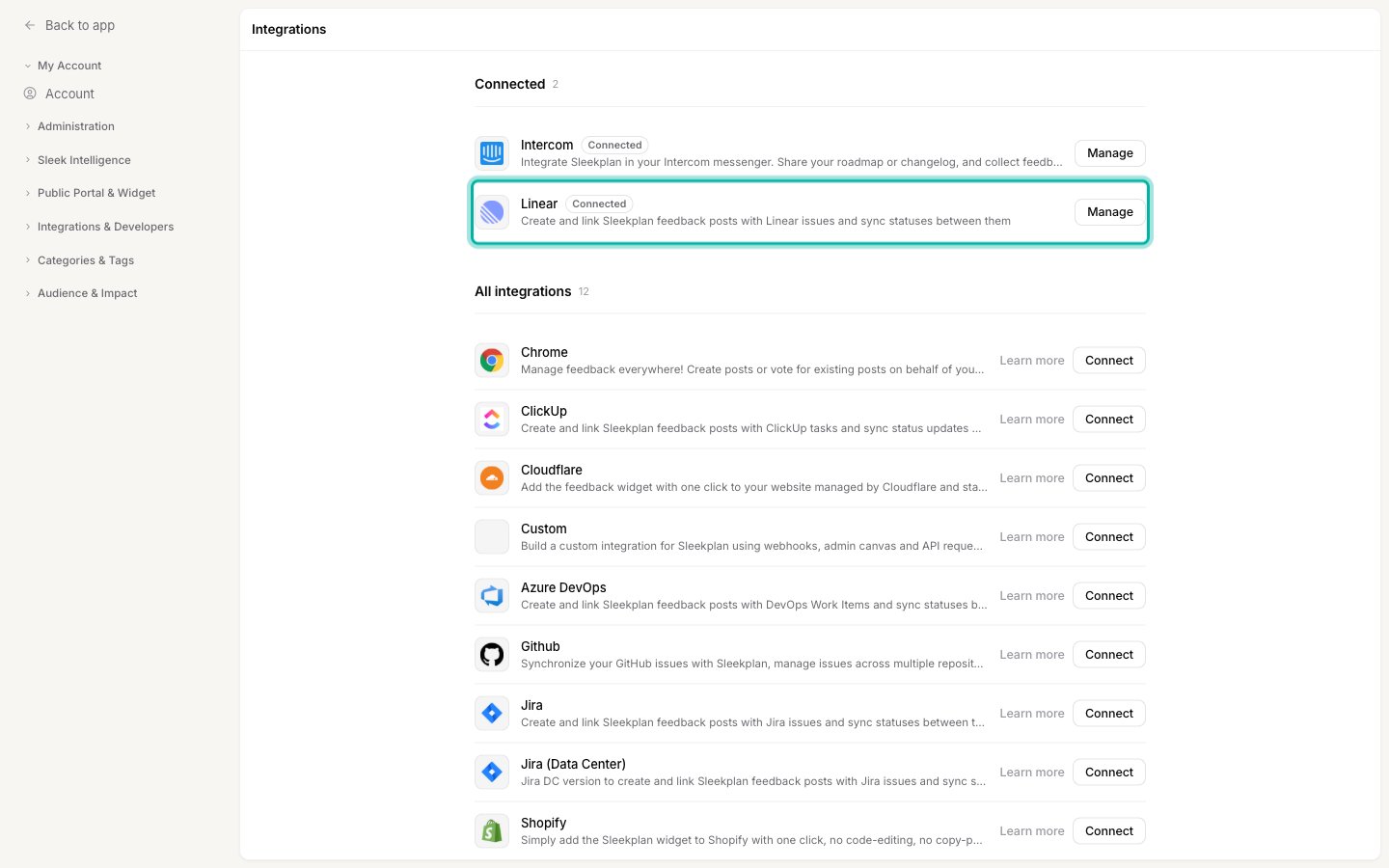
Go to [**Settings → Integrations**](https://app.sleekplan.com/settings/integrations). Linear is listed under **All integrations**.
Find **Linear** in the list and click **Connect**. A Linear authorization window opens in a new tab.
Sign in to Linear if you are prompted, choose the Linear workspace you want to connect, then approve access for Sleekplan. Linear sends you back to Sleekplan and the connection is activated.
Back on [**Settings → Integrations**](https://app.sleekplan.com/settings/integrations), Linear now appears under **Connected** with a **Connected** tag. Click **Manage** to configure status sync.
 ## Sync statuses both ways
Status sync keeps a post and its linked Linear issue aligned. It works in both directions:
* When a linked Linear issue moves to a different workflow state, the mapped Sleekplan post moves to the matching status.
* When you change a post's status in Sleekplan, the linked Linear issue moves to the mapped workflow state.
You set this up in the **Manage Linear** dialog. Sleekplan reads the workflow states from every team in your connected Linear workspace and shows one picker per state, so you can point each Linear state at the Sleekplan status it should map to.
On [**Settings → Integrations**](https://app.sleekplan.com/settings/integrations), find Linear under **Connected** and click **Manage**.
For each Linear workflow state, a **Sync Linear status "..."** picker appears, labelled with the state name and the team it belongs to. Choose the Sleekplan status it should map to, or leave it on **None** to skip that state. Click **Save**.
A state set to **None** is not synced in either direction. Only mapped states trigger updates. If you map two Linear states to the same Sleekplan status, a Sleekplan status change moves the issue to the first of those states.
## Link and create issues from a feedback post
Once Linear is connected, a **Linear** panel appears in the right sidebar of every feedback post. This is where you link, create, and unlink issues.
Go to your [**Feedback**](https://app.sleekplan.com/feedback) board and open the post you want to work on. Find the **Linear** panel in the post's right sidebar.
In the **Linear** panel, type part of an issue title in the search field and submit. Pick the issue from the results to link it. Sleekplan adds a comment to the Linear issue with a link back to this post.
Click **Create new issue**, then fill in a **Title** and **Description** and choose the **Team** it should go into. Click **Create**. The new issue is created in Linear, linked to the post, and its description includes a link back to the Sleekplan post.
To disconnect an issue from a post, open the **Linear** panel and click **Unlink issue**. The post and issue are no longer linked, and a comment noting the unlink is added to the issue. Unlinking does not delete the Linear issue.
## Disconnect Linear
To stop syncing, go to [**Settings → Integrations**](https://app.sleekplan.com/settings/integrations), click **Manage** on the Linear row, and click **Disconnect**. This stops status syncing and removes the connection. You can reconnect at any time by connecting again.
## Related
Set up the Sleekplan statuses you map Linear workflow states to.
Connect ClickUp to link posts to tasks and sync statuses.
## Sync statuses both ways
Status sync keeps a post and its linked Linear issue aligned. It works in both directions:
* When a linked Linear issue moves to a different workflow state, the mapped Sleekplan post moves to the matching status.
* When you change a post's status in Sleekplan, the linked Linear issue moves to the mapped workflow state.
You set this up in the **Manage Linear** dialog. Sleekplan reads the workflow states from every team in your connected Linear workspace and shows one picker per state, so you can point each Linear state at the Sleekplan status it should map to.
On [**Settings → Integrations**](https://app.sleekplan.com/settings/integrations), find Linear under **Connected** and click **Manage**.
For each Linear workflow state, a **Sync Linear status "..."** picker appears, labelled with the state name and the team it belongs to. Choose the Sleekplan status it should map to, or leave it on **None** to skip that state. Click **Save**.
A state set to **None** is not synced in either direction. Only mapped states trigger updates. If you map two Linear states to the same Sleekplan status, a Sleekplan status change moves the issue to the first of those states.
## Link and create issues from a feedback post
Once Linear is connected, a **Linear** panel appears in the right sidebar of every feedback post. This is where you link, create, and unlink issues.
Go to your [**Feedback**](https://app.sleekplan.com/feedback) board and open the post you want to work on. Find the **Linear** panel in the post's right sidebar.
In the **Linear** panel, type part of an issue title in the search field and submit. Pick the issue from the results to link it. Sleekplan adds a comment to the Linear issue with a link back to this post.
Click **Create new issue**, then fill in a **Title** and **Description** and choose the **Team** it should go into. Click **Create**. The new issue is created in Linear, linked to the post, and its description includes a link back to the Sleekplan post.
To disconnect an issue from a post, open the **Linear** panel and click **Unlink issue**. The post and issue are no longer linked, and a comment noting the unlink is added to the issue. Unlinking does not delete the Linear issue.
## Disconnect Linear
To stop syncing, go to [**Settings → Integrations**](https://app.sleekplan.com/settings/integrations), click **Manage** on the Linear row, and click **Disconnect**. This stops status syncing and removes the connection. You can reconnect at any time by connecting again.
## Related
Set up the Sleekplan statuses you map Linear workflow states to.
Connect ClickUp to link posts to tasks and sync statuses.