> ## Documentation Index
> Fetch the complete documentation index at: https://sleekplan.com/llms.txt
> Use this file to discover all available pages before exploring further.
# Import from Canny, Upvoty, or UserVoice
> Move your feedback board over from Canny, Upvoty, or UserVoice using an API key. Sleekplan pulls in your posts, comments, votes, and users automatically.
If you're switching from another feedback tool, Sleekplan can pull your board over directly using that tool's API. You paste in an API key, and Sleekplan imports your posts along with their comments, votes, and the users behind them. No CSV export needed.
Native importing is supported for **feedback posts** from these tools:
* **Canny**
* **Upvoty**
* **UserVoice**
Native importers cover feedback only. To bring in **changelog updates** or a standalone list of **users**, use a [CSV import](/help/integrations/import/csv) instead.
## What gets imported
For each post, Sleekplan brings in:
* The **post** itself: title, description, and original creation date.
* Its **comments** and the **users** who wrote them.
* Its **votes**, and the users who cast them.
* The **category** and **status**, matched to what already exists in your workspace or created when there's no match. In Canny and Upvoty, each source **board** becomes a category.
Users are matched by email, so a customer who appears on several posts becomes a single account in Sleekplan.
## Get your API key
You'll need an API key from the tool you're moving from. Open that tool's admin settings and find its API or developer section to copy the key.
| Tool | What you need |
| ------------- | --------------------------------------------------------------------------------------------------------------------- |
| **Canny** | Your Canny **API key**. |
| **Upvoty** | Your Upvoty **API key**. |
| **UserVoice** | Your UserVoice **API key** *and* your **subdomain**, which is the part before `.uservoice.com` in your UserVoice URL. |
## Run the import
Go to [**Settings → Integrations & Developers → Import**](https://app.sleekplan.com/settings/import).
Set **What to import** to **Feedback posts**, then set **Source** to **Canny**, **Upvoty**, or **UserVoice**.
Paste your API key into the field. For **UserVoice**, also enter your subdomain (without `.uservoice.com`).
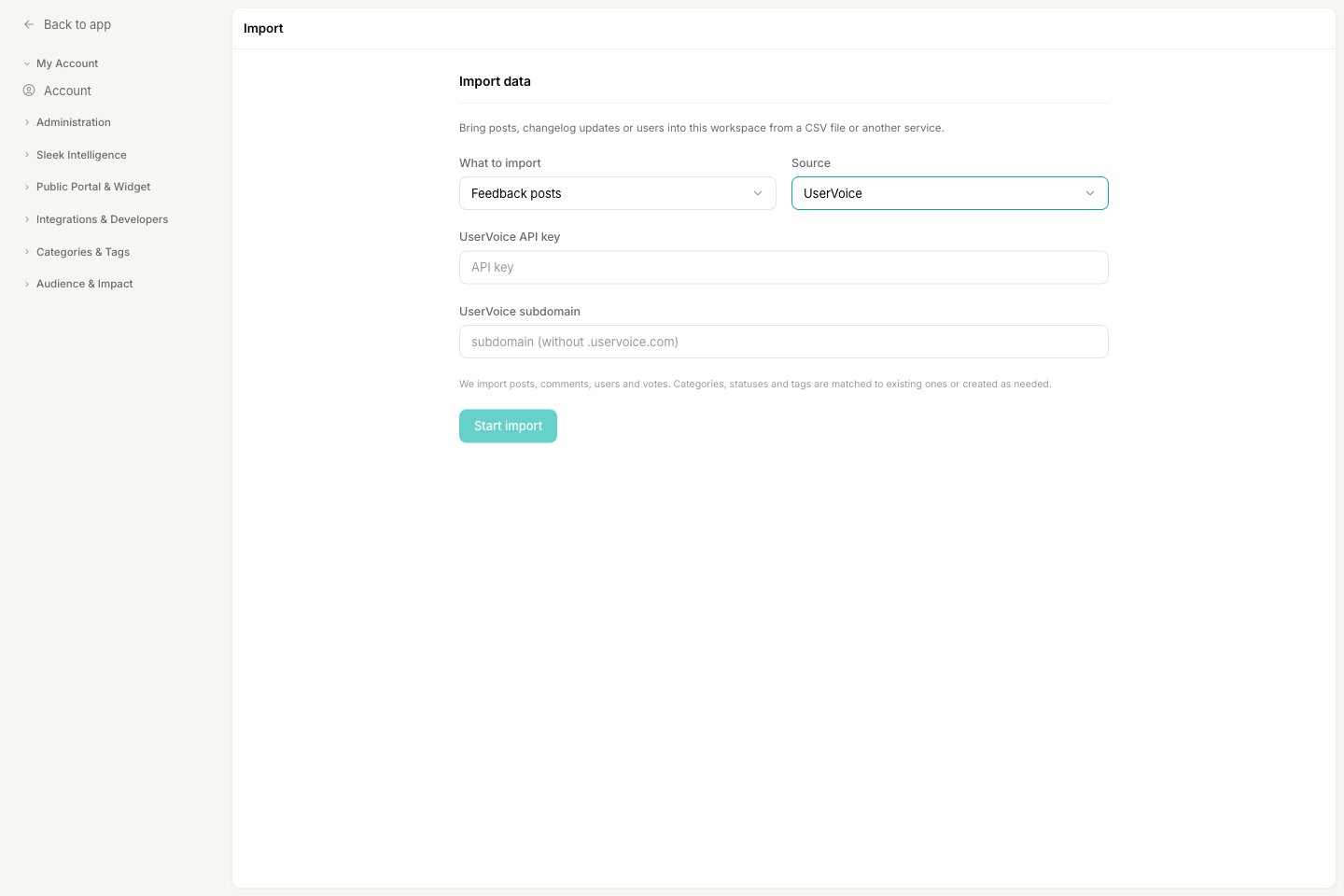 Click **Start import**. Sleekplan schedules the job and works through your board in the background. Because it fetches every post, vote, and comment from the other tool, a large board can take a while. The workspace owner gets an email with a log when it's done.
Turn off post moderation under [**Settings → Feedback**](https://app.sleekplan.com/settings/feedback) before you start, or every imported post lands in your [review queue](https://app.sleekplan.com/review) as pending. See [Before you import](/help/integrations/import#before-you-import).
Run a native import only **once**. Posts aren't de-duplicated, so starting the same import again creates a second copy of every post.
## Related
The way to import changelog updates and standalone user accounts.
Permissions, background processing, and what to check before you import.
Click **Start import**. Sleekplan schedules the job and works through your board in the background. Because it fetches every post, vote, and comment from the other tool, a large board can take a while. The workspace owner gets an email with a log when it's done.
Turn off post moderation under [**Settings → Feedback**](https://app.sleekplan.com/settings/feedback) before you start, or every imported post lands in your [review queue](https://app.sleekplan.com/review) as pending. See [Before you import](/help/integrations/import#before-you-import).
Run a native import only **once**. Posts aren't de-duplicated, so starting the same import again creates a second copy of every post.
## Related
The way to import changelog updates and standalone user accounts.
Permissions, background processing, and what to check before you import.