> ## Documentation Index
> Fetch the complete documentation index at: https://sleekplan.com/llms.txt
> Use this file to discover all available pages before exploring further.
# Import from a CSV file
> Prepare a CSV, map its columns, and import feedback posts, changelog updates, or user accounts into your Sleekplan workspace.
A CSV file is the most flexible way to import: it works for feedback posts, changelog updates, and user accounts, and it lets you bring data from a spreadsheet or from any tool that can export to CSV. You upload the file, tell Sleekplan which column maps to which field, and start the import.
Importing is available to workspace **owners and admins**. See [Import data into your workspace](/help/integrations/import) for how imports run and what to check before you start.
## Prepare your CSV
Your file should have one row per item and a header row naming the columns. The exact columns depend on what you're importing.
Column names don't have to match Sleekplan's field names. You map each field to a column yourself in the next step, and matching names are lined up for you automatically. Matching names just saves you a click.
| Column | Required | Format |
| --------------- | -------- | ------------------------------------------------------------------- |
| **Title** | Required | The post title. |
| **Description** | Required | The body of the post. |
| **Category** | Required | The category name. Created if it doesn't exist yet. |
| **Email** | Required | The email of the user the post is from. The user is created if new. |
| **Votes** | Optional | A number. Sets the post's vote count. |
| **Created** | Optional | The original date, as `YYYY-MM-DD`. |
| **Status** | Optional | The status name. Created if it doesn't exist yet. |
| **Username** | Optional | A display name for the post's author. |
| **Tags** | Optional | One or more tags, comma-separated (for example `ui, mobile`). |
```csv Feedback posts example theme={"system"}
title,description,category,email,votes,created,status,username,tags
Dark mode for the dashboard,Please add a dark theme.,Feature request,alex@example.com,42,2026-01-14,Planned,Alex Morgan,"ui, accessibility"
Login fails on Safari,The sign-in button does nothing until refresh.,Bug,sam@example.com,8,2026-02-20,In progress,Sam Rivera,"bug, auth"
```
| Column | Required | Format |
| ------------ | -------- | --------------------------------------------------- |
| **Title** | Required | The changelog entry title. |
| **Text** | Required | The body of the entry. |
| **Created** | Optional | The publish date, as `YYYY-MM-DD`. |
| **Category** | Optional | The category name. Created if it doesn't exist yet. |
```csv Changelog example theme={"system"}
title,text,created,category
Version 2.1 released,We shipped dark mode and faster search.,2026-03-01,Improvement
New PDF export,You can now export any report to PDF.,2026-03-18,New
```
Importing changelog entries does **not** notify your changelog subscribers, so you can safely backfill your history.
| Column | Required | Format |
| ------------- | -------- | --------------------------------------------------------------- |
| **Name** | Required | The user's display name. |
| **Email** | Required | The user's email address. Used to match existing users. |
| **Changelog** | Optional | Set to `subscribed` to subscribe the user to changelog updates. |
```csv Users example theme={"system"}
name,email,changelog
Alex Morgan,alex@example.com,subscribed
Jordan Lee,jordan@example.com,
```
Any **extra column** you add beyond Name, Email, and Changelog is stored as custom data on the user, so you can bring over fields like a plan or company name and use them later for segmentation.
## Run the import
Go to [**Settings → Integrations & Developers → Import**](https://app.sleekplan.com/settings/import).
Set **What to import** to Feedback posts, Changelog updates, or User accounts, then set **Source** to **CSV file**.
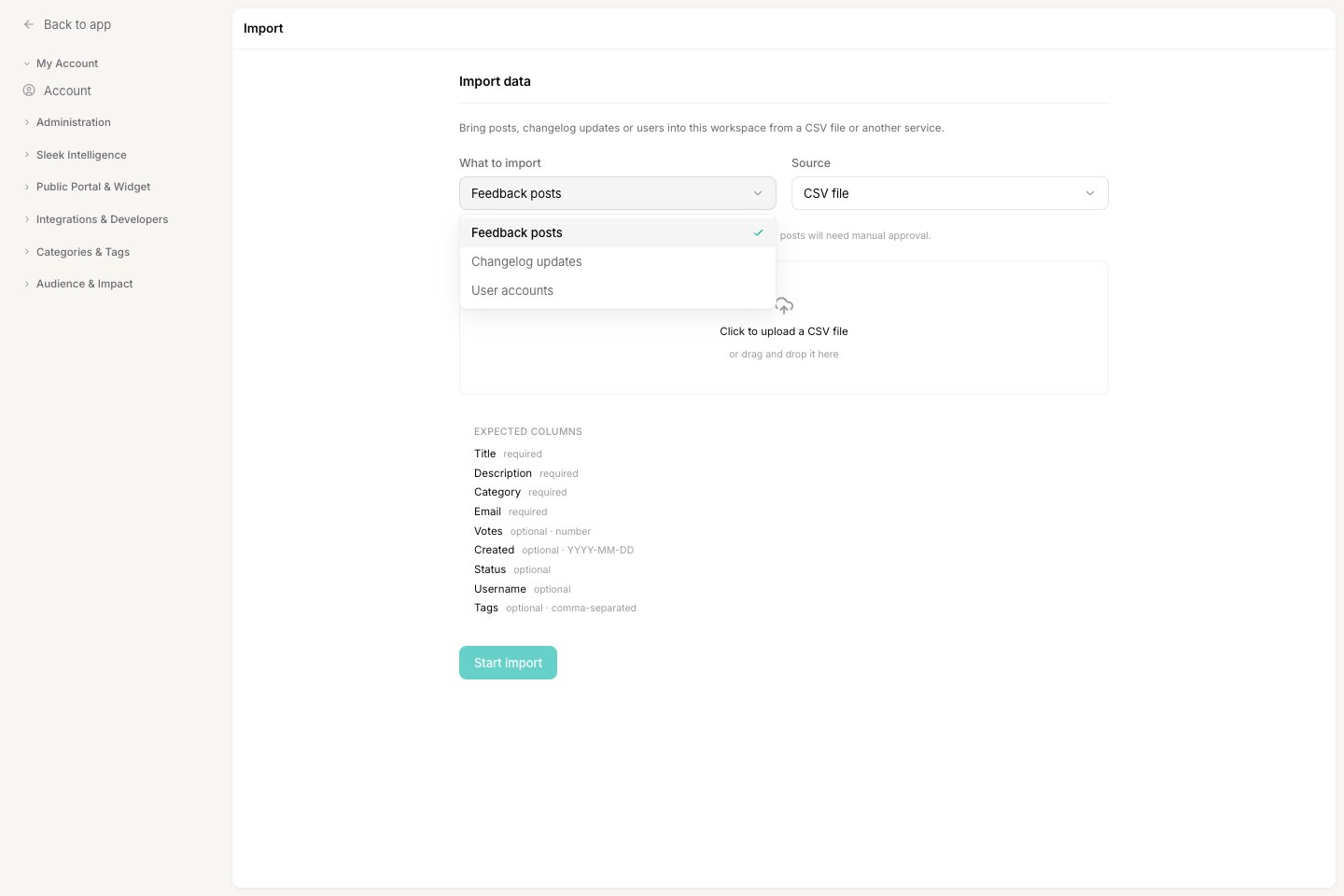 Click the upload area and choose your `.csv`, or drag the file onto it. Keep **First row contains headers** on if your file has a header row (it's on by default).
For each Sleekplan field, pick the column from your file that feeds it. Required fields are marked with a red asterisk. Columns whose names match are mapped for you, so most files need only a quick check. The **Preview** below shows the first few rows exactly as they'll be imported, so you can confirm everything lines up.
Click the upload area and choose your `.csv`, or drag the file onto it. Keep **First row contains headers** on if your file has a header row (it's on by default).
For each Sleekplan field, pick the column from your file that feeds it. Required fields are marked with a red asterisk. Columns whose names match are mapped for you, so most files need only a quick check. The **Preview** below shows the first few rows exactly as they'll be imported, so you can confirm everything lines up.
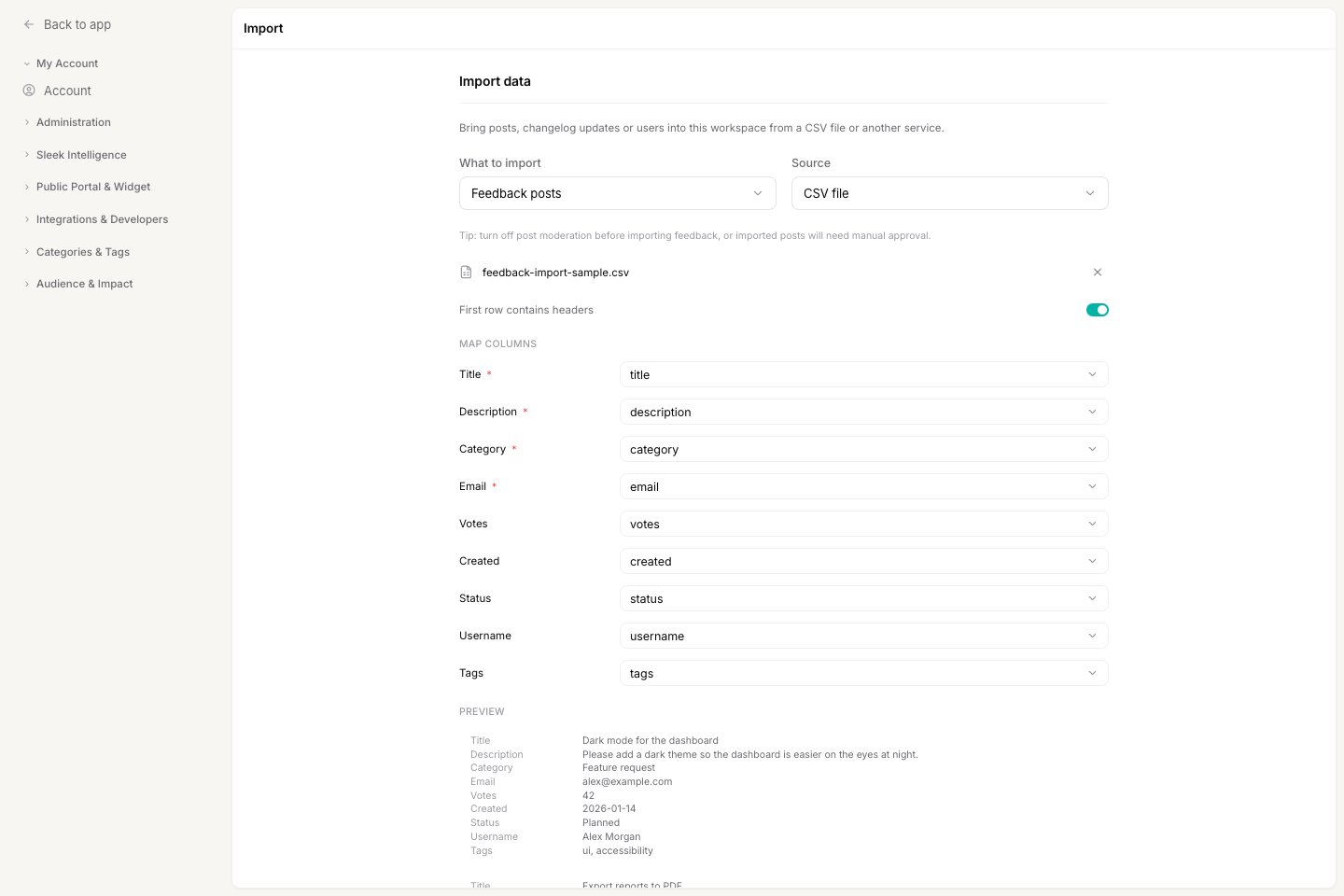 Once every required field is mapped, click **Start import**. Sleekplan schedules the job and emails the workspace owner a log when it finishes. See [How an import runs](/help/integrations/import#how-an-import-runs).
## Tips and things to watch
* **Rows missing a required field are skipped.** For feedback, a row with no title, category, or email won't be imported. The email log lists what was skipped.
* **Dates use `YYYY-MM-DD`.** For example, `2026-03-01`. Rows without a date use the import time instead.
* **Wrap values that contain commas in quotes.** This matters most for the feedback **Tags** column, for example `"ui, mobile"`, so the comma isn't read as a column break.
* **Categories and statuses are created on the fly.** Double-check the spelling in your file, since a typo like `Planed` creates a new status rather than matching your existing **Planned**.
* **Running the same file twice creates duplicate posts.** Import each file once. Users are matched by email, so they aren't duplicated.
## Related
Move posts, comments, and votes from Canny, Upvoty, or UserVoice with an API key.
Set up the categories, statuses, and tags your imported posts land in.
Once every required field is mapped, click **Start import**. Sleekplan schedules the job and emails the workspace owner a log when it finishes. See [How an import runs](/help/integrations/import#how-an-import-runs).
## Tips and things to watch
* **Rows missing a required field are skipped.** For feedback, a row with no title, category, or email won't be imported. The email log lists what was skipped.
* **Dates use `YYYY-MM-DD`.** For example, `2026-03-01`. Rows without a date use the import time instead.
* **Wrap values that contain commas in quotes.** This matters most for the feedback **Tags** column, for example `"ui, mobile"`, so the comma isn't read as a column break.
* **Categories and statuses are created on the fly.** Double-check the spelling in your file, since a typo like `Planed` creates a new status rather than matching your existing **Planned**.
* **Running the same file twice creates duplicate posts.** Import each file once. Users are matched by email, so they aren't duplicated.
## Related
Move posts, comments, and votes from Canny, Upvoty, or UserVoice with an API key.
Set up the categories, statuses, and tags your imported posts land in.