> ## Documentation Index
> Fetch the complete documentation index at: https://sleekplan.com/llms.txt
> Use this file to discover all available pages before exploring further.
# Import data into your workspace
> Bring feedback posts, changelog updates, and user accounts into Sleekplan from a CSV file or from another tool like Canny, Upvoty, or UserVoice.
When you move to Sleekplan from a spreadsheet or another feedback tool, you don't have to start with an empty board. The importer brings your existing feedback posts, changelog updates, and user accounts into your workspace, so your history and your customers come with you.
There are two ways to import:
* **From a CSV file**, for feedback posts, changelog updates, or user accounts. See [Import from a CSV file](/help/integrations/import/csv).
* **From another tool** (Canny, Upvoty, or UserVoice), which pulls your posts, comments, votes, and users straight from that service's API. See [Import from Canny, Upvoty, or UserVoice](/help/integrations/import/from-other-tools).
Importing is available to workspace **owners and admins**. It maps to the "Import and export data" permission. Team members with a lower [role](/help/account-security/roles-permissions) won't see the Import screen.
## Where to find the importer
Go to [**Settings → Integrations & Developers → Import**](https://app.sleekplan.com/settings/import).
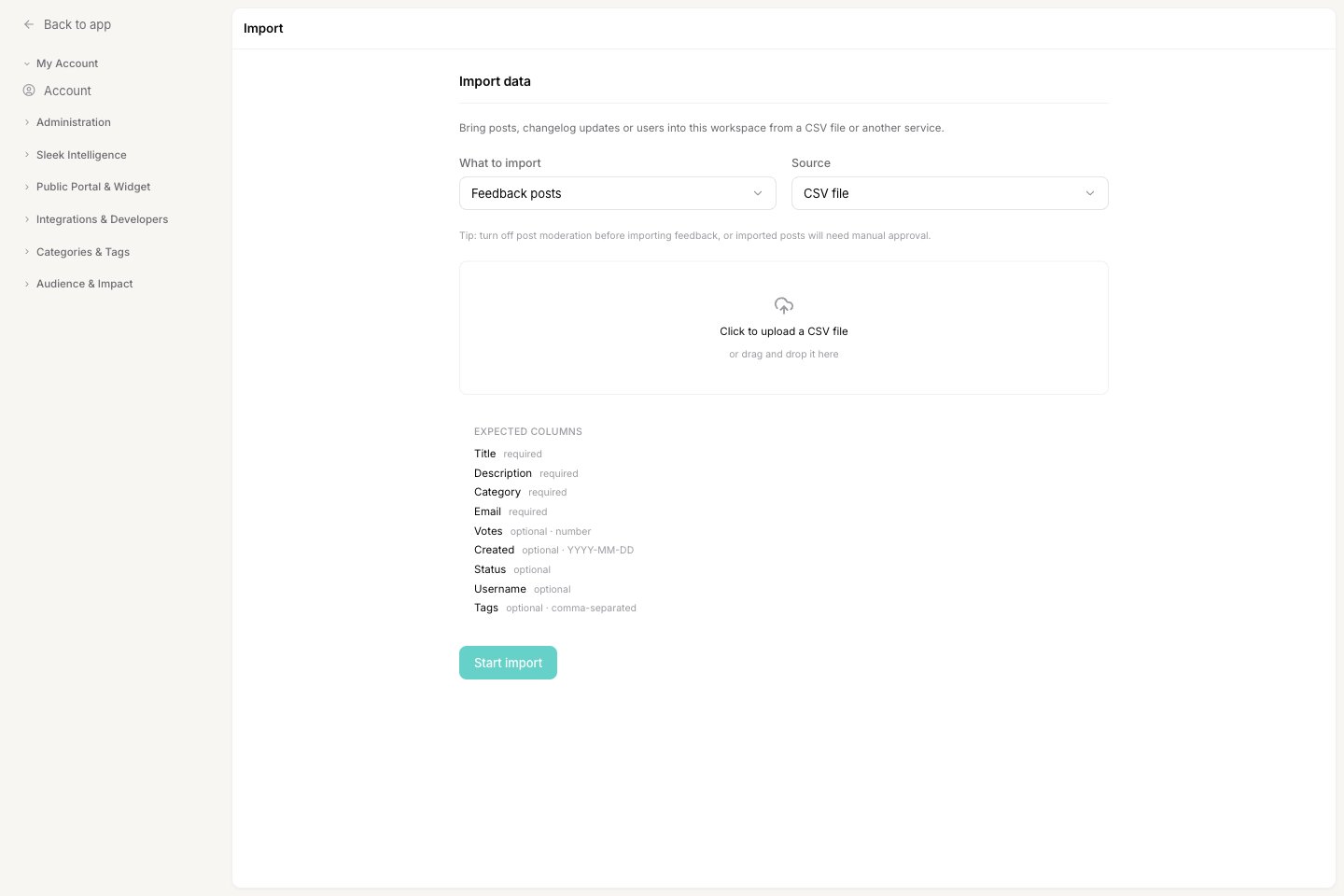
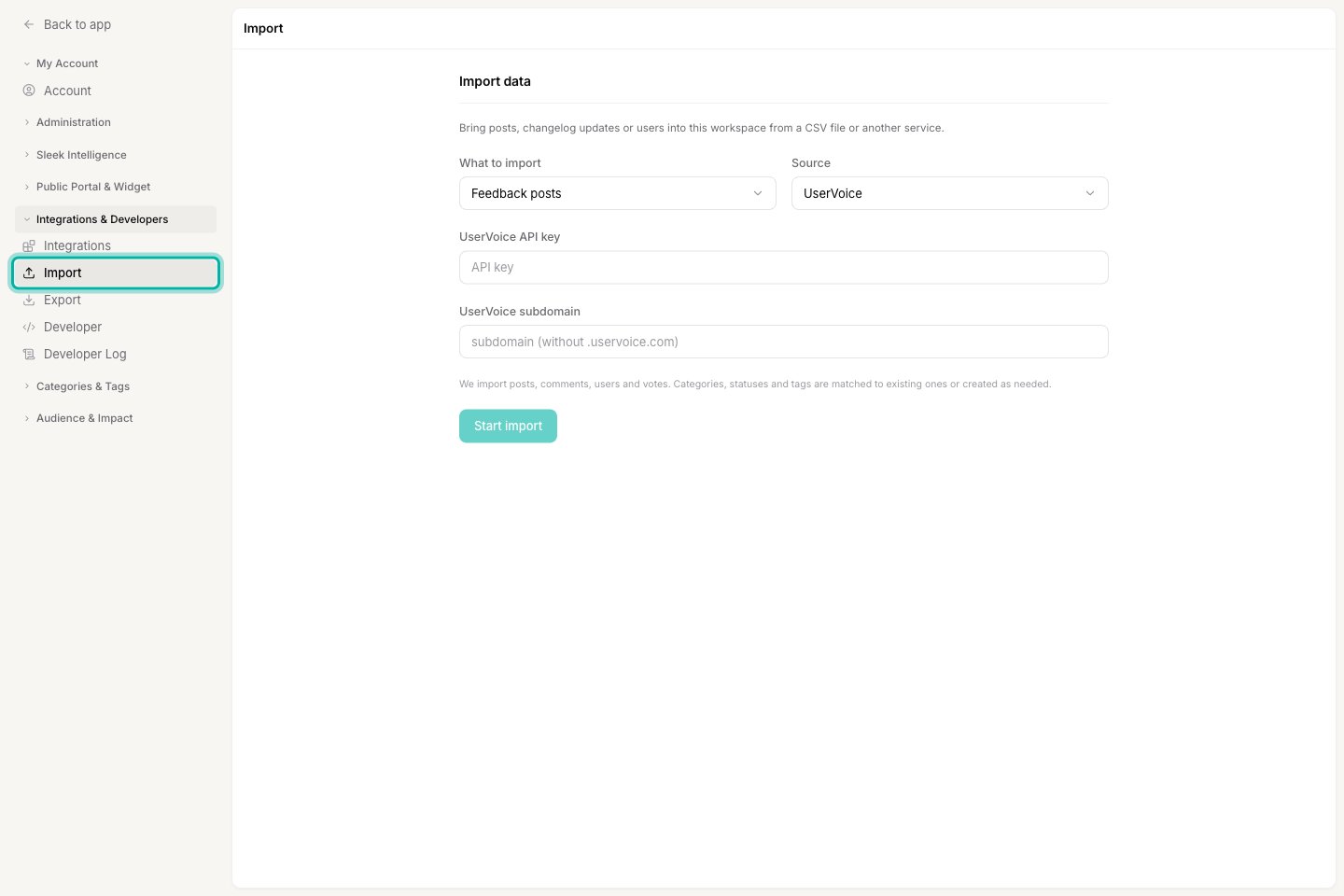 On the Import screen you pick two things: **what to import** (feedback posts, changelog updates, or user accounts) and the **source** (a CSV file, or one of the supported tools).
 ## What you can import
| What to import | From a CSV file | From another tool |
| --------------------- | --------------- | ------------------------ |
| **Feedback posts** | Yes | Canny, Upvoty, UserVoice |
| **Changelog updates** | Yes | Not available |
| **User accounts** | Yes | Not available |
Native importers also bring in the **comments and votes** attached to each post, and create the **users** behind them. Categories, statuses, and tags are matched to what already exists in your workspace, or created for you when there's no match.
## How an import runs
Imports run in the background, so you can start one and leave the page.
After you choose what to import, pick a source, and provide your file or API key, click **Start import**. Sleekplan schedules the job and shows the message "Import scheduled. It will run shortly."
The job runs on its own, typically within a few minutes. Large imports from another tool can take longer because Sleekplan pages through every post, vote, and comment.
When the import completes, the workspace owner receives an email with a log of what was imported, skipped, or failed.
### Track or cancel an active import
While an import is scheduled or running, it appears in an **Active imports** list on the Import screen with its status. You can **Cancel** an import while it's still scheduled. Once it has started processing, it runs to completion.
## Before you import
A few settings are worth checking first so the import goes smoothly.
**Turn off post moderation before importing feedback.** With moderation on, every imported post lands in your [review queue](https://app.sleekplan.com/review) as pending and needs manual approval. Switch it off under [**Settings → Feedback**](https://app.sleekplan.com/settings/feedback), run the import, then turn it back on.
**Pause email notifications during a bulk import** so your users aren't flooded with new-post or reply emails while their data lands. See [Manage email notifications](/help/account-security/emails). Changelog imports never notify subscribers, so those are safe.
Two more things to know before you run an import:
* **Categories, statuses, and tags are created as needed.** If an imported post references a category or status that doesn't exist yet, Sleekplan creates it. Names are matched case-insensitively, so `Feature` and `feature` map to the same category. Clean up the names in your file first if you want to avoid stray categories.
* **Posts and changelog entries aren't de-duplicated.** Running the same import twice creates duplicate posts. Users are the exception: they're matched by email, so re-importing the same email reuses the existing account instead of creating a second one.
## Related
Format your spreadsheet, map the columns, and import posts, changelog updates, or users.
Move your board over from Canny, Upvoty, or UserVoice with an API key.
Download feedback, changelog, users, votes, and survey results as CSV.
Understand the users you're importing and how they belong to your workspace.
## What you can import
| What to import | From a CSV file | From another tool |
| --------------------- | --------------- | ------------------------ |
| **Feedback posts** | Yes | Canny, Upvoty, UserVoice |
| **Changelog updates** | Yes | Not available |
| **User accounts** | Yes | Not available |
Native importers also bring in the **comments and votes** attached to each post, and create the **users** behind them. Categories, statuses, and tags are matched to what already exists in your workspace, or created for you when there's no match.
## How an import runs
Imports run in the background, so you can start one and leave the page.
After you choose what to import, pick a source, and provide your file or API key, click **Start import**. Sleekplan schedules the job and shows the message "Import scheduled. It will run shortly."
The job runs on its own, typically within a few minutes. Large imports from another tool can take longer because Sleekplan pages through every post, vote, and comment.
When the import completes, the workspace owner receives an email with a log of what was imported, skipped, or failed.
### Track or cancel an active import
While an import is scheduled or running, it appears in an **Active imports** list on the Import screen with its status. You can **Cancel** an import while it's still scheduled. Once it has started processing, it runs to completion.
## Before you import
A few settings are worth checking first so the import goes smoothly.
**Turn off post moderation before importing feedback.** With moderation on, every imported post lands in your [review queue](https://app.sleekplan.com/review) as pending and needs manual approval. Switch it off under [**Settings → Feedback**](https://app.sleekplan.com/settings/feedback), run the import, then turn it back on.
**Pause email notifications during a bulk import** so your users aren't flooded with new-post or reply emails while their data lands. See [Manage email notifications](/help/account-security/emails). Changelog imports never notify subscribers, so those are safe.
Two more things to know before you run an import:
* **Categories, statuses, and tags are created as needed.** If an imported post references a category or status that doesn't exist yet, Sleekplan creates it. Names are matched case-insensitively, so `Feature` and `feature` map to the same category. Clean up the names in your file first if you want to avoid stray categories.
* **Posts and changelog entries aren't de-duplicated.** Running the same import twice creates duplicate posts. Users are the exception: they're matched by email, so re-importing the same email reuses the existing account instead of creating a second one.
## Related
Format your spreadsheet, map the columns, and import posts, changelog updates, or users.
Move your board over from Canny, Upvoty, or UserVoice with an API key.
Download feedback, changelog, users, votes, and survey results as CSV.
Understand the users you're importing and how they belong to your workspace.