> ## Documentation Index
> Fetch the complete documentation index at: https://sleekplan.com/llms.txt
> Use this file to discover all available pages before exploring further.
# GitHub integration
> Connect GitHub to link Sleekplan feedback posts to issues, sync statuses in both directions, and auto-create posts from new GitHub issues.
The GitHub integration ties your Sleekplan feedback board to your GitHub issues. You can link a feedback post to an issue (or create a new issue straight from a post), keep the status in sync in both directions, and turn new GitHub issues into feedback posts automatically. This keeps engineering working in GitHub while your users still see progress on the board.
Connecting an integration is available to workspace **owners** and **admins**. You also need permission to install a GitHub App on the GitHub account or organization that owns your repositories. GitHub is available on every Sleekplan plan.
## How the sync works
Once connected, Sleekplan and GitHub stay in step through a few automatic flows. Each one is a setting you can turn off (see [Configure the settings](#configure-the-settings)):
* **Sleekplan to GitHub, status updates.** When a post's [status](/help/feedback/statuses) changes, Sleekplan updates a matching label on the linked issue and reopens or closes the issue. Setting the post to **closed** or **completed** closes the issue on GitHub; any other status reopens it.
* **GitHub to Sleekplan, status updates.** When you add a label to a linked issue whose name matches one of your Sleekplan statuses, the linked post moves to that status.
* **GitHub to Sleekplan, automatic post creation.** When a new issue is opened in a connected repository, Sleekplan creates and links a feedback post for it, filed under the category you choose.
* **Automated message and locking.** When a post is linked to an issue, the Sleekplan bot adds a comment on the issue with a link back to the post, and can lock the issue so the conversation stays on your board.
## Connect GitHub
Go to [**Settings → Integrations**](https://app.sleekplan.com/settings/integrations). In Settings, it lives in the left sidebar under **Integrations & Developers**. Find **Github** in the **All integrations** list and click **Connect**.
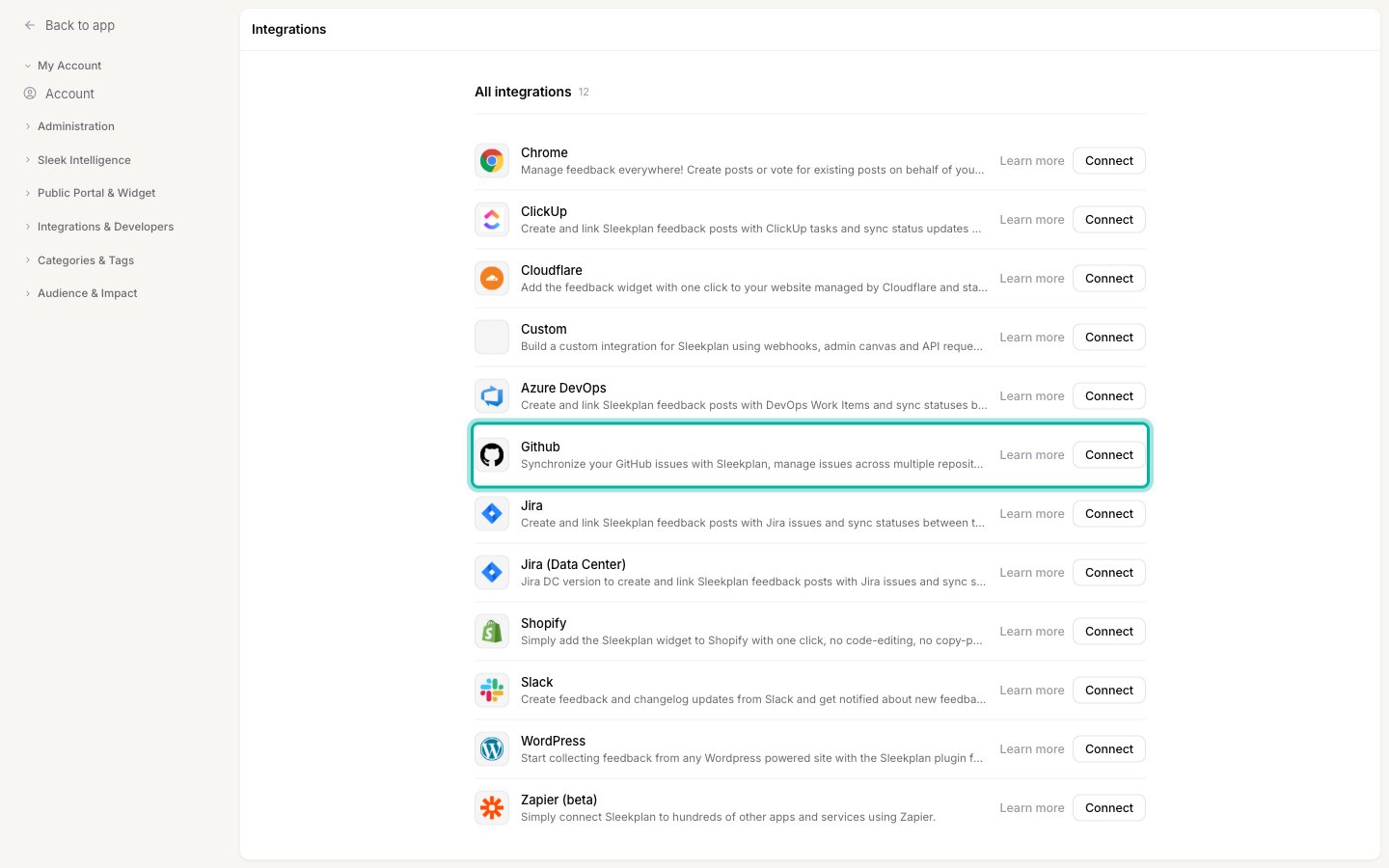 Sleekplan opens the **Sleekplan GitHub App** installation page on GitHub in a new tab. Choose the GitHub account or organization that owns your repositories, then pick which repositories the app can access. You can grant **all repositories** or select individual ones. Only the repositories you grant here can be searched, linked, or used to create issues later.
Confirm the install on GitHub. GitHub sends you back to [**Settings → Integrations**](https://app.sleekplan.com/settings/integrations), where **Github** now appears in the **Connected** section. Sleekplan pulls in the repositories you granted access to automatically.
A GitHub App installation can be connected to **one Sleekplan workspace** at a time. If you try to connect an installation that is already linked to another workspace, the connection is rejected. To move it, disconnect it from the other workspace first.
To change which repositories Sleekplan can reach later, update the Sleekplan GitHub App's repository access from your GitHub account's **Settings → Applications**. There is no separate repository picker inside Sleekplan: the app's GitHub access controls what is available.
## Configure the settings
Open [**Settings → Integrations**](https://app.sleekplan.com/settings/integrations), find **Github** in the **Connected** section, and click **Manage** to open its settings. Every sync behavior is optional and can be toggled here.
| Setting | What it does | Default |
| ----------------------------------------------------- | -------------------------------------------------------------------------------------------------- | ----------------- |
| **Sleekplan > GitHub: Status updates** | Syncs a post's status to a GitHub label and closes the issue when the post is closed or completed. | On |
| **GitHub > Sleekplan: Status updates** | Moves a linked post to a matching status when you add that label on GitHub. | On |
| **GitHub > Sleekplan: Automatic post creation** | Creates and links a feedback post whenever a new issue is opened in a connected repository. | On |
| **GitHub > Sleekplan: Entry category** | The [category](/help/feedback/categories) new auto-created posts are filed under. | First category |
| **GitHub: Auto lock issues when linked to Sleekplan** | Locks a GitHub issue once it is linked to a Sleekplan post, keeping the discussion on your board. | On |
| **Automated message on GitHub** | The comment the Sleekplan bot posts on an issue when it is linked. | A default message |
The automated message supports two placeholders you can drop into the text:
* `{{LINK}}` inserts the public link to the feedback post (on your board).
* `{{ADMIN_LINK}}` inserts the admin link to the post inside Sleekplan.
Click **Save** to apply your changes.
## Link a feedback post to a GitHub issue
Beyond the automatic flows, you can connect any post to an issue by hand from the post itself. Open a feedback post and use the **GitHub** panel to search, create, and link issues.
In the admin, open the [feedback post](/help/feedback/create-post) you want to link. The GitHub panel appears on the post with a search box and a **Create new issue** button.
Type a search term to find an existing issue across your connected repositories, then pick it from the results to link it. To make a new issue instead, click **Create new issue**, enter a title and description, and choose the **repository** to create it in.
Once linked, the panel shows **Issue #** with a link to the issue on GitHub, and the Sleekplan bot adds its automated comment (and locks the issue, if that setting is on). To break the connection, click **Unlink issue**.
When Sleekplan creates a new issue from a post, it only attaches a status label if a matching label already exists in that repository. GitHub rejects issue creation when a label is missing, so status sync simply starts working once the label exists.
## Disconnect GitHub
Open [**Settings → Integrations**](https://app.sleekplan.com/settings/integrations), find **Github** under **Connected**, click **Manage**, then click **Disconnect**. This stops all syncing and removes the connection from this workspace. Existing GitHub issues and Sleekplan posts are left in place; they simply stop updating each other.
## Related
See how statuses map to the labels GitHub syncs.
Set the category new posts from GitHub land in.
The posts you link issues to.
Browse everything you can connect to Sleekplan.
Sleekplan opens the **Sleekplan GitHub App** installation page on GitHub in a new tab. Choose the GitHub account or organization that owns your repositories, then pick which repositories the app can access. You can grant **all repositories** or select individual ones. Only the repositories you grant here can be searched, linked, or used to create issues later.
Confirm the install on GitHub. GitHub sends you back to [**Settings → Integrations**](https://app.sleekplan.com/settings/integrations), where **Github** now appears in the **Connected** section. Sleekplan pulls in the repositories you granted access to automatically.
A GitHub App installation can be connected to **one Sleekplan workspace** at a time. If you try to connect an installation that is already linked to another workspace, the connection is rejected. To move it, disconnect it from the other workspace first.
To change which repositories Sleekplan can reach later, update the Sleekplan GitHub App's repository access from your GitHub account's **Settings → Applications**. There is no separate repository picker inside Sleekplan: the app's GitHub access controls what is available.
## Configure the settings
Open [**Settings → Integrations**](https://app.sleekplan.com/settings/integrations), find **Github** in the **Connected** section, and click **Manage** to open its settings. Every sync behavior is optional and can be toggled here.
| Setting | What it does | Default |
| ----------------------------------------------------- | -------------------------------------------------------------------------------------------------- | ----------------- |
| **Sleekplan > GitHub: Status updates** | Syncs a post's status to a GitHub label and closes the issue when the post is closed or completed. | On |
| **GitHub > Sleekplan: Status updates** | Moves a linked post to a matching status when you add that label on GitHub. | On |
| **GitHub > Sleekplan: Automatic post creation** | Creates and links a feedback post whenever a new issue is opened in a connected repository. | On |
| **GitHub > Sleekplan: Entry category** | The [category](/help/feedback/categories) new auto-created posts are filed under. | First category |
| **GitHub: Auto lock issues when linked to Sleekplan** | Locks a GitHub issue once it is linked to a Sleekplan post, keeping the discussion on your board. | On |
| **Automated message on GitHub** | The comment the Sleekplan bot posts on an issue when it is linked. | A default message |
The automated message supports two placeholders you can drop into the text:
* `{{LINK}}` inserts the public link to the feedback post (on your board).
* `{{ADMIN_LINK}}` inserts the admin link to the post inside Sleekplan.
Click **Save** to apply your changes.
## Link a feedback post to a GitHub issue
Beyond the automatic flows, you can connect any post to an issue by hand from the post itself. Open a feedback post and use the **GitHub** panel to search, create, and link issues.
In the admin, open the [feedback post](/help/feedback/create-post) you want to link. The GitHub panel appears on the post with a search box and a **Create new issue** button.
Type a search term to find an existing issue across your connected repositories, then pick it from the results to link it. To make a new issue instead, click **Create new issue**, enter a title and description, and choose the **repository** to create it in.
Once linked, the panel shows **Issue #** with a link to the issue on GitHub, and the Sleekplan bot adds its automated comment (and locks the issue, if that setting is on). To break the connection, click **Unlink issue**.
When Sleekplan creates a new issue from a post, it only attaches a status label if a matching label already exists in that repository. GitHub rejects issue creation when a label is missing, so status sync simply starts working once the label exists.
## Disconnect GitHub
Open [**Settings → Integrations**](https://app.sleekplan.com/settings/integrations), find **Github** under **Connected**, click **Manage**, then click **Disconnect**. This stops all syncing and removes the connection from this workspace. Existing GitHub issues and Sleekplan posts are left in place; they simply stop updating each other.
## Related
See how statuses map to the labels GitHub syncs.
Set the category new posts from GitHub land in.
The posts you link issues to.
Browse everything you can connect to Sleekplan.