> ## Documentation Index
> Fetch the complete documentation index at: https://sleekplan.com/llms.txt
> Use this file to discover all available pages before exploring further.
# Export your workspace data
> Download a full CSV snapshot of your workspace's feedback, comments, votes, changelog, user accounts, and survey responses from Settings → Export.
Sleekplan can export your workspace data as a **CSV file** so you can analyze it in a spreadsheet, load it into another tool, or keep a backup. You pick a dataset, we prepare the file in the background, then email you a link and list it for download. This article covers every dataset you can export and how the process works.
Exporting is available to workspace **owners** and **admins**. Team members with the Member role won't see the Export screen. See [Roles and permissions](/help/account-security/roles-permissions).
## Where to find it
Open [**Settings → Export**](https://app.sleekplan.com/settings/export). In Settings, it lives in the left sidebar under **Integrations & Developers**, next to **Import**.
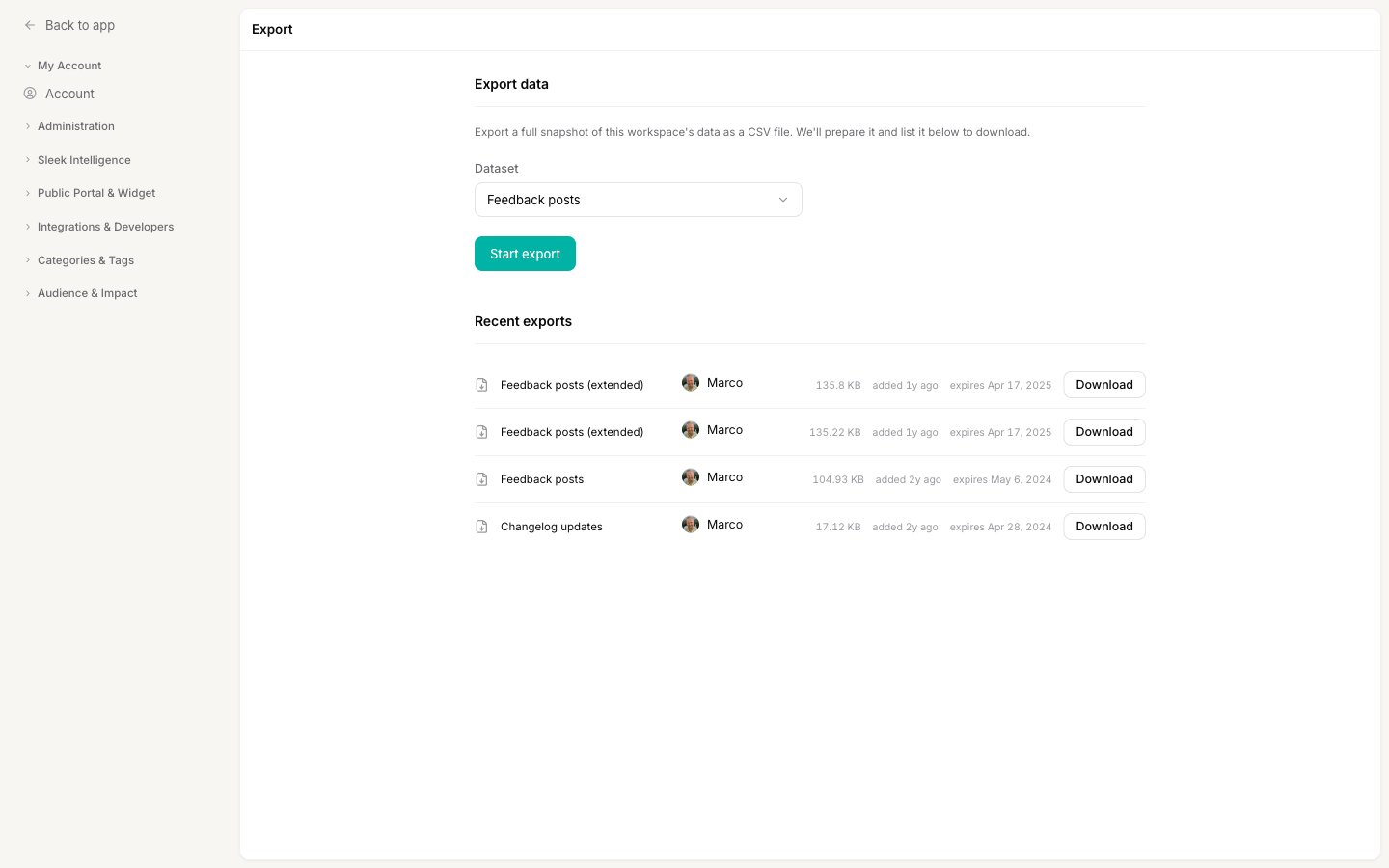
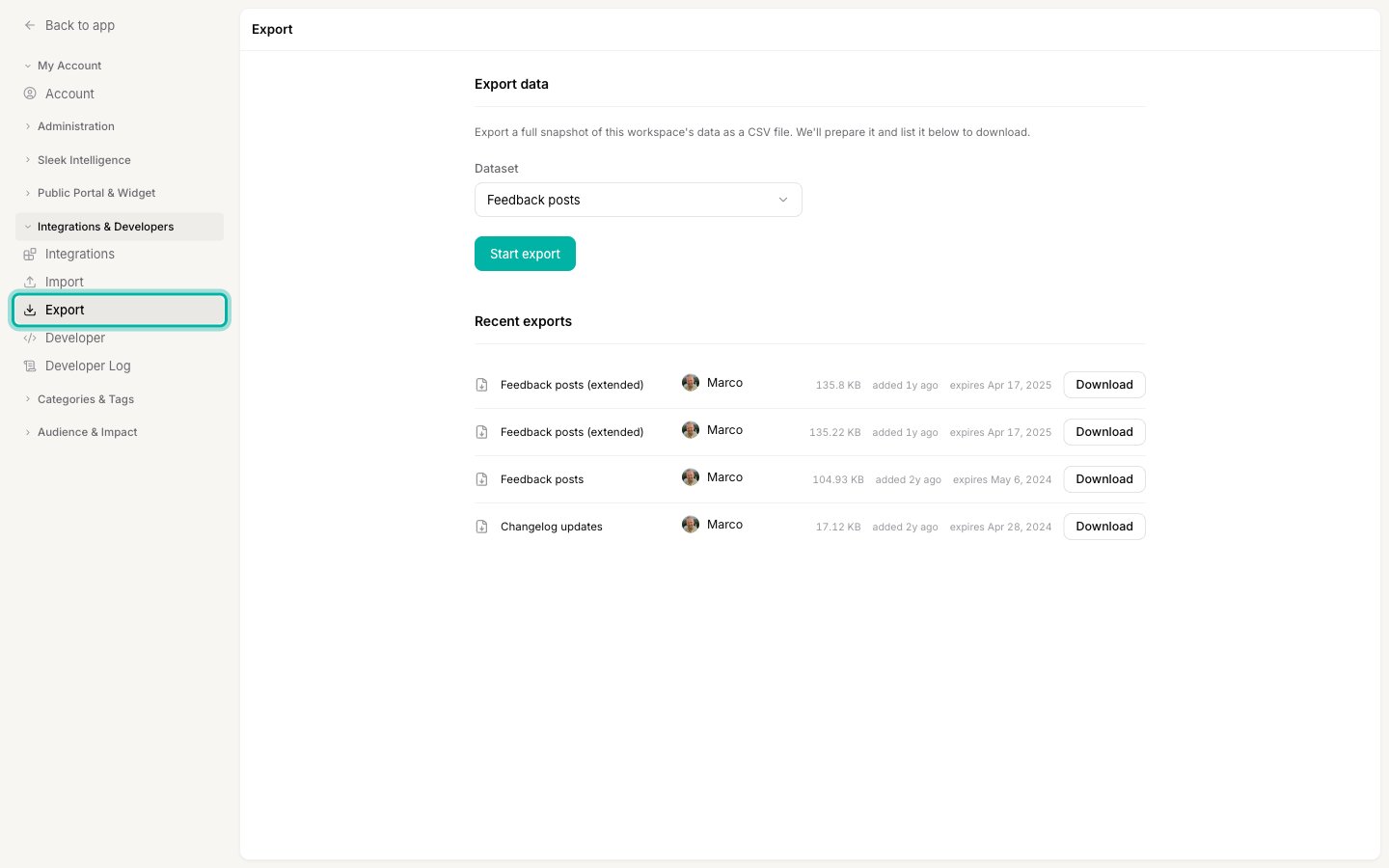 The Export screen has two parts: **Export data**, where you start a new export, and **Recent exports**, where finished files wait for you to download.
 ## What you can export
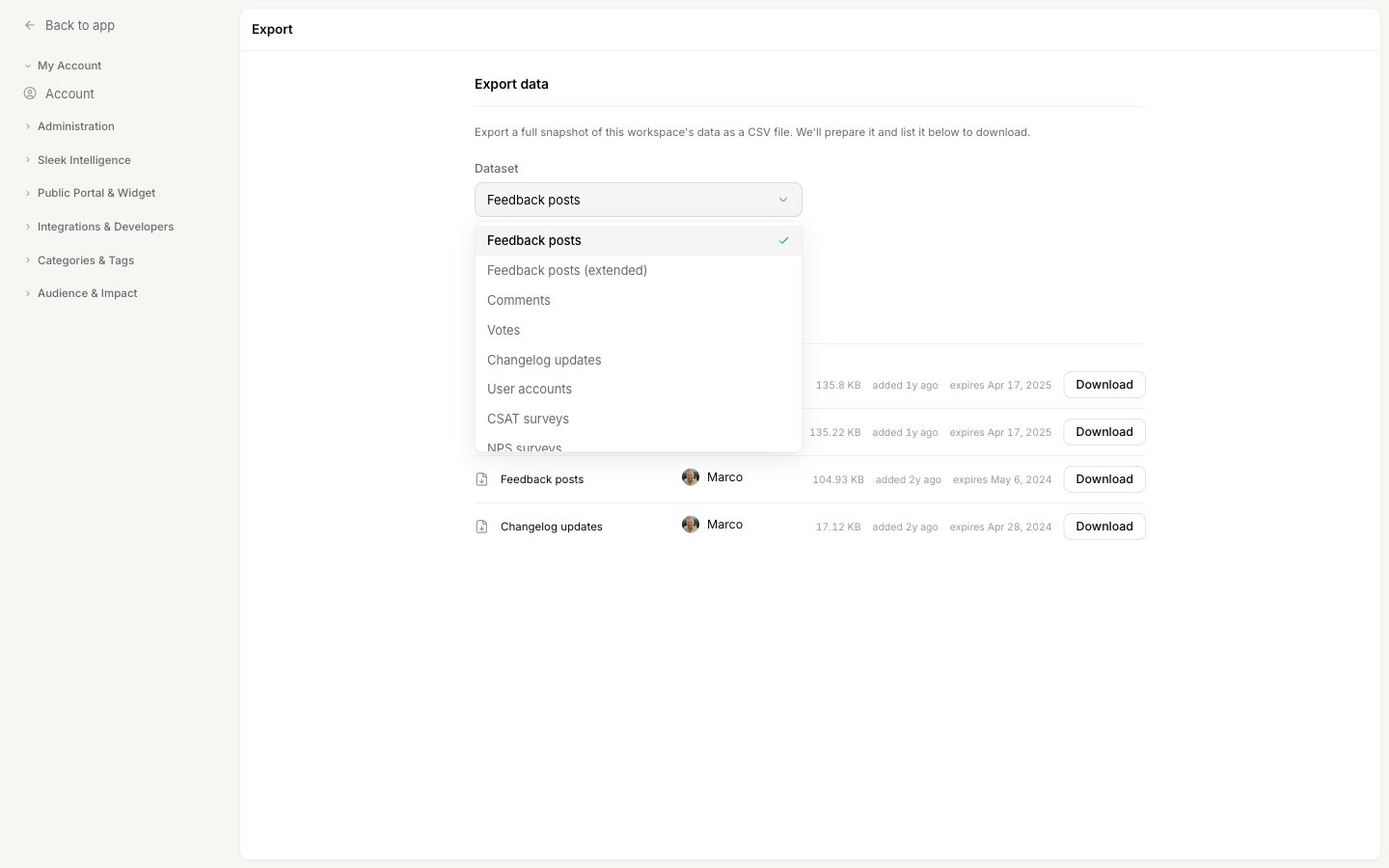
Each export covers **one dataset** for the whole workspace. Pick the one you need from the **Dataset** menu:
## What you can export
Each export covers **one dataset** for the whole workspace. Pick the one you need from the **Dataset** menu:
 | Dataset | What's in the file |
| ----------------------------- | -------------------------------------------------------------------------------------------------------------------------------------------------- |
| **Feedback posts** | Every post on your board with its title, status, category, labels, and vote count. |
| **Feedback posts (extended)** | The same posts plus richer columns: the author's name and email, total votes, comment count, priority, the assigned owner, and the estimated date. |
| **Comments** | Every comment, with its author and the post it belongs to. |
| **Votes** | Every vote, with the voter and the post they voted on. |
| **Changelog updates** | Every changelog entry you've published. |
| **User accounts** | Every [end-user account](/help/account-security/end-user-accounts) in the workspace. |
| **CSAT surveys** | Your CSAT (customer satisfaction) responses, with scores and any written comments. |
| **NPS surveys** | Your NPS (Net Promoter Score) responses, with scores. |
An export is always a **full snapshot** of the chosen dataset. You can't export a filtered subset (for example, only posts with a certain status). The [filters on the feedback board](/help/feedback/filters) change what *you* see in the app, but they don't scope an export.
## Start an export
On [**Settings → Export**](https://app.sleekplan.com/settings/export), open the **Dataset** menu and select what you want to export.
Click **Start export**. You'll see a confirmation that the export was scheduled, and it moves into preparation in the background. You don't need to keep the page open.
| Dataset | What's in the file |
| ----------------------------- | -------------------------------------------------------------------------------------------------------------------------------------------------- |
| **Feedback posts** | Every post on your board with its title, status, category, labels, and vote count. |
| **Feedback posts (extended)** | The same posts plus richer columns: the author's name and email, total votes, comment count, priority, the assigned owner, and the estimated date. |
| **Comments** | Every comment, with its author and the post it belongs to. |
| **Votes** | Every vote, with the voter and the post they voted on. |
| **Changelog updates** | Every changelog entry you've published. |
| **User accounts** | Every [end-user account](/help/account-security/end-user-accounts) in the workspace. |
| **CSAT surveys** | Your CSAT (customer satisfaction) responses, with scores and any written comments. |
| **NPS surveys** | Your NPS (Net Promoter Score) responses, with scores. |
An export is always a **full snapshot** of the chosen dataset. You can't export a filtered subset (for example, only posts with a certain status). The [filters on the feedback board](/help/feedback/filters) change what *you* see in the app, but they don't scope an export.
## Start an export
On [**Settings → Export**](https://app.sleekplan.com/settings/export), open the **Dataset** menu and select what you want to export.
Click **Start export**. You'll see a confirmation that the export was scheduled, and it moves into preparation in the background. You don't need to keep the page open.
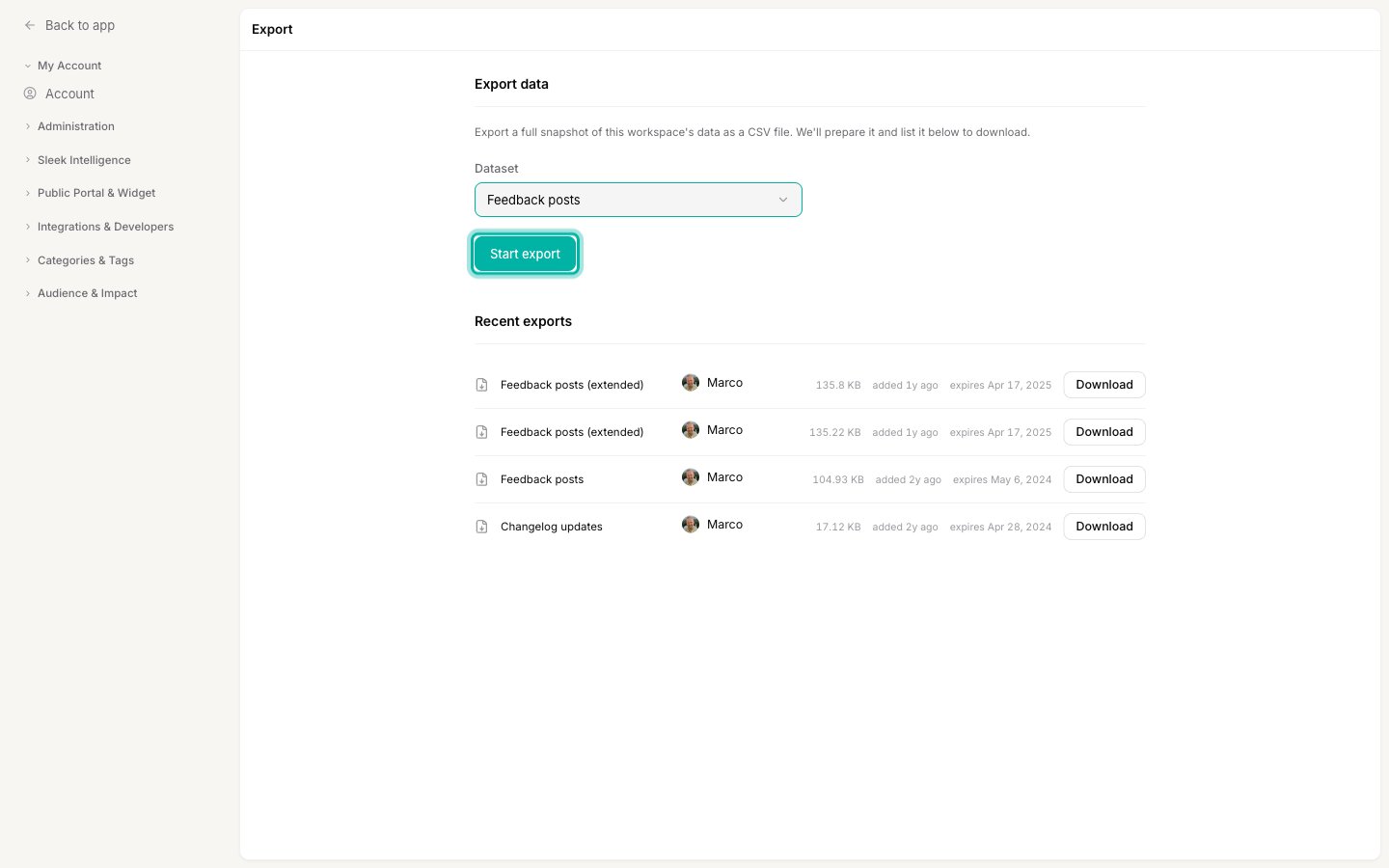 We build the file on a schedule, so it usually takes a few minutes to appear. When it's ready, we **email a download link** to the admin who started the export, with the CSV attached. The file also shows up under **Recent exports** on this screen.
Under **Recent exports**, find your file and click **Download**. Each row shows the dataset, who requested it, the file size, when it was added, and when it expires.
We build the file on a schedule, so it usually takes a few minutes to appear. When it's ready, we **email a download link** to the admin who started the export, with the CSV attached. The file also shows up under **Recent exports** on this screen.
Under **Recent exports**, find your file and click **Download**. Each row shows the dataset, who requested it, the file size, when it was added, and when it expires.
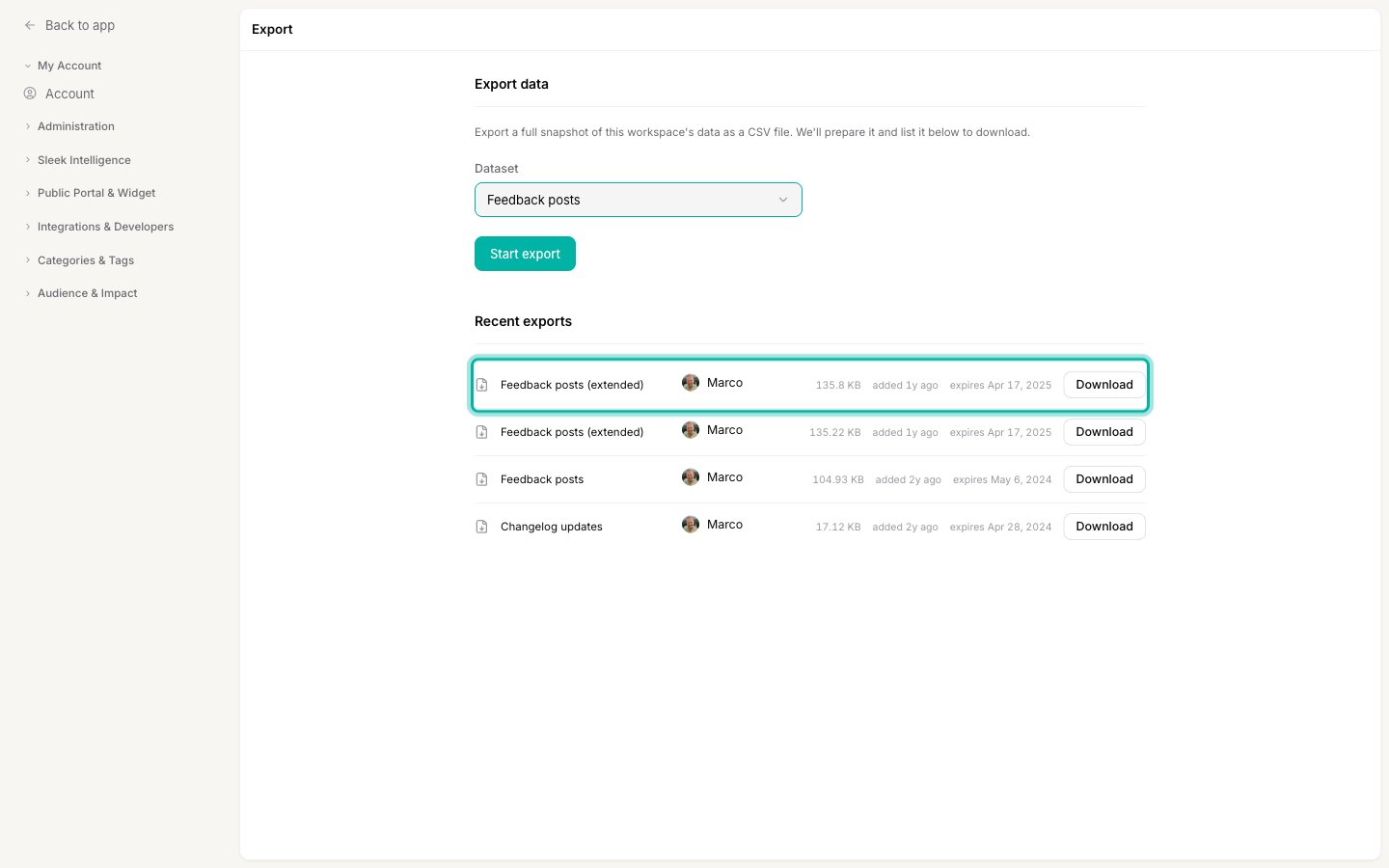 Finished exports stay under **Recent exports for 14 days**, then expire and are removed. Download the file (or use the emailed copy) before then. If you need the data again later, just run a fresh export.
## Good to know
* **Format is CSV.** Every export is a comma-separated file you can open in Excel, Google Sheets, Numbers, or any data tool. There's no JSON or Excel option.
* **Large datasets are capped.** Each export includes up to **5,000 rows**, newest first. If a dataset is bigger than that, the export covers the most recent 5,000 records rather than the entire history.
* **The email includes the file.** The notification we send has both a download link and the CSV as an attachment, so you can grab it straight from your inbox.
* **Exports contain personal data.** The extended feedback, comments, votes, user accounts, and survey datasets include names and email addresses. Store and share the files responsibly.
## Cancel an export in progress
If you started an export by mistake, you can stop it before it's built. While an export is preparing, it appears in an **Active exports** section between **Export data** and **Recent exports**. Click **Cancel** on that row to remove the pending request. Once a file has finished and moved to **Recent exports**, there's nothing to cancel: just let it expire or ignore it.
## Related
Understand the people behind the User accounts export.
Narrow your board in the app (note: filters don't scope exports).
Finished exports stay under **Recent exports for 14 days**, then expire and are removed. Download the file (or use the emailed copy) before then. If you need the data again later, just run a fresh export.
## Good to know
* **Format is CSV.** Every export is a comma-separated file you can open in Excel, Google Sheets, Numbers, or any data tool. There's no JSON or Excel option.
* **Large datasets are capped.** Each export includes up to **5,000 rows**, newest first. If a dataset is bigger than that, the export covers the most recent 5,000 records rather than the entire history.
* **The email includes the file.** The notification we send has both a download link and the CSV as an attachment, so you can grab it straight from your inbox.
* **Exports contain personal data.** The extended feedback, comments, votes, user accounts, and survey datasets include names and email addresses. Store and share the files responsibly.
## Cancel an export in progress
If you started an export by mistake, you can stop it before it's built. While an export is preparing, it appears in an **Active exports** section between **Export data** and **Recent exports**. Click **Cancel** on that row to remove the pending request. Once a file has finished and moved to **Recent exports**, there's nothing to cancel: just let it expire or ignore it.
## Related
Understand the people behind the User accounts export.
Narrow your board in the app (note: filters don't scope exports).