> ## Documentation Index
> Fetch the complete documentation index at: https://sleekplan.com/llms.txt
> Use this file to discover all available pages before exploring further.
# Azure DevOps integration
> Connect an Azure DevOps organization to Sleekplan to link feedback posts with work items, create work items from posts, and keep statuses in sync in both directions.
The Azure DevOps integration ties your Sleekplan feedback board to your Azure Boards. From any feedback post you can create a new Azure DevOps work item or link an existing one, and you can keep the status of a post and its work item aligned automatically. That way your engineering team works in Azure DevOps while your users see progress on the public board.
Connecting and managing integrations is done from workspace **Settings**, which is available to workspace **owners** and **admins**. See [Roles and permissions](/help/account-security/roles-permissions).
## Before you start
* You need an **Azure DevOps organization** where you are an administrator.
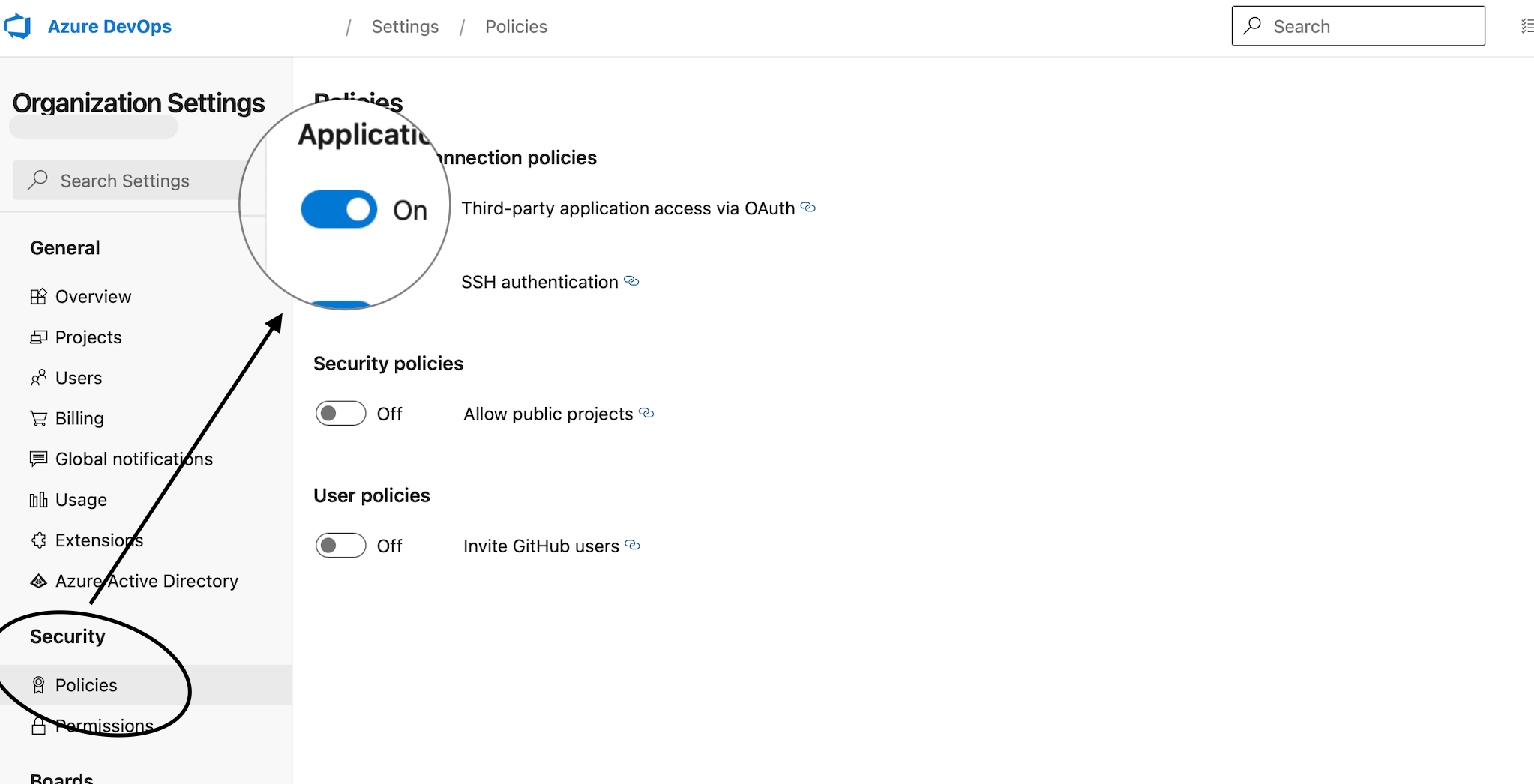
* In Azure DevOps, third-party application access over OAuth must be allowed. Open your Azure DevOps **Organization settings → Security → Policies** and turn on **Third-party application access via OAuth**.
 * The connection is **one to one**: one Azure DevOps organization links to one Sleekplan workspace. If an organization is already connected to another workspace, it won't be available to connect again.
## Connect Azure DevOps
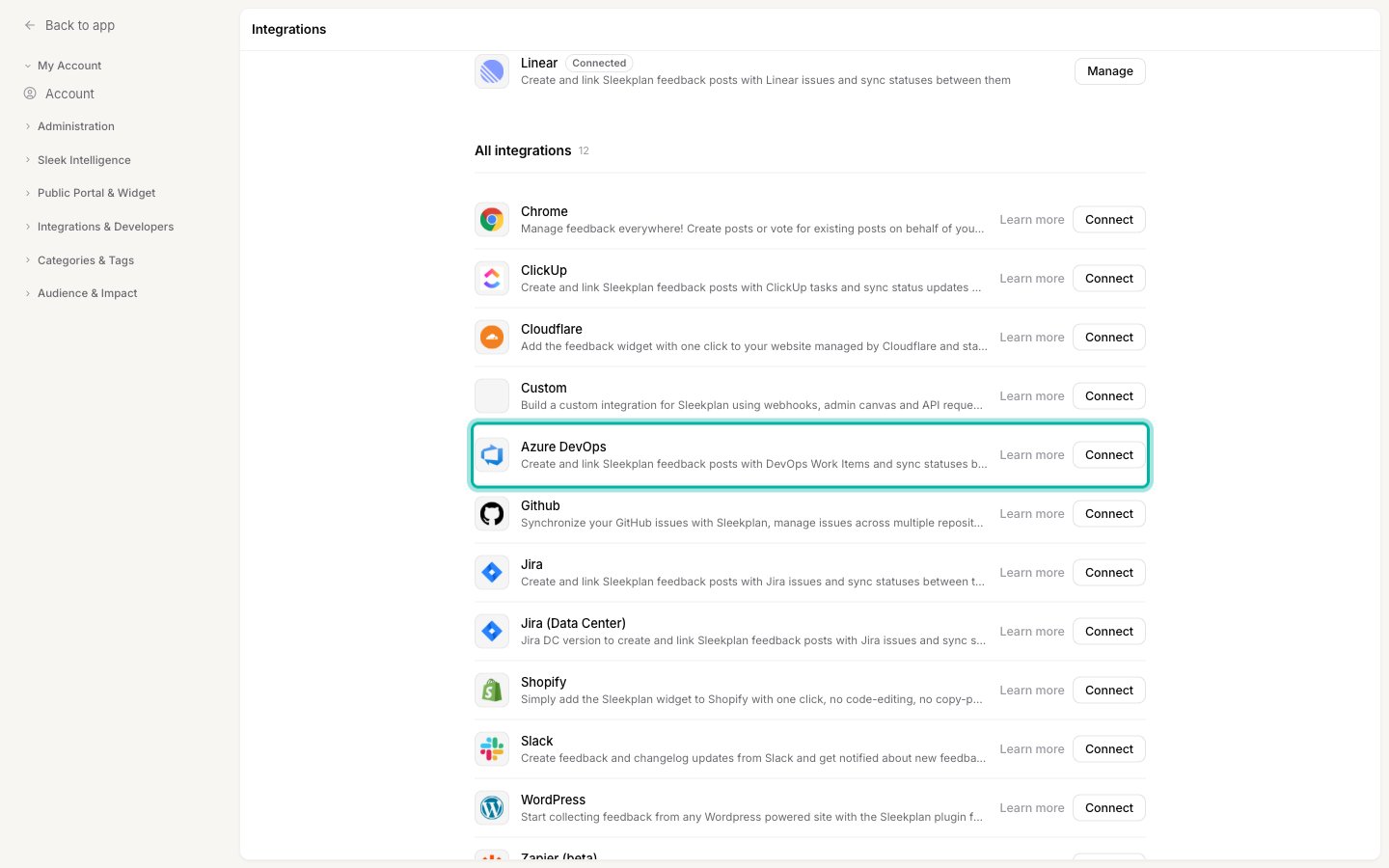
Go to [**Settings → Integrations**](https://app.sleekplan.com/settings/integrations). In the Settings sidebar this lives under **Integrations & Developers**.
In the **All integrations** list, find **Azure DevOps** and click **Connect**.
* The connection is **one to one**: one Azure DevOps organization links to one Sleekplan workspace. If an organization is already connected to another workspace, it won't be available to connect again.
## Connect Azure DevOps
Go to [**Settings → Integrations**](https://app.sleekplan.com/settings/integrations). In the Settings sidebar this lives under **Integrations & Developers**.
In the **All integrations** list, find **Azure DevOps** and click **Connect**.
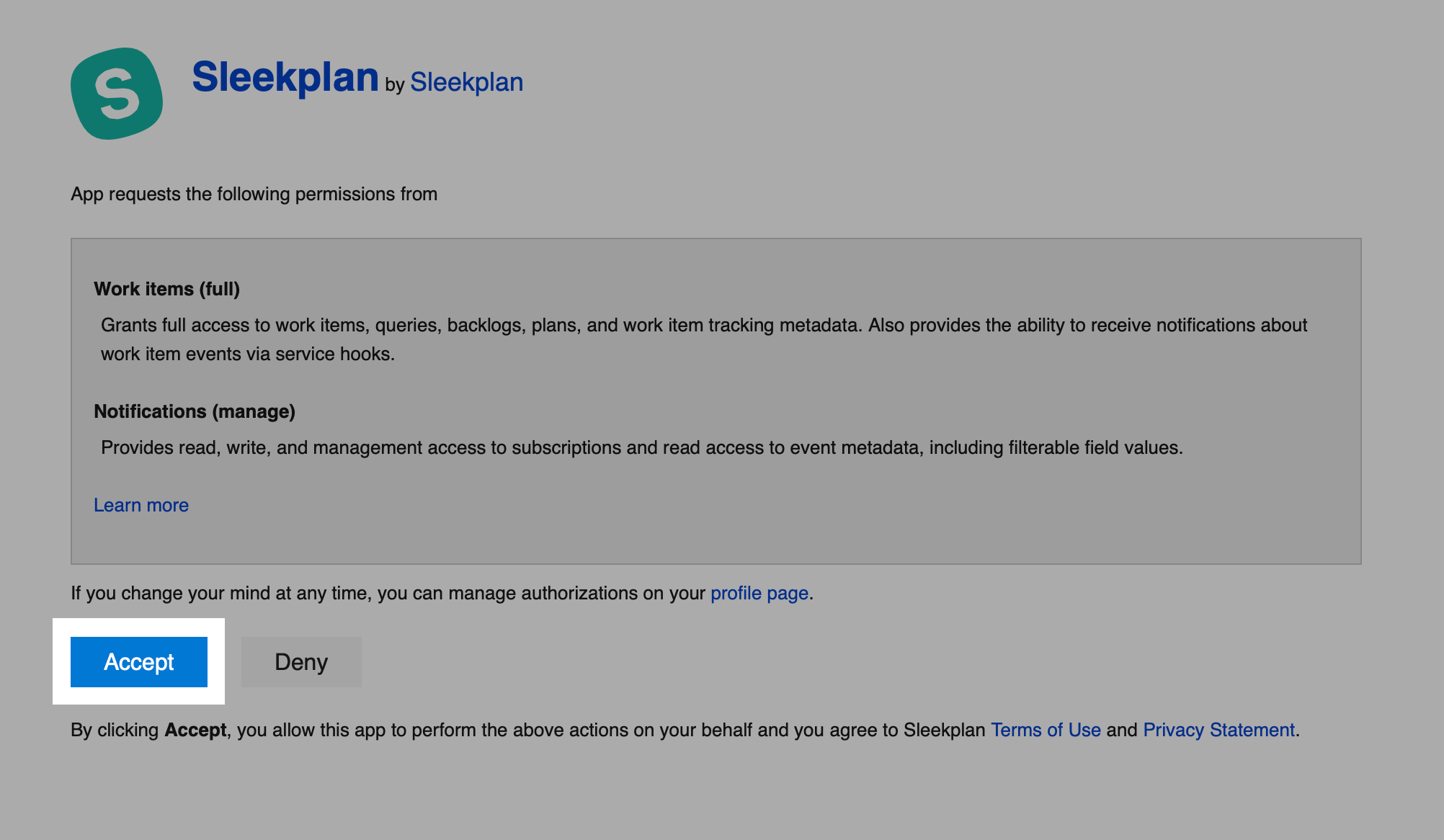
 A new tab opens on Azure DevOps. Sign in if prompted, then accept the requested permissions to let Sleekplan read and update your work items. Azure DevOps sends you back to Sleekplan when you're done.
 Back on [**Settings → Integrations**](https://app.sleekplan.com/settings/integrations), Azure DevOps now appears at the top under **Connected** with a **Manage** button. Your Azure organization is linked to this workspace.
## Choose your organization
If your Azure DevOps account has access to more than one organization, Sleekplan connects the first available one. To switch:
On [**Settings → Integrations**](https://app.sleekplan.com/settings/integrations), click **Manage** on the Azure DevOps row.
Use the **Select Organization** dropdown to pick the Azure DevOps organization you want to connect, then click **Save**. Only organizations that aren't already connected to another workspace appear here.
Switching organizations clears your existing project and status mappings, because statuses differ between organizations. You'll set up status sync again for the new organization.
## Link and create work items
You link and create work items from an individual feedback post, not from the settings screen.
On your [feedback board](/help/feedback/create-post), open a post to view its detail. The Azure DevOps panel appears in the post's sidebar.
Type a search term to find a matching work item and select it to link it, or click **Create new item** to make one. When you create an item you choose the **project**, the **work item type** (for example Bug or User Story), and enter a **title** and **description**.
Once linked, the panel shows the connected work item with a link straight to it in Azure DevOps. Click **Unlink item** any time to remove the connection.
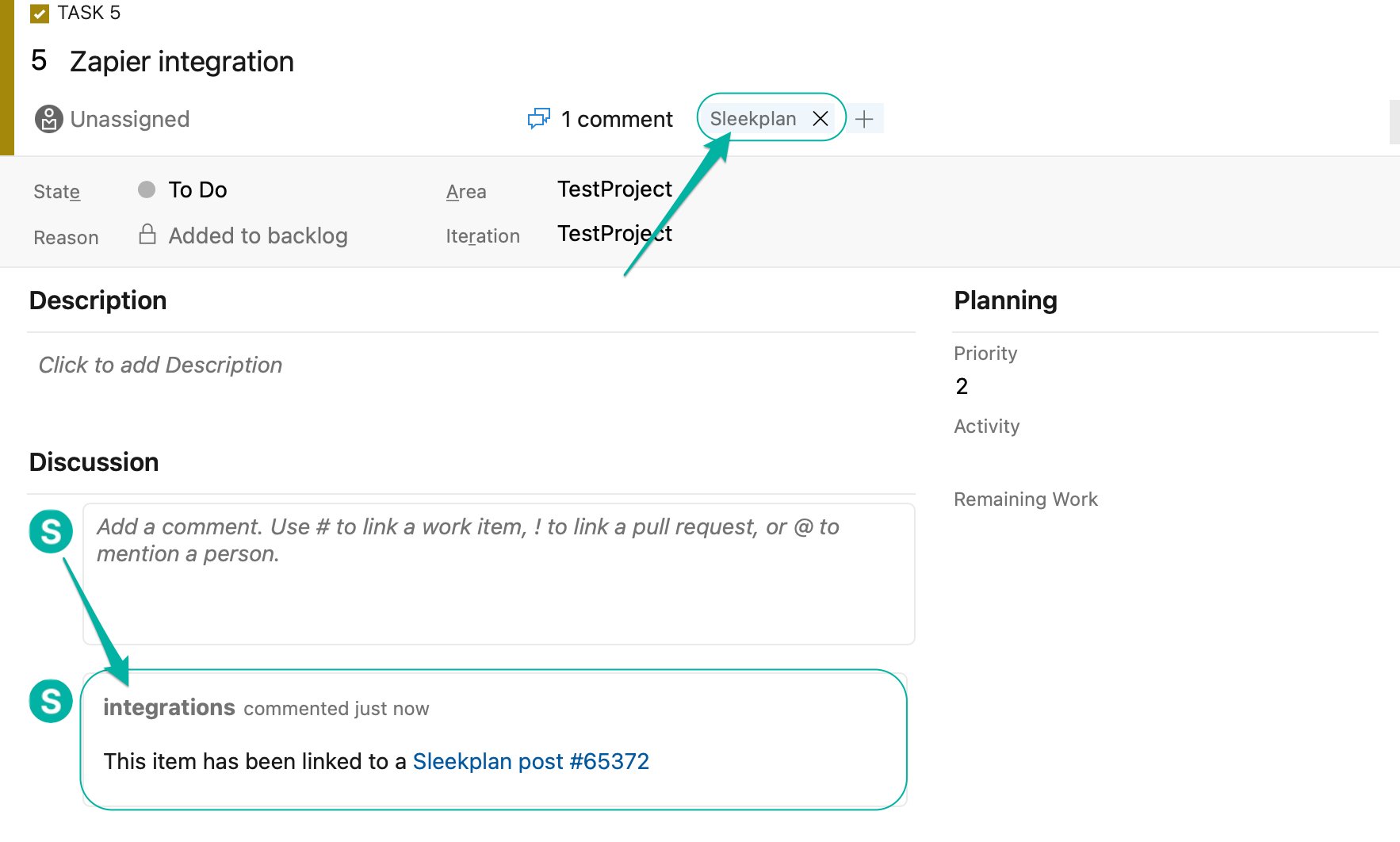
Whenever Sleekplan links or creates a work item, it adds a **Sleekplan** tag to that item in Azure DevOps and posts a comment in the item's history with a link back to the Sleekplan post. This makes linked items easy to find and trace in Azure Boards.
Back on [**Settings → Integrations**](https://app.sleekplan.com/settings/integrations), Azure DevOps now appears at the top under **Connected** with a **Manage** button. Your Azure organization is linked to this workspace.
## Choose your organization
If your Azure DevOps account has access to more than one organization, Sleekplan connects the first available one. To switch:
On [**Settings → Integrations**](https://app.sleekplan.com/settings/integrations), click **Manage** on the Azure DevOps row.
Use the **Select Organization** dropdown to pick the Azure DevOps organization you want to connect, then click **Save**. Only organizations that aren't already connected to another workspace appear here.
Switching organizations clears your existing project and status mappings, because statuses differ between organizations. You'll set up status sync again for the new organization.
## Link and create work items
You link and create work items from an individual feedback post, not from the settings screen.
On your [feedback board](/help/feedback/create-post), open a post to view its detail. The Azure DevOps panel appears in the post's sidebar.
Type a search term to find a matching work item and select it to link it, or click **Create new item** to make one. When you create an item you choose the **project**, the **work item type** (for example Bug or User Story), and enter a **title** and **description**.
Once linked, the panel shows the connected work item with a link straight to it in Azure DevOps. Click **Unlink item** any time to remove the connection.
Whenever Sleekplan links or creates a work item, it adds a **Sleekplan** tag to that item in Azure DevOps and posts a comment in the item's history with a link back to the Sleekplan post. This makes linked items easy to find and trace in Azure Boards.
 ## Keep statuses in sync
Status sync maps each Azure DevOps state to a Sleekplan [status](/help/feedback/statuses). Once mapped, a status change on one side updates the other for any linked post and work item.
Open **Manage** on the Azure DevOps row. For each Azure DevOps project you want to sync, turn on **Sync status updates from "{project}"**, then click **Save**. Saving loads that project's available statuses and starts listening for changes in Azure DevOps.
A row appears for every state in the enabled projects, grouped by work item type. For each one, pick the Sleekplan status it should map to, or leave it as **None** to ignore that state. Click **Save** when you're done.
By default, status changes flow from Azure DevOps into Sleekplan. To also push Sleekplan status changes back to the linked work item, turn on **Enable two-way sync for status updates** and click **Save**.
How the two directions work:
* **Azure DevOps to Sleekplan.** When a linked work item changes to a state you mapped, the Sleekplan post moves to the matching status.
* **Sleekplan to Azure DevOps** (two-way sync on). When you change a linked post's status, the work item's state changes to the mapped Azure DevOps state.
With two-way sync on, avoid mapping two different Azure DevOps states to the same Sleekplan status within one project and work item type. When a Sleekplan status change is ambiguous, Sleekplan skips the update rather than guessing which state to set.
## Disconnect Azure DevOps
To stop syncing, open **Manage** on the Azure DevOps row and click **Disconnect**. This removes the connection and the webhooks Sleekplan created in Azure DevOps, so status changes no longer sync. Work items you already created stay in Azure DevOps.
## Related
Set up the Sleekplan statuses you map Azure DevOps states to.
Where you link and create Azure DevOps work items.
## Keep statuses in sync
Status sync maps each Azure DevOps state to a Sleekplan [status](/help/feedback/statuses). Once mapped, a status change on one side updates the other for any linked post and work item.
Open **Manage** on the Azure DevOps row. For each Azure DevOps project you want to sync, turn on **Sync status updates from "{project}"**, then click **Save**. Saving loads that project's available statuses and starts listening for changes in Azure DevOps.
A row appears for every state in the enabled projects, grouped by work item type. For each one, pick the Sleekplan status it should map to, or leave it as **None** to ignore that state. Click **Save** when you're done.
By default, status changes flow from Azure DevOps into Sleekplan. To also push Sleekplan status changes back to the linked work item, turn on **Enable two-way sync for status updates** and click **Save**.
How the two directions work:
* **Azure DevOps to Sleekplan.** When a linked work item changes to a state you mapped, the Sleekplan post moves to the matching status.
* **Sleekplan to Azure DevOps** (two-way sync on). When you change a linked post's status, the work item's state changes to the mapped Azure DevOps state.
With two-way sync on, avoid mapping two different Azure DevOps states to the same Sleekplan status within one project and work item type. When a Sleekplan status change is ambiguous, Sleekplan skips the update rather than guessing which state to set.
## Disconnect Azure DevOps
To stop syncing, open **Manage** on the Azure DevOps row and click **Disconnect**. This removes the connection and the webhooks Sleekplan created in Azure DevOps, so status changes no longer sync. Work items you already created stay in Azure DevOps.
## Related
Set up the Sleekplan statuses you map Azure DevOps states to.
Where you link and create Azure DevOps work items.