> ## Documentation Index
> Fetch the complete documentation index at: https://sleekplan.com/llms.txt
> Use this file to discover all available pages before exploring further.
# Core concept
> A plain-English tour of how Sleekplan works, its modules, and how Sleek Intelligence collects, organizes, and acts on your feedback.
Sleekplan is a customer feedback platform. It gives your product one place to **collect** ideas, bugs and votes from your users, **understand** what matters most, decide what to build, and **tell everyone** when it ships. Sleek Intelligence, the AI built into the platform, does the heavy lifting in the background so a small team can keep up with a lot of feedback.
This article is the big picture. Read it once and you will know what everything is called and how the pieces fit together. Every section links to a deeper guide when you want the detail.
 ## The one idea to remember
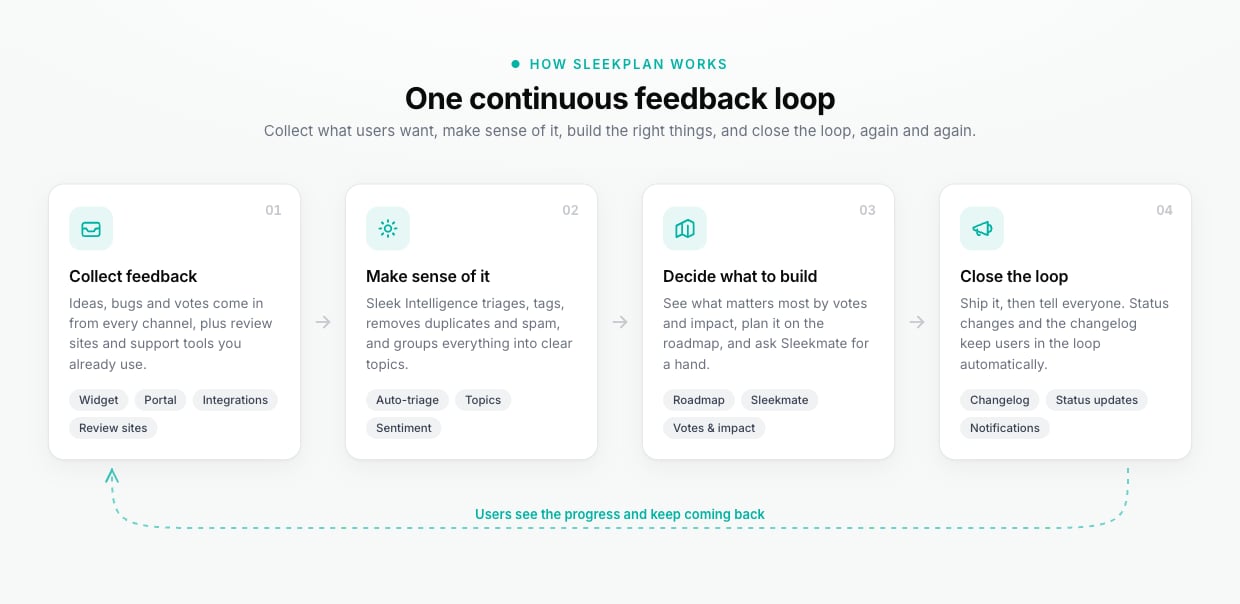
Everything in Sleekplan serves a single loop:
1. **Collect** feedback from your users, wherever they are.
2. **Make sense of it** so the signal rises above the noise.
3. **Decide and build** the things that will help the most people.
4. **Close the loop** by shipping and letting users know.
When users see their feedback turn into real changes, they come back and share more. That is the whole game, and Sleekplan is built to keep that loop turning.
## How your account is organized
A few words come up everywhere in Sleekplan. Here is what they mean.
| Term | What it is |
| ---------------- | ------------------------------------------------------------------------------------------------------------------------------------------------------------------------------------------------------------------------------------ |
| **Workspace** | Your product, website or service inside Sleekplan. All of your feedback, users and settings live in one workspace. If you run several products, you create a workspace for each and switch between them from the top of the sidebar. |
| **Team members** | The people on your side: admins and teammates who moderate feedback, reply to users, and manage the roadmap. You invite them from settings and can set their role. |
| **End users** | Your customers. They submit ideas, vote, comment and subscribe to updates. An end user belongs to one workspace only, so your audiences never mix. |
| **Owner** | The team member responsible for a post. Assigning an owner makes it clear who is driving a request forward. |
| **Modules** | The building blocks you switch on for your workspace: Feedback, Roadmap, Changelog and Surveys. More on these below. |
Sleekplan controls what each person can see and do by their **role**. Team members work from the admin dashboard; end users only ever see your public board and widget, never your internal tools. Learn more in [Account & security](/help/account-security).
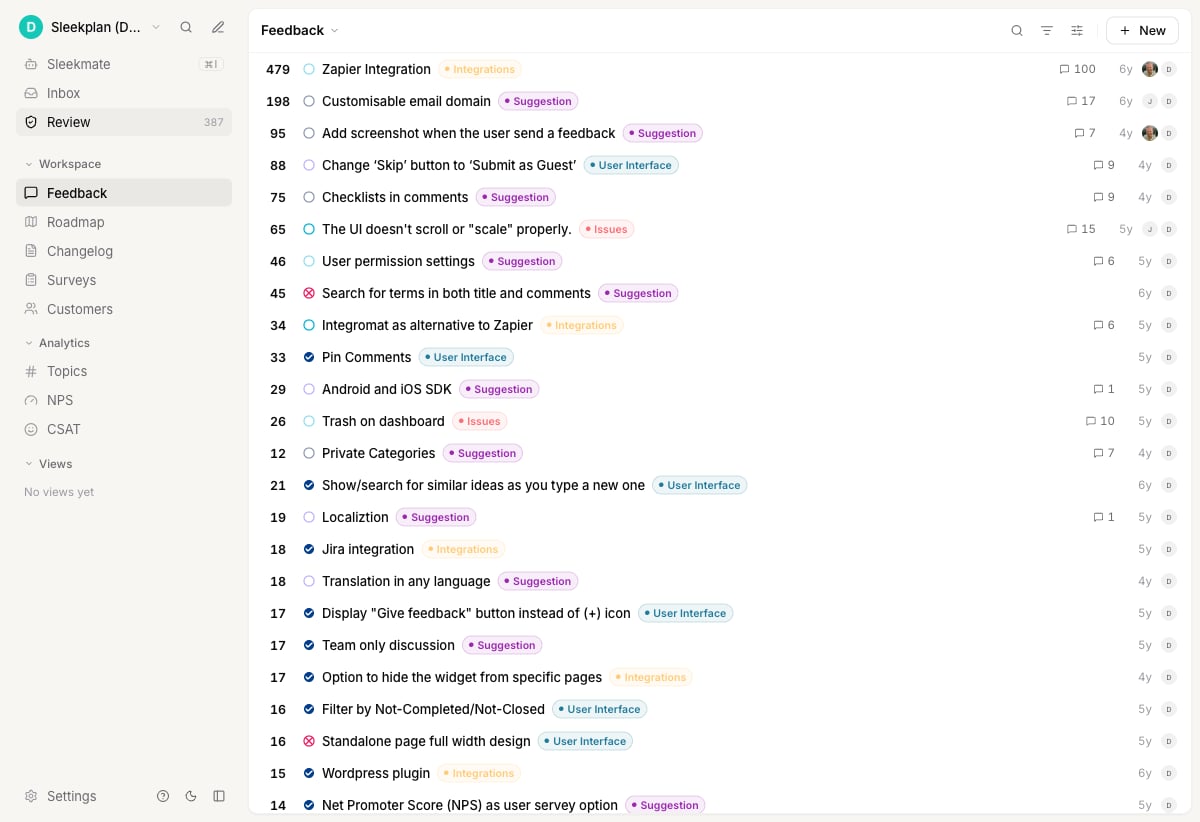
The admin dashboard is your home base. The left sidebar holds your modules, your analytics, and the Sleek Intelligence tools, and it is where your team spends its day.
## The one idea to remember
Everything in Sleekplan serves a single loop:
1. **Collect** feedback from your users, wherever they are.
2. **Make sense of it** so the signal rises above the noise.
3. **Decide and build** the things that will help the most people.
4. **Close the loop** by shipping and letting users know.
When users see their feedback turn into real changes, they come back and share more. That is the whole game, and Sleekplan is built to keep that loop turning.
## How your account is organized
A few words come up everywhere in Sleekplan. Here is what they mean.
| Term | What it is |
| ---------------- | ------------------------------------------------------------------------------------------------------------------------------------------------------------------------------------------------------------------------------------ |
| **Workspace** | Your product, website or service inside Sleekplan. All of your feedback, users and settings live in one workspace. If you run several products, you create a workspace for each and switch between them from the top of the sidebar. |
| **Team members** | The people on your side: admins and teammates who moderate feedback, reply to users, and manage the roadmap. You invite them from settings and can set their role. |
| **End users** | Your customers. They submit ideas, vote, comment and subscribe to updates. An end user belongs to one workspace only, so your audiences never mix. |
| **Owner** | The team member responsible for a post. Assigning an owner makes it clear who is driving a request forward. |
| **Modules** | The building blocks you switch on for your workspace: Feedback, Roadmap, Changelog and Surveys. More on these below. |
Sleekplan controls what each person can see and do by their **role**. Team members work from the admin dashboard; end users only ever see your public board and widget, never your internal tools. Learn more in [Account & security](/help/account-security).
The admin dashboard is your home base. The left sidebar holds your modules, your analytics, and the Sleek Intelligence tools, and it is where your team spends its day.
 ## The modules
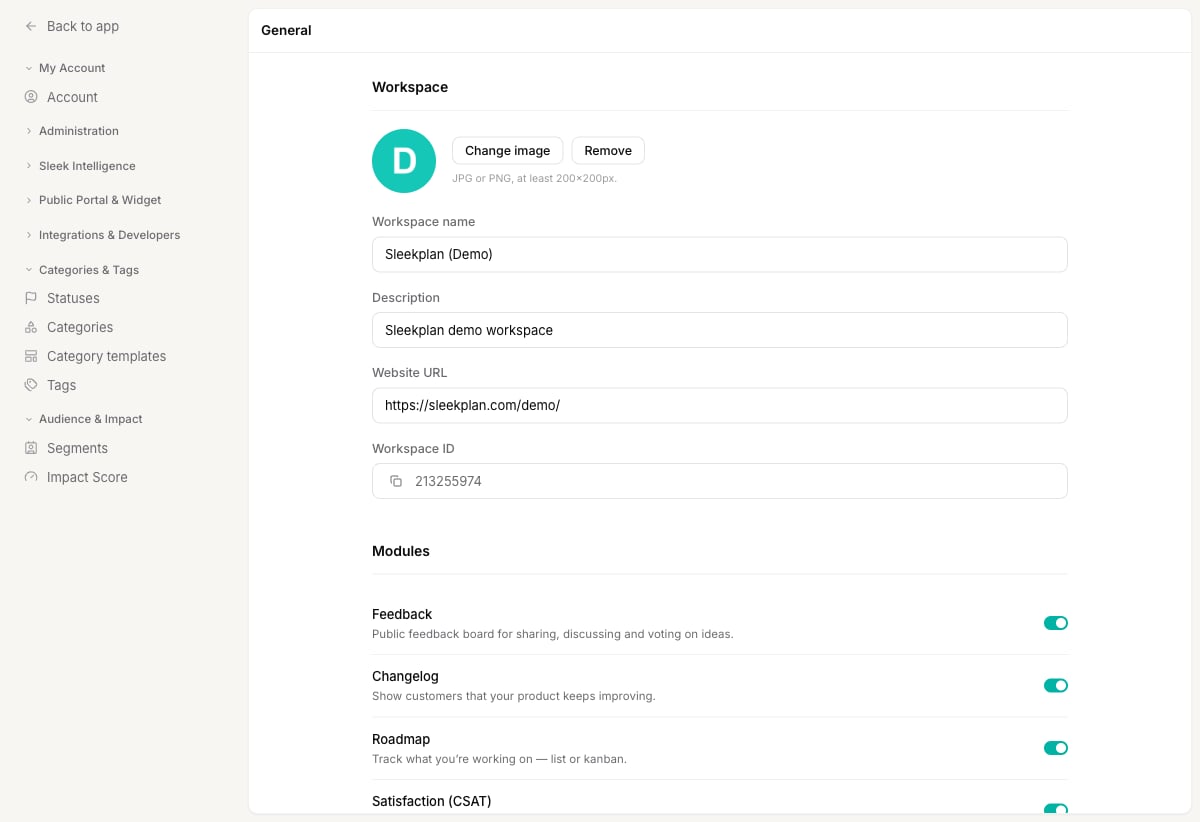
Modules are the parts of Sleekplan you turn on for your workspace. Turn on only what you need: you can enable or disable any module from [**Settings → General**](https://app.sleekplan.com/settings/general) at any time.
## The modules
Modules are the parts of Sleekplan you turn on for your workspace. Turn on only what you need: you can enable or disable any module from [**Settings → General**](https://app.sleekplan.com/settings/general) at any time.
 ### Feedback
The heart of Sleekplan. A **feedback board** where users post ideas and bug reports, then vote and comment on each other's. Votes and discussion show you what your users actually want, ranked by demand instead of by whoever shouted loudest.
Each post has a [status](/help/feedback/statuses) (its stage in your workflow), a [category](/help/feedback/categories) (the type of feedback), and optional [tags](/help/feedback/tags) for your own organization. You can post on a user's behalf when feedback arrives by email or on a call. See [Create a post](/help/feedback/create-post) and [Organize feedback](/help/feedback/organizing-feedback).
### Roadmap
The roadmap turns your board into a plan. Group posts by status (Planned, In progress, Done) or by timeline (month and quarter) so users can see what you are working on and what is coming next.
### Feedback
The heart of Sleekplan. A **feedback board** where users post ideas and bug reports, then vote and comment on each other's. Votes and discussion show you what your users actually want, ranked by demand instead of by whoever shouted loudest.
Each post has a [status](/help/feedback/statuses) (its stage in your workflow), a [category](/help/feedback/categories) (the type of feedback), and optional [tags](/help/feedback/tags) for your own organization. You can post on a user's behalf when feedback arrives by email or on a call. See [Create a post](/help/feedback/create-post) and [Organize feedback](/help/feedback/organizing-feedback).
### Roadmap
The roadmap turns your board into a plan. Group posts by status (Planned, In progress, Done) or by timeline (month and quarter) so users can see what you are working on and what is coming next.
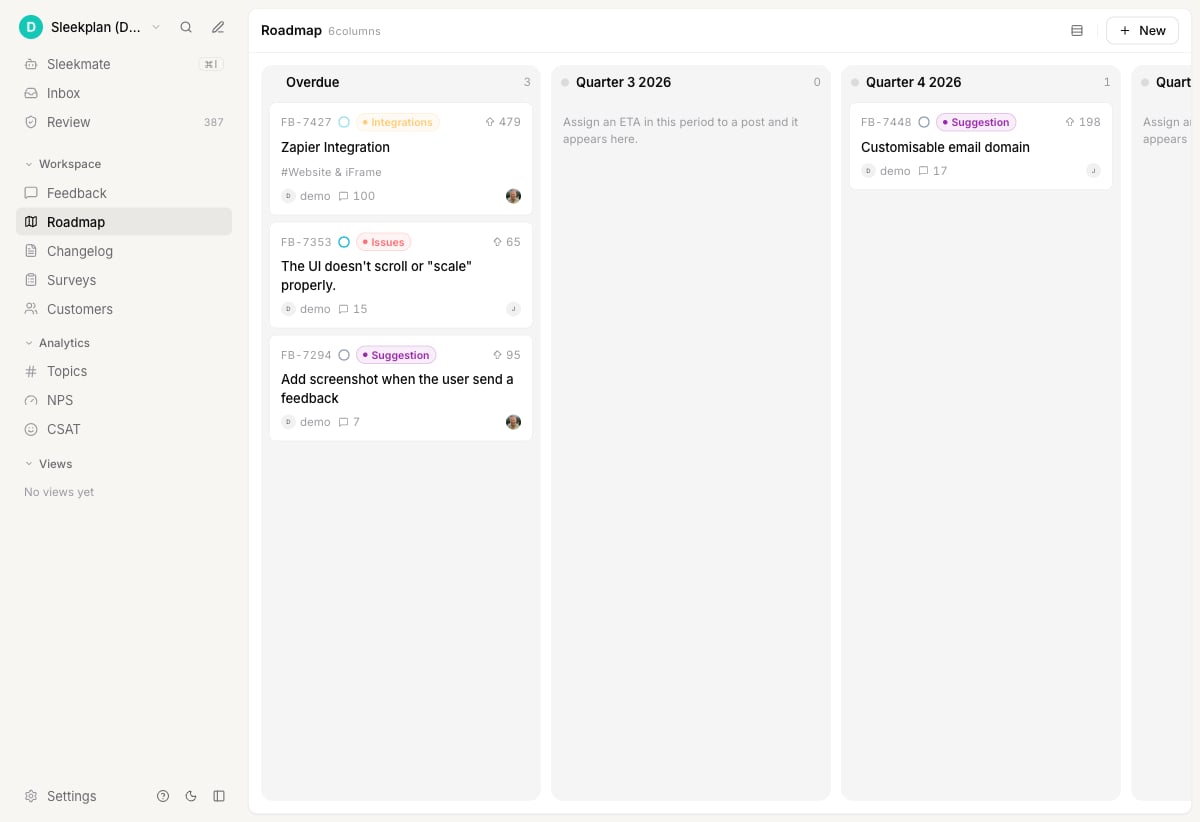 Give a post an estimated date and it lands automatically in the right month or quarter column. See [Roadmap](/help/roadmap) and [Estimated dates](/help/roadmap/eta-roadmap).
### Changelog
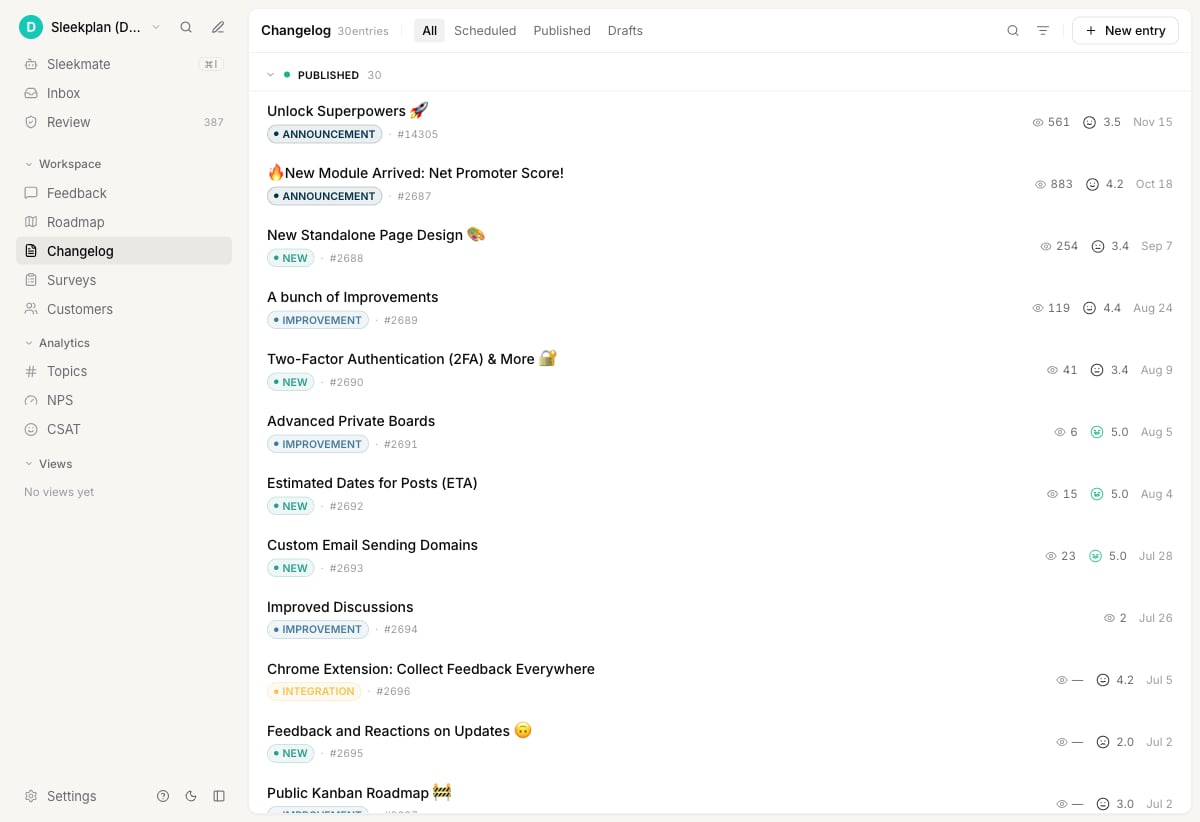
When you ship something, announce it in the changelog. It is your product's "what's new" feed, and it is how you close the loop: users who asked for a feature or subscribed to updates hear about it the moment it goes live.
Give a post an estimated date and it lands automatically in the right month or quarter column. See [Roadmap](/help/roadmap) and [Estimated dates](/help/roadmap/eta-roadmap).
### Changelog
When you ship something, announce it in the changelog. It is your product's "what's new" feed, and it is how you close the loop: users who asked for a feature or subscribed to updates hear about it the moment it goes live.
 ### Surveys, NPS and CSAT
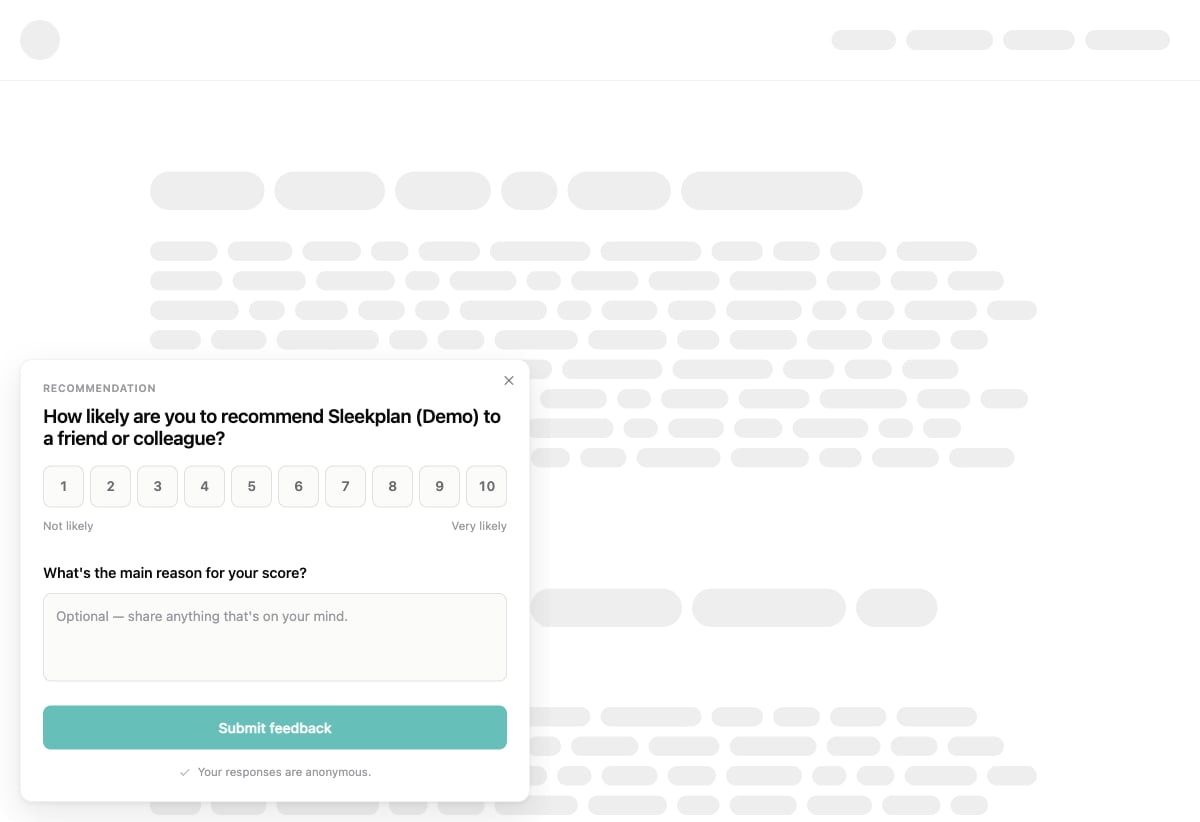
Ask users how they feel, right inside your product. Sleekplan includes ready-made **NPS** (loyalty) and **CSAT** (satisfaction) surveys, plus **multi-step surveys** with conditional logic when you need to ask more. Responses flow into the same analytics as the rest of your feedback.
### Surveys, NPS and CSAT
Ask users how they feel, right inside your product. Sleekplan includes ready-made **NPS** (loyalty) and **CSAT** (satisfaction) surveys, plus **multi-step surveys** with conditional logic when you need to ask more. Responses flow into the same analytics as the rest of your feedback.
 ## Where your users meet Sleekplan
Your feedback board does not have to live in one place. There are a few ways to put it in front of users, and you can use more than one at once.
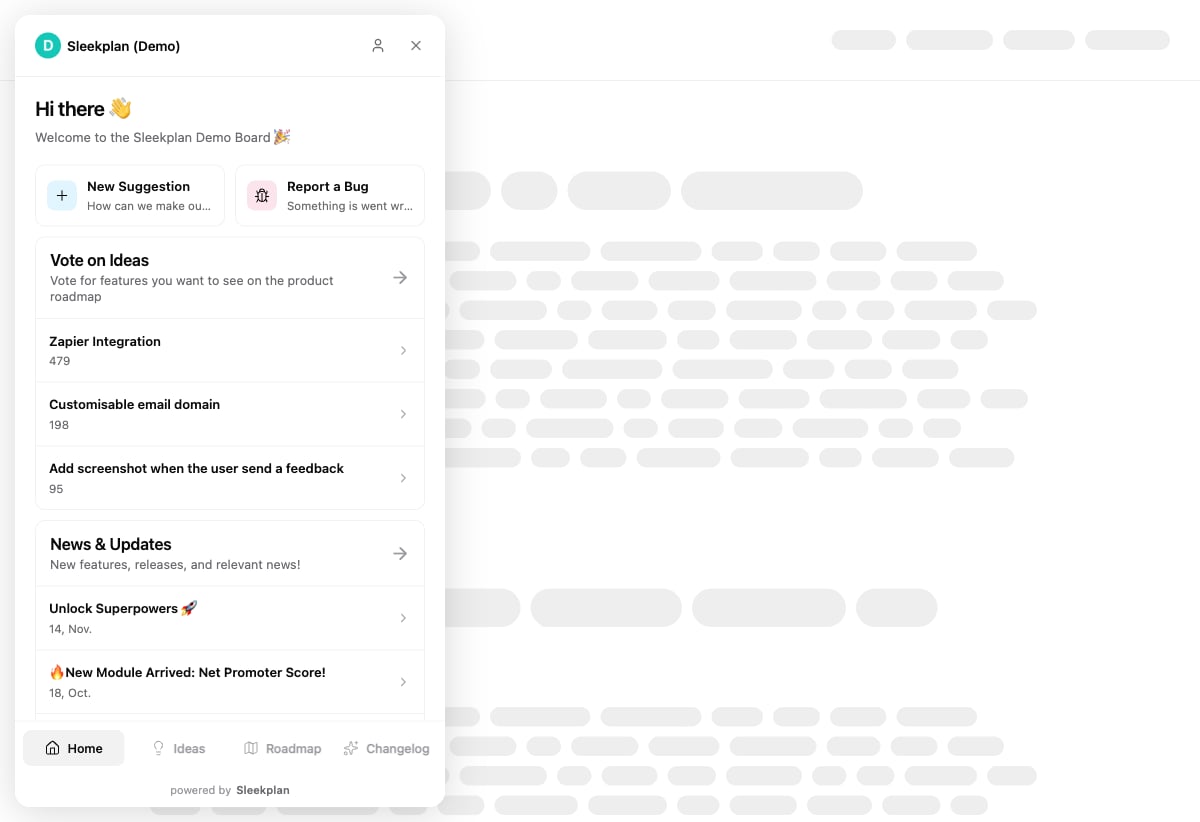
A pop-over panel that lives on a button inside your app or website. Users open it to browse ideas, vote, post feedback, and read your changelog without leaving what they were doing.
A hosted, fully branded page (your own web address) that works on its own. It is always available, and every email notification links back to it.
Connect the tools your team already uses, so feedback and updates flow between Sleekplan and the rest of your stack.
Drop the board into a page with an iframe, or just share a direct link. Your users always land in the same place.
The **widget** is the most common setup. It sits quietly on a button until a user needs it.
## Where your users meet Sleekplan
Your feedback board does not have to live in one place. There are a few ways to put it in front of users, and you can use more than one at once.
A pop-over panel that lives on a button inside your app or website. Users open it to browse ideas, vote, post feedback, and read your changelog without leaving what they were doing.
A hosted, fully branded page (your own web address) that works on its own. It is always available, and every email notification links back to it.
Connect the tools your team already uses, so feedback and updates flow between Sleekplan and the rest of your stack.
Drop the board into a page with an iframe, or just share a direct link. Your users always land in the same place.
The **widget** is the most common setup. It sits quietly on a button until a user needs it.
 The **standalone portal** is the public home for your feedback, roadmap and changelog. Even if you only use the widget, the portal still works behind the scenes, because that is where notification emails send people.
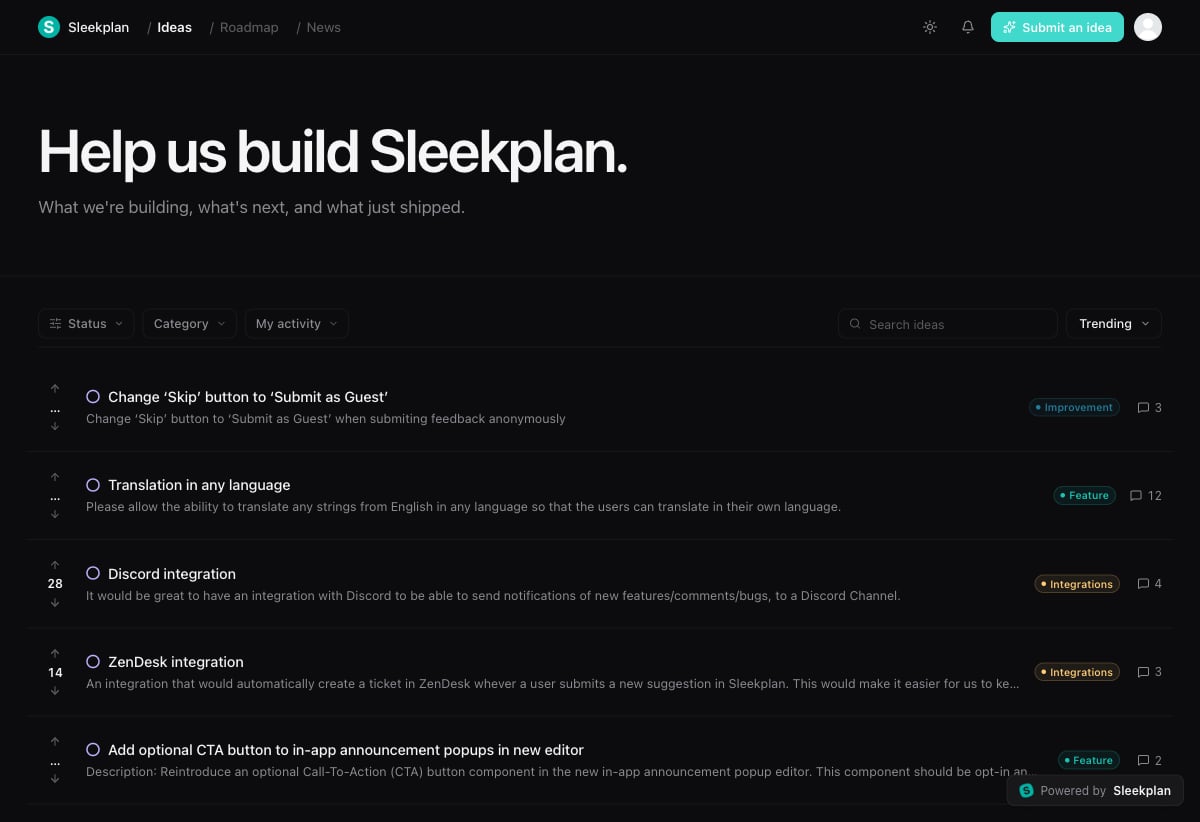 Both surfaces carry your brand: your logo, your colors, light or dark theme, your own wording, and support for multiple languages. Set it all up under [**Settings → Public Portal & Widget**](https://app.sleekplan.com/settings/portal). Learn more in [Portal & widget](/help/portal-widget).
## Sleek Intelligence
Collecting feedback is easy. Keeping up with it is the hard part. **Sleek Intelligence** is the AI layer built into Sleekplan that reads, sorts and acts on your feedback so your team can focus on decisions instead of admin.
You turn it on once, under [**Settings → Sleek Intelligence**](https://app.sleekplan.com/settings/intelligence), and give it a short description of your product so it has context. From there it powers four things: it brings feedback in, keeps it tidy, groups it into themes, and gives you a copilot to talk to.
Sleek Intelligence runs on **Intelligence credits**, which power AI features like summaries, sentiment analysis, deduplication and the assistant. You can top these up from your billing settings.
### Collect feedback from anywhere
Your users leave feedback in a lot of places that are not your board: review sites, app stores, support chats. Sleek Intelligence can pull it all in for you.
Both surfaces carry your brand: your logo, your colors, light or dark theme, your own wording, and support for multiple languages. Set it all up under [**Settings → Public Portal & Widget**](https://app.sleekplan.com/settings/portal). Learn more in [Portal & widget](/help/portal-widget).
## Sleek Intelligence
Collecting feedback is easy. Keeping up with it is the hard part. **Sleek Intelligence** is the AI layer built into Sleekplan that reads, sorts and acts on your feedback so your team can focus on decisions instead of admin.
You turn it on once, under [**Settings → Sleek Intelligence**](https://app.sleekplan.com/settings/intelligence), and give it a short description of your product so it has context. From there it powers four things: it brings feedback in, keeps it tidy, groups it into themes, and gives you a copilot to talk to.
Sleek Intelligence runs on **Intelligence credits**, which power AI features like summaries, sentiment analysis, deduplication and the assistant. You can top these up from your billing settings.
### Collect feedback from anywhere
Your users leave feedback in a lot of places that are not your board: review sites, app stores, support chats. Sleek Intelligence can pull it all in for you.
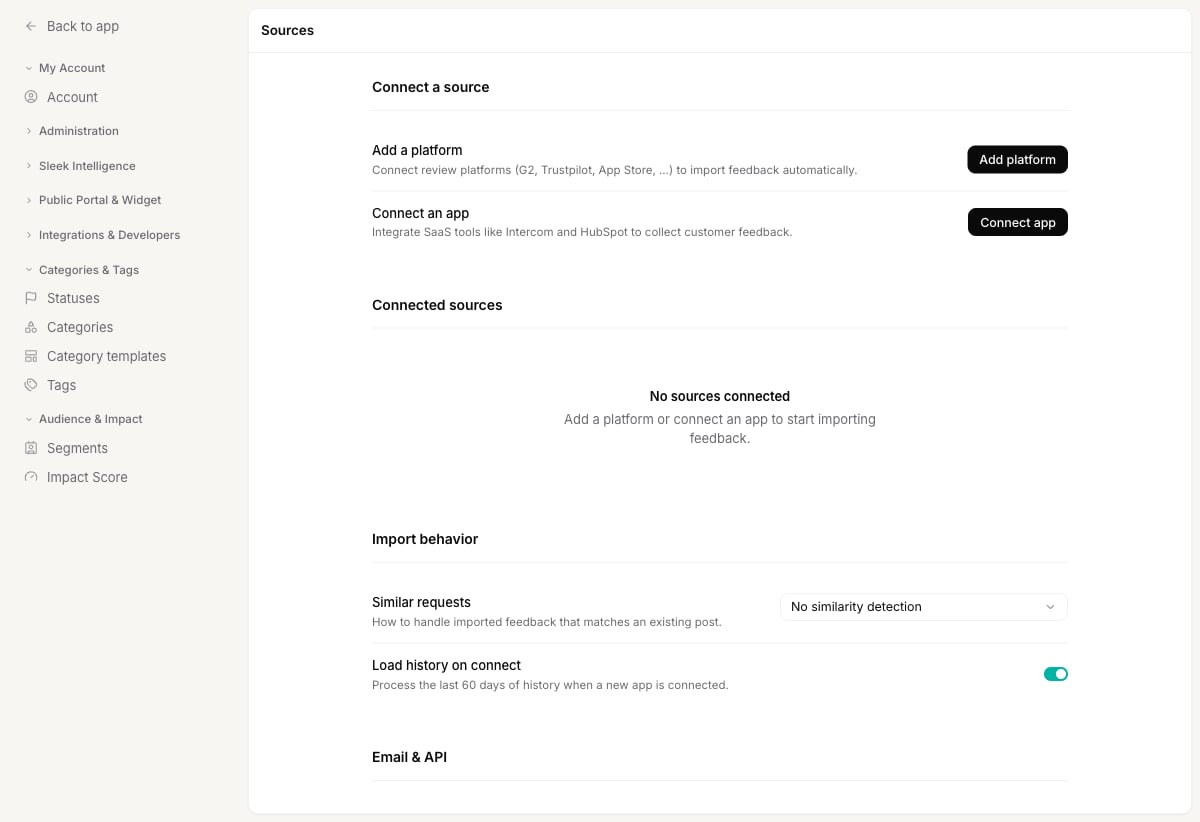 * **Add a platform** to import from review sites like G2, Trustpilot and the App Store.
* **Connect an app** such as Intercom or HubSpot to turn support conversations into feedback.
* **Email and API** let any other tool send feedback straight in.
As feedback arrives, Sleekplan can check it against what you already have so the same request does not get logged twice.
### Manage feedback automatically
New feedback needs triaging before it is useful. Sleek Intelligence can do that first pass for you, on both posts and comments.
* **Add a platform** to import from review sites like G2, Trustpilot and the App Store.
* **Connect an app** such as Intercom or HubSpot to turn support conversations into feedback.
* **Email and API** let any other tool send feedback straight in.
As feedback arrives, Sleekplan can check it against what you already have so the same request does not get logged twice.
### Manage feedback automatically
New feedback needs triaging before it is useful. Sleek Intelligence can do that first pass for you, on both posts and comments.
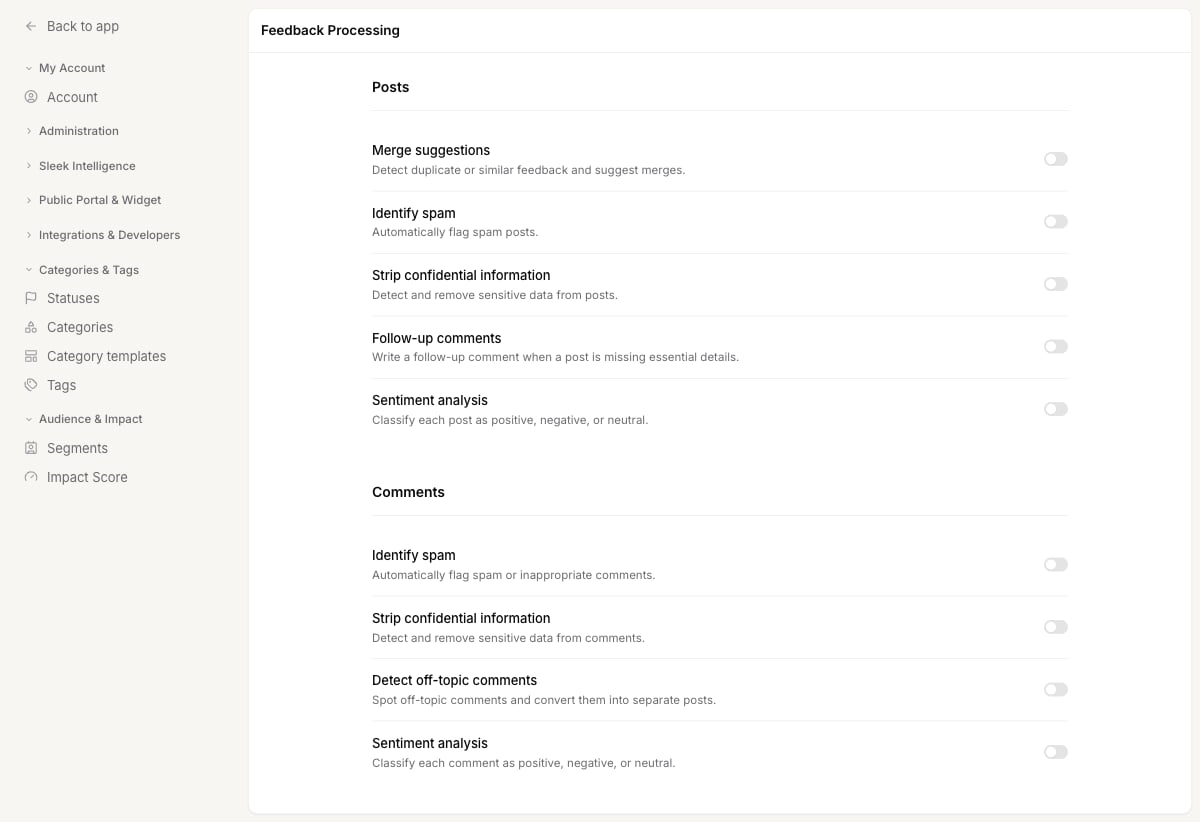 Switch on the automations you want, for example:
* **Merge suggestions** spot duplicate or near-identical requests and suggest combining them.
* **Identify spam** flags junk posts and comments automatically.
* **Strip confidential information** removes sensitive data before it goes public.
* **Follow-up comments** ask the user for detail when a post is missing key information.
* **Sentiment analysis** labels each post and comment as positive, negative or neutral.
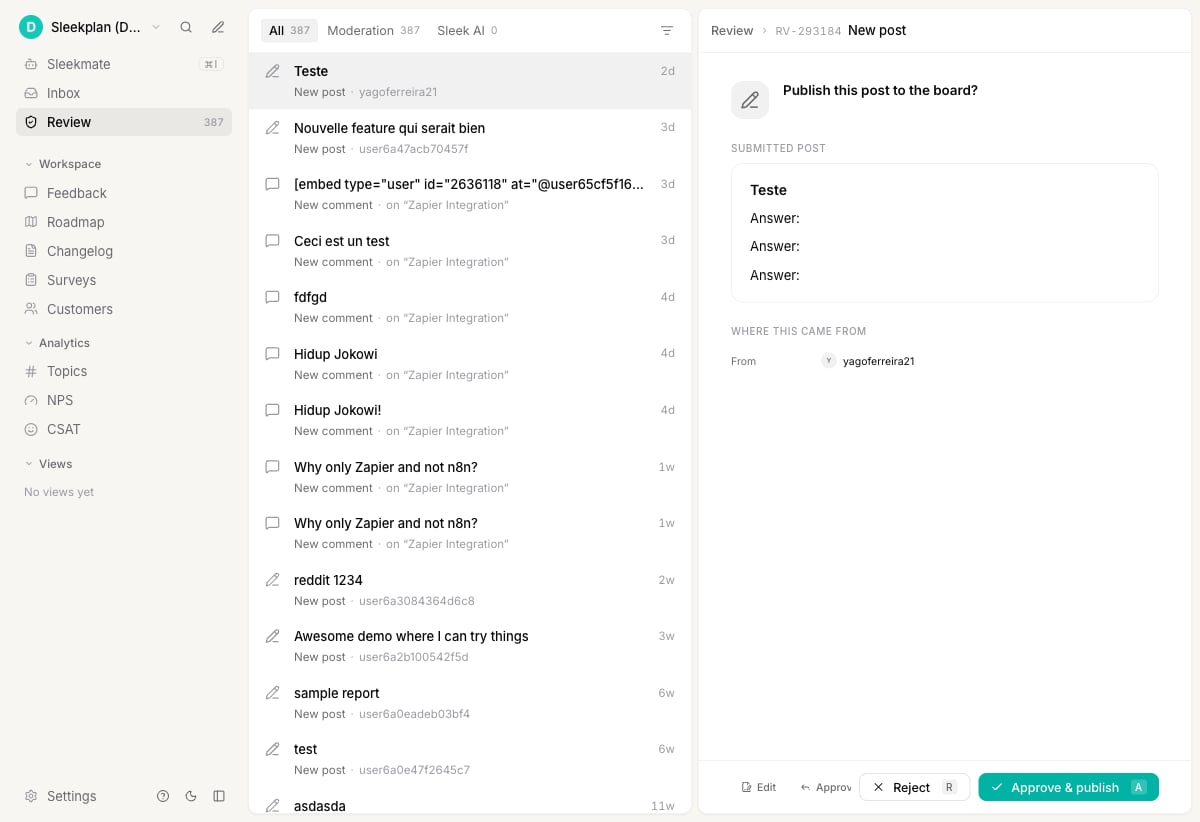
You stay in control. Turn on **Require review for AI actions** and everything the AI proposes waits for a human to approve it. That happens in the **Review** queue, where AI suggestions sit alongside the normal moderation of user-submitted posts.
Switch on the automations you want, for example:
* **Merge suggestions** spot duplicate or near-identical requests and suggest combining them.
* **Identify spam** flags junk posts and comments automatically.
* **Strip confidential information** removes sensitive data before it goes public.
* **Follow-up comments** ask the user for detail when a post is missing key information.
* **Sentiment analysis** labels each post and comment as positive, negative or neutral.
You stay in control. Turn on **Require review for AI actions** and everything the AI proposes waits for a human to approve it. That happens in the **Review** queue, where AI suggestions sit alongside the normal moderation of user-submitted posts.
 ### Discover themes with Topics
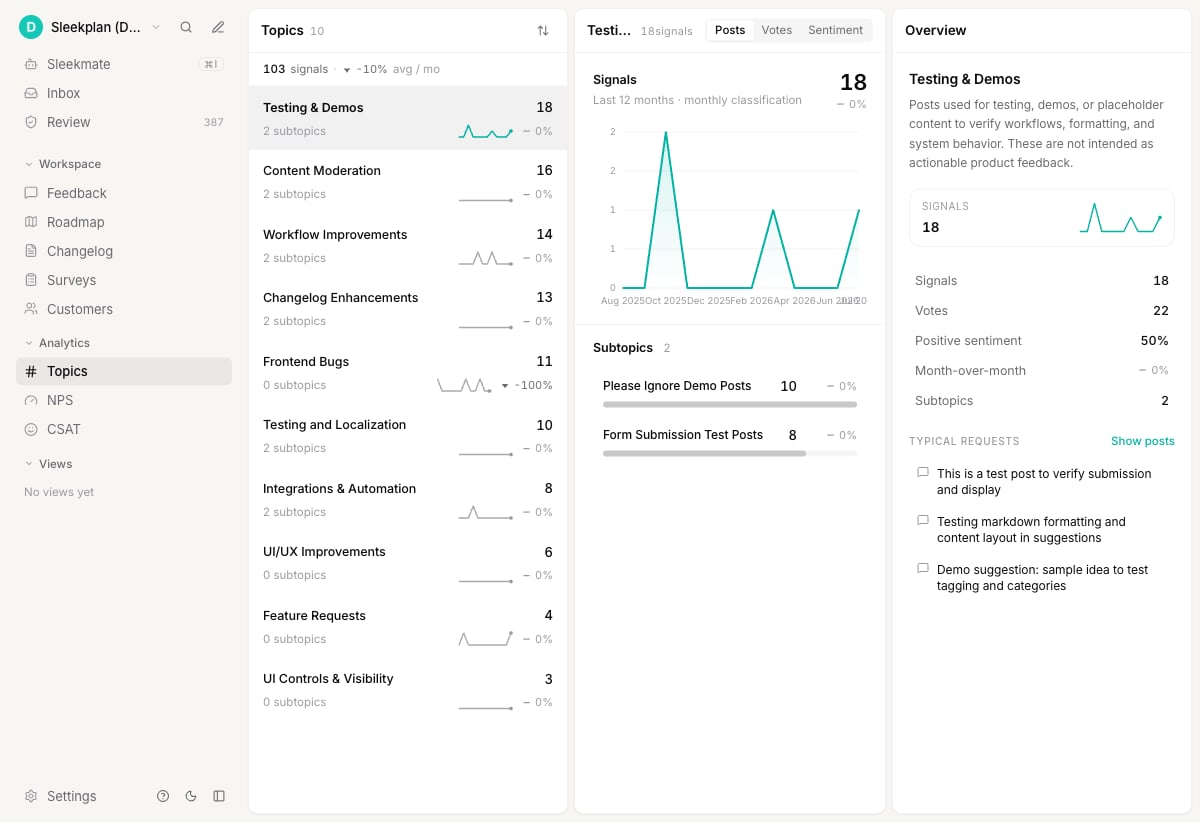
Hundreds of individual posts are hard to reason about. **Topics** groups related feedback into themes (and sub-topics), then shows you how each one is trending, how many votes it holds, and whether sentiment is positive or negative. It is the fastest way to answer "what are people really asking us for?"
### Discover themes with Topics
Hundreds of individual posts are hard to reason about. **Topics** groups related feedback into themes (and sub-topics), then shows you how each one is trending, how many votes it holds, and whether sentiment is positive or negative. It is the fastest way to answer "what are people really asking us for?"
 ### Meet Sleekmate, your product copilot
**Sleekmate** is a chat assistant that reads your whole workspace, your feedback, roadmap and changelog, so you do not have to dig for answers. Think of it as a product manager sitting next to you.
### Meet Sleekmate, your product copilot
**Sleekmate** is a chat assistant that reads your whole workspace, your feedback, roadmap and changelog, so you do not have to dig for answers. Think of it as a product manager sitting next to you.
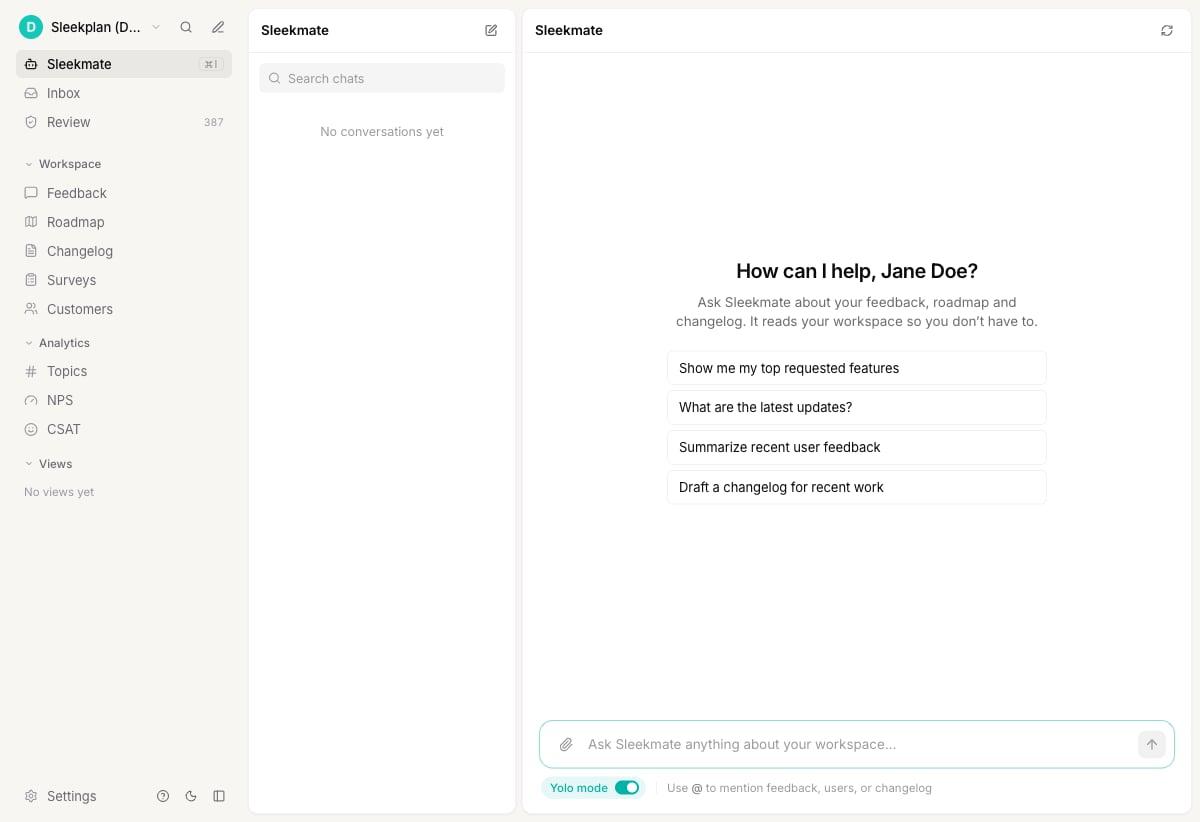 Ask it things like "what are my top requested features?", "summarize recent feedback", or "draft a changelog for the work we shipped this week". It can pull up posts, spot trends, and even take actions for you, like creating a post or writing a draft. Open it from the top of the sidebar or press ⌘I.
Want the full detail on any of this? See [Sleek Intelligence](/help/sleek-intelligence).
## Make it yours
Before you invite users, spend a few minutes on branding so the whole experience looks like your product, not like Sleekplan. Under [**Settings → Public Portal & Widget → Branding**](https://app.sleekplan.com/settings/branding) you can set your logo and colors, choose a light or dark theme, rename the modules and buttons, and add the languages your users speak.
## Get started in four steps
Add your product name, logo and colors, then turn on the [modules](https://app.sleekplan.com/settings/general) you want to start with. Feedback is the natural first one.
Install the [widget](https://app.sleekplan.com/settings/widget) on your site or app, or share your [standalone portal](https://app.sleekplan.com/settings/portal) link. See [Portal & widget](/help/portal-widget).
Enable it in [settings](https://app.sleekplan.com/settings/intelligence), describe your product, and switch on the automations and sources that fit how you work.
Triage new feedback in [Review](https://app.sleekplan.com/review), plan it on the [Roadmap](https://app.sleekplan.com/roadmap), and announce what ships in the [Changelog](https://app.sleekplan.com/changelog).
## Next steps
Add feedback from the dashboard and set its status, category and owner.
A closer look at Feedback, Roadmap, Changelog and Surveys.
Brand your board and choose how users reach it.
Automations, Topics, Review and Sleekmate in detail.
Ask it things like "what are my top requested features?", "summarize recent feedback", or "draft a changelog for the work we shipped this week". It can pull up posts, spot trends, and even take actions for you, like creating a post or writing a draft. Open it from the top of the sidebar or press ⌘I.
Want the full detail on any of this? See [Sleek Intelligence](/help/sleek-intelligence).
## Make it yours
Before you invite users, spend a few minutes on branding so the whole experience looks like your product, not like Sleekplan. Under [**Settings → Public Portal & Widget → Branding**](https://app.sleekplan.com/settings/branding) you can set your logo and colors, choose a light or dark theme, rename the modules and buttons, and add the languages your users speak.
## Get started in four steps
Add your product name, logo and colors, then turn on the [modules](https://app.sleekplan.com/settings/general) you want to start with. Feedback is the natural first one.
Install the [widget](https://app.sleekplan.com/settings/widget) on your site or app, or share your [standalone portal](https://app.sleekplan.com/settings/portal) link. See [Portal & widget](/help/portal-widget).
Enable it in [settings](https://app.sleekplan.com/settings/intelligence), describe your product, and switch on the automations and sources that fit how you work.
Triage new feedback in [Review](https://app.sleekplan.com/review), plan it on the [Roadmap](https://app.sleekplan.com/roadmap), and announce what ships in the [Changelog](https://app.sleekplan.com/changelog).
## Next steps
Add feedback from the dashboard and set its status, category and owner.
A closer look at Feedback, Roadmap, Changelog and Surveys.
Brand your board and choose how users reach it.
Automations, Topics, Review and Sleekmate in detail.