> ## Documentation Index
> Fetch the complete documentation index at: https://sleekplan.com/llms.txt
> Use this file to discover all available pages before exploring further.
# Vote on behalf of a user
> Add a customer's upvote to a feedback post from the admin dashboard: search for the user or add them by email, keep vote counts accurate, and see who has voted.
Votes are how demand for a request adds up on your board. Usually your users cast their own votes from the [widget or portal](/help/portal-widget), but feedback often reaches you another way, over email, a sales call, or a support chat. When a customer tells you they want something that is already on your board, you can add their vote for them so the post reflects the real level of interest, and so they get notified as the request moves forward.
Voting on behalf of a user is a paid feature, available on the **Starter** plan and above, for team members with access to the workspace. Adding your own vote is always free.
## Add a vote for a user
From your [**Feedback**](https://app.sleekplan.com/feedback) board, click the post you want to add a vote to. It opens in the detail view.
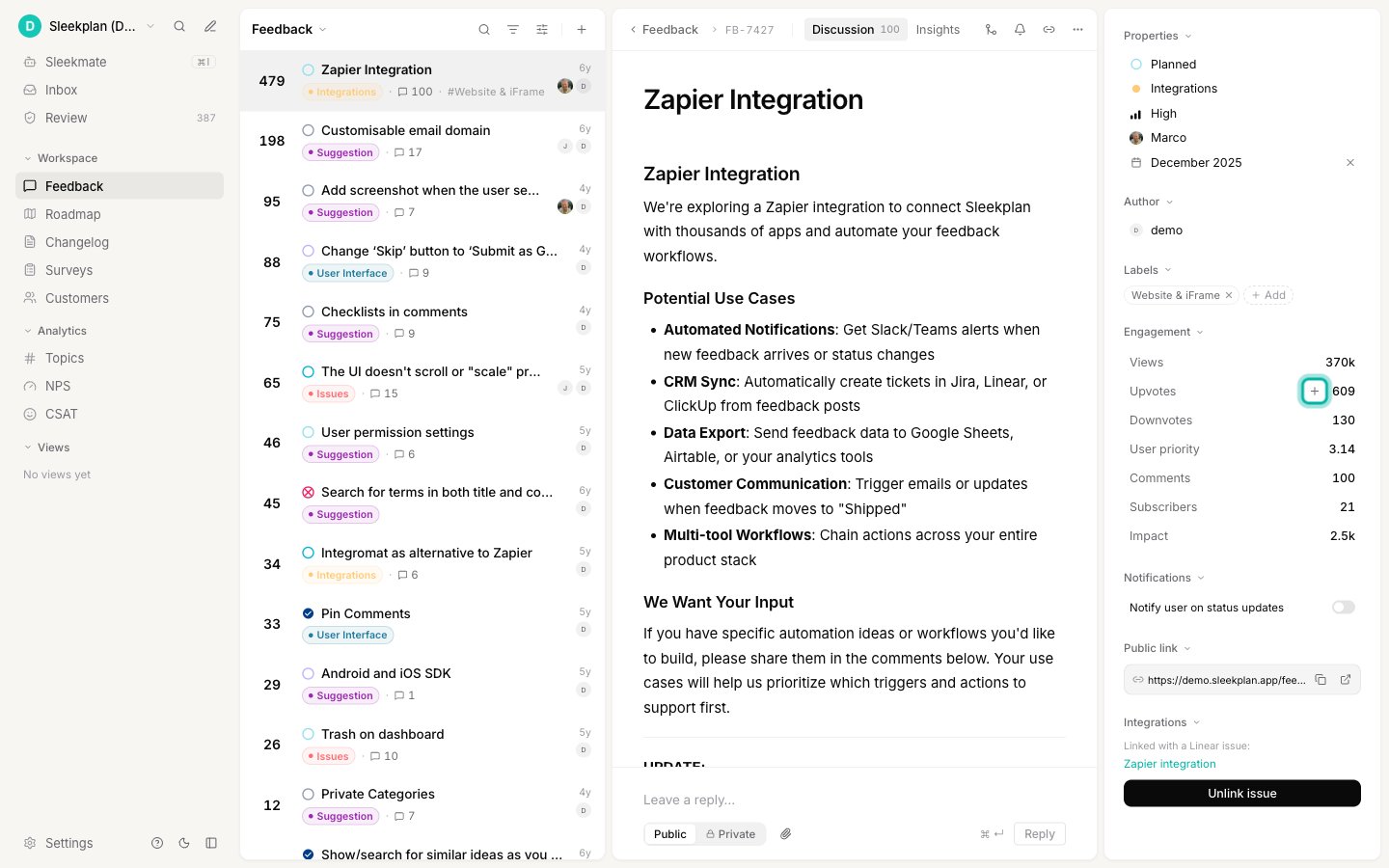
In the properties panel on the right, find the **Engagement** section and click the **+** button on the **Upvotes** row.
 You can also open the same picker with the command palette: press **⌘K** (or **Ctrl+K**) while a post is open and choose **Add vote**.
In the **Add vote** picker, pick who the vote should come from:
* **An existing user**: start typing a name and select them from the list. A checkmark next to a user means they have already voted on this post.
* **A new user**: type their email address and select **Add vote for "{email}"**. Sleekplan creates an [end-user account](/help/account-security/end-user-accounts) for that email and records the vote, so you don't need to invite or import them first.
* **Vote for me**: adds your own vote, the same as clicking upvote yourself.
You can also open the same picker with the command palette: press **⌘K** (or **Ctrl+K**) while a post is open and choose **Add vote**.
In the **Add vote** picker, pick who the vote should come from:
* **An existing user**: start typing a name and select them from the list. A checkmark next to a user means they have already voted on this post.
* **A new user**: type their email address and select **Add vote for "{email}"**. Sleekplan creates an [end-user account](/help/account-security/end-user-accounts) for that email and records the vote, so you don't need to invite or import them first.
* **Vote for me**: adds your own vote, the same as clicking upvote yourself.
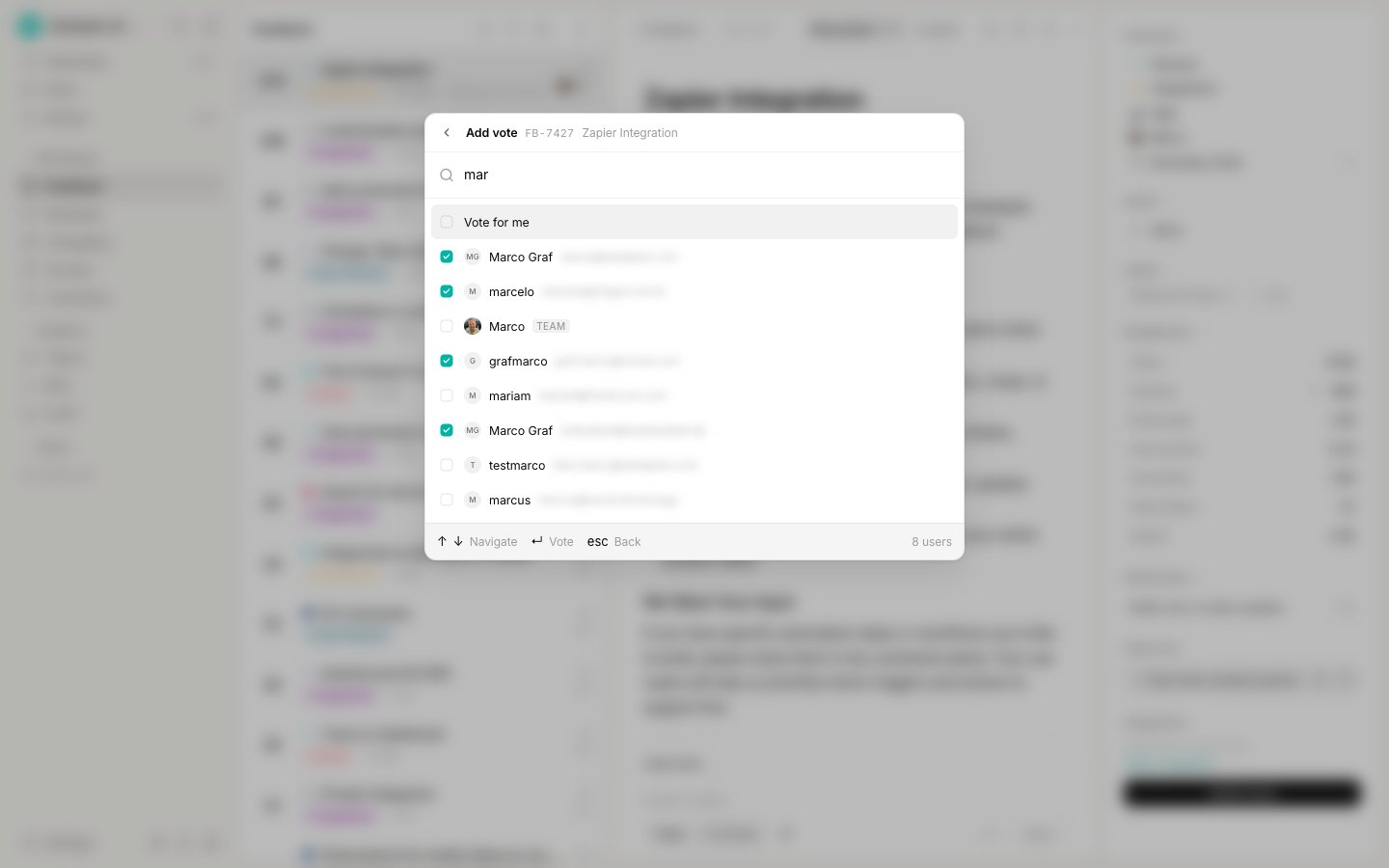 Select the user (or press **Enter**) to record the vote. The post's upvote count goes up by one right away, and the vote is attributed to that user everywhere it appears.
## See who has voted
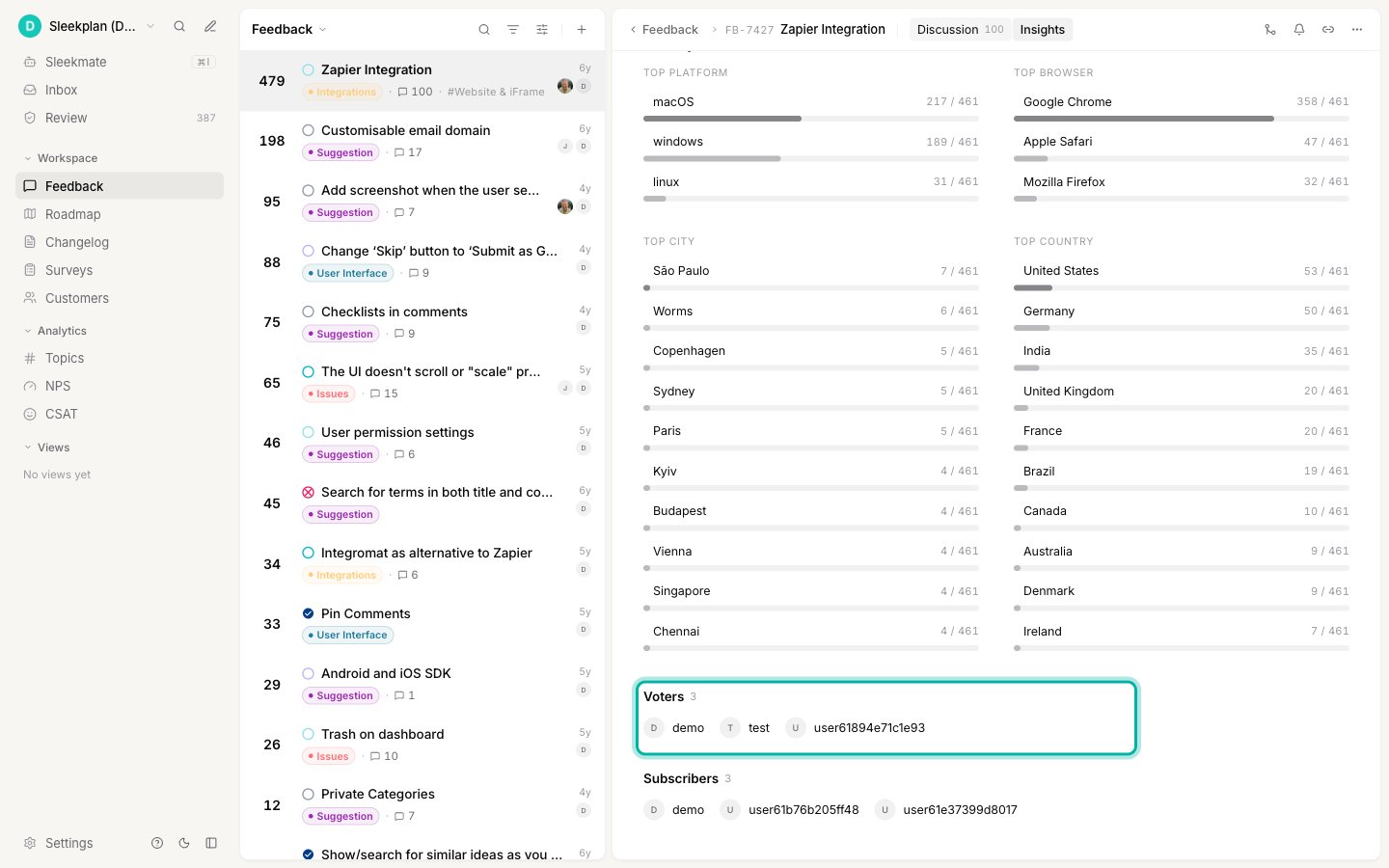
To review who has voted on a post, open it and switch to the **Insights** tab. The **Voters** section lists the people who have upvoted, alongside voter segments, a happiness score, and the subscribers following the post.
Select the user (or press **Enter**) to record the vote. The post's upvote count goes up by one right away, and the vote is attributed to that user everywhere it appears.
## See who has voted
To review who has voted on a post, open it and switch to the **Insights** tab. The **Voters** section lists the people who have upvoted, alongside voter segments, a happiness score, and the subscribers following the post.
 ## Remove a vote you added
There is no separate "remove voter" button. The **Add vote** picker is a toggle: reopen it, find the user with the checkmark, and select them again to take their vote back off. The upvote count updates to match.
Only add votes for customers who genuinely asked for the request. On-behalf votes count exactly like a user's own vote, so adding them speculatively skews which posts look most in demand.
## Related
Log new feedback under a customer's name when the request isn't on your board yet.
Understand the customer accounts you create when you act on someone's behalf.
Sort your board by votes to surface the most in-demand requests.
Turn the most-voted requests into a roadmap your users can follow.
## Remove a vote you added
There is no separate "remove voter" button. The **Add vote** picker is a toggle: reopen it, find the user with the checkmark, and select them again to take their vote back off. The upvote count updates to match.
Only add votes for customers who genuinely asked for the request. On-behalf votes count exactly like a user's own vote, so adding them speculatively skews which posts look most in demand.
## Related
Log new feedback under a customer's name when the request isn't on your board yet.
Understand the customer accounts you create when you act on someone's behalf.
Sort your board by votes to surface the most in-demand requests.
Turn the most-voted requests into a roadmap your users can follow.