> ## Documentation Index
> Fetch the complete documentation index at: https://sleekplan.com/llms.txt
> Use this file to discover all available pages before exploring further.
# Views and the sidebar
> Save a set of feedback filters as a reusable view, pin it to the sidebar, and reopen your frequent filters in one click. Share views with your team and manage them from the command palette.
A **view** is a saved snapshot of the [**Feedback**](https://app.sleekplan.com/feedback) list: the filters, sort order, and search you have applied. Instead of rebuilding the same filter every time you want to see, for example, open bugs or your most-voted requests, you save it once as a view and reopen it from the sidebar in a single click.
Views live in the **Views** section at the bottom of the left sidebar, so the filters you reach for most are always one click away.
Views are available to any team member with access to the workspace. A view only changes what *you* see on your own screen. It never changes the posts themselves or what your users see on the public portal.
## What a view saves
A view captures everything that shapes the feedback list at the moment you save it:
* **The active tab**, such as All posts, Active, Backlog, Trending, or Mine.
* **Every filter** you have applied: status, category, labels, owner, segment, and any advanced conditions like votes or created date.
* **The sort order** (for example Top votes or Newest).
* **The search term**, if you were searching.
Building those filters is covered in full in [Filter, sort, and search feedback](/help/feedback/filters). A view is simply a way to store the result so you do not have to set it up again.
## Save a view
On the [**Feedback**](https://app.sleekplan.com/feedback) board, apply the [filters, sort, and search](/help/feedback/filters) you want the view to remember. The view saves all of them together.
With at least one filter active, click **Filter** and choose **Save as view…** at the bottom of the panel. You can also open the ⌘K command palette and run **Save current view** at any time.
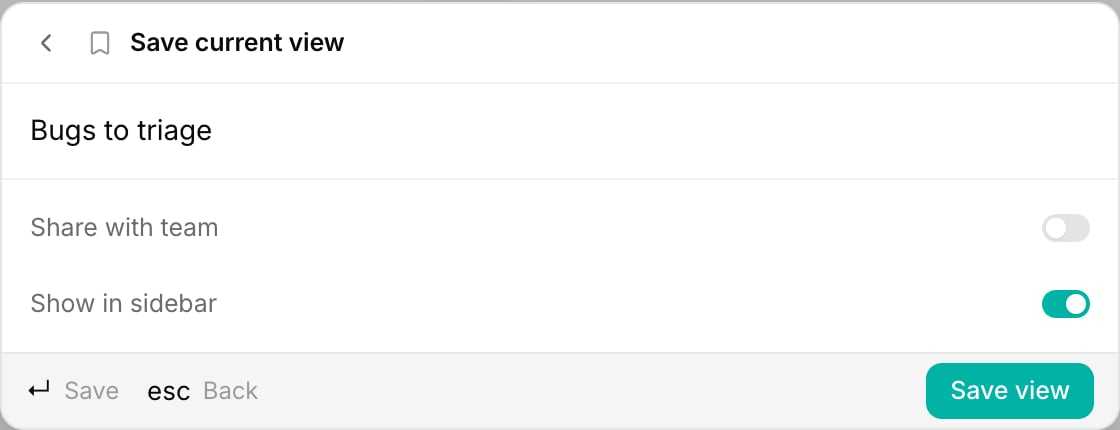 Give the view a clear name, then set the two toggles:
* **Share with team** makes the view available to everyone in the workspace. It is off by default, so views are private to you unless you turn this on.
* **Show in sidebar** pins the view to the **Views** section for quick access. It is on by default.
Click **Save view**. Your new view appears in the sidebar right away.
## Open a view from the sidebar
Pinned views sit in the **Views** section at the bottom of the sidebar, each marked with a bookmark icon. Click any view to reopen the feedback list with that exact filter, sort, and search applied.
Give the view a clear name, then set the two toggles:
* **Share with team** makes the view available to everyone in the workspace. It is off by default, so views are private to you unless you turn this on.
* **Show in sidebar** pins the view to the **Views** section for quick access. It is on by default.
Click **Save view**. Your new view appears in the sidebar right away.
## Open a view from the sidebar
Pinned views sit in the **Views** section at the bottom of the sidebar, each marked with a bookmark icon. Click any view to reopen the feedback list with that exact filter, sort, and search applied.
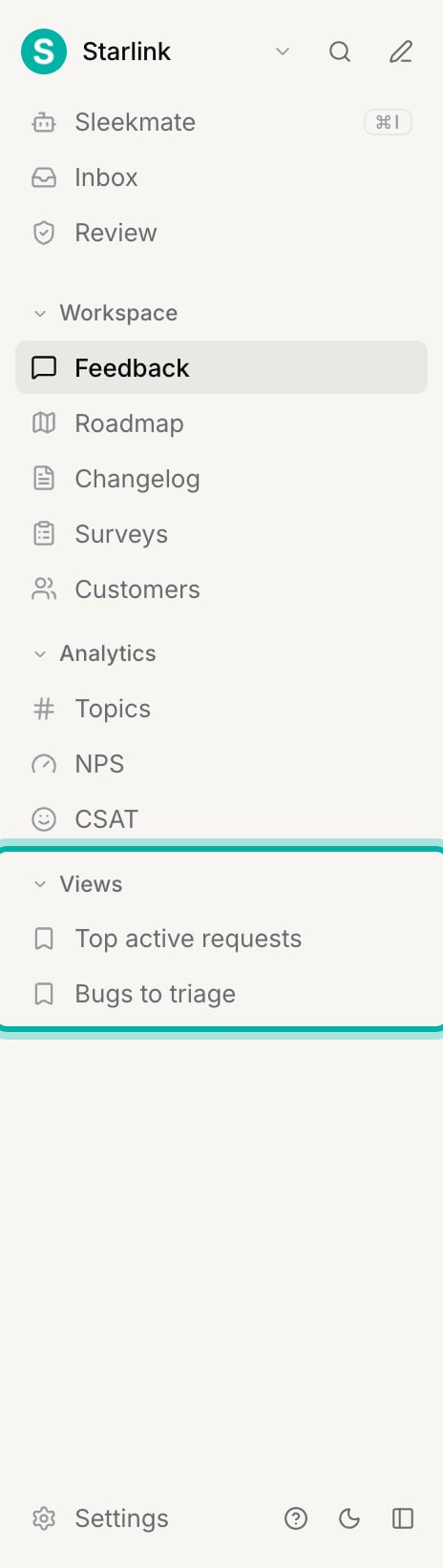 The sidebar shows **your own pinned views only**. A view you have not pinned, and a view a teammate shared with you, will not appear here (you can still reach every view from **Manage views**, below).
If the sidebar is collapsed to icons, hover the bookmark icon to see your views, or click **Expand sidebar** at the bottom to show their names. When the Views section reads **No views yet**, you have not saved one on this workspace.
## Share a view with your team
Turn on **Share with team** when saving (or from **Manage views**) to make a view visible to everyone in the workspace. Shared views are a good way to give your team a common starting point, for example a "Bugs to triage" or "Needs a response" view that everyone works from.
A few things to know about shared views:
* Only the person who created a view can rename its scope, toggle it, or delete it. For everyone else it is **read only** and labelled **Shared**.
* Sharing a view does not pin it to your teammates' sidebars. Each person decides which views to pin for themselves.
## Manage your views
Open the ⌘K command palette and run **Manage views** to see every view you own and every view shared with you in one place.
The sidebar shows **your own pinned views only**. A view you have not pinned, and a view a teammate shared with you, will not appear here (you can still reach every view from **Manage views**, below).
If the sidebar is collapsed to icons, hover the bookmark icon to see your views, or click **Expand sidebar** at the bottom to show their names. When the Views section reads **No views yet**, you have not saved one on this workspace.
## Share a view with your team
Turn on **Share with team** when saving (or from **Manage views**) to make a view visible to everyone in the workspace. Shared views are a good way to give your team a common starting point, for example a "Bugs to triage" or "Needs a response" view that everyone works from.
A few things to know about shared views:
* Only the person who created a view can rename its scope, toggle it, or delete it. For everyone else it is **read only** and labelled **Shared**.
* Sharing a view does not pin it to your teammates' sidebars. Each person decides which views to pin for themselves.
## Manage your views
Open the ⌘K command palette and run **Manage views** to see every view you own and every view shared with you in one place.
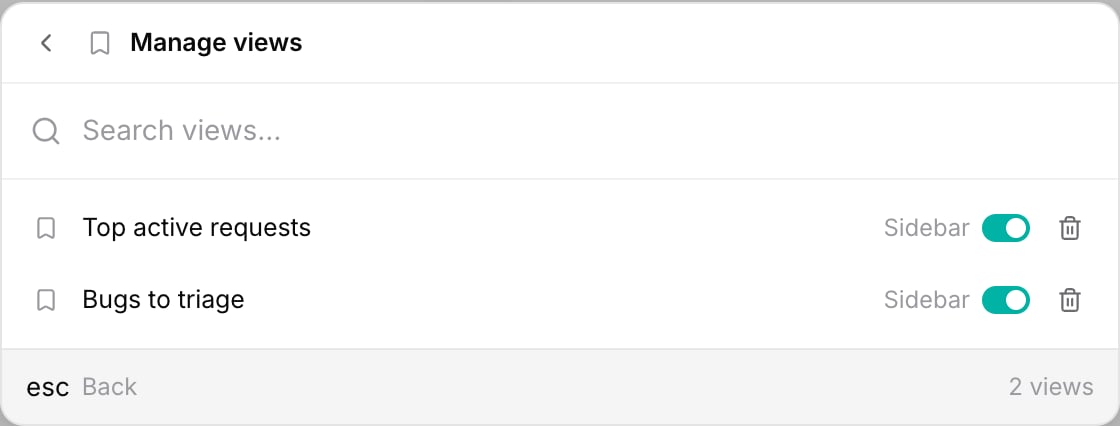 From here you can:
* **Search** your views by name when the list gets long.
* **Show or hide a view in the sidebar** with the **Sidebar** toggle, without changing its filters.
* **Delete a view** you no longer need. Click the trash icon, then confirm with **Delete**.
A view is a fixed snapshot: there is no rename or reorder, and you cannot edit a saved view's filters in place. To change a view, set up the new filters on the feedback list, [save them as a new view](#save-a-view), and delete the old one.
## Views vs. the view switcher
The **Views** section in the sidebar (your saved filters) is separate from the **view switcher** at the top of the feedback list. The switcher offers the built-in tabs All posts, Active, Backlog, Trending, and Mine, which set a broad scope with no setup. A saved view can build on any of those tabs and add your own filters, sort, and search on top. Both are explained in [Filter, sort, and search feedback](/help/feedback/filters#switch-views).
## Related
Build the filters, sort order, and search that a view saves.
Add feedback from the dashboard and set its status, category, owner, and estimate.
From here you can:
* **Search** your views by name when the list gets long.
* **Show or hide a view in the sidebar** with the **Sidebar** toggle, without changing its filters.
* **Delete a view** you no longer need. Click the trash icon, then confirm with **Delete**.
A view is a fixed snapshot: there is no rename or reorder, and you cannot edit a saved view's filters in place. To change a view, set up the new filters on the feedback list, [save them as a new view](#save-a-view), and delete the old one.
## Views vs. the view switcher
The **Views** section in the sidebar (your saved filters) is separate from the **view switcher** at the top of the feedback list. The switcher offers the built-in tabs All posts, Active, Backlog, Trending, and Mine, which set a broad scope with no setup. A saved view can build on any of those tabs and add your own filters, sort, and search on top. Both are explained in [Filter, sort, and search feedback](/help/feedback/filters#switch-views).
## Related
Build the filters, sort order, and search that a view saves.
Add feedback from the dashboard and set its status, category, owner, and estimate.