> ## Documentation Index
> Fetch the complete documentation index at: https://sleekplan.com/llms.txt
> Use this file to discover all available pages before exploring further.
# Show a category to only some of your customers
> Scope a category to a segment so only matching customers see its posts. Use it for employee-only boards, beta groups, or categories that only paying customers can reach.
A [hidden category](/help/feedback/hide-posts) is hidden from everyone. Often you want something in between: a category that your own staff can see but your customers cannot, or a board that only your paying customers reach.
That is what the **Segment** field on a category does. Point a category at a [segment](/help/account-security/segments), and only signed-in customers who match that segment see its posts. Everyone else never knows the category exists.
Segments require the **Business plan** and an **Admin** or **Manage** role. See [Plans and billing](/help/account-security/billing).
## Common ways to use this
| You want | Segment condition |
| ------------------------------------------ | -------------------------------------------------------------------- |
| An internal board only your own staff sees | `Email address` · *contains* · `@yourcompany.com` |
| A board only paying customers reach | A custom field such as `Plan` · *equals* · `Pro`, sent from your app |
| An early access board for beta testers | A custom field such as `Beta` · *equals* · `true` |
| A regional board | `Country` · *equals* · your market |
The first one is worth calling out, because it solves a problem people usually solve the expensive way. **You do not need to invite your colleagues as team members** to give them an internal board. A team member seat is for people who administer the workspace. If your colleagues only need to read and post on an internal category, let them sign in as normal customers and match them with a segment on their email domain instead. It costs no seats and works for the whole company at once.
## Set it up
Go to [**Settings → Audience & Impact → Segments**](https://app.sleekplan.com/settings/segments) and click **New segment**. Name it after the audience, then add the condition that describes them. For an internal board, that is **Email address** · **contains** · your company domain.
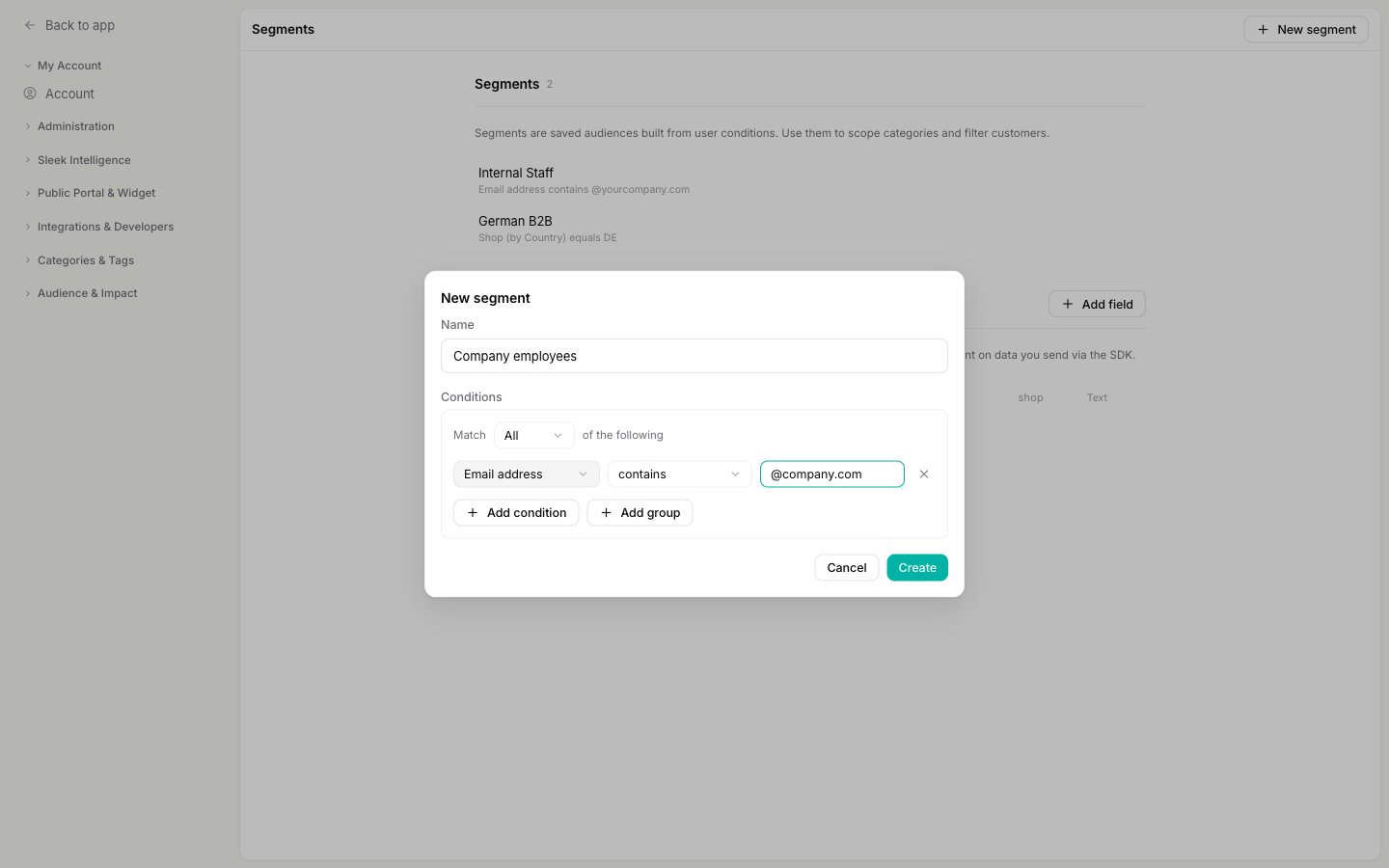 Click **Create**. For the full condition builder, including how to combine rules and segment on your own custom data, see [Set up user segments](/help/account-security/segments).
Go to [**Settings → Categories**](https://app.sleekplan.com/settings/categories) and open the category you want to scope, or create a new one for this audience.
In the **Segment** dropdown, choose the segment you just created. **None** means the category is open to everyone, which is the default.
Click **Create**. For the full condition builder, including how to combine rules and segment on your own custom data, see [Set up user segments](/help/account-security/segments).
Go to [**Settings → Categories**](https://app.sleekplan.com/settings/categories) and open the category you want to scope, or create a new one for this audience.
In the **Segment** dropdown, choose the segment you just created. **None** means the category is open to everyone, which is the default.
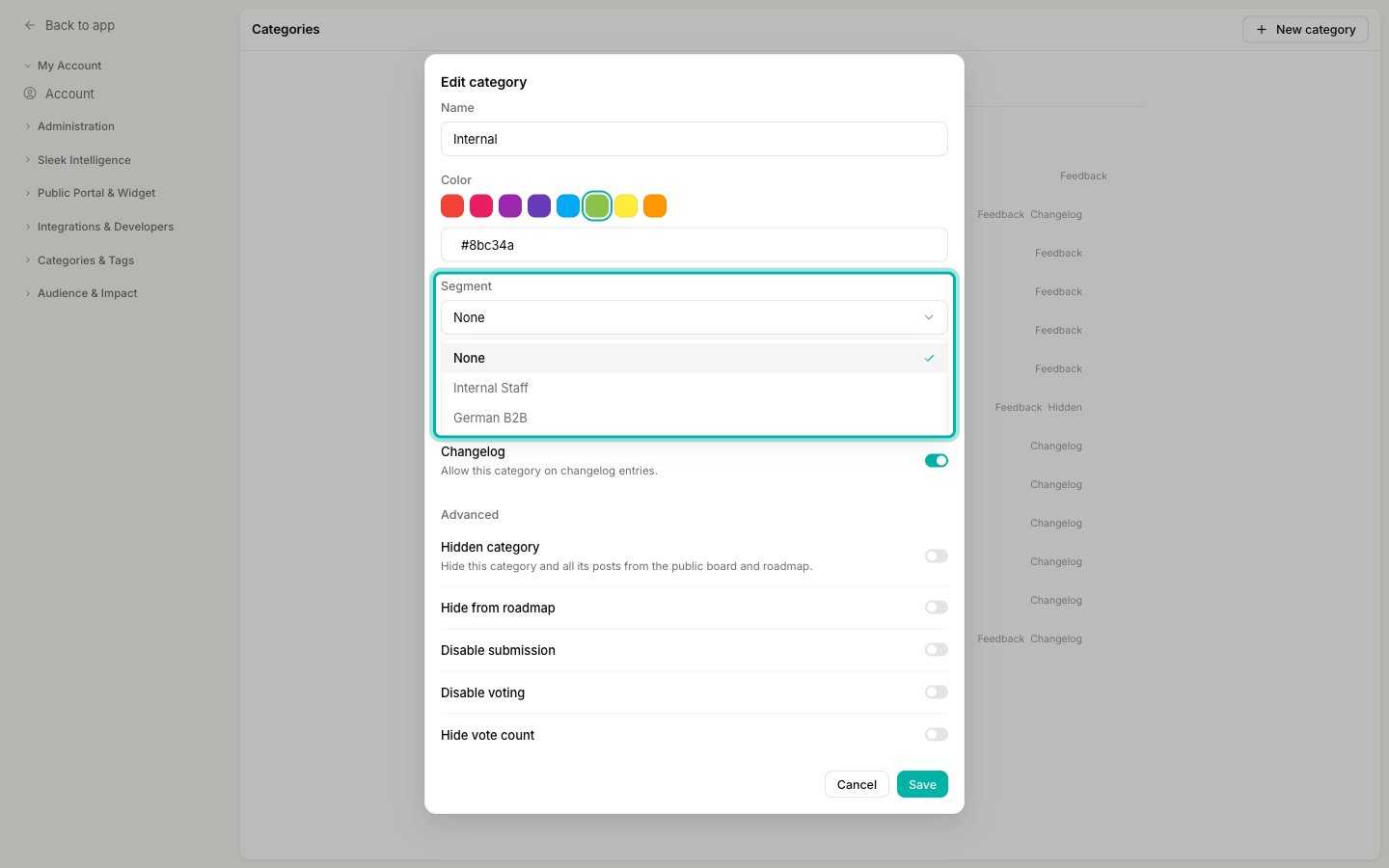 Click **Save**. The scope applies immediately to every post in that category, both existing and new.
## Who sees what
Membership is evaluated live, per customer, every time someone loads your board. Nobody is added to a segment by hand, so a person who starts matching gains access on their next visit, and someone who stops matching loses it.
* **Customers who match the segment** see the category's posts on your board and roadmap, exactly like any other post.
* **Customers who do not match** do not see the posts anywhere, and a direct link to one returns "Access to this post is restricted".
* **Anonymous visitors never match any segment.** Someone who is not signed in cannot be evaluated against your conditions, so they always fall on the "no access" side. A segmented category is therefore invisible to logged-out visitors, whatever the conditions say.
* **Your team always sees everything** in the admin dashboard, regardless of segments.
Because matching depends on being signed in, this only works when your customers are [identified](/help/account-security/end-user-accounts), through the widget or through [single sign-on](https://sleekplan.com/docs/authentication/single-sign-on). And because an email domain condition trusts the email on the account, only rely on it for internal boards if your customers verify their email or sign in through SSO. See [Access & privacy](/help/portal-widget/access-privacy) for how sign-in is enforced.
## Segment or hidden?
Both keep posts off the public board. Pick by who should still get through:
| | **Segment** | [**Hidden category**](/help/feedback/hide-posts) |
| -------------------------- | -------------------------------------------- | ------------------------------------------------ |
| Who can see the posts | Signed-in customers matching the segment | Nobody outside your team |
| Anonymous visitors | No access | No access |
| Your team in the dashboard | Full access | Full access |
| Typical use | Employee board, beta group, paying customers | Internal work nobody outside the team should see |
You can also combine a segmented category with the other **Advanced** toggles, for example **Disable submission** so the audience can read and vote but only your team files new posts.
## Related
Build the audience: conditions, groups, and your own custom fields.
Take a category off the board for everyone instead.
How customers get identified, which is what segment matching depends on.
Everything else the category form does.
Click **Save**. The scope applies immediately to every post in that category, both existing and new.
## Who sees what
Membership is evaluated live, per customer, every time someone loads your board. Nobody is added to a segment by hand, so a person who starts matching gains access on their next visit, and someone who stops matching loses it.
* **Customers who match the segment** see the category's posts on your board and roadmap, exactly like any other post.
* **Customers who do not match** do not see the posts anywhere, and a direct link to one returns "Access to this post is restricted".
* **Anonymous visitors never match any segment.** Someone who is not signed in cannot be evaluated against your conditions, so they always fall on the "no access" side. A segmented category is therefore invisible to logged-out visitors, whatever the conditions say.
* **Your team always sees everything** in the admin dashboard, regardless of segments.
Because matching depends on being signed in, this only works when your customers are [identified](/help/account-security/end-user-accounts), through the widget or through [single sign-on](https://sleekplan.com/docs/authentication/single-sign-on). And because an email domain condition trusts the email on the account, only rely on it for internal boards if your customers verify their email or sign in through SSO. See [Access & privacy](/help/portal-widget/access-privacy) for how sign-in is enforced.
## Segment or hidden?
Both keep posts off the public board. Pick by who should still get through:
| | **Segment** | [**Hidden category**](/help/feedback/hide-posts) |
| -------------------------- | -------------------------------------------- | ------------------------------------------------ |
| Who can see the posts | Signed-in customers matching the segment | Nobody outside your team |
| Anonymous visitors | No access | No access |
| Your team in the dashboard | Full access | Full access |
| Typical use | Employee board, beta group, paying customers | Internal work nobody outside the team should see |
You can also combine a segmented category with the other **Advanced** toggles, for example **Disable submission** so the audience can read and vote but only your team files new posts.
## Related
Build the audience: conditions, groups, and your own custom fields.
Take a category off the board for everyone instead.
How customers get identified, which is what segment matching depends on.
Everything else the category form does.