> ## Documentation Index
> Fetch the complete documentation index at: https://sleekplan.com/llms.txt
> Use this file to discover all available pages before exploring further.
# Revenue behind a request (MRR)
> Record MRR on individual customers, on companies, or on both, and read the combined revenue behind every feedback post.
A vote count tells you how many people want something. It does not tell you what those people are worth to you. Once you record **MRR** (monthly recurring revenue) against your customers, every feedback post shows the combined revenue behind it, so "9 votes" becomes "9 votes worth 35,200 a month".
You can record revenue in two places: on an individual **customer**, or on a **group** (the company or team that customer belongs to). Most workspaces only need one of the two, and mixing them is safe.
## Decide where the revenue lives
| Your product | Record MRR on | Why |
| --------------------------------------------- | ------------- | --------------------------------------------------------------- |
| B2C, one person pays for themselves | **Customers** | The person is the account. There is nothing to roll up. |
| B2B, a company pays and several people use it | **Groups** | Four colleagues voting are one paying account, not four. |
| Both in one product | **Both** | Sleekplan counts each account once, so the two never double up. |
The mixed case is the one worth explaining. If you sell self-serve seats to individuals *and* annual contracts to companies, record MRR on your self-serve customers and on your company groups. When a post is voted on by both, Sleekplan adds the companies once each and the individuals on top, without counting anybody twice. See [How the combined number is worked out](#how-the-combined-number-is-worked-out).
Recording MRR on a customer works on every plan. [Companies and teams](/help/account-security/groups) require a **Business plan or higher**, so group revenue only counts towards the combined figure on those plans. See [Plans and billing](/help/account-security/billing).
## Record MRR on a customer
Use this for B2C, for self-serve customers, and for anyone who pays you directly.
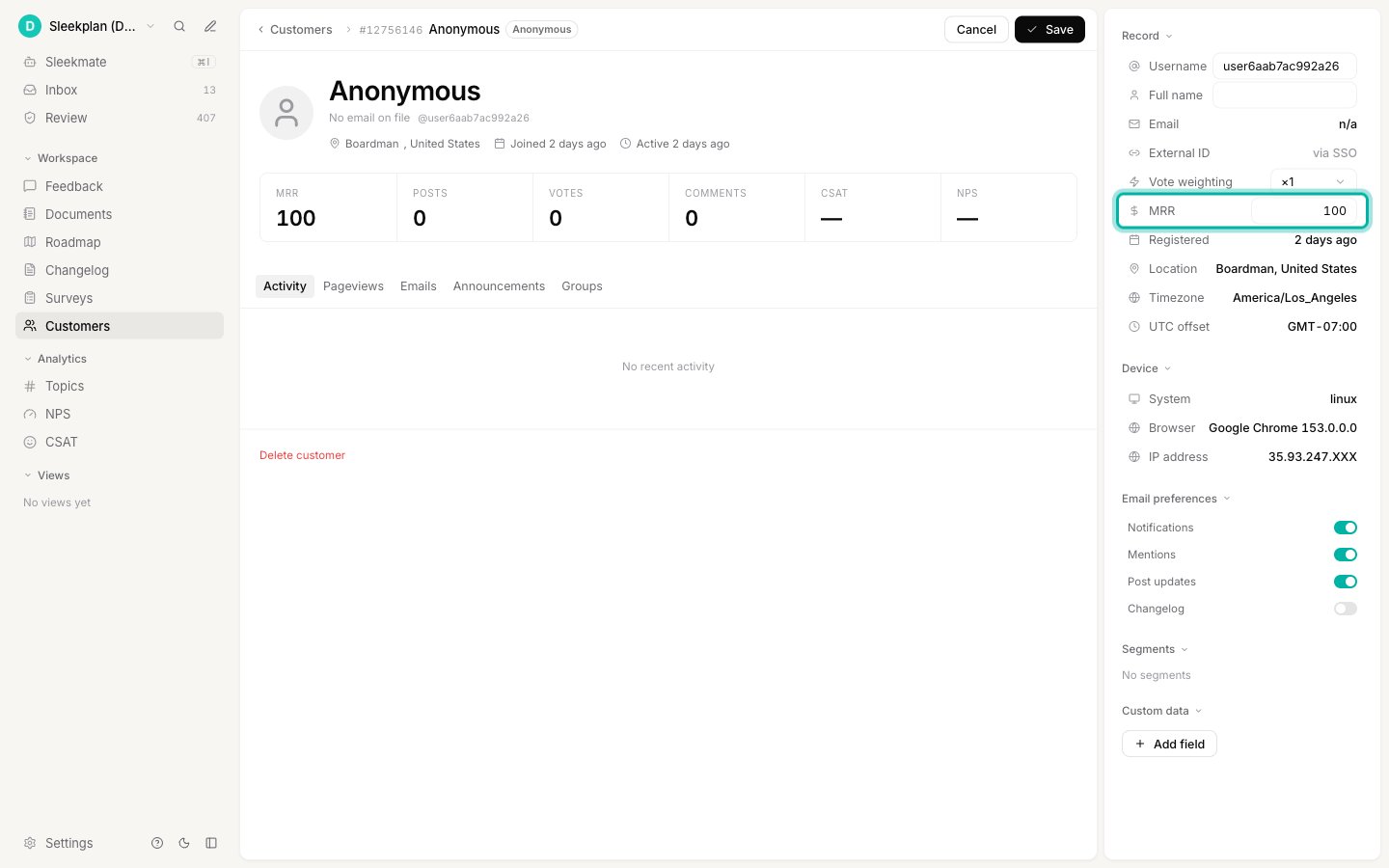
Go to [**Customers**](https://app.sleekplan.com/customers) and select the person you want. You can sort the list by the **MRR** column to see who already has a figure.
Select **Edit** in the top right of the profile.
In the **Record** panel on the right, type the monthly figure into **MRR**, then select **Save**.
 ## Record MRR on a company
Use this for B2B, where one contract covers everyone from that account.
Go to [**Groups**](https://app.sleekplan.com/groups) and select the company or team. Groups arrive from your sign-in integration or the API rather than being created by hand, so if the list is empty, start with [Companies and teams](/help/account-security/groups).
Select **Edit** in the top right of the profile.
In the **Details** panel on the right, type the account's monthly figure into **MRR**, then select **Save**.
## Record MRR on a company
Use this for B2B, where one contract covers everyone from that account.
Go to [**Groups**](https://app.sleekplan.com/groups) and select the company or team. Groups arrive from your sign-in integration or the API rather than being created by hand, so if the list is empty, start with [Companies and teams](/help/account-security/groups).
Select **Edit** in the top right of the profile.
In the **Details** panel on the right, type the account's monthly figure into **MRR**, then select **Save**.
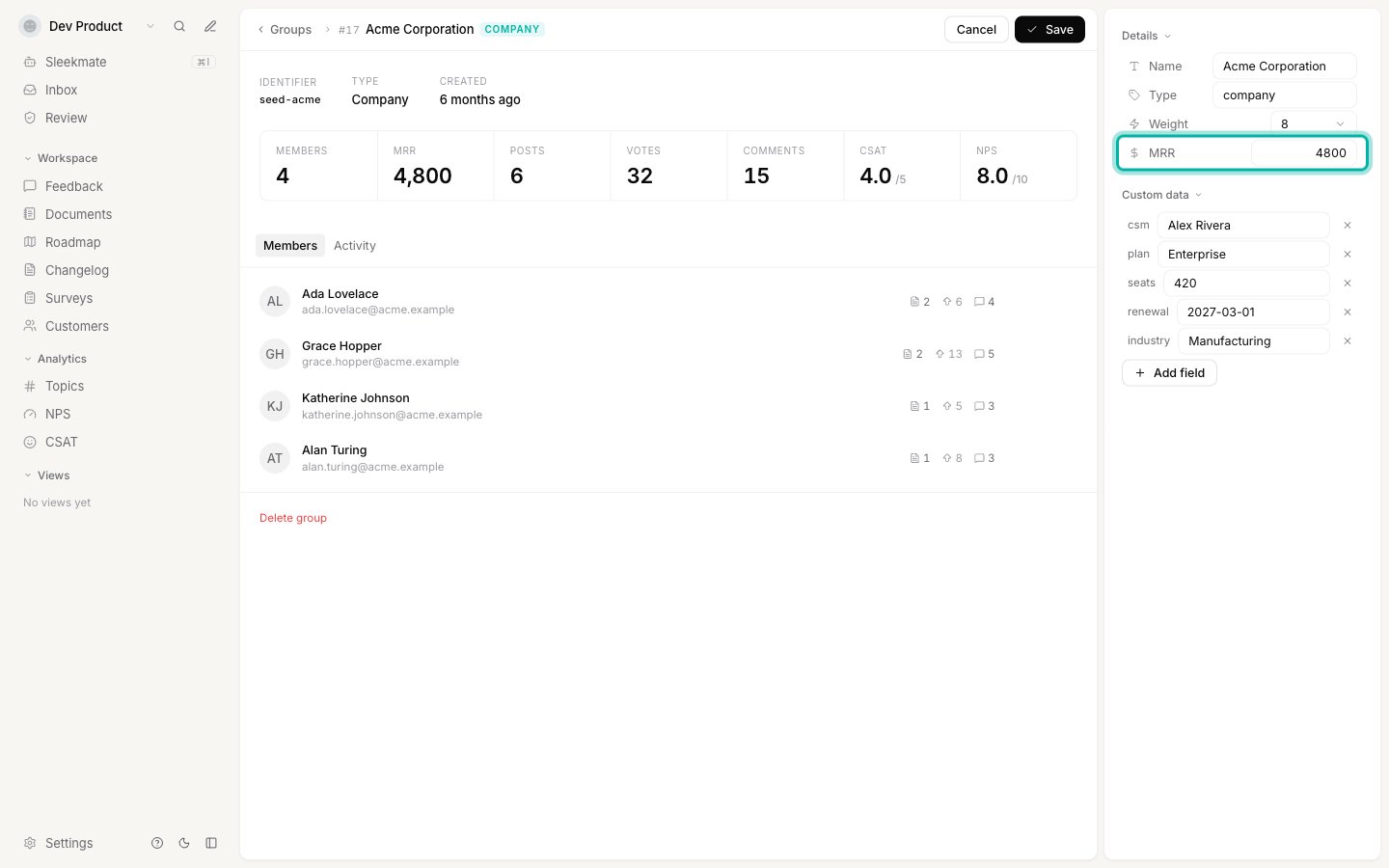 You do not need to spread a company's revenue across its members. Put the full contract value on the group and leave the members' own MRR at zero. Sleekplan takes the group's figure for everyone who belongs to it.
## Keep it up to date automatically
Typing figures by hand is fine for a handful of key accounts, but revenue changes every month. Your developers can send MRR with the data your product already passes to Sleekplan, so it stays current without anyone touching the dashboard:
* **At sign-in**, through the [single sign-on token](https://sleekplan.com/docs/authentication/single-sign-on). An `mrr` value on the user sets that customer's revenue, and an `mrr` value inside the `groups` array sets the company's. Groups are created and updated from that claim automatically.
* **From your backend**, through the [Groups endpoints](https://sleekplan.com/docs/api/v2) in the API, which is the better fit when your billing system is the source of truth and you want to push changes as they happen rather than waiting for the next sign-in.
Anything sent this way still shows in the dashboard, and you can still adjust it by hand afterwards.
## Where the combined number shows up
Open any feedback post and expand **Engagement** in the sidebar. **MRR** is the combined revenue behind the post, and **Groups** is how many separate accounts are involved.
You do not need to spread a company's revenue across its members. Put the full contract value on the group and leave the members' own MRR at zero. Sleekplan takes the group's figure for everyone who belongs to it.
## Keep it up to date automatically
Typing figures by hand is fine for a handful of key accounts, but revenue changes every month. Your developers can send MRR with the data your product already passes to Sleekplan, so it stays current without anyone touching the dashboard:
* **At sign-in**, through the [single sign-on token](https://sleekplan.com/docs/authentication/single-sign-on). An `mrr` value on the user sets that customer's revenue, and an `mrr` value inside the `groups` array sets the company's. Groups are created and updated from that claim automatically.
* **From your backend**, through the [Groups endpoints](https://sleekplan.com/docs/api/v2) in the API, which is the better fit when your billing system is the source of truth and you want to push changes as they happen rather than waiting for the next sign-in.
Anything sent this way still shows in the dashboard, and you can still adjust it by hand afterwards.
## Where the combined number shows up
Open any feedback post and expand **Engagement** in the sidebar. **MRR** is the combined revenue behind the post, and **Groups** is how many separate accounts are involved.
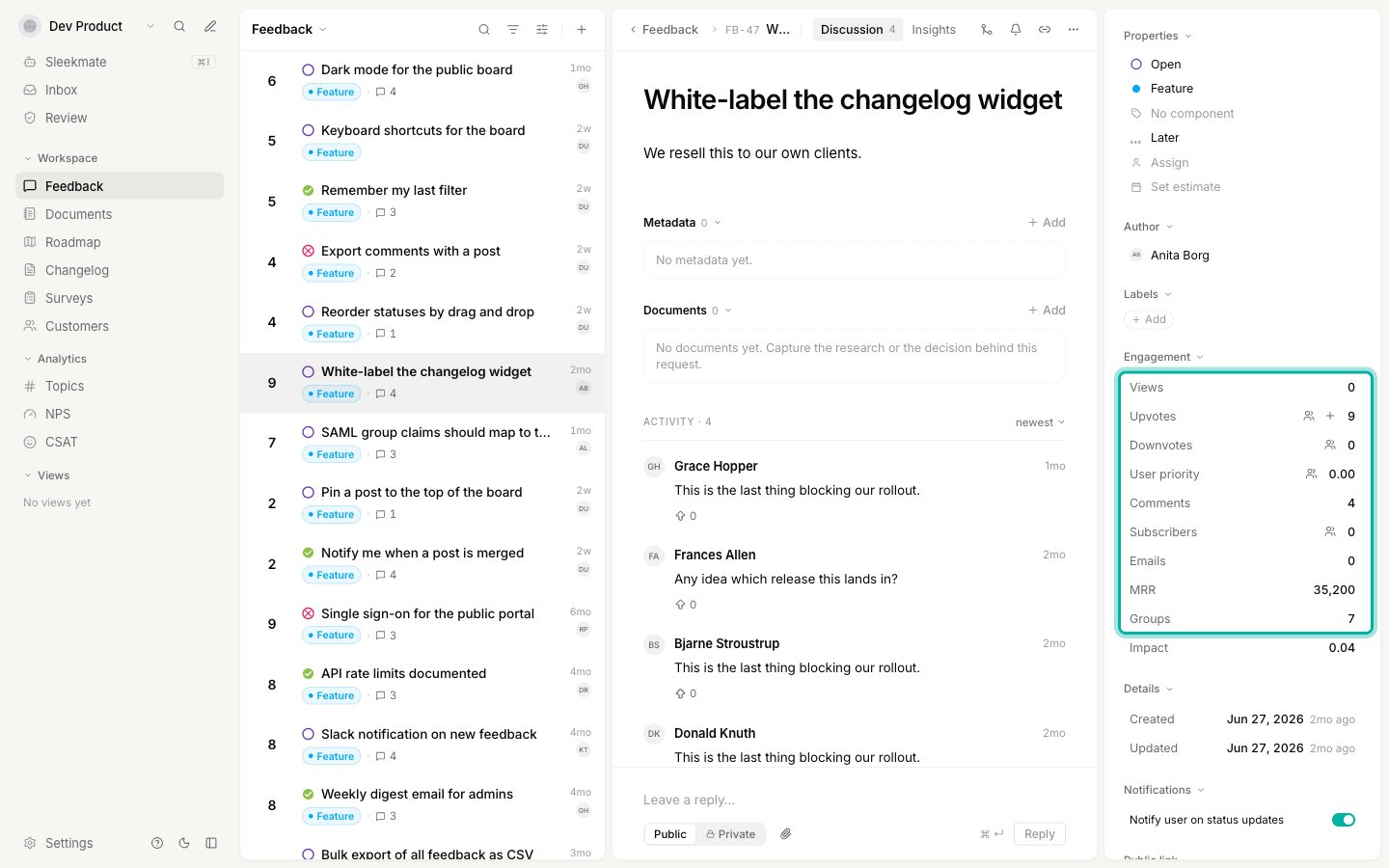 The same figure is broken down in far more detail on the post's [Insights tab](/help/feedback/post-insights), which lists the companies behind the request, the highest-paying voters, and how the post compares to the rest of your board.
The **Groups** row only appears on plans that include companies and teams. Without it, **MRR** still works and simply adds up the voters' own revenue.
## How the combined number is worked out
Each upvoter is counted once, and their account is counted once:
1. If an upvoter belongs to a group that has MRR recorded, that **group's MRR is counted a single time**, no matter how many of its members voted.
2. If an upvoter belongs to no group with MRR recorded, **their own MRR is added** instead.
A worked example. Three people from Acme Corporation (MRR 4,800) upvote a post, alongside one self-serve customer whose own MRR is 200:
* Acme is counted once: **4,800**
* The self-serve customer is counted once: **200**
* Total on the post: **5,000**
Acme is not counted three times, and its three employees do not add their individual figures on top. That is what makes it safe to record revenue on customers and on companies at the same time.
## Good to know
None. MRR is stored as a plain number with no currency symbol attached, so it is up to you to pick one currency and use it consistently across every customer and company. Only whole numbers are kept: decimals are dropped, and a negative value is treated as zero.
No. Only upvoters count towards the figure on a post. Someone who commented, subscribed, or downvoted does not add their revenue.
Their own MRR is used. The group only takes over once it has a figure of its own, so a company you have not priced yet never hides its members' revenue.
None of the upvoters has revenue recorded, on their own record or through a group. Add it in [**Customers**](https://app.sleekplan.com/customers) or [**Groups**](https://app.sleekplan.com/groups), or have your developers send it with your user data. Anonymous voters, who are not signed in, can never carry revenue.
No. Revenue is admin-only. It is never returned to the widget or the public portal, so nobody on your board can see what you recorded against them or their company.
No, and they do different jobs. **Weight** is how important an account is to you on a 0 to 10 scale, and it feeds the [Impact Score](/help/feedback/impact-score) that ranks your whole board. **MRR** is a real revenue figure that is reported rather than scored. Many teams set both: weight to sort the board, MRR to answer "what is this worth".
## Related
The full breakdown of who is behind a request and what it is worth.
How groups are created, how to read the list, and how to manage members.
Rank your whole board by real impact, and tune the weights behind the score.
Sign your customers in so their revenue and account data reach Sleekplan.
The same figure is broken down in far more detail on the post's [Insights tab](/help/feedback/post-insights), which lists the companies behind the request, the highest-paying voters, and how the post compares to the rest of your board.
The **Groups** row only appears on plans that include companies and teams. Without it, **MRR** still works and simply adds up the voters' own revenue.
## How the combined number is worked out
Each upvoter is counted once, and their account is counted once:
1. If an upvoter belongs to a group that has MRR recorded, that **group's MRR is counted a single time**, no matter how many of its members voted.
2. If an upvoter belongs to no group with MRR recorded, **their own MRR is added** instead.
A worked example. Three people from Acme Corporation (MRR 4,800) upvote a post, alongside one self-serve customer whose own MRR is 200:
* Acme is counted once: **4,800**
* The self-serve customer is counted once: **200**
* Total on the post: **5,000**
Acme is not counted three times, and its three employees do not add their individual figures on top. That is what makes it safe to record revenue on customers and on companies at the same time.
## Good to know
None. MRR is stored as a plain number with no currency symbol attached, so it is up to you to pick one currency and use it consistently across every customer and company. Only whole numbers are kept: decimals are dropped, and a negative value is treated as zero.
No. Only upvoters count towards the figure on a post. Someone who commented, subscribed, or downvoted does not add their revenue.
Their own MRR is used. The group only takes over once it has a figure of its own, so a company you have not priced yet never hides its members' revenue.
None of the upvoters has revenue recorded, on their own record or through a group. Add it in [**Customers**](https://app.sleekplan.com/customers) or [**Groups**](https://app.sleekplan.com/groups), or have your developers send it with your user data. Anonymous voters, who are not signed in, can never carry revenue.
No. Revenue is admin-only. It is never returned to the widget or the public portal, so nobody on your board can see what you recorded against them or their company.
No, and they do different jobs. **Weight** is how important an account is to you on a 0 to 10 scale, and it feeds the [Impact Score](/help/feedback/impact-score) that ranks your whole board. **MRR** is a real revenue figure that is reported rather than scored. Many teams set both: weight to sort the board, MRR to answer "what is this worth".
## Related
The full breakdown of who is behind a request and what it is worth.
How groups are created, how to read the list, and how to manage members.
Rank your whole board by real impact, and tune the weights behind the score.
Sign your customers in so their revenue and account data reach Sleekplan.