> ## Documentation Index
> Fetch the complete documentation index at: https://sleekplan.com/llms.txt
> Use this file to discover all available pages before exploring further.
# Filter, sort, and search feedback
> Find the right posts on your feedback board: switch views, filter by status, category, labels, owner, segment, votes, and dates, sort the list, and save reusable views.
Your [**Feedback**](https://app.sleekplan.com/feedback) board collects every request, bug, and idea in one list. As it grows, the toolbar at the top of the list lets you narrow it down to exactly the posts you care about — then sort, save, and share that view. This article covers every control on that toolbar.
Filtering, sorting, and saving views is available to any team member with access to the workspace. Filters only change what *you* see — they never change the posts themselves or what your users see on the public portal.
## The feedback toolbar
Everything for finding posts lives in the header above the list. From left to right:
 * **View switcher** — the title (e.g. **Feedback**) is a dropdown that flips between broad, ready-made views.
* **Search** — free-text search across your posts.
* **Filter** — narrow the list by status, category, labels, and more.
* **Display** — change the sort order and how the list looks.
* **New** — create a post (see [Create a post](/help/feedback/create-post)).
Your current view, filters, sort, and search are all stored in the page URL. That means you can **bookmark a filtered list** or **copy the URL to a teammate** and they'll open the exact same view.
## Switch views
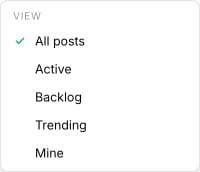
Click the list title to open the **View** dropdown. These are ready-made views that set a broad scope in one click, so you don't have to build a filter by hand.
* **View switcher** — the title (e.g. **Feedback**) is a dropdown that flips between broad, ready-made views.
* **Search** — free-text search across your posts.
* **Filter** — narrow the list by status, category, labels, and more.
* **Display** — change the sort order and how the list looks.
* **New** — create a post (see [Create a post](/help/feedback/create-post)).
Your current view, filters, sort, and search are all stored in the page URL. That means you can **bookmark a filtered list** or **copy the URL to a teammate** and they'll open the exact same view.
## Switch views
Click the list title to open the **View** dropdown. These are ready-made views that set a broad scope in one click, so you don't have to build a filter by hand.
 | View | Shows |
| ------------- | ------------------------------------------------------------------------------ |
| **All posts** | Every post in the workspace. |
| **Active** | Everything **except** closed and completed posts — the open, in-progress work. |
| **Backlog** | Open posts only. |
| **Trending** | Posts gaining momentum from recent votes and activity. |
| **Mine** | Posts where you're the owner. |
**Coming from the old admin?** The legacy dashboard had an "all, not closed or completed" filter. That's now the **Active** view — open the title dropdown and choose **Active** to hide closed and completed posts. It's the same result, just moved into the view switcher.
## Search posts
Click the **Search** icon to open a search box and type to find posts by keyword. Search looks across each post's **title, description, and comments**, so you can find a post even if your keyword only appears in the discussion.
Click the **Search** icon in the toolbar. The box expands with the placeholder *Search posts…*.
The list filters as you type. Search combines with any active view and filters, so you can search *within* a filtered list.
## Filter posts
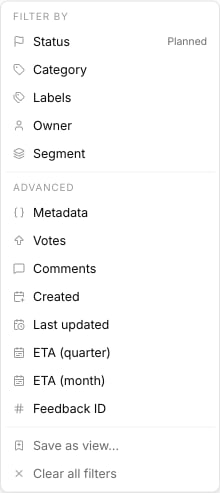
Click **Filter** to open the filter panel. It has two sections: everyday **facet filters** at the top and **Advanced** conditions below. A badge on the Filter button shows how many filters are currently active.
| View | Shows |
| ------------- | ------------------------------------------------------------------------------ |
| **All posts** | Every post in the workspace. |
| **Active** | Everything **except** closed and completed posts — the open, in-progress work. |
| **Backlog** | Open posts only. |
| **Trending** | Posts gaining momentum from recent votes and activity. |
| **Mine** | Posts where you're the owner. |
**Coming from the old admin?** The legacy dashboard had an "all, not closed or completed" filter. That's now the **Active** view — open the title dropdown and choose **Active** to hide closed and completed posts. It's the same result, just moved into the view switcher.
## Search posts
Click the **Search** icon to open a search box and type to find posts by keyword. Search looks across each post's **title, description, and comments**, so you can find a post even if your keyword only appears in the discussion.
Click the **Search** icon in the toolbar. The box expands with the placeholder *Search posts…*.
The list filters as you type. Search combines with any active view and filters, so you can search *within* a filtered list.
## Filter posts
Click **Filter** to open the filter panel. It has two sections: everyday **facet filters** at the top and **Advanced** conditions below. A badge on the Filter button shows how many filters are currently active.
 ### Facet filters
Each facet opens a short list of options drawn from your own workspace settings, so what you see matches how you've set up your board.
| Filter | Narrows to posts by | Selection |
| ------------ | ---------------------------------------------------------------------------------- | ------------- |
| **Status** | Their status (Open, Planned, In progress, and any other status you've configured). | One at a time |
| **Category** | Their type (for example Feature, Bug, or Improvement). | One at a time |
| **Labels** | The internal tags applied to them. | Multiple |
| **Owner** | The team member assigned as owner. | One at a time |
| **Segment** | The [user segment](https://app.sleekplan.com/customers) the author belongs to. | One at a time |
To apply a facet, click it to expand its options, then pick a value:
### Facet filters
Each facet opens a short list of options drawn from your own workspace settings, so what you see matches how you've set up your board.
| Filter | Narrows to posts by | Selection |
| ------------ | ---------------------------------------------------------------------------------- | ------------- |
| **Status** | Their status (Open, Planned, In progress, and any other status you've configured). | One at a time |
| **Category** | Their type (for example Feature, Bug, or Improvement). | One at a time |
| **Labels** | The internal tags applied to them. | Multiple |
| **Owner** | The team member assigned as owner. | One at a time |
| **Segment** | The [user segment](https://app.sleekplan.com/customers) the author belongs to. | One at a time |
To apply a facet, click it to expand its options, then pick a value:
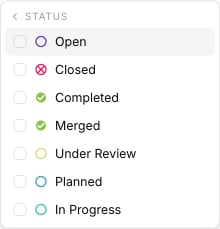 **Status, Category, Owner, and Segment let you pick one value** — choosing a new value replaces the previous one, and clicking the active value again clears it. **Labels** is the exception: you can select several labels at once to see posts carrying any of them.
### Advanced conditions
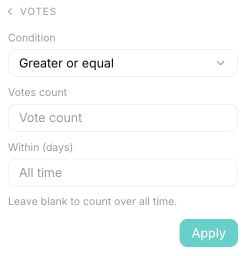
The **Advanced** section filters on numbers and dates. Each condition opens a small editor where you choose a comparison and enter a value, then click **Apply**.
**Status, Category, Owner, and Segment let you pick one value** — choosing a new value replaces the previous one, and clicking the active value again clears it. **Labels** is the exception: you can select several labels at once to see posts carrying any of them.
### Advanced conditions
The **Advanced** section filters on numbers and dates. Each condition opens a small editor where you choose a comparison and enter a value, then click **Apply**.
 | Condition | Filters by | Options |
| ----------------- | ---------------------------------- | ------------------------------------------------------------------------------------------------------------------------------------------------ |
| **Metadata** | A custom field stored on the post. | Enter a key and value, and match with *Equals, Not equal, Contains, Does not contain, Begins with,* or *Ends with*. |
| **Votes** | The net vote count. | Numeric comparison (greater than, less than, equals, and so on). Add an optional *Within (days)* window — leave it blank to count over all time. |
| **Comments** | The number of comments. | Numeric comparison, with the same optional *Within (days)* window. |
| **Created** | When the post was created. | *In the last* or *Older than* a number of Days, Months, or Years. |
| **Last updated** | When the post last changed. | *In the last* or *Older than* a number of Days, Months, or Years. |
| **ETA (quarter)** | The post's estimated quarter. | Enter a quarter such as `2025-Q1`. |
| **ETA (month)** | The post's estimated month. | Enter a month such as `2025-03`. |
| **Feedback ID** | A specific post ID. | Enter the numeric ID, for example `1024`. |
Combine conditions to answer real questions — for example, **Votes greater than 10** plus **Created older than 3 months** surfaces long-standing requests that people still care about but that haven't been picked up yet.
### Clear filters
Once at least one filter is active, two rows appear at the bottom of the filter panel:
* **Save as view…** — save the current filters as a reusable view (see [Save a view](#save-a-view)).
* **Clear all filters** — remove every active filter at once and return to the full list.
## Sort and change the layout
Click **Display** to set the sort order and control how the list looks. Sorting changes the order of posts; the other options only change the list's appearance for you.
| Condition | Filters by | Options |
| ----------------- | ---------------------------------- | ------------------------------------------------------------------------------------------------------------------------------------------------ |
| **Metadata** | A custom field stored on the post. | Enter a key and value, and match with *Equals, Not equal, Contains, Does not contain, Begins with,* or *Ends with*. |
| **Votes** | The net vote count. | Numeric comparison (greater than, less than, equals, and so on). Add an optional *Within (days)* window — leave it blank to count over all time. |
| **Comments** | The number of comments. | Numeric comparison, with the same optional *Within (days)* window. |
| **Created** | When the post was created. | *In the last* or *Older than* a number of Days, Months, or Years. |
| **Last updated** | When the post last changed. | *In the last* or *Older than* a number of Days, Months, or Years. |
| **ETA (quarter)** | The post's estimated quarter. | Enter a quarter such as `2025-Q1`. |
| **ETA (month)** | The post's estimated month. | Enter a month such as `2025-03`. |
| **Feedback ID** | A specific post ID. | Enter the numeric ID, for example `1024`. |
Combine conditions to answer real questions — for example, **Votes greater than 10** plus **Created older than 3 months** surfaces long-standing requests that people still care about but that haven't been picked up yet.
### Clear filters
Once at least one filter is active, two rows appear at the bottom of the filter panel:
* **Save as view…** — save the current filters as a reusable view (see [Save a view](#save-a-view)).
* **Clear all filters** — remove every active filter at once and return to the full list.
## Sort and change the layout
Click **Display** to set the sort order and control how the list looks. Sorting changes the order of posts; the other options only change the list's appearance for you.
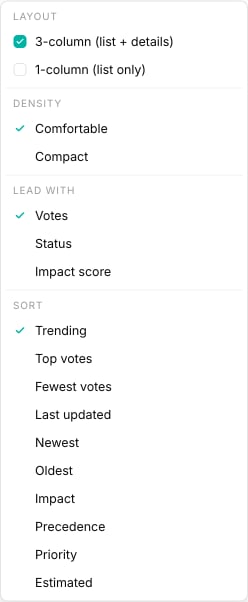 **Sort** orders the list by:
| Sort | Orders posts by |
| ---------------------- | ---------------------------------------------------------------------------------------------- |
| **Trending** (default) | Momentum from recent votes and activity. |
| **Top votes** | Most votes first. |
| **Fewest votes** | Fewest votes first. |
| **Last updated** | Most recently changed first. |
| **Newest** | Newest created first. |
| **Oldest** | Oldest created first. |
| **Impact** | Impact score. |
| **Precedence** | Your internal [precedence](/help/feedback/create-post#set-the-post-properties) (High → Later). |
| **Priority** | Weighted user priority votes. |
| **Estimated** | Estimated delivery date. |
The remaining options adjust the display only:
* **Layout** — **3-column** (list plus a details pane) or **1-column** (list only).
* **Lead with** — what each row shows first: **Votes**, **Status**, or **Impact score**.
* **Density** — how tightly the rows are packed. See below.
### Comfortable vs. Compact density
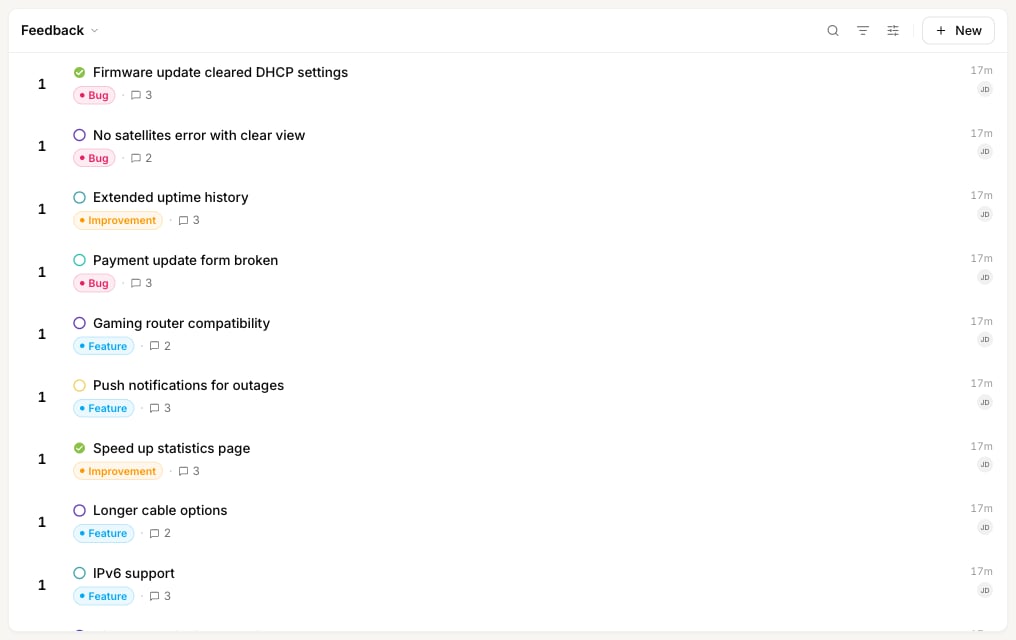
**Density** controls how much space each post takes up. It's purely visual — it never changes which posts are shown.
**Comfortable** gives each post two lines, with the category and comment count on their own row below the title. It's roomier and easier to read title-by-title.
**Sort** orders the list by:
| Sort | Orders posts by |
| ---------------------- | ---------------------------------------------------------------------------------------------- |
| **Trending** (default) | Momentum from recent votes and activity. |
| **Top votes** | Most votes first. |
| **Fewest votes** | Fewest votes first. |
| **Last updated** | Most recently changed first. |
| **Newest** | Newest created first. |
| **Oldest** | Oldest created first. |
| **Impact** | Impact score. |
| **Precedence** | Your internal [precedence](/help/feedback/create-post#set-the-post-properties) (High → Later). |
| **Priority** | Weighted user priority votes. |
| **Estimated** | Estimated delivery date. |
The remaining options adjust the display only:
* **Layout** — **3-column** (list plus a details pane) or **1-column** (list only).
* **Lead with** — what each row shows first: **Votes**, **Status**, or **Impact score**.
* **Density** — how tightly the rows are packed. See below.
### Comfortable vs. Compact density
**Density** controls how much space each post takes up. It's purely visual — it never changes which posts are shown.
**Comfortable** gives each post two lines, with the category and comment count on their own row below the title. It's roomier and easier to read title-by-title.
 **Compact** fits each post on a single line, so you see roughly twice as many posts in the same space.
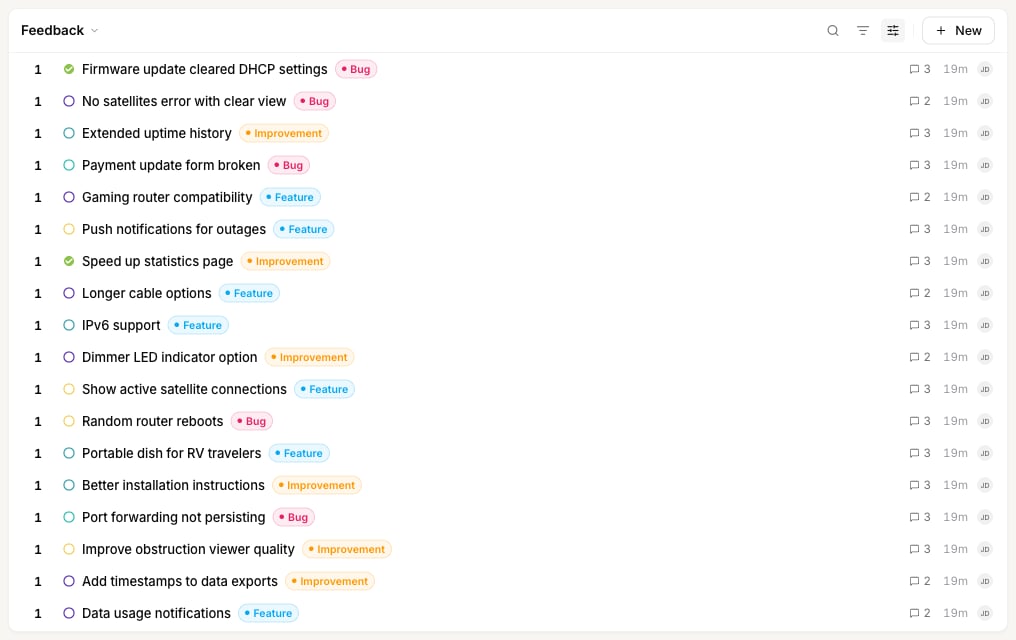 Use **Comfortable** for everyday reading and triage, when you're focused on a handful of posts at a time. Switch to **Compact** when you're scanning a long board — bulk-updating, hunting for duplicates, or getting a bird's-eye view of everything at once — and want as many posts on screen as possible.
## Save a view
When you've built a filter you'll return to, save it as a **view** so you can reopen it in one click instead of rebuilding it each time. For everything you can do with views, including pinning them to the sidebar, sharing them with your team, and managing them, see [Views and the sidebar](/help/feedback/views).
Pick a view, apply your filters, set the sort, and add a search term if you want — a view saves all of it together.
In the **Filter** panel, click **Save as view…** at the bottom. (You can also run **Save current view** from the ⌘K command palette.)
Use **Comfortable** for everyday reading and triage, when you're focused on a handful of posts at a time. Switch to **Compact** when you're scanning a long board — bulk-updating, hunting for duplicates, or getting a bird's-eye view of everything at once — and want as many posts on screen as possible.
## Save a view
When you've built a filter you'll return to, save it as a **view** so you can reopen it in one click instead of rebuilding it each time. For everything you can do with views, including pinning them to the sidebar, sharing them with your team, and managing them, see [Views and the sidebar](/help/feedback/views).
Pick a view, apply your filters, set the sort, and add a search term if you want — a view saves all of it together.
In the **Filter** panel, click **Save as view…** at the bottom. (You can also run **Save current view** from the ⌘K command palette.)
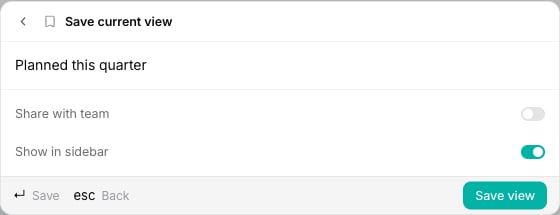 Give the view a name, then choose:
* **Share with team** — make the view available to everyone in the workspace (off by default, so views are private unless you share them).
* **Show in sidebar** — pin the view under the **Views** section in the left sidebar for quick access.
Click **Save view**.
Saved views appear in the sidebar's **Views** section and in the ⌘K command palette. Selecting one reopens the feedback list with that exact filter, sort, and search applied. See [Views and the sidebar](/help/feedback/views) for the full walkthrough.
## Next steps
Pin your frequent filters to the sidebar, share them, and manage them.
Add feedback from the dashboard and set its status, category, owner, and estimate.
Give the view a name, then choose:
* **Share with team** — make the view available to everyone in the workspace (off by default, so views are private unless you share them).
* **Show in sidebar** — pin the view under the **Views** section in the left sidebar for quick access.
Click **Save view**.
Saved views appear in the sidebar's **Views** section and in the ⌘K command palette. Selecting one reopens the feedback list with that exact filter, sort, and search applied. See [Views and the sidebar](/help/feedback/views) for the full walkthrough.
## Next steps
Pin your frequent filters to the sidebar, share them, and manage them.
Add feedback from the dashboard and set its status, category, owner, and estimate.