> ## Documentation Index
> Fetch the complete documentation index at: https://sleekplan.com/llms.txt
> Use this file to discover all available pages before exploring further.
# Add, remove, and reorder components
> A component says which part of your product a post is about, such as Widget, API, or Billing. Create components, scope them to an audience, reorder them, and delete the ones you no longer need.
A **component** says which part of your product a post is about, for example Widget, API, or Billing. It is a separate axis from the [category](/help/feedback/categories), which says what *kind* of request it is. A post can be a Bug (category) about your API (component), and neither one can express the other.
You manage components in [**Settings → Components**](https://app.sleekplan.com/settings/components).
Creating components requires the **Starter** plan or above. See [Plans and billing](/help/account-security/billing). Only workspace **owners** and **admins** can open the component settings. See [Roles and permissions](/help/account-security/roles-permissions).
## Why components are their own dimension
Most boards start by squeezing the product area into whatever field is free. Both of the usual workarounds have a catch:
* **Using the category** forces a choice. If your categories are Feature and Bug, they cannot also be Widget and API. You get one axis, not two.
* **Using [tags](/help/feedback/tags)** looks tempting, but tags are disposable by design: optional, unlimited, and applied inconsistently. A component is only useful if it is on *every* post, so the numbers add up when you ask which part of the product generates the most demand.
Components give you the second axis without spending your category on it, and without asking a disposable field to carry something that has to be complete.
## Components are optional
A post never has to have one. New workspaces start with an empty list, and nothing breaks if you never add a component: the field simply does not appear. Add components when you actually have parts worth separating, not before.
Each post has at most one component, the same way it has exactly one category.
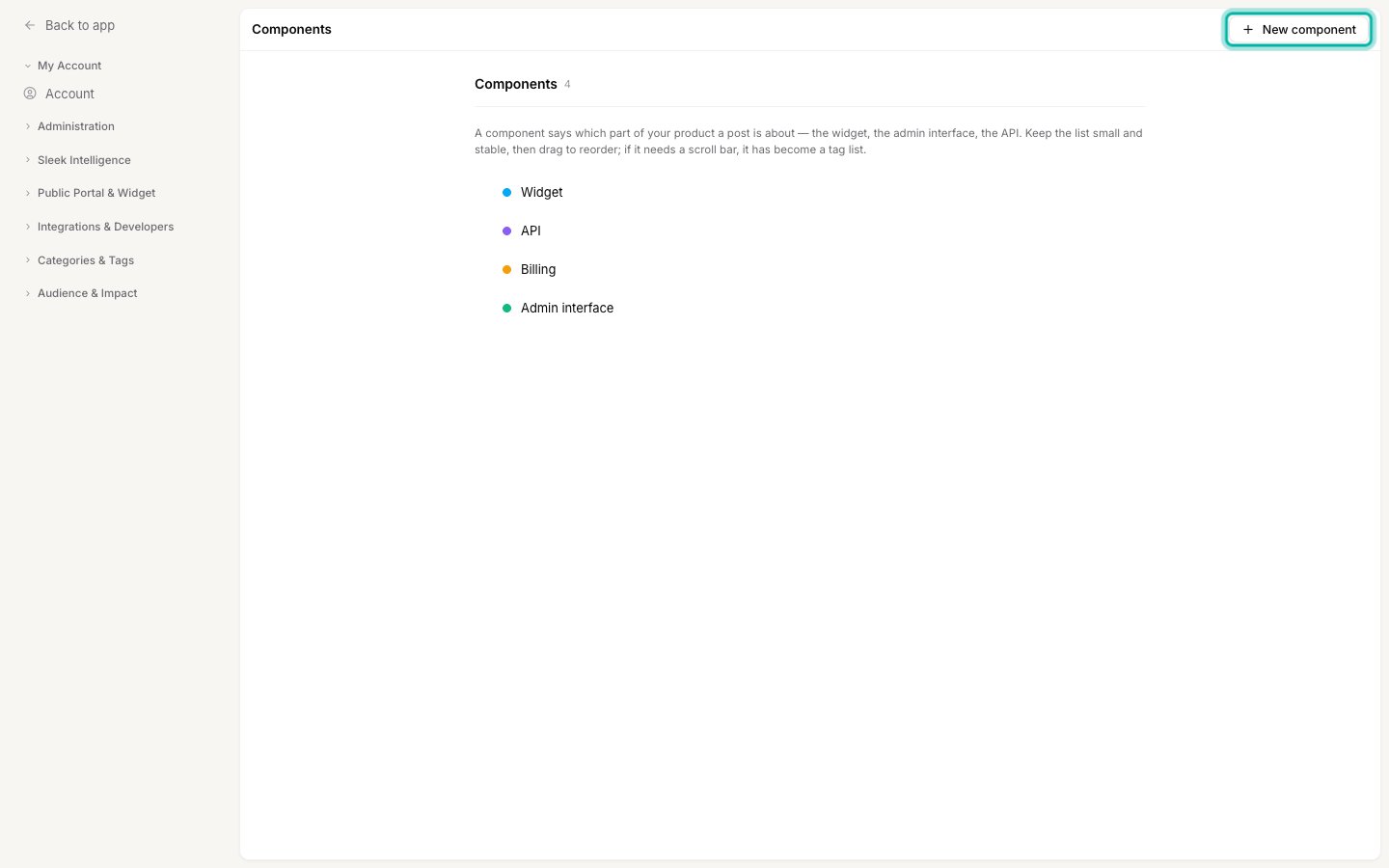 ## Add a component
Go to [**Settings → Components**](https://app.sleekplan.com/settings/components) and click **New component** in the top right.
Give the component a short name and choose a color. The color is the dot shown next to it everywhere the component appears.
Name it after a part of your product, not after the team that owns it. Teams get reorganized, while the shape of the product changes far more slowly.
## Add a component
Go to [**Settings → Components**](https://app.sleekplan.com/settings/components) and click **New component** in the top right.
Give the component a short name and choose a color. The color is the dot shown next to it everywhere the component appears.
Name it after a part of your product, not after the team that owns it. Teams get reorganized, while the shape of the product changes far more slowly.
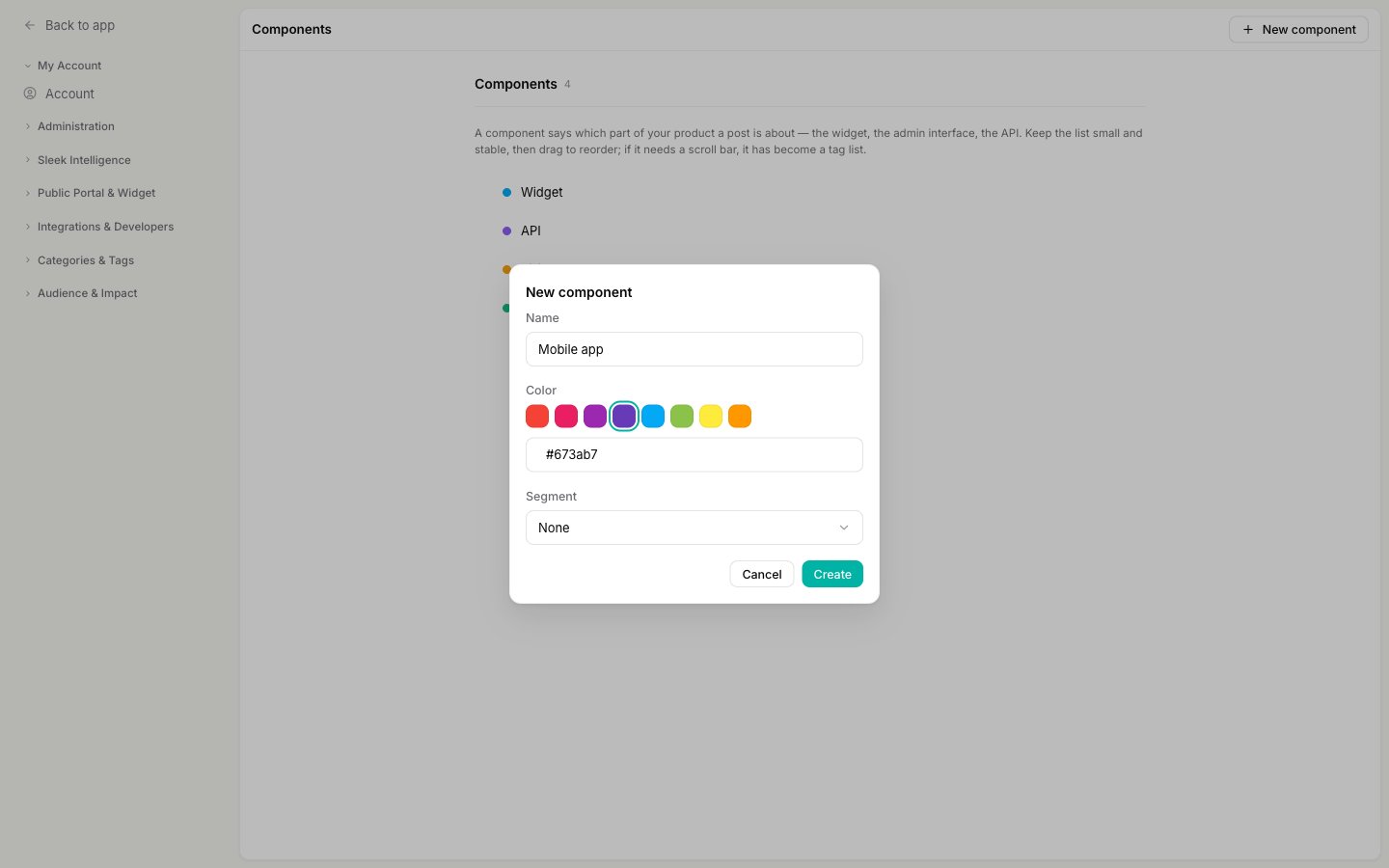 If your workspace has [segments](/help/account-security/segments), a **Segment** dropdown appears. Leave it on **None** to show the component to everyone, or pick a segment so only matching customers see its posts. This works exactly like it does for a category, see [Show a category to only some of your customers](/help/feedback/segment-categories).
Click **Create**. The component is available right away.
Keep the list small and stable. A handful of components that everyone recognizes is worth far more than twenty that nobody applies the same way twice. If the list needs a scroll bar, it has turned into a tag list.
## Reorder components
The order here is the order components appear in the picker and in filters. Put the ones you reach for most at the top.
Hover a component row to reveal the drag handle on its left.
Drag the row up or down and drop it where you want it. The new order saves on its own.
## Edit a component
Click a component name, or the pencil icon that appears when you hover its row, to reopen the same form and change its name, color, or segment.
## Delete a component
Hover the component you want to remove and click the trash icon on the right.
If your workspace has [segments](/help/account-security/segments), a **Segment** dropdown appears. Leave it on **None** to show the component to everyone, or pick a segment so only matching customers see its posts. This works exactly like it does for a category, see [Show a category to only some of your customers](/help/feedback/segment-categories).
Click **Create**. The component is available right away.
Keep the list small and stable. A handful of components that everyone recognizes is worth far more than twenty that nobody applies the same way twice. If the list needs a scroll bar, it has turned into a tag list.
## Reorder components
The order here is the order components appear in the picker and in filters. Put the ones you reach for most at the top.
Hover a component row to reveal the drag handle on its left.
Drag the row up or down and drop it where you want it. The new order saves on its own.
## Edit a component
Click a component name, or the pencil icon that appears when you hover its row, to reopen the same form and change its name, color, or segment.
## Delete a component
Hover the component you want to remove and click the trash icon on the right.
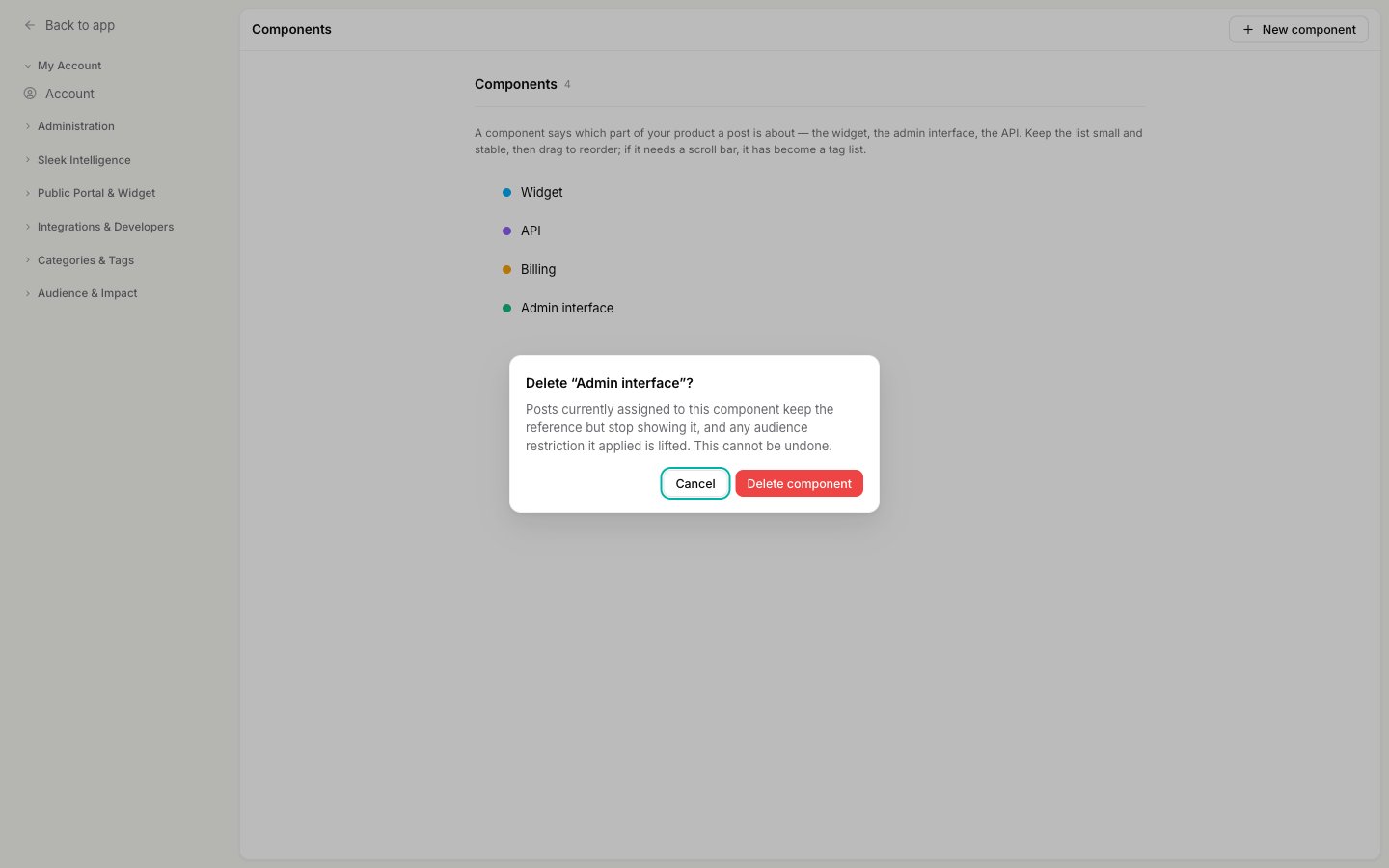 Click **Delete component**.
Deleting works differently from [deleting a category](/help/feedback/categories#delete-a-category), so it is worth knowing what happens:
* **Posts are never deleted**, and they do not move to a replacement. They keep the deleted component's reference internally but stop showing a component anywhere.
* **Any audience restriction is lifted.** If the component was scoped to a segment, its posts become visible to everyone who could otherwise see them. Check that before deleting a segmented component.
* **This cannot be undone.** Recreating a component with the same name does not reconnect the old posts, because a new component is a new entry. You would need to set the component again on the posts you care about.
## Set a component on a post
Open any post and use the **Component** row in the right-hand inspector to set or change it, the same place you set the status, category, and owner. Pick **No component** to clear it. See [Create a post](/help/feedback/create-post#set-the-post-properties).
Your team can always see and set components in the dashboard, whatever the public settings say. To show components to your customers, or let them pick one when they post, see [Show components on your public board](/help/portal-widget/public-components).
## Filter by component
Once you have components, the feedback list gains a **Component** filter alongside Status and Category. Open the filter menu, choose **Component**, and pick one to narrow the list to posts about that part of your product. See [Filter, sort, and search feedback](/help/feedback/filters).
## Related
Make components visible to customers and let them pick one when posting.
The other axis: what kind of request a post is.
How the four ways of organizing feedback divide up the work.
How the Segment field behaves, which is the same for components.
Click **Delete component**.
Deleting works differently from [deleting a category](/help/feedback/categories#delete-a-category), so it is worth knowing what happens:
* **Posts are never deleted**, and they do not move to a replacement. They keep the deleted component's reference internally but stop showing a component anywhere.
* **Any audience restriction is lifted.** If the component was scoped to a segment, its posts become visible to everyone who could otherwise see them. Check that before deleting a segmented component.
* **This cannot be undone.** Recreating a component with the same name does not reconnect the old posts, because a new component is a new entry. You would need to set the component again on the posts you care about.
## Set a component on a post
Open any post and use the **Component** row in the right-hand inspector to set or change it, the same place you set the status, category, and owner. Pick **No component** to clear it. See [Create a post](/help/feedback/create-post#set-the-post-properties).
Your team can always see and set components in the dashboard, whatever the public settings say. To show components to your customers, or let them pick one when they post, see [Show components on your public board](/help/portal-widget/public-components).
## Filter by component
Once you have components, the feedback list gains a **Component** filter alongside Status and Category. Open the filter menu, choose **Component**, and pick one to narrow the list to posts about that part of your product. See [Filter, sort, and search feedback](/help/feedback/filters).
## Related
Make components visible to customers and let them pick one when posting.
The other axis: what kind of request a post is.
How the four ways of organizing feedback divide up the work.
How the Segment field behaves, which is the same for components.