> ## Documentation Index
> Fetch the complete documentation index at: https://sleekplan.com/llms.txt
> Use this file to discover all available pages before exploring further.
# Category templates
> Give each feedback category a starting body that prefills the post composer, so users submit structured, complete feedback. Set a template per category, or a Default template that applies everywhere else.
A **category template** is a starting body of text that prefills the composer whenever someone begins a new post in that category. Instead of a blank box, the person sees a prompt you wrote, for example a set of headings asking a bug reporter for steps to reproduce. Templates are the simplest way to get more complete, consistent feedback.
You set them up in [**Settings → Category templates**](https://app.sleekplan.com/settings/templates).
## How templates work
Each of your [categories](/help/feedback/categories) can have its own template, and there is one extra **Default** template:
* When someone starts a post in a category that **has** a template, that template prefills the description.
* When the category has **no** template of its own, the **Default** template is used instead.
* If neither exists, the composer opens empty, exactly as before.
The prefilled text is only a starting point. Whoever is writing the post can edit or replace it before submitting.
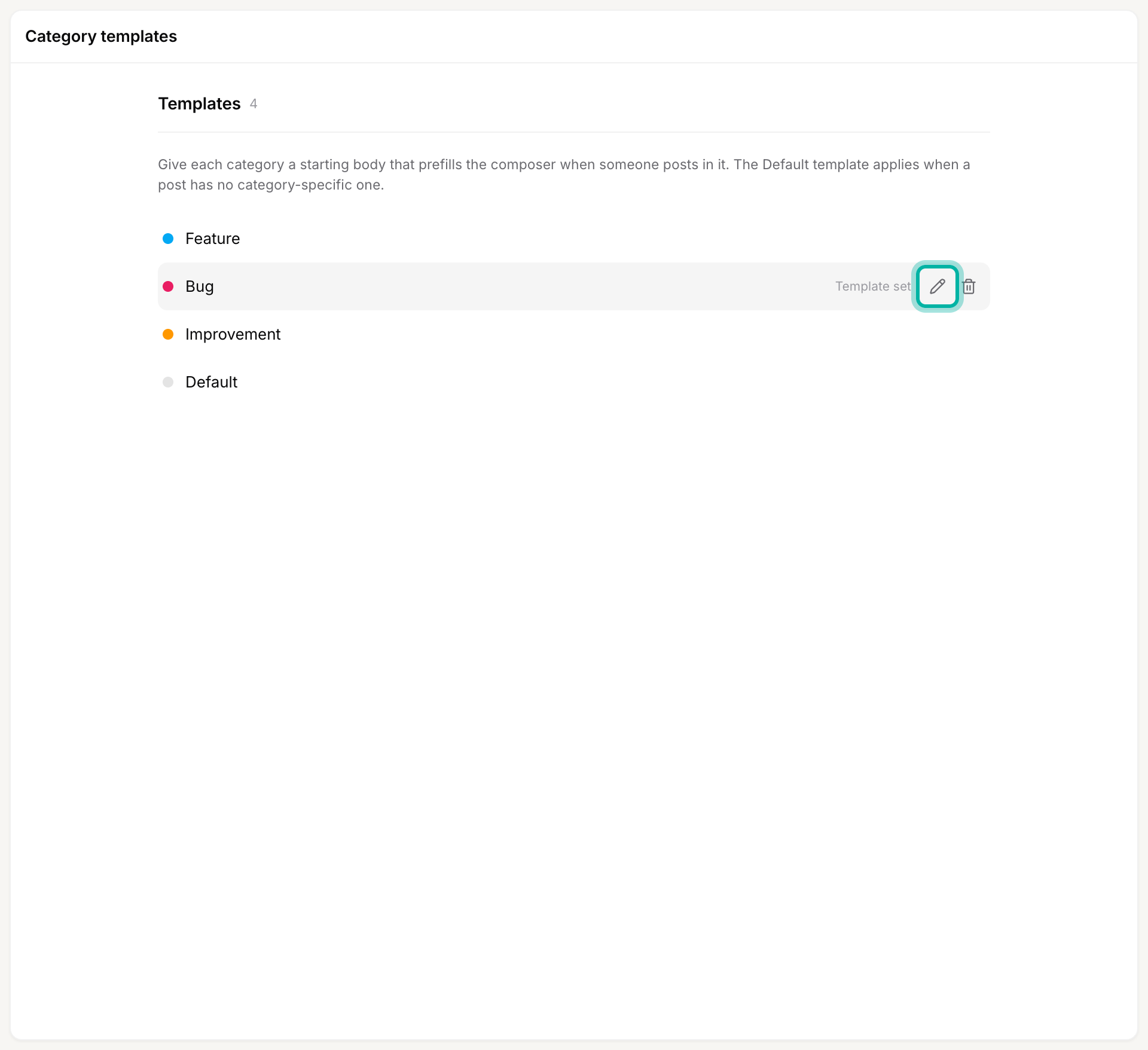 A **Template set** badge marks each category that already has a template, so you can see your coverage at a glance.
## Set or edit a template
Go to [**Settings → Category templates**](https://app.sleekplan.com/settings/templates) and click the category you want, or the pencil icon on its row.
Compose the starting body in the editor. Markdown is supported, so you can use headings, lists, and links to lay out exactly what you want people to fill in.
A **Template set** badge marks each category that already has a template, so you can see your coverage at a glance.
## Set or edit a template
Go to [**Settings → Category templates**](https://app.sleekplan.com/settings/templates) and click the category you want, or the pencil icon on its row.
Compose the starting body in the editor. Markdown is supported, so you can use headings, lists, and links to lay out exactly what you want people to fill in.
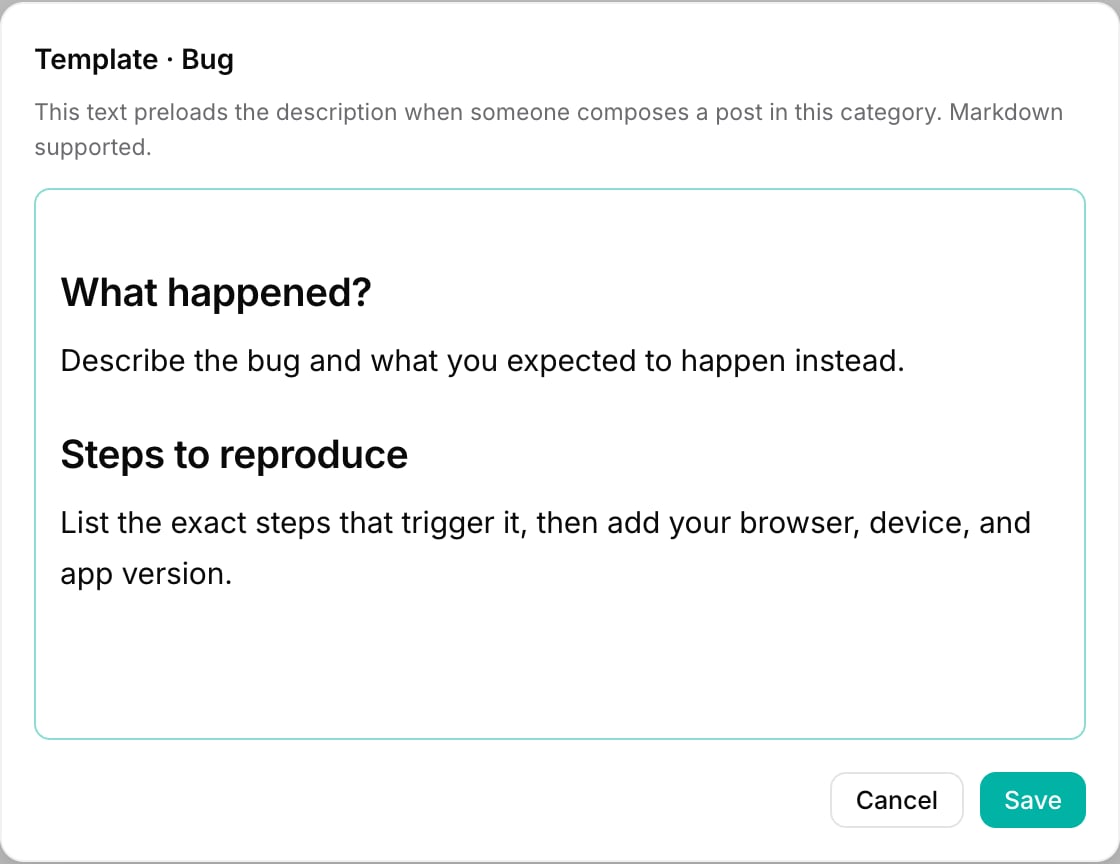 Click **Save**. From now on, new posts in that category open with this text already in place.
Templates work best as a light scaffold: a few headings or questions that guide the writer, not a wall of text. For a bug category, prompts like "What happened?", "Steps to reproduce", and "Browser and device" gather everything you need to act on the report.
## The Default template
The **Default** row at the bottom of the list is not a category. It is the fallback that prefills any post whose category has no template of its own. Set a Default template when you want every new post to start from the same base, and add category-specific templates only where a category needs something different.
## Delete a template
Hover a category that has a template and click the trash icon, then confirm. New posts in that category will no longer be prefilled (the Default template applies again if you have one). Deleting a template does not change any existing posts, and categories without a template simply show no trash icon.
## Related
Manage the categories that each template belongs to.
See where the template appears when you add a post from the dashboard.
Click **Save**. From now on, new posts in that category open with this text already in place.
Templates work best as a light scaffold: a few headings or questions that guide the writer, not a wall of text. For a bug category, prompts like "What happened?", "Steps to reproduce", and "Browser and device" gather everything you need to act on the report.
## The Default template
The **Default** row at the bottom of the list is not a category. It is the fallback that prefills any post whose category has no template of its own. Set a Default template when you want every new post to start from the same base, and add category-specific templates only where a category needs something different.
## Delete a template
Hover a category that has a template and click the trash icon, then confirm. New posts in that category will no longer be prefilled (the Default template applies again if you have one). Deleting a template does not change any existing posts, and categories without a template simply show no trash icon.
## Related
Manage the categories that each template belongs to.
See where the template appears when you add a post from the dashboard.