> ## Documentation Index
> Fetch the complete documentation index at: https://sleekplan.com/llms.txt
> Use this file to discover all available pages before exploring further.
# Bulk edit feedback
> Select multiple posts on the feedback list and update them all at once: change status, category, labels, or precedence, or delete posts in bulk.
When you're triaging a busy board, editing posts one at a time is slow. On the [**Feedback**](https://app.sleekplan.com/feedback) list you can select several posts at once and apply a single change to all of them: set a status, switch the category, add or remove labels, set precedence, or delete them together.
Bulk editing is available to any team member who can manage the workspace's feedback. Changes to **status** and **category** are visible to your users on the public board, the same as editing a single post.
## Select multiple posts
Every row on the feedback list has a checkbox on its left edge. It stays hidden behind the vote count until you hover the row or start a selection, so the list looks clean when you're just reading.
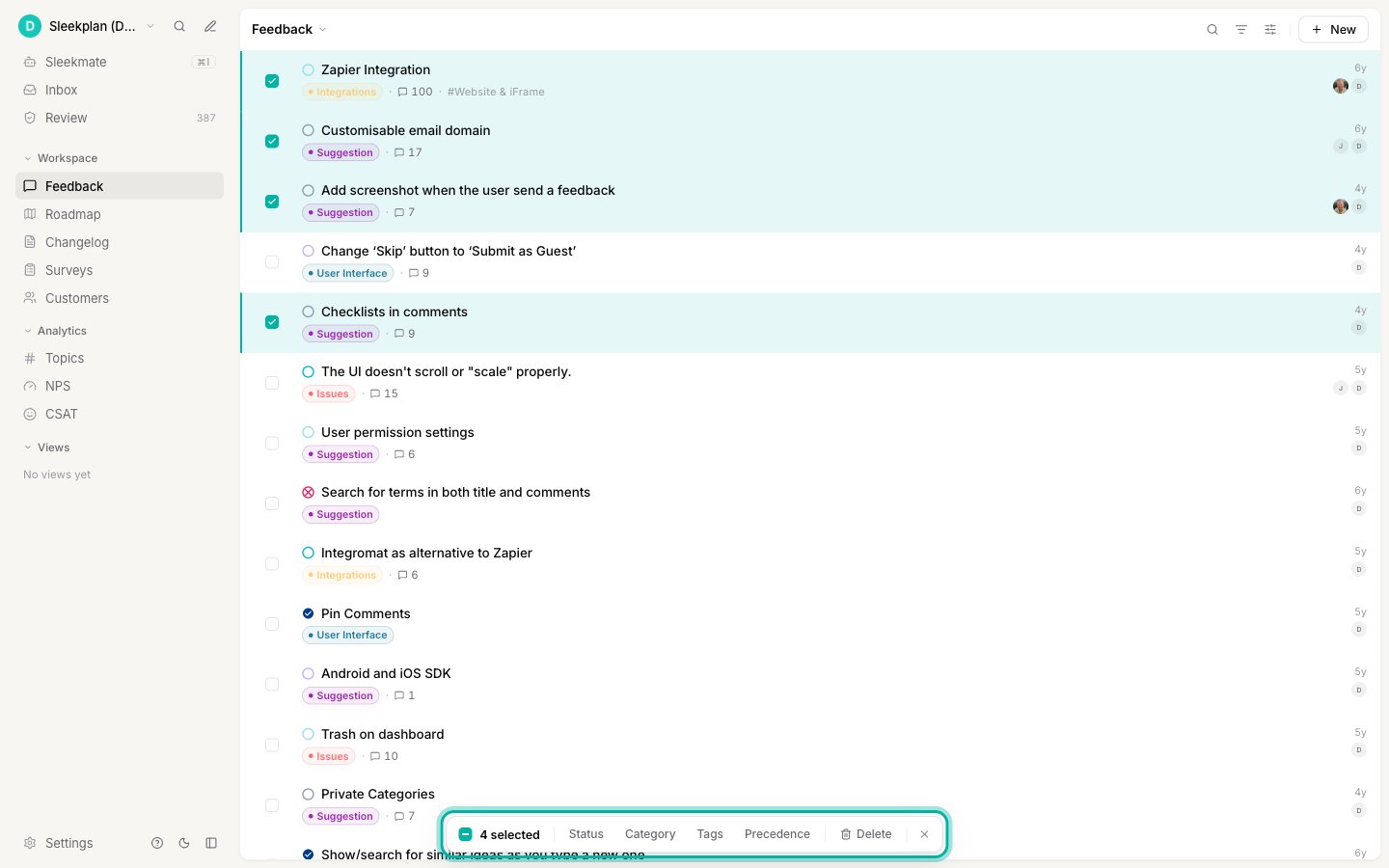
Hover a row and click the checkbox that appears on the left. The row highlights and a bulk action bar slides up from the bottom of the screen.
Once a selection is active, every row shows its checkbox. Click each post you want to include. The bar keeps a running count of how many are selected.
 A few faster ways to build a selection:
* **Range select.** Click one checkbox, then hold **Shift** and click another. Every post between the two is selected in one go.
* **Select all.** Click the **N selected** count on the left of the bar to select every post currently loaded in the list. Click it again to deselect them all.
* **Keyboard.** Move between rows with the arrow keys (or `j` / `k`), press `x` or `Space` to toggle the focused row, and press `Esc` to clear the whole selection.
**Select all** covers the posts that are currently loaded in the list, not your entire board. If you've [filtered or searched](/help/feedback/filters) the list first, it selects everything matching that filter that has loaded. Scroll to load more posts before selecting all if you need them included.
## The bulk action bar
The bar floats at the bottom of the screen for as long as you have a selection. From left to right it shows the count, four ways to update the selected posts, and a delete action.
A few faster ways to build a selection:
* **Range select.** Click one checkbox, then hold **Shift** and click another. Every post between the two is selected in one go.
* **Select all.** Click the **N selected** count on the left of the bar to select every post currently loaded in the list. Click it again to deselect them all.
* **Keyboard.** Move between rows with the arrow keys (or `j` / `k`), press `x` or `Space` to toggle the focused row, and press `Esc` to clear the whole selection.
**Select all** covers the posts that are currently loaded in the list, not your entire board. If you've [filtered or searched](/help/feedback/filters) the list first, it selects everything matching that filter that has loaded. Scroll to load more posts before selecting all if you need them included.
## The bulk action bar
The bar floats at the bottom of the screen for as long as you have a selection. From left to right it shows the count, four ways to update the selected posts, and a delete action.
 | Action | What it does |
| -------------- | ---------------------------------------------------------------------------------------------------------- |
| **Status** | Set the same [status](/help/feedback/statuses) on every selected post. |
| **Category** | Move every selected post into one [category](/help/feedback/categories). |
| **Tags** | Add or remove [labels](/help/feedback/tags) across the selection. |
| **Precedence** | Set your internal [precedence](/help/feedback/create-post#set-the-post-properties) on every selected post. |
| **Delete** | Permanently remove the selected posts. |
Click the **✕** on the right of the bar to clear your selection and close it.
## Change status
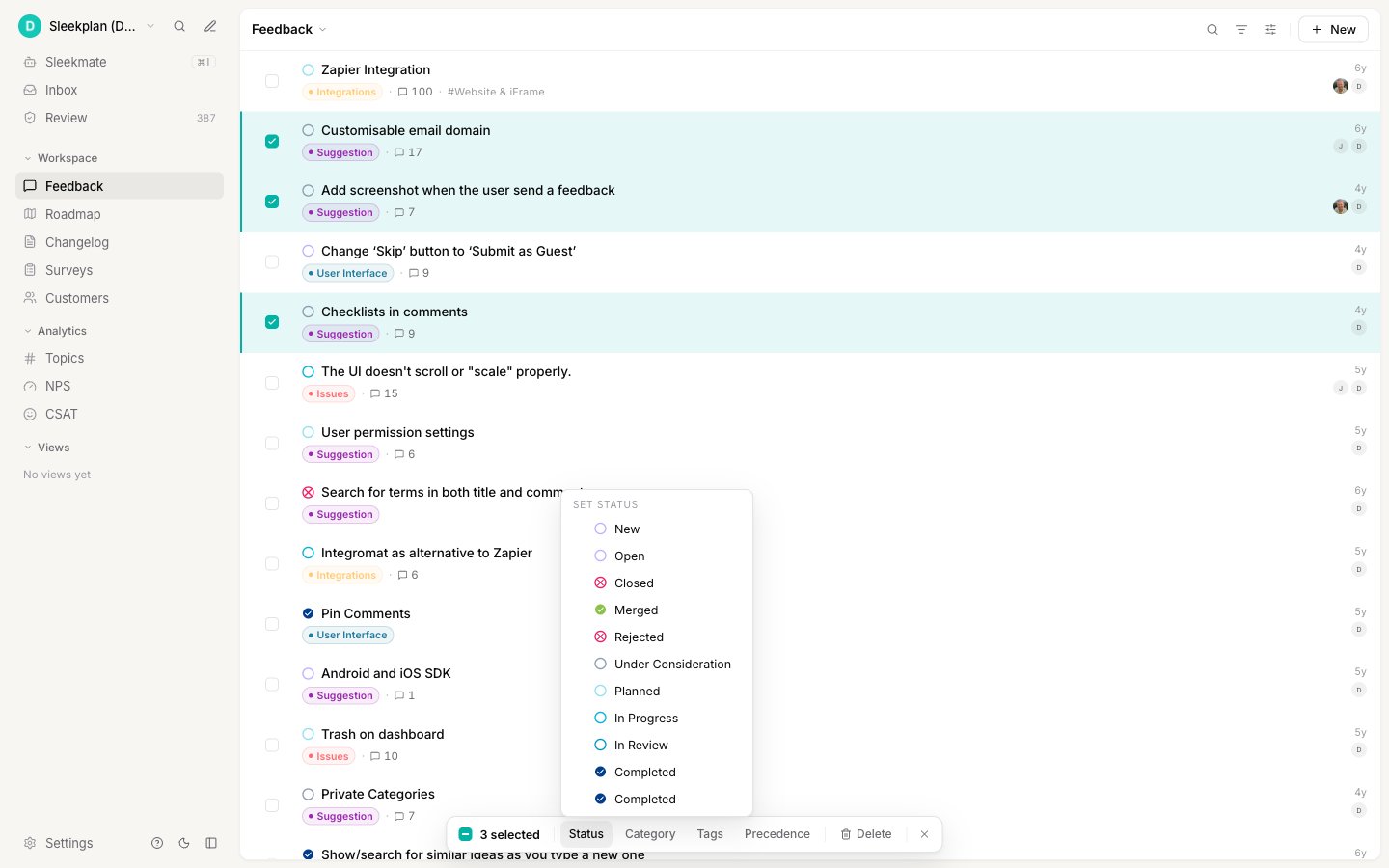
Click **Status** and pick one of your workspace statuses. Every selected post moves to that status at once, which is the quickest way to clear a backlog into **Planned**, close a batch of duplicates as **Rejected**, or mark a group **Completed** after a release.
| Action | What it does |
| -------------- | ---------------------------------------------------------------------------------------------------------- |
| **Status** | Set the same [status](/help/feedback/statuses) on every selected post. |
| **Category** | Move every selected post into one [category](/help/feedback/categories). |
| **Tags** | Add or remove [labels](/help/feedback/tags) across the selection. |
| **Precedence** | Set your internal [precedence](/help/feedback/create-post#set-the-post-properties) on every selected post. |
| **Delete** | Permanently remove the selected posts. |
Click the **✕** on the right of the bar to clear your selection and close it.
## Change status
Click **Status** and pick one of your workspace statuses. Every selected post moves to that status at once, which is the quickest way to clear a backlog into **Planned**, close a batch of duplicates as **Rejected**, or mark a group **Completed** after a release.
 ## Change category
Click **Category** and choose a category to reclassify every selected post. Use it when a set of posts landed under the wrong category, or when you're reshaping how you [organize feedback](/help/feedback/organizing-feedback) and need to move a group into a new one.
## Add or remove labels
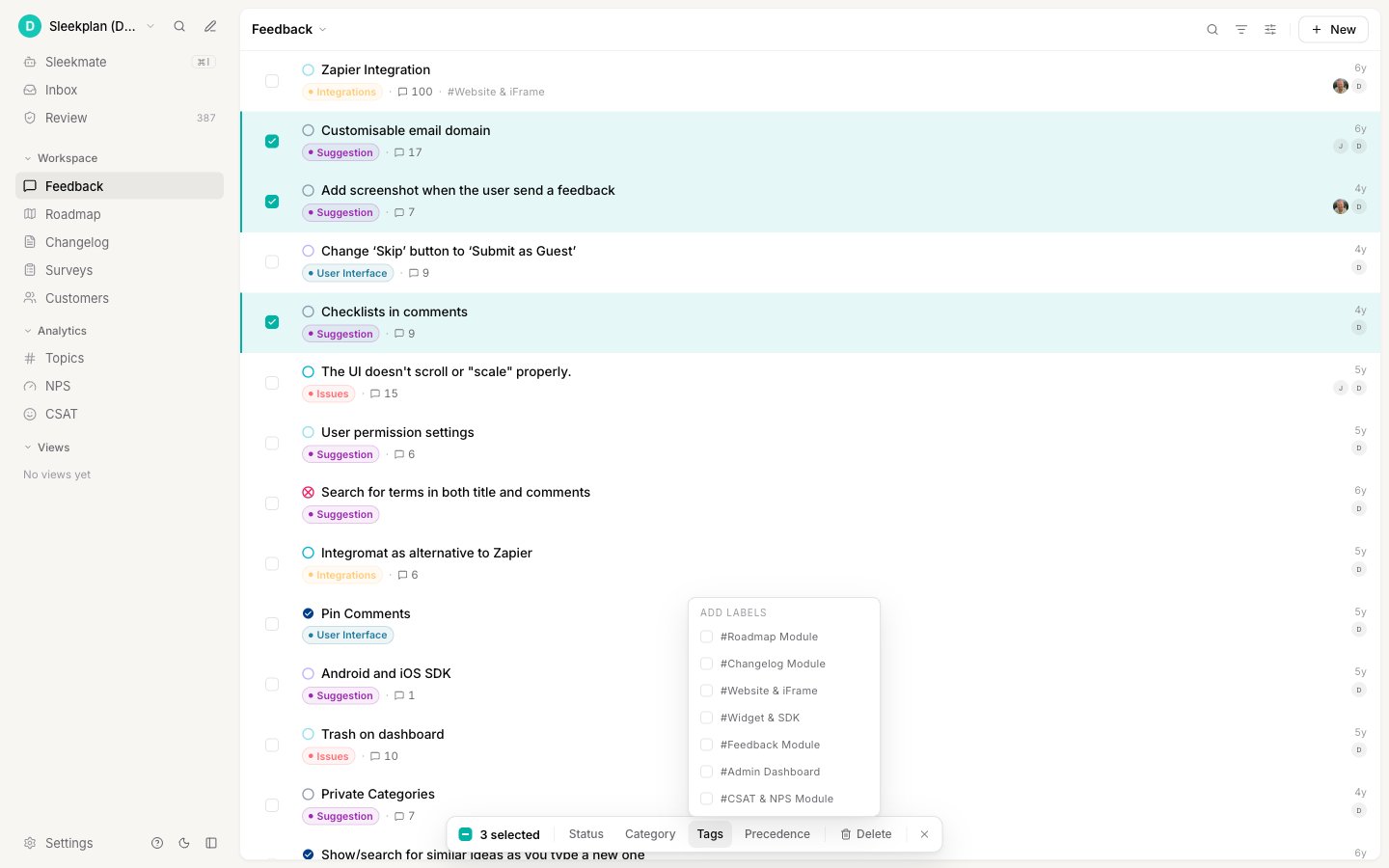
Click **Tags** to open the **Add labels** menu. Each label shows a checkbox with three possible states across your selection:
* **Filled** means every selected post already has that label.
* **Dash** means some do and some don't.
* **Empty** means none of them have it.
Clicking a label **adds** it to every selected post, unless all of them already have it, in which case it **removes** it. The menu stays open so you can toggle several labels in a row before moving on.
## Change category
Click **Category** and choose a category to reclassify every selected post. Use it when a set of posts landed under the wrong category, or when you're reshaping how you [organize feedback](/help/feedback/organizing-feedback) and need to move a group into a new one.
## Add or remove labels
Click **Tags** to open the **Add labels** menu. Each label shows a checkbox with three possible states across your selection:
* **Filled** means every selected post already has that label.
* **Dash** means some do and some don't.
* **Empty** means none of them have it.
Clicking a label **adds** it to every selected post, unless all of them already have it, in which case it **removes** it. The menu stays open so you can toggle several labels in a row before moving on.
 ## Set precedence
Click **Precedence** and choose **High**, **Medium**, **Normal**, or **Later**. [Precedence](/help/feedback/create-post#set-the-post-properties) is your team's internal priority, separate from user votes, so this is a fast way to triage a batch of new posts into an order your team works through.
## Delete posts
Click **Delete** to remove the selected posts. Because this can't be undone, a confirmation appears first, showing how many posts you're about to delete.
## Set precedence
Click **Precedence** and choose **High**, **Medium**, **Normal**, or **Later**. [Precedence](/help/feedback/create-post#set-the-post-properties) is your team's internal priority, separate from user votes, so this is a fast way to triage a batch of new posts into an order your team works through.
## Delete posts
Click **Delete** to remove the selected posts. Because this can't be undone, a confirmation appears first, showing how many posts you're about to delete.
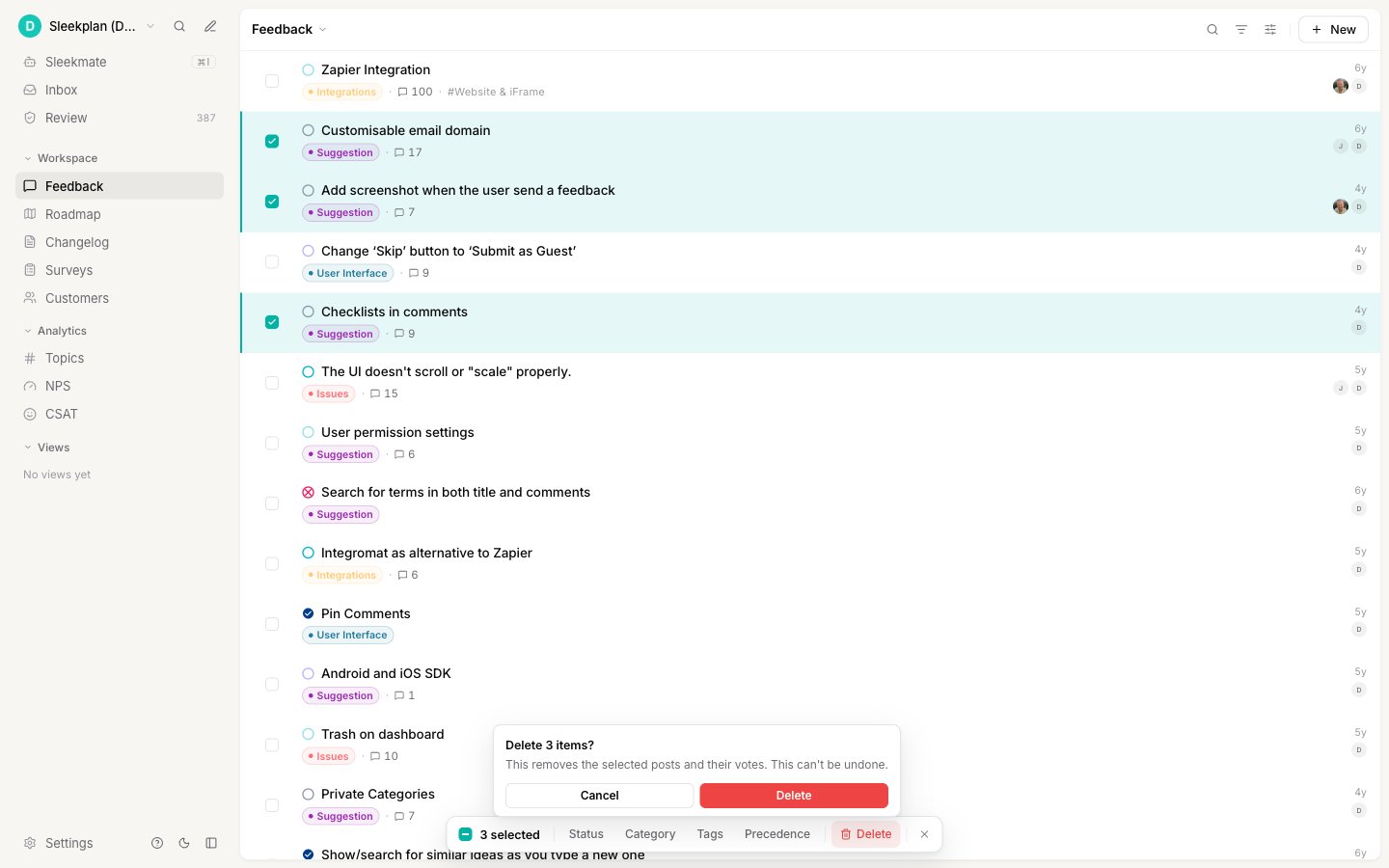 Deleting removes the posts along with their votes and comments. Click **Delete** in the confirmation to go ahead, or **Cancel** to keep them.
Bulk delete is permanent. If you only want to hide posts from your users rather than remove them, close them with a status like **Rejected** or **Closed** instead of deleting.
## How bulk changes are applied
Bulk actions run through your posts one at a time, so a large selection takes a little longer to finish. While it runs, the bar shows a progress indicator counting through the posts. Every other action applies immediately with no confirmation, so double-check your selection before you click. Only **Delete** asks you to confirm.
## Related
Narrow the list first, then bulk-edit exactly the posts you want.
Set up the statuses you assign in bulk.
Create the labels you toggle across a selection.
Decide which axis each bulk change should touch.
Deleting removes the posts along with their votes and comments. Click **Delete** in the confirmation to go ahead, or **Cancel** to keep them.
Bulk delete is permanent. If you only want to hide posts from your users rather than remove them, close them with a status like **Rejected** or **Closed** instead of deleting.
## How bulk changes are applied
Bulk actions run through your posts one at a time, so a large selection takes a little longer to finish. While it runs, the bar shows a progress indicator counting through the posts. Every other action applies immediately with no confirmation, so double-check your selection before you click. Only **Delete** asks you to confirm.
## Related
Narrow the list first, then bulk-edit exactly the posts you want.
Set up the statuses you assign in bulk.
Create the labels you toggle across a selection.
Decide which axis each bulk change should touch.