> ## Documentation Index
> Fetch the complete documentation index at: https://sleekplan.com/llms.txt
> Use this file to discover all available pages before exploring further.
# Allow more attachment file types
> By default your users can only attach images to feedback posts and comments. Turn on custom file types to also accept documents, spreadsheets, and other formats, while dangerous file types stay blocked.
When someone attaches a file to a feedback post or comment, Sleekplan only accepts images out of the box: **.gif**, **.jpeg**, **.jpg**, and **.png**. If your users need to share other formats, for example a PDF spec, a CSV export, or a screen recording, you can add those file types to an allowlist for your workspace.
This setting applies everywhere files are attached to feedback, both in your public portal and widget where users submit, and in the admin dashboard where your team replies. It does not change the images you add to changelog entries.
Changing upload settings is available to workspace owners and admins.
## Why image-only by default
Accepting arbitrary file uploads is a security risk: a malicious file disguised as a harmless attachment can put whoever downloads it at risk. Sleekplan keeps the default tight, images only, so you opt in deliberately to anything wider. When you do open it up, a built-in list of dangerous file types stays blocked no matter what (see [Always-blocked file types](#always-blocked-file-types) below).
## Allow custom file types
Go to [**Settings → Administration → Files & Uploads**](https://app.sleekplan.com/settings/files).
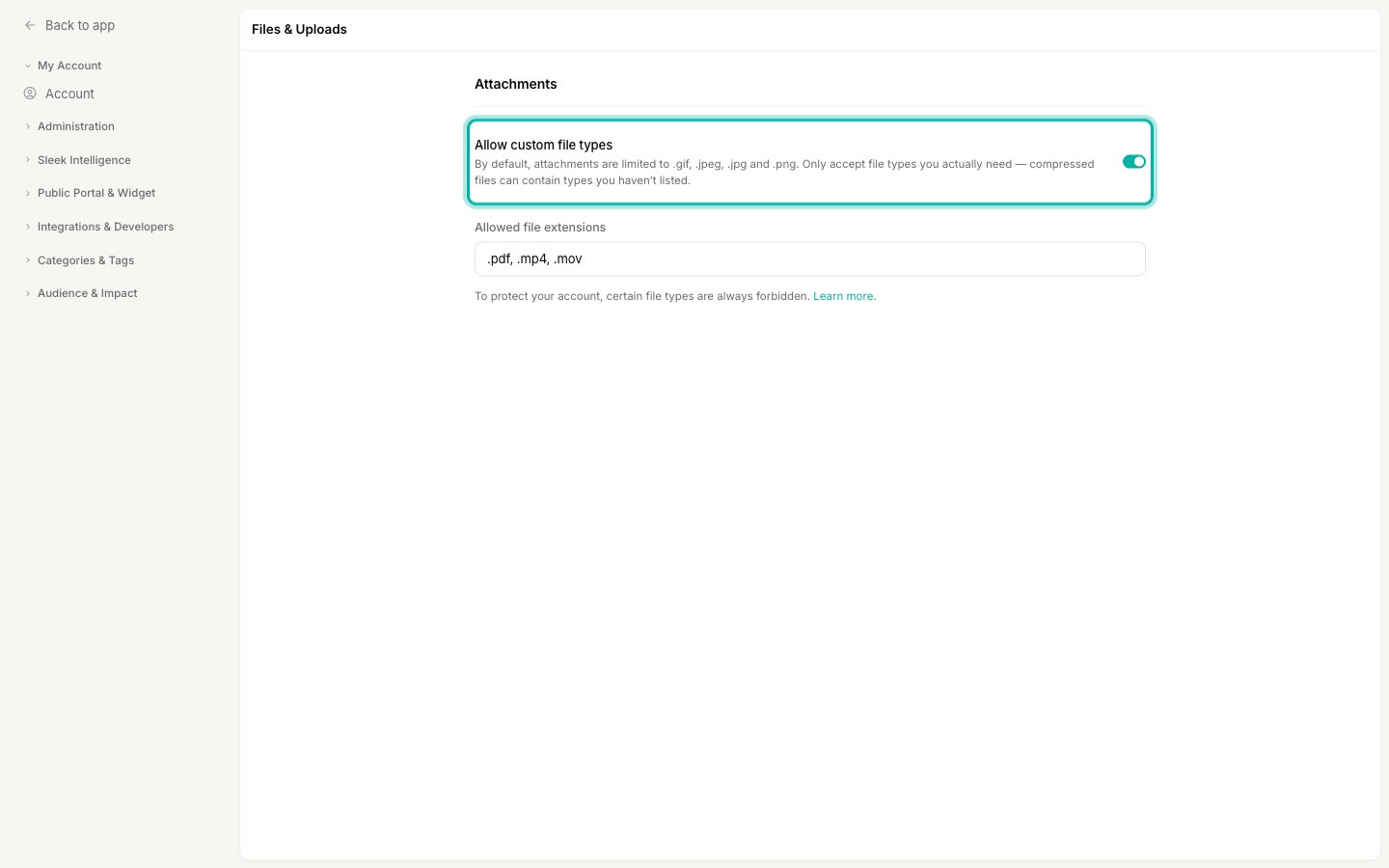
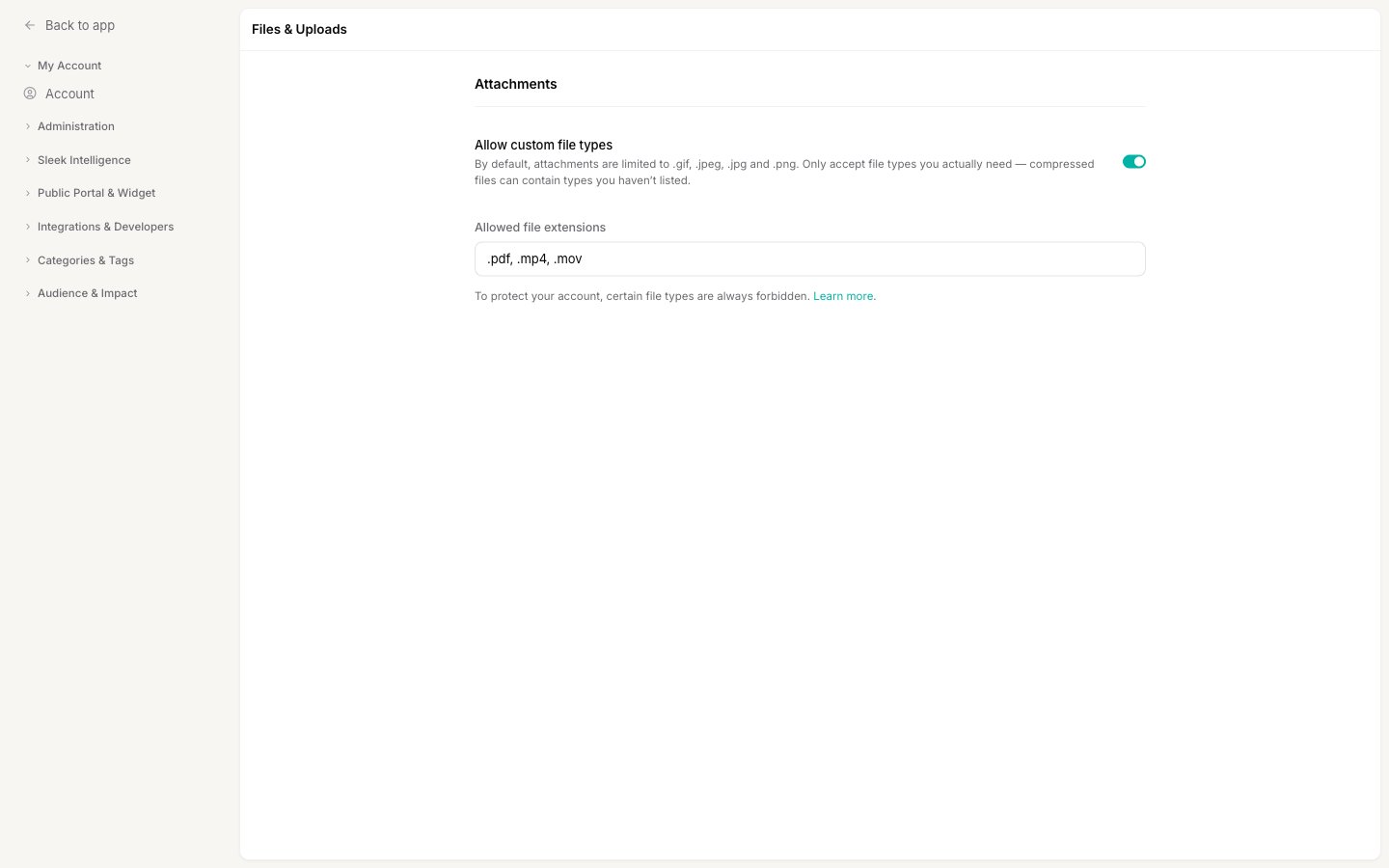 Enable the **Allow custom file types** toggle. This acknowledges that you accept the security responsibility of allowing non-image uploads, and it unlocks the extensions field below.
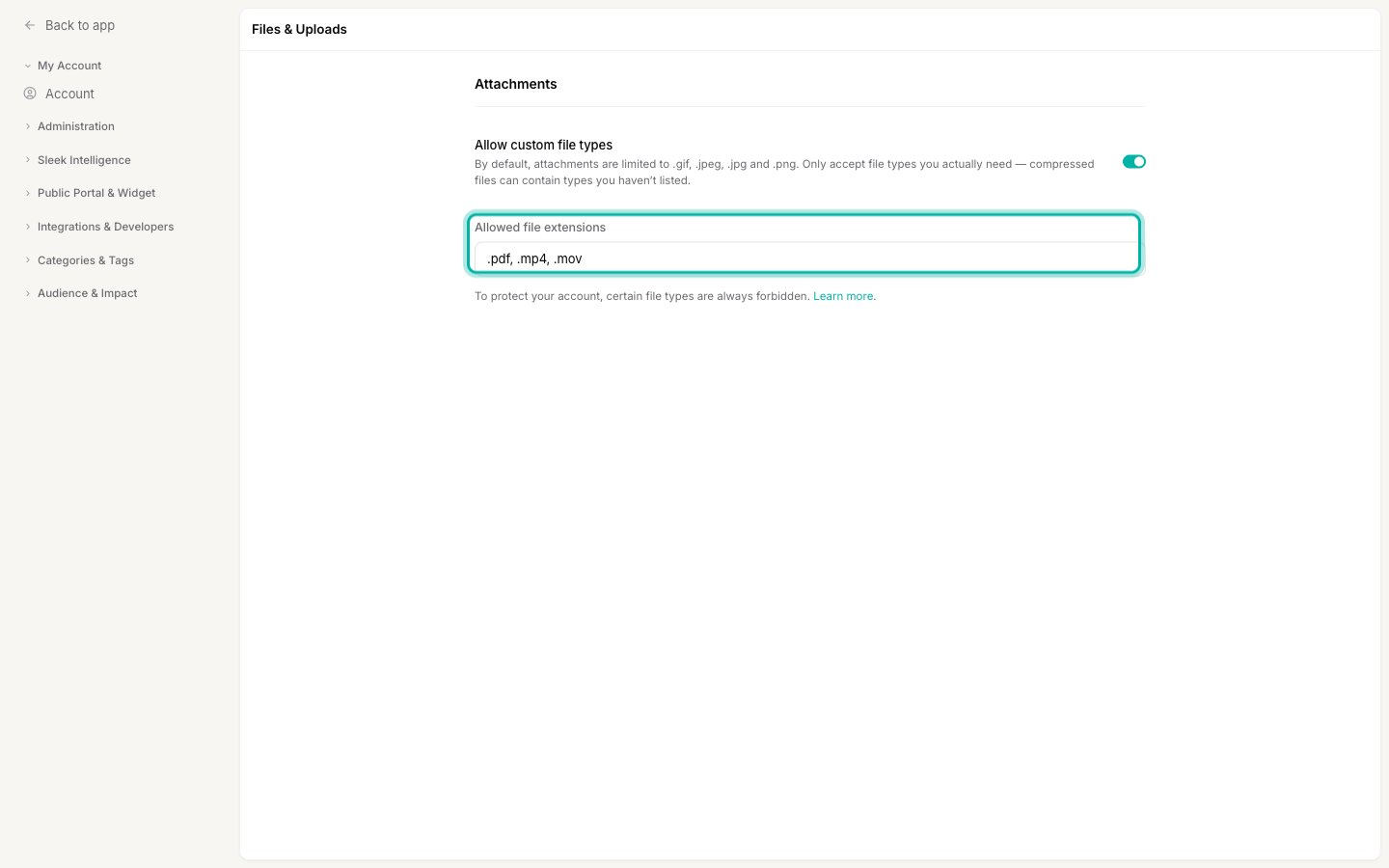
 In **Allowed file extensions**, enter a comma-separated list of the file types to permit. You can write them with or without a leading dot, for example `.csv, .xls, .xlsx` or `pdf, mp4, mov`.
 Click **Save** in the bar that appears at the bottom of the page. Your users and team can now attach the file types you listed, in addition to the default images.
Only allow the file types you actually need. Compressed archives such as `.zip` are especially risky because they can contain any of the blocked types inside, hidden from the extension check. Add them only if you genuinely need them.
## Always-blocked file types
To protect your account, roughly 60 executable and script file types are **always rejected**, even if you add them to your allowlist. This list is enforced first, so listing one of these extensions has no effect: the upload is still refused.
The blocked types cover things that can run code or harm a device, including:
* **Executables and installers**: `.exe`, `.msi`, `.app`, `.apk`, `.dmg`, `.jar`
* **Scripts**: `.bat`, `.cmd`, `.com`, `.js`, `.vbs`, `.ps1`, `.hta`, `.scr`
* **System and library files**: `.dll`, `.sys`, `.cpl`, `.reg`
* **Disk images**: `.iso`, `.img`
If a user tries to upload one of these, or any file type you haven't allowed, the upload is rejected with a "file type is not allowed" message.
## What your users see
Once saved, the allowed file types apply immediately to the attachment picker on new posts and comments. If a user picks a file that isn't an image and isn't on your allowlist, they're told the file type isn't accepted before it uploads.
For where attachments appear when creating feedback, see [Create a post](/help/feedback/create-post#attach-images-and-files).
## Next steps
Write feedback from the admin dashboard and attach screenshots, mockups, or documents.
Control who can see and post to your public feedback board.
Click **Save** in the bar that appears at the bottom of the page. Your users and team can now attach the file types you listed, in addition to the default images.
Only allow the file types you actually need. Compressed archives such as `.zip` are especially risky because they can contain any of the blocked types inside, hidden from the extension check. Add them only if you genuinely need them.
## Always-blocked file types
To protect your account, roughly 60 executable and script file types are **always rejected**, even if you add them to your allowlist. This list is enforced first, so listing one of these extensions has no effect: the upload is still refused.
The blocked types cover things that can run code or harm a device, including:
* **Executables and installers**: `.exe`, `.msi`, `.app`, `.apk`, `.dmg`, `.jar`
* **Scripts**: `.bat`, `.cmd`, `.com`, `.js`, `.vbs`, `.ps1`, `.hta`, `.scr`
* **System and library files**: `.dll`, `.sys`, `.cpl`, `.reg`
* **Disk images**: `.iso`, `.img`
If a user tries to upload one of these, or any file type you haven't allowed, the upload is rejected with a "file type is not allowed" message.
## What your users see
Once saved, the allowed file types apply immediately to the attachment picker on new posts and comments. If a user picks a file that isn't an image and isn't on your allowlist, they're told the file type isn't accepted before it uploads.
For where attachments appear when creating feedback, see [Create a post](/help/feedback/create-post#attach-images-and-files).
## Next steps
Write feedback from the admin dashboard and attach screenshots, mockups, or documents.
Control who can see and post to your public feedback board.