> ## Documentation Index
> Fetch the complete documentation index at: https://sleekplan.com/llms.txt
> Use this file to discover all available pages before exploring further.
# Link documents to feedback
> Connect a document to the feedback posts it informs, from the document or from the post, so the reasoning behind a request sits next to the request.
A document explains the thinking behind one or more requests. Linking the two means anyone opening a feedback post can read the research or the decision behind it, without hunting for it.
A link works in both directions and is not exclusive. One document can inform several posts, and one post can have several documents. You can create the link from either side.
Linking and unlinking requires the **Starter** plan or above, and an **Owner** or **Admin** role. **Members** can see linked documents but not change the links. See [Team roles and permissions](/help/account-security/roles-permissions).
## Link a post from the document
Go to [**Documents**](https://app.sleekplan.com/documents) and open the document. It has to be saved first, because a link needs something to attach to.
In the right panel, under **Linked posts**, click **Link a post**.
Type part of the post's title. Select a result to link it.
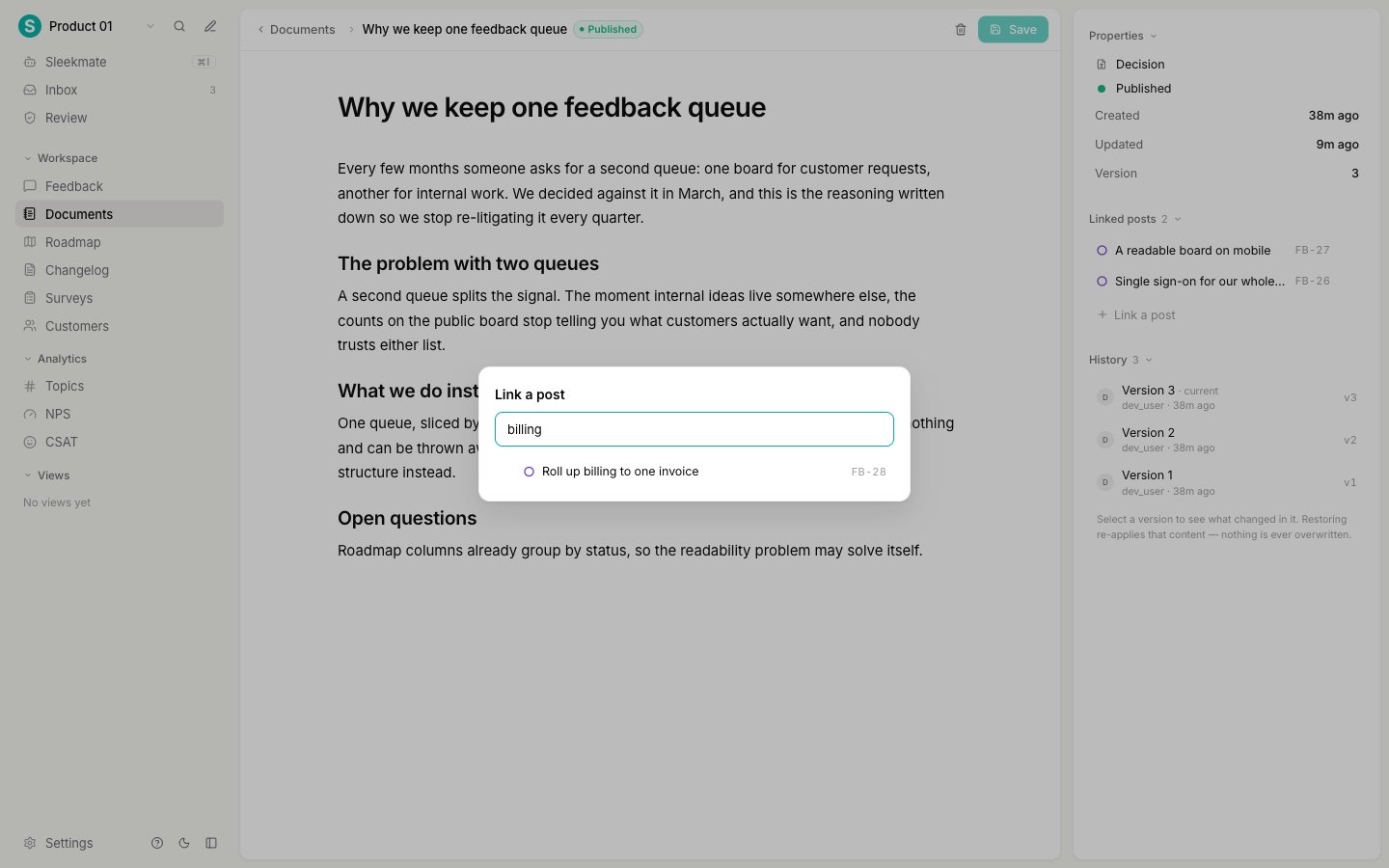 Linked posts appear in the panel with their feedback status and ID. Select one to open it. To remove a link, hover the row and click the unlink icon. Unlinking only removes the connection, and never touches the post or the document.
## Link a document from the post
Every saved feedback post has a **Documents** block, between the metadata and the activity feed. It lists the documents that inform this request.
Linked posts appear in the panel with their feedback status and ID. Select one to open it. To remove a link, hover the row and click the unlink icon. Unlinking only removes the connection, and never touches the post or the document.
## Link a document from the post
Every saved feedback post has a **Documents** block, between the metadata and the activity feed. It lists the documents that inform this request.
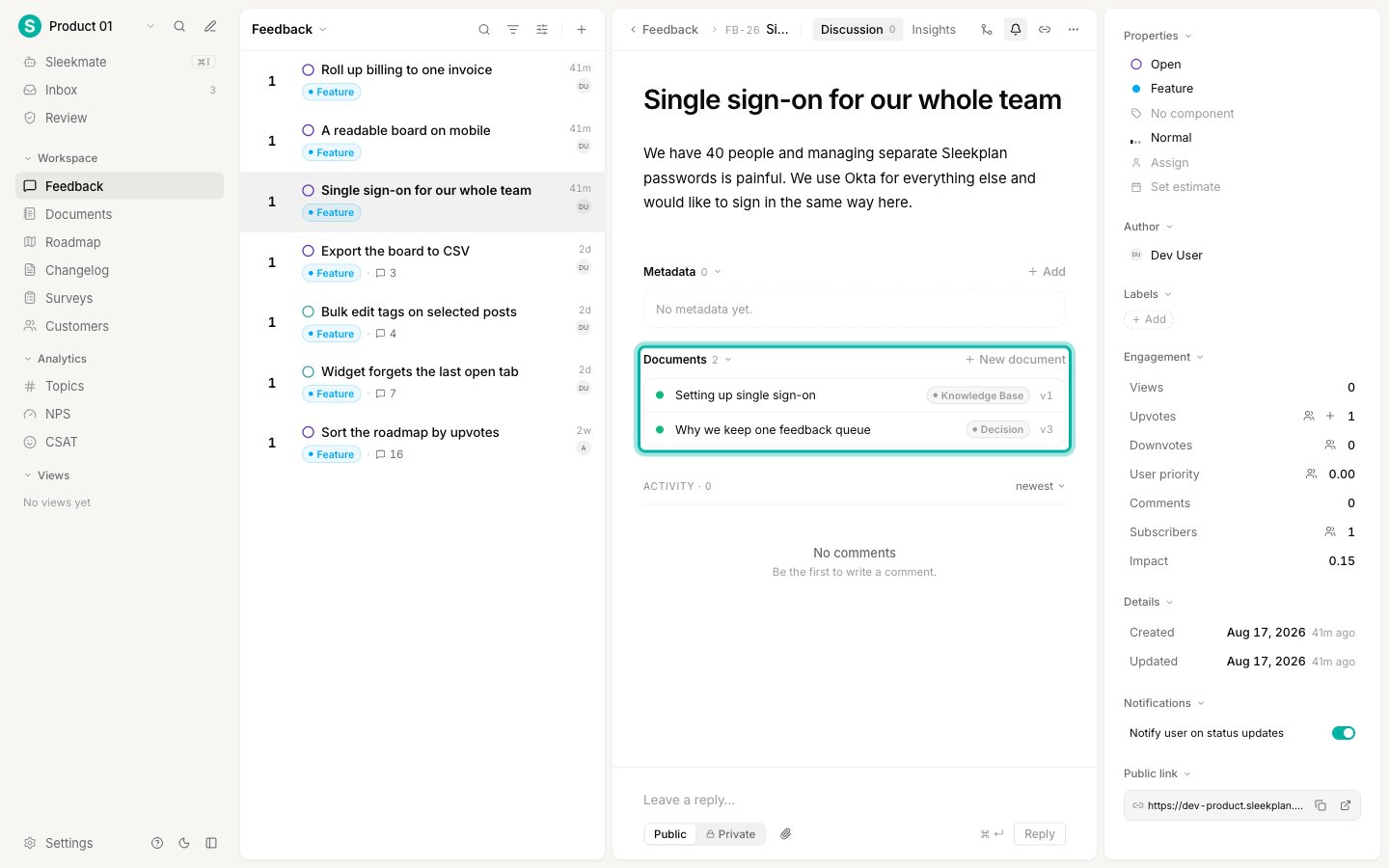 From here you have one shortcut: **New document** creates a document named after the post, links it to that post, and opens it so you can start writing immediately. Use it when a request needs research and you want to start from the request.
The block is not shown at all on workspaces whose plan does not include Documents.
## What a link means
A link records one thing: this document informs this request. That is deliberate.
A link carries no status, no assignee, and no progress. Attaching a specification to a post does not mark the post as being worked on, and does not move it on your [roadmap](/help/roadmap). To signal progress to your users, change the post's [status](/help/feedback/statuses). To track who is building it, use an [integration](/help/integrations) with your issue tracker.
## When to link
* **Research to the request it came from.** Customer call notes belong on the post that prompted them.
* **A decision to every request it answers.** If one decision settles four related requests, link it to all four. This is the cheapest way to stop the same discussion restarting on each post.
* **A specification to the request it implements.** So whoever picks the work up finds the detail without asking.
If several posts are really the same request, [merge them](/help/feedback/merge-feedback) first, then link the document once.
## Next steps
See what changed in any version and go back to it.
Create a document, format it, and set its type and status.
Combine duplicate posts so votes and comments add up in one place.
What documents are for and how the Documents screen is organized.
From here you have one shortcut: **New document** creates a document named after the post, links it to that post, and opens it so you can start writing immediately. Use it when a request needs research and you want to start from the request.
The block is not shown at all on workspaces whose plan does not include Documents.
## What a link means
A link records one thing: this document informs this request. That is deliberate.
A link carries no status, no assignee, and no progress. Attaching a specification to a post does not mark the post as being worked on, and does not move it on your [roadmap](/help/roadmap). To signal progress to your users, change the post's [status](/help/feedback/statuses). To track who is building it, use an [integration](/help/integrations) with your issue tracker.
## When to link
* **Research to the request it came from.** Customer call notes belong on the post that prompted them.
* **A decision to every request it answers.** If one decision settles four related requests, link it to all four. This is the cheapest way to stop the same discussion restarting on each post.
* **A specification to the request it implements.** So whoever picks the work up finds the detail without asking.
If several posts are really the same request, [merge them](/help/feedback/merge-feedback) first, then link the document once.
## Next steps
See what changed in any version and go back to it.
Create a document, format it, and set its type and status.
Combine duplicate posts so votes and comments add up in one place.
What documents are for and how the Documents screen is organized.