> ## Documentation Index
> Fetch the complete documentation index at: https://sleekplan.com/llms.txt
> Use this file to discover all available pages before exploring further.
# Documents
> Documents hold the thinking behind your feedback: the research, the decision, and the reasoning. Learn what a document is in Sleekplan, how the Documents screen is organized, and how documents relate to feedback posts.
A document is where you write down the thinking behind your product decisions: the research you gathered, the option you picked, and why you picked it. A feedback post captures *what* someone asked for. A document captures *how you think about it*, so the reasoning outlives the person who did the work and stops being re-litigated every few months.
Documents live alongside your feedback, not in a separate tool. You can [link a document to the posts it informs](/help/documents/link-feedback), so anyone opening a request can read the research behind it. Every save is [kept in version history](/help/documents/version-history), so you can see what changed and go back.
 Documents are available on the **Starter** plan and above. The free **Indie** plan does not include them. **Owners** and **Admins** can create, edit, and delete documents and manage [document types](/help/documents/document-types). **Members** can read documents. See [Plans and billing](/help/account-security/billing) and [Team roles and permissions](/help/account-security/roles-permissions).
## Documents are internal
Documents are only visible to your team inside the admin. They never appear on your public board, in your widget, or in your changelog. Nothing you write in a document is shown to your users, so you can be blunt about trade-offs, costs, and options you rejected.
If you want to tell your users about something, use the [changelog](/help/changelog) instead.
## Open the Documents screen
Documents live at [**Documents**](https://app.sleekplan.com/documents) in the workspace sidebar, between Feedback and Roadmap.
Documents are available on the **Starter** plan and above. The free **Indie** plan does not include them. **Owners** and **Admins** can create, edit, and delete documents and manage [document types](/help/documents/document-types). **Members** can read documents. See [Plans and billing](/help/account-security/billing) and [Team roles and permissions](/help/account-security/roles-permissions).
## Documents are internal
Documents are only visible to your team inside the admin. They never appear on your public board, in your widget, or in your changelog. Nothing you write in a document is shown to your users, so you can be blunt about trade-offs, costs, and options you rejected.
If you want to tell your users about something, use the [changelog](/help/changelog) instead.
## Open the Documents screen
Documents live at [**Documents**](https://app.sleekplan.com/documents) in the workspace sidebar, between Feedback and Roadmap.
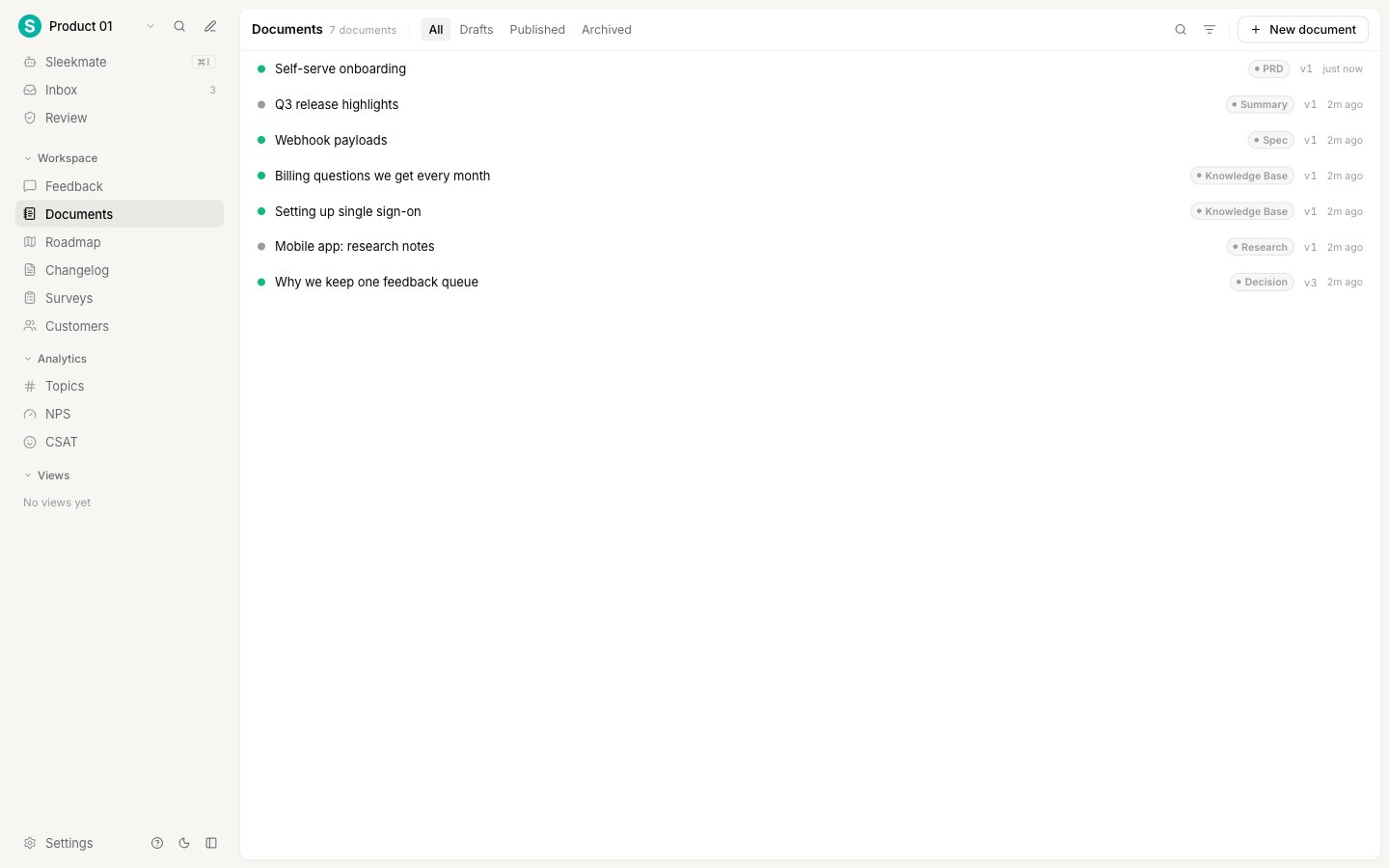
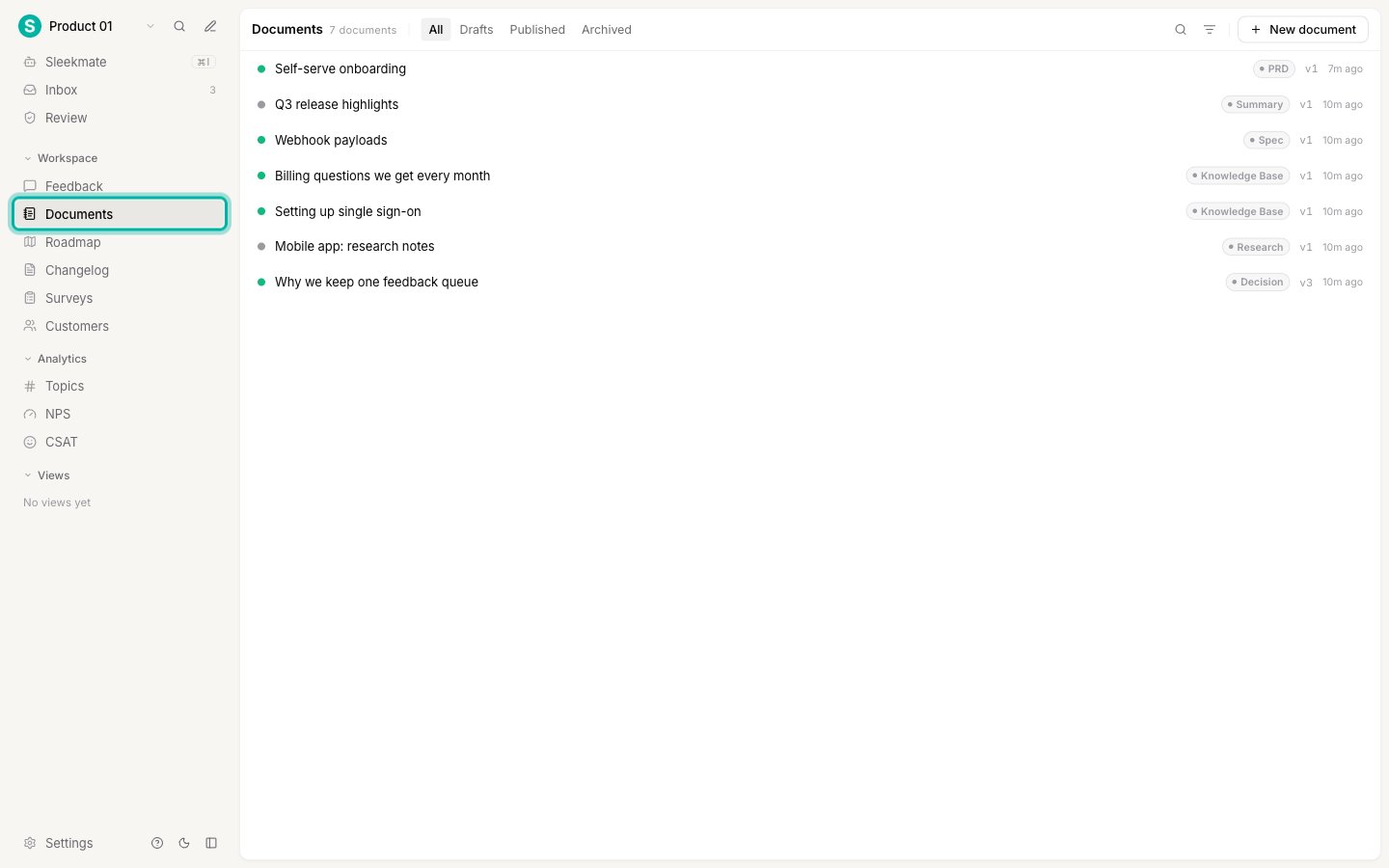 The list shows every document in the workspace, most recently updated first. Each row carries four things:
| On the row | What it means |
| -------------------- | ------------------------------------------------------------------------------------------------------- |
| **Status dot** | The document's own lifecycle: draft, published, or archived (see below). |
| **Title** | The document's name. Select the row to open it. |
| **Type chip** | Which kind of thinking this document holds, from your [document types](/help/documents/document-types). |
| **Version and time** | The current version number, and when the document was last updated. |
## Find a document
The list header narrows what you see. None of these controls change a document.
* **Tabs** switch between **All**, **Drafts**, **Published**, and **Archived**.
* **Search** matches the document title.
* **The filter icon** limits the list to one [document type](/help/documents/document-types).
The list loads more documents as you scroll, so the count in the header always matches what you can reach.
## The three statuses
A document has its own three-value lifecycle. These are not [feedback statuses](/help/feedback/statuses), and they are not a workflow you can configure. They only describe how finished the thinking is.
| Status | Use it for |
| ------------- | ------------------------------------------------------------------------------------- |
| **Draft** | Work in progress. Notes you are still gathering, a decision you have not made yet. |
| **Published** | Settled. The reasoning is written down and other people can rely on it. |
| **Archived** | Kept for the record but no longer current, for example a decision you later reversed. |
Nothing happens automatically when you change a status. A published document is not sent anywhere, and an archived one is not deleted. The status is there so your team can tell finished thinking from a scratchpad.
## What a document is not
A document is deliberately not a task. It carries no assignee, no due date, and no progress. Linking a document to a post records that the document informs the request, nothing more.
Sleekplan tracks what your users asked for and what you decided. It does not track who is building it or how far along they are. That belongs in your issue tracker, which you can connect through an [integration](/help/integrations).
## Next steps
Create a document, format it with Markdown, and set its type and status.
Connect a document to the posts it informs, from either side.
See what changed in any version and go back to it.
Rename the built-in types or add your own.
The list shows every document in the workspace, most recently updated first. Each row carries four things:
| On the row | What it means |
| -------------------- | ------------------------------------------------------------------------------------------------------- |
| **Status dot** | The document's own lifecycle: draft, published, or archived (see below). |
| **Title** | The document's name. Select the row to open it. |
| **Type chip** | Which kind of thinking this document holds, from your [document types](/help/documents/document-types). |
| **Version and time** | The current version number, and when the document was last updated. |
## Find a document
The list header narrows what you see. None of these controls change a document.
* **Tabs** switch between **All**, **Drafts**, **Published**, and **Archived**.
* **Search** matches the document title.
* **The filter icon** limits the list to one [document type](/help/documents/document-types).
The list loads more documents as you scroll, so the count in the header always matches what you can reach.
## The three statuses
A document has its own three-value lifecycle. These are not [feedback statuses](/help/feedback/statuses), and they are not a workflow you can configure. They only describe how finished the thinking is.
| Status | Use it for |
| ------------- | ------------------------------------------------------------------------------------- |
| **Draft** | Work in progress. Notes you are still gathering, a decision you have not made yet. |
| **Published** | Settled. The reasoning is written down and other people can rely on it. |
| **Archived** | Kept for the record but no longer current, for example a decision you later reversed. |
Nothing happens automatically when you change a status. A published document is not sent anywhere, and an archived one is not deleted. The status is there so your team can tell finished thinking from a scratchpad.
## What a document is not
A document is deliberately not a task. It carries no assignee, no due date, and no progress. Linking a document to a post records that the document informs the request, nothing more.
Sleekplan tracks what your users asked for and what you decided. It does not track who is building it or how far along they are. That belongs in your issue tracker, which you can connect through an [integration](/help/integrations).
## Next steps
Create a document, format it with Markdown, and set its type and status.
Connect a document to the posts it informs, from either side.
See what changed in any version and go back to it.
Rename the built-in types or add your own.