> ## Documentation Index
> Fetch the complete documentation index at: https://sleekplan.com/llms.txt
> Use this file to discover all available pages before exploring further.
# Unpublish and duplicate entries
> Take a published changelog entry off your portal and widget without deleting it, schedule an automatic takedown with an unpublish date, and duplicate an entry to reuse its content for the next release or the next maintenance notice.
Not every update should stay up forever. A maintenance window, a temporary workaround, or a beta invite is only useful while it is true. Unpublishing takes a live entry off your changelog while keeping the entry, its content, and its stats in your admin, and duplicating turns any entry into a fresh draft you can edit and publish again.
For writing and publishing an entry in the first place, see [Create changelog entries](/help/changelog/create-entries).
Unpublishing an entry cannot be undone. There is no way to put an archived entry back on your changelog, so the way to publish something again is to [duplicate it](#reuse-an-entry-with-duplicate) and publish the copy.
## Take an entry down now
Use this when an update has served its purpose and you want it off your changelog straight away.
Go to the [**Changelog**](https://app.sleekplan.com/changelog), click the entry you want to take down, then click the **...** button in the top right.
**Unpublish** only appears on entries that are currently live. A draft and a scheduled entry were never public, so there is nothing to take down: delete them instead.
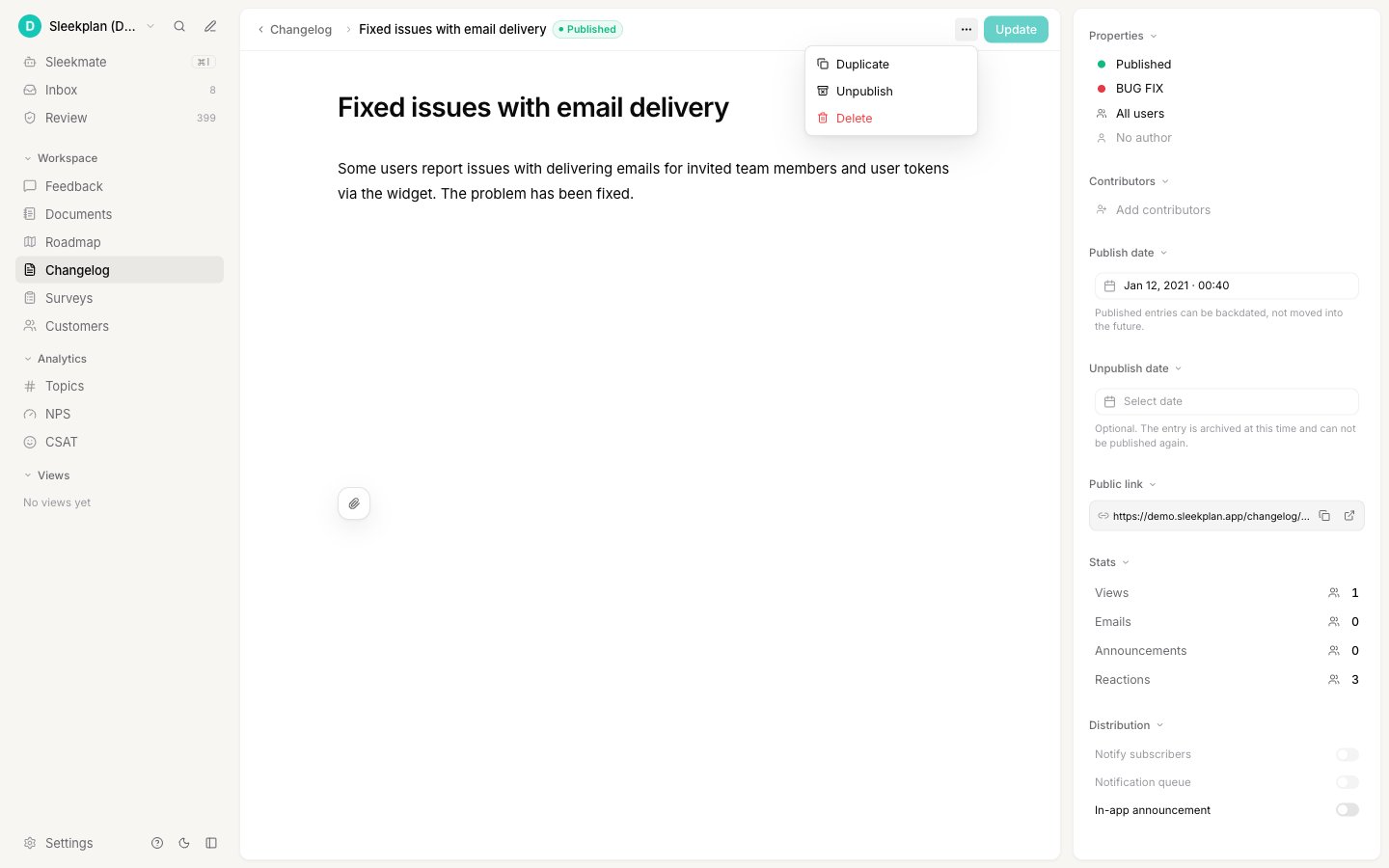 Click **Unpublish**, then confirm. Sleekplan reminds you that the entry cannot be published again and that duplicating it is how you publish a new copy.
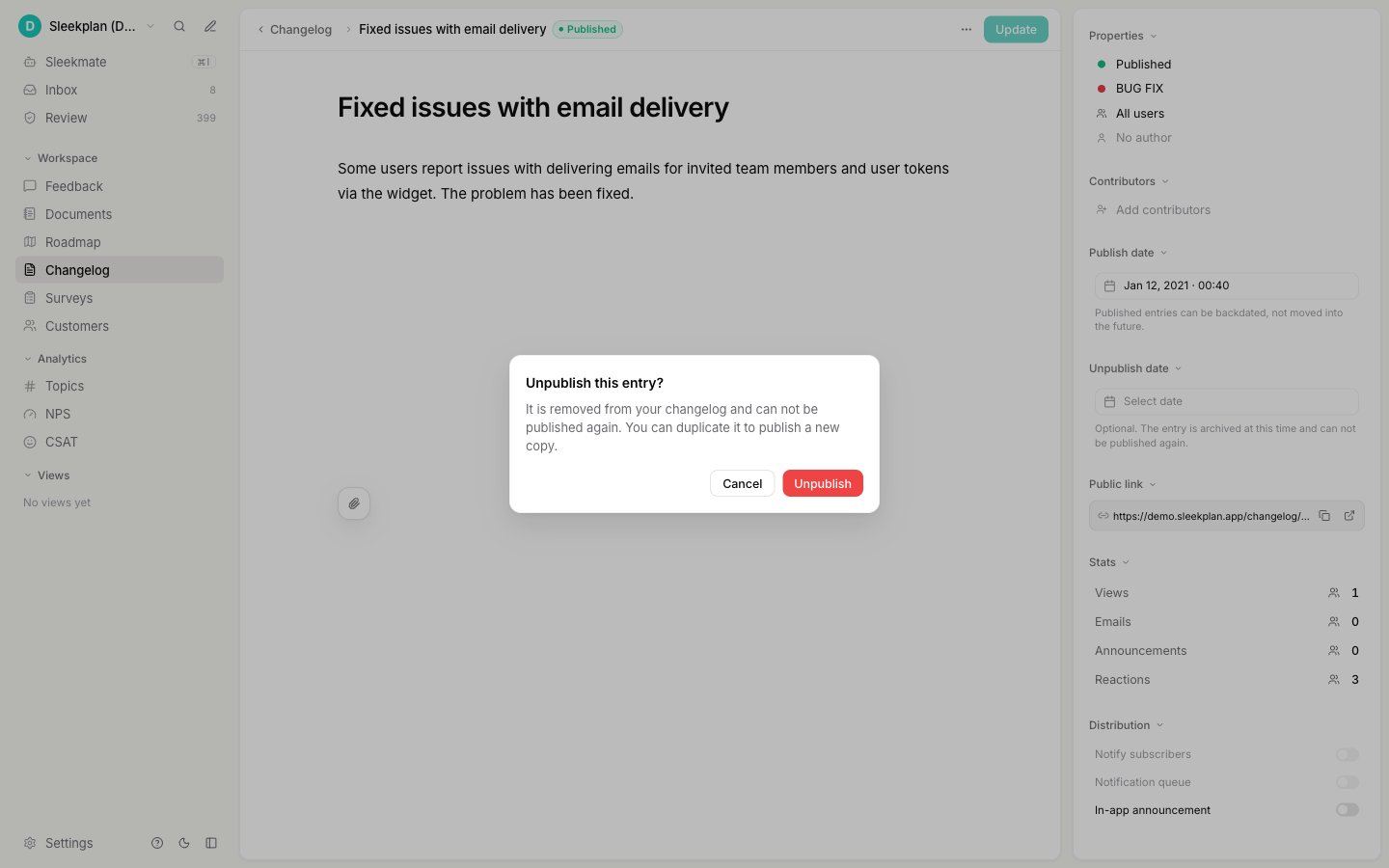 The entry is marked **Archived** and disappears from your public surfaces immediately. It stays in your admin, where you can still read it and see its stats.
Taking an entry down by hand is available on every plan. It is a safety valve, not a paid feature, so you never have to delete a live entry just to remove it.
## Schedule a takedown in advance
If you already know when an update stops being relevant, set an **unpublish date** and Sleekplan takes the entry down for you. This is the setting to use for a scheduled maintenance notice: publish it before the window, and let it retire itself afterwards.
In the entry's options panel on the right, find **Unpublish date** underneath **Publish date**. It is available while you are writing a draft, on a scheduled entry, and on an entry that is already live.
The entry is marked **Archived** and disappears from your public surfaces immediately. It stays in your admin, where you can still read it and see its stats.
Taking an entry down by hand is available on every plan. It is a safety valve, not a paid feature, so you never have to delete a live entry just to remove it.
## Schedule a takedown in advance
If you already know when an update stops being relevant, set an **unpublish date** and Sleekplan takes the entry down for you. This is the setting to use for a scheduled maintenance notice: publish it before the window, and let it retire itself afterwards.
In the entry's options panel on the right, find **Unpublish date** underneath **Publish date**. It is available while you are writing a draft, on a scheduled entry, and on an entry that is already live.
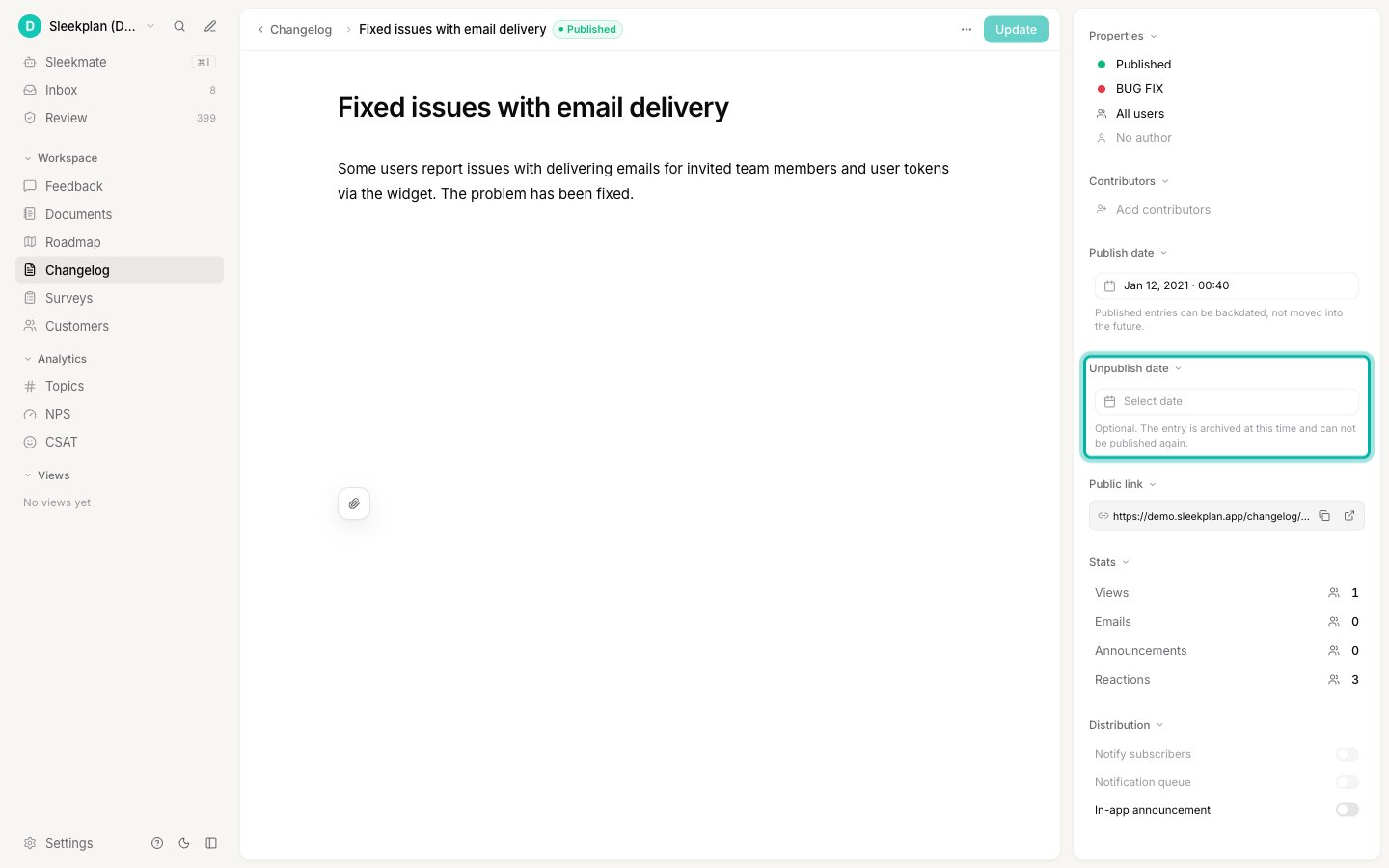 Choose when the entry should come down. The field is optional, and you can clear a date you set earlier if you change your mind, as long as the entry is still live.
Save the draft, or publish or update the entry as usual. Sleekplan checks for expired entries every minute, so the takedown happens within a minute of the time you picked.
### The six hour minimum
An unpublish date has to be at least **six hours after the entry's publish date**. An entry that comes down sooner than that was never really published: most subscribers would never have seen it.
The gap is always measured against the entry's own publish date, not against the current time. An entry published three months ago accepts an unpublish date tomorrow. An entry you published an hour ago does not accept a date two hours from now, because that is a gap of three hours, not six.
If the date you pick is too close, the field shows "Must be at least 6 hours after the publish date" and the **Publish**, **Schedule**, or **Update** button stays disabled until you fix it.
Setting an unpublish date needs a plan that includes changelog scheduling (**Business plan and above**), the same as [scheduling a publish date](/help/changelog/create-entries#schedule-an-entry-for-later). If your plan does not include it, saving prompts you to upgrade. Taking an entry down by hand works on every plan. See [Billing](/help/account-security/billing) for what your plan includes.
## What happens to an archived entry
Archived is the end of an entry's life. It is removed from everywhere your users could see it, and it is frozen in your admin.
**Your users no longer see it:**
* It is gone from the changelog in your widget and on your public portal.
* Its public link no longer resolves to the entry.
* It drops out of your [changelog RSS feed](/help/portal-widget/changelog-rss-feed) and out of your sitemap.
* It stops appearing as an [in-app announcement](/help/changelog/in-app-announcements) pop-up.
* If an email about it was still waiting in the [notification queue](/help/changelog/create-entries#notify-subscribers-and-the-notification-queue), that email is not sent.
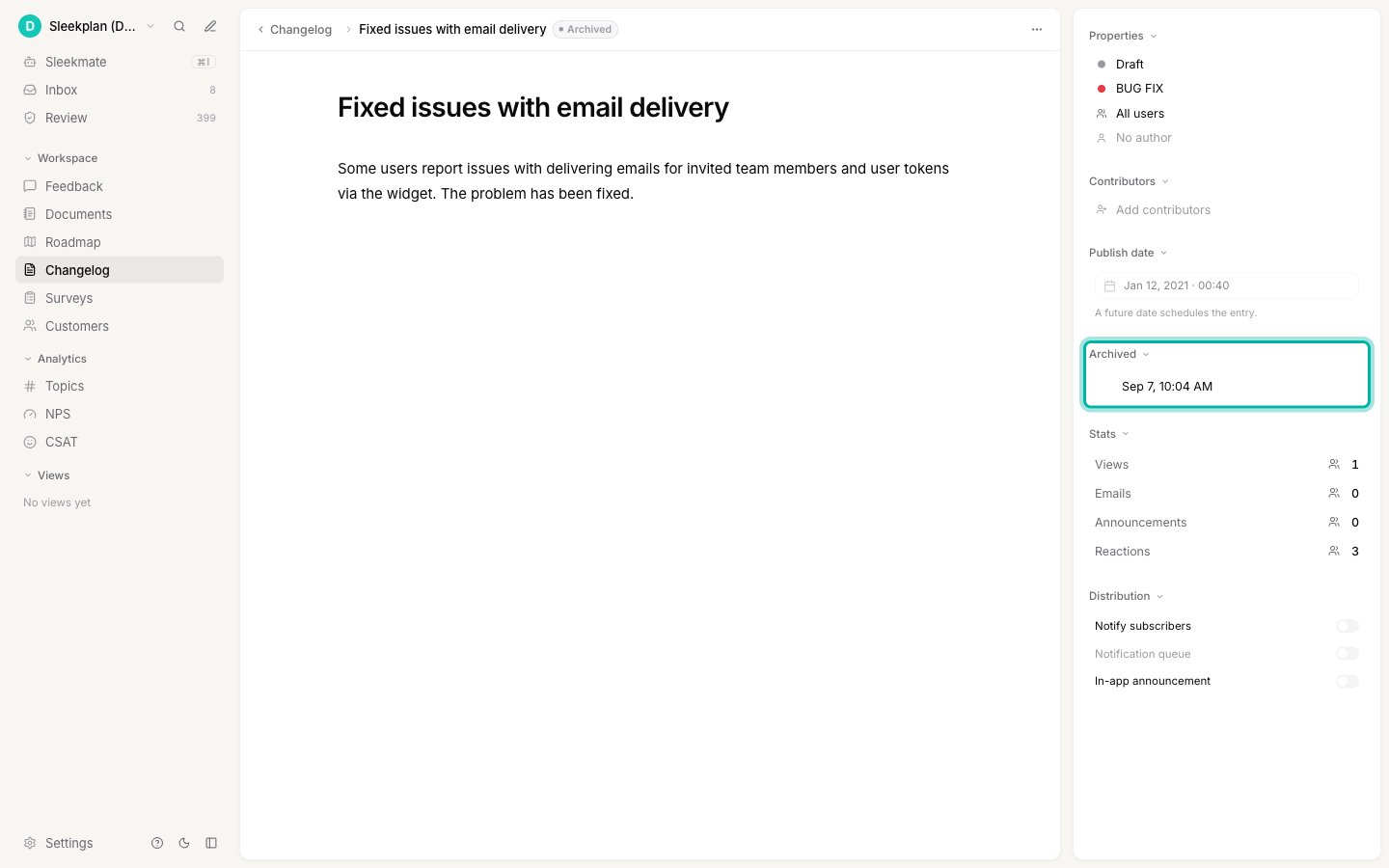
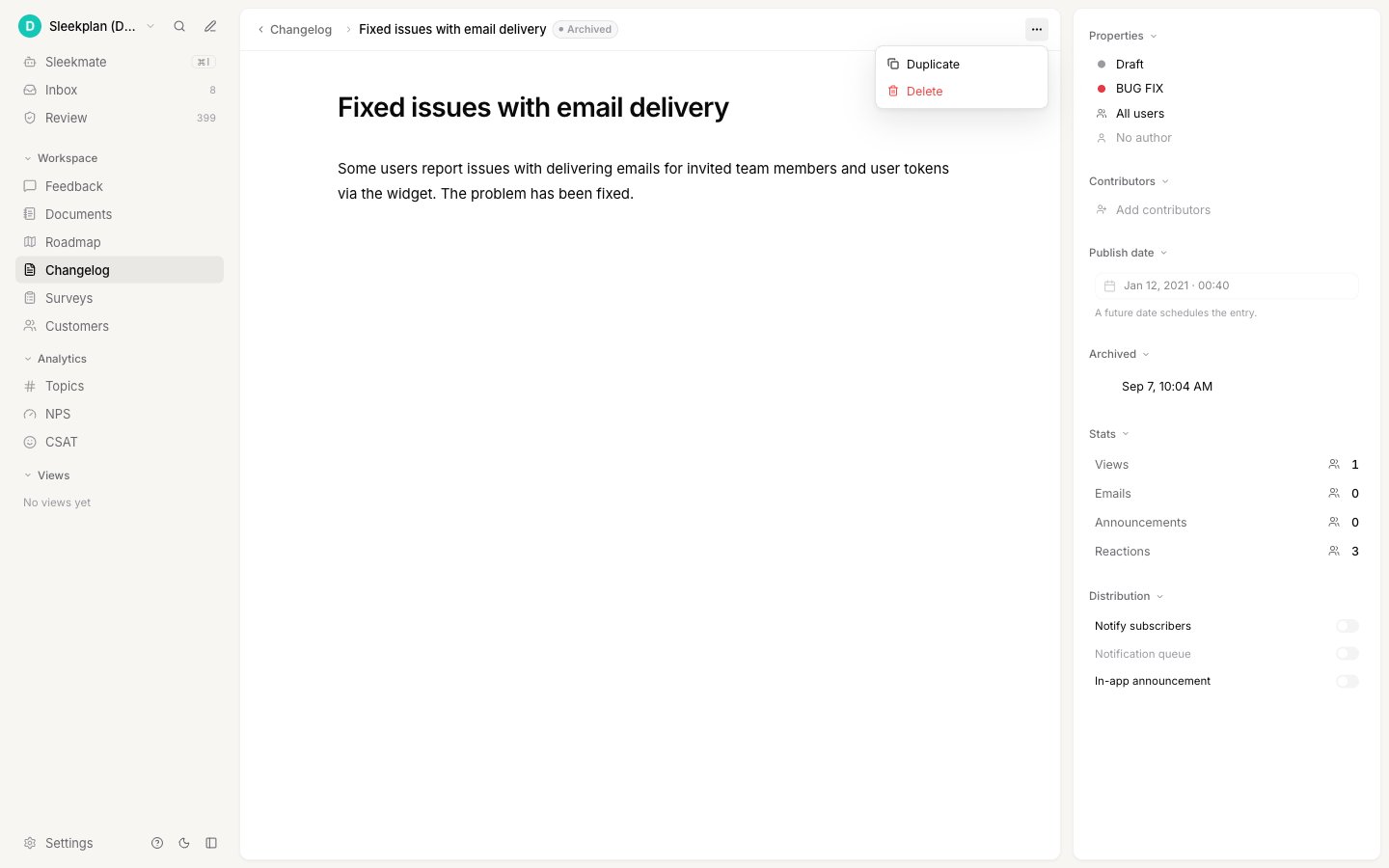
**In your admin it becomes read only.** The title, the body, and every option in the panel are locked, and the only two actions left are **Duplicate** and **Delete**. The panel replaces the unpublish date with the date the entry was archived, and the stats it collected while it was live stay visible.
Choose when the entry should come down. The field is optional, and you can clear a date you set earlier if you change your mind, as long as the entry is still live.
Save the draft, or publish or update the entry as usual. Sleekplan checks for expired entries every minute, so the takedown happens within a minute of the time you picked.
### The six hour minimum
An unpublish date has to be at least **six hours after the entry's publish date**. An entry that comes down sooner than that was never really published: most subscribers would never have seen it.
The gap is always measured against the entry's own publish date, not against the current time. An entry published three months ago accepts an unpublish date tomorrow. An entry you published an hour ago does not accept a date two hours from now, because that is a gap of three hours, not six.
If the date you pick is too close, the field shows "Must be at least 6 hours after the publish date" and the **Publish**, **Schedule**, or **Update** button stays disabled until you fix it.
Setting an unpublish date needs a plan that includes changelog scheduling (**Business plan and above**), the same as [scheduling a publish date](/help/changelog/create-entries#schedule-an-entry-for-later). If your plan does not include it, saving prompts you to upgrade. Taking an entry down by hand works on every plan. See [Billing](/help/account-security/billing) for what your plan includes.
## What happens to an archived entry
Archived is the end of an entry's life. It is removed from everywhere your users could see it, and it is frozen in your admin.
**Your users no longer see it:**
* It is gone from the changelog in your widget and on your public portal.
* Its public link no longer resolves to the entry.
* It drops out of your [changelog RSS feed](/help/portal-widget/changelog-rss-feed) and out of your sitemap.
* It stops appearing as an [in-app announcement](/help/changelog/in-app-announcements) pop-up.
* If an email about it was still waiting in the [notification queue](/help/changelog/create-entries#notify-subscribers-and-the-notification-queue), that email is not sent.
**In your admin it becomes read only.** The title, the body, and every option in the panel are locked, and the only two actions left are **Duplicate** and **Delete**. The panel replaces the unpublish date with the date the entry was archived, and the stats it collected while it was live stay visible.
 ### Find your archived entries
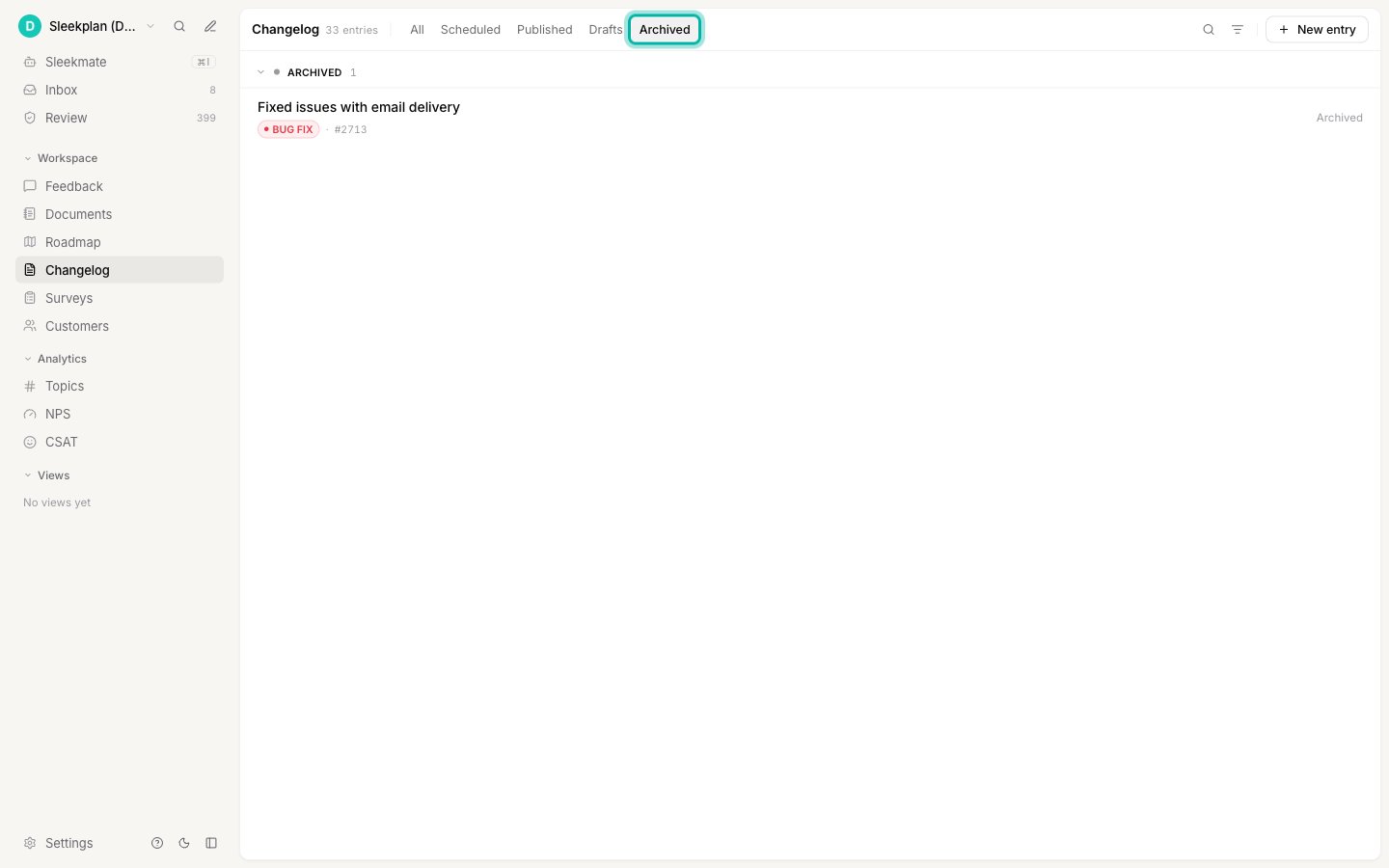
The [**Changelog**](https://app.sleekplan.com/changelog) list has an **Archived** section and a matching **Archived** tab, alongside Scheduled, Published, and Drafts. Use the tab to see only the entries you have taken down.
### Find your archived entries
The [**Changelog**](https://app.sleekplan.com/changelog) list has an **Archived** section and a matching **Archived** tab, alongside Scheduled, Published, and Drafts. Use the tab to see only the entries you have taken down.
 **Delete** is still permanent and still different from unpublishing. Deleting removes the entry, its content, its images, and its stats for good. Unpublishing keeps all of it. If you only want the update off your changelog, unpublish it.
## Reuse an entry with Duplicate
**Duplicate** copies an entry into a new draft, so you can edit and publish it without rewriting it. It works on any saved entry, whatever its state, and it is the only way to put an archived update back on your changelog.
Open any entry from the [**Changelog**](https://app.sleekplan.com/changelog) list, then click the **...** button in the top right and choose **Duplicate**.
Sleekplan creates the copy as a draft and opens it straight away, so you can change the dates, adjust the wording, and publish when you are ready.
**Delete** is still permanent and still different from unpublishing. Deleting removes the entry, its content, its images, and its stats for good. Unpublishing keeps all of it. If you only want the update off your changelog, unpublish it.
## Reuse an entry with Duplicate
**Duplicate** copies an entry into a new draft, so you can edit and publish it without rewriting it. It works on any saved entry, whatever its state, and it is the only way to put an archived update back on your changelog.
Open any entry from the [**Changelog**](https://app.sleekplan.com/changelog) list, then click the **...** button in the top right and choose **Duplicate**.
Sleekplan creates the copy as a draft and opens it straight away, so you can change the dates, adjust the wording, and publish when you are ready.
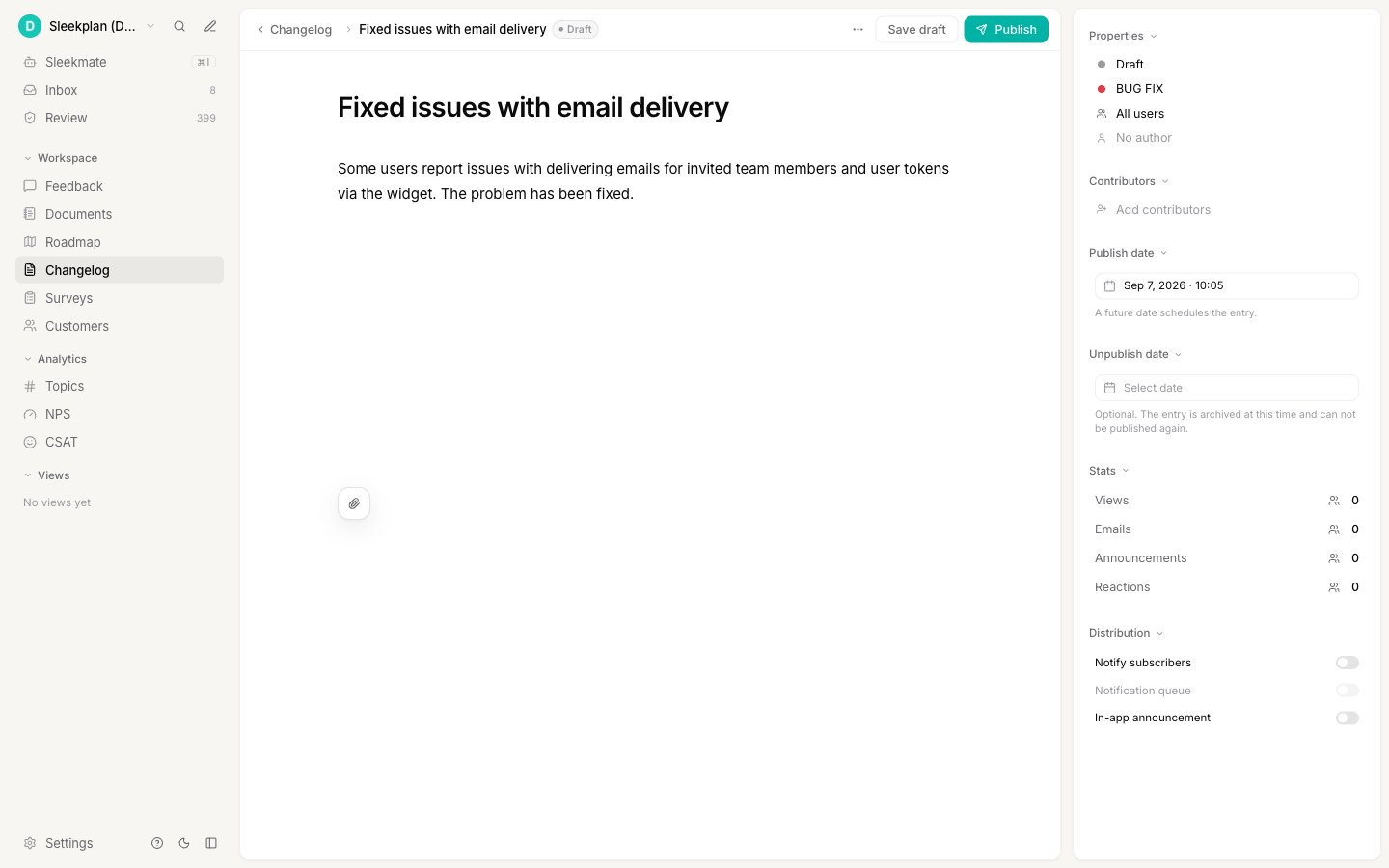 Here is what the copy keeps and what it starts fresh:
| Carried over | Reset on the copy |
| ------------------------------------------------------------------------ | ---------------------------------------------------- |
| Title and body | Publish date, set to the moment you duplicated |
| Category and audience | Unpublish date, cleared |
| Author and contributors | Views, reactions, and email and announcement counts |
| Attached images | Its state, always a draft |
| Notify subscribers, notification queue, and in-app announcement settings | The link to a feedback post, if the original had one |
The copy is a genuinely new entry, so publishing it notifies subscribers again if **Notify subscribers** is on, and it starts its own view and reaction counts. Check the [distribution settings](/help/changelog/create-entries#notify-subscribers-and-the-notification-queue) on the draft before you publish it.
## Run a recurring notice
Unpublishing and duplicating are designed to work together for updates you post again and again, like a deployment or maintenance notice.
Write the entry once and publish it. If you already know when the window ends, set an unpublish date at least six hours out and skip step 2.
Unpublish the entry from its actions menu. It disappears from your changelog and moves to the **Archived** section.
When the next window comes around, open the archived entry, choose **Duplicate**, update the dates and details in the new draft, and publish. Your wording stays consistent and you never start from a blank editor.
## Related
Write an entry, schedule it, target a segment, and notify subscribers.
Read the changelog list and use its status tabs, category filter, and search.
Surface a published entry as a New Updates pop-up inside your widget.
Check what your plan includes, including changelog scheduling.
Here is what the copy keeps and what it starts fresh:
| Carried over | Reset on the copy |
| ------------------------------------------------------------------------ | ---------------------------------------------------- |
| Title and body | Publish date, set to the moment you duplicated |
| Category and audience | Unpublish date, cleared |
| Author and contributors | Views, reactions, and email and announcement counts |
| Attached images | Its state, always a draft |
| Notify subscribers, notification queue, and in-app announcement settings | The link to a feedback post, if the original had one |
The copy is a genuinely new entry, so publishing it notifies subscribers again if **Notify subscribers** is on, and it starts its own view and reaction counts. Check the [distribution settings](/help/changelog/create-entries#notify-subscribers-and-the-notification-queue) on the draft before you publish it.
## Run a recurring notice
Unpublishing and duplicating are designed to work together for updates you post again and again, like a deployment or maintenance notice.
Write the entry once and publish it. If you already know when the window ends, set an unpublish date at least six hours out and skip step 2.
Unpublish the entry from its actions menu. It disappears from your changelog and moves to the **Archived** section.
When the next window comes around, open the archived entry, choose **Duplicate**, update the dates and details in the new draft, and publish. Your wording stays consistent and you never start from a blank editor.
## Related
Write an entry, schedule it, target a segment, and notify subscribers.
Read the changelog list and use its status tabs, category filter, and search.
Surface a published entry as a New Updates pop-up inside your widget.
Check what your plan includes, including changelog scheduling.