> ## Documentation Index
> Fetch the complete documentation index at: https://sleekplan.com/llms.txt
> Use this file to discover all available pages before exploring further.
# In-app announcements
> In-app announcements surface a newly published changelog entry as a New Updates pop-up inside your widget. Learn how to turn one on for an entry, how segment targeting decides who sees it, and how to hide announcements on specific pages.
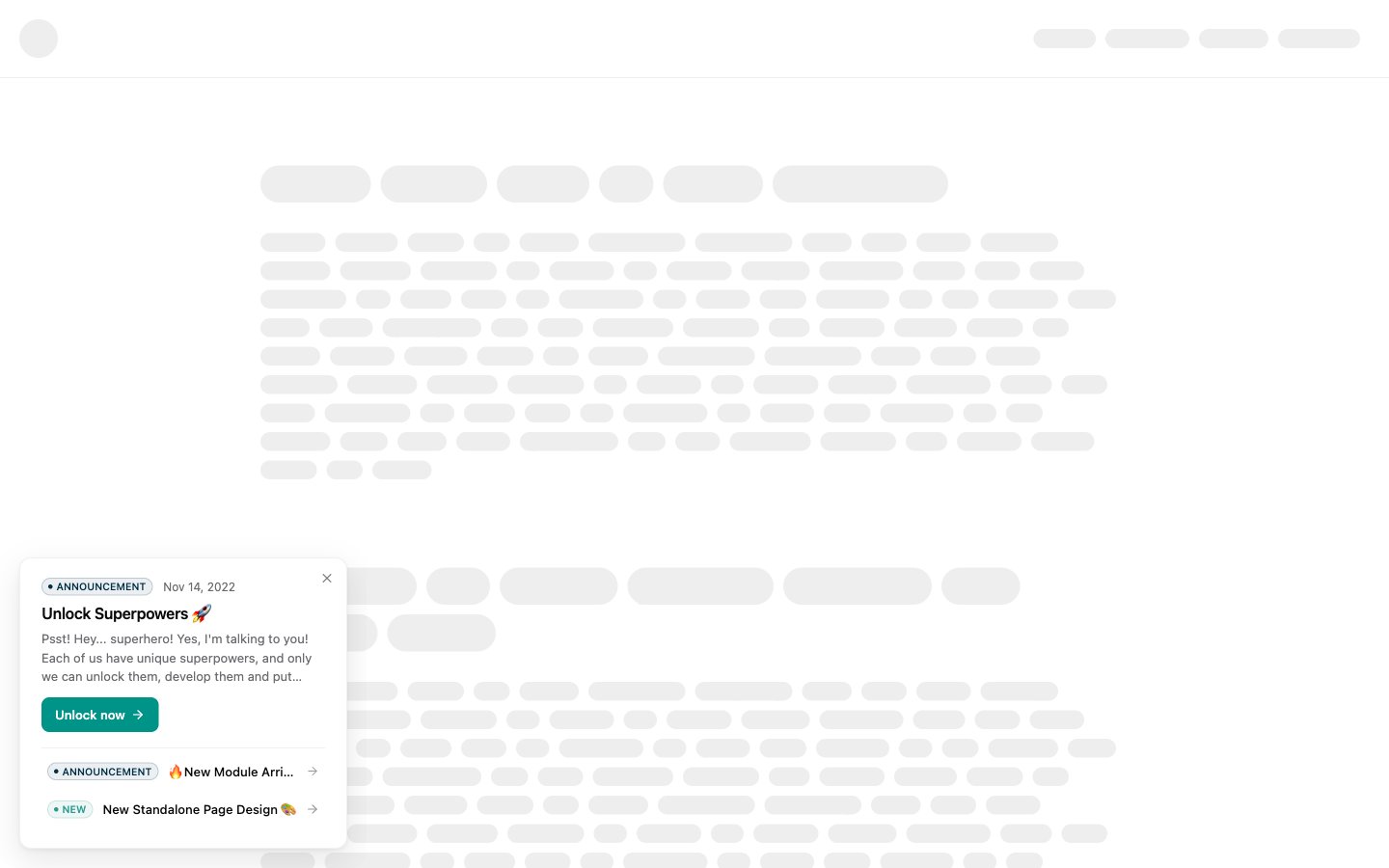
An in-app announcement is the **New Updates** pop-up that appears inside your widget when you publish a changelog entry. Instead of waiting for users to open the changelog, the update comes to them: the pop-up shows the entry's image, title, and a short preview, and clicking it opens the full entry. It is the most direct way to make sure people notice what you shipped.
Announcements are driven entirely by your [changelog](/help/changelog). Each entry decides for itself whether it becomes an announcement, so you can loudly announce a headline feature while quietly logging a minor fix.
 ## Turn on an announcement for an entry
Announcements are set **per entry**, not from a global switch. You choose whether each changelog entry becomes a pop-up when you write it.
Create a new entry from the [**Changelog**](https://app.sleekplan.com/changelog) screen with **New entry**, or open an existing draft. For the full walkthrough of writing and publishing, see [Create changelog entries](/help/changelog/create-entries).
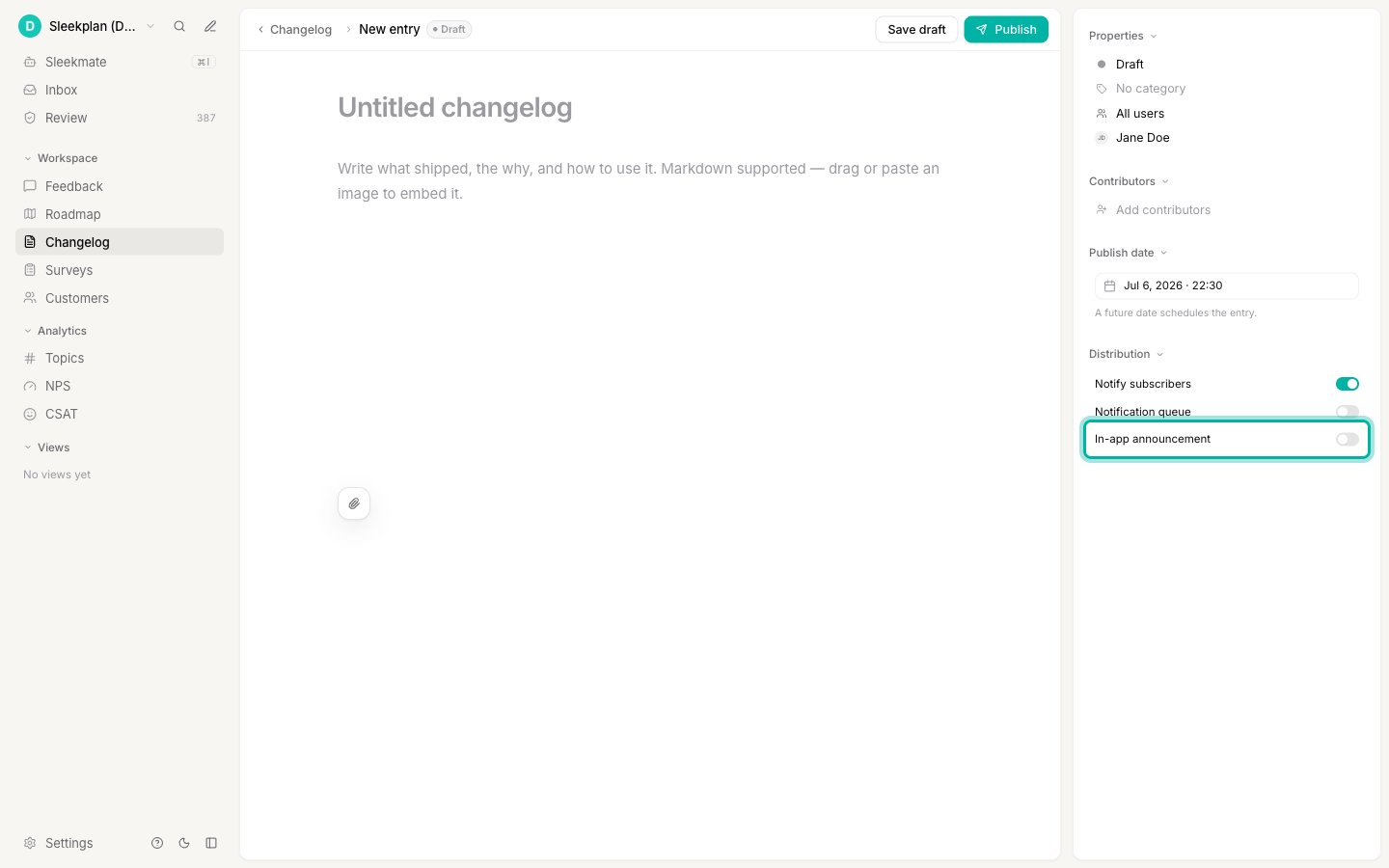
In the editor's publish panel on the right, turn on **In-app announcement**. It sits alongside **Notify subscribers** (which sends an email) so you can decide, independently, how each update reaches your users.
## Turn on an announcement for an entry
Announcements are set **per entry**, not from a global switch. You choose whether each changelog entry becomes a pop-up when you write it.
Create a new entry from the [**Changelog**](https://app.sleekplan.com/changelog) screen with **New entry**, or open an existing draft. For the full walkthrough of writing and publishing, see [Create changelog entries](/help/changelog/create-entries).
In the editor's publish panel on the right, turn on **In-app announcement**. It sits alongside **Notify subscribers** (which sends an email) so you can decide, independently, how each update reaches your users.
 An announcement only appears once the entry is **published**. Publish now, or schedule it for later, and the pop-up starts showing to users from that point.
In-app announcements are a plan feature with a monthly limit. Once you reach your plan's announcement allowance, new entries stop showing as pop-ups until the limit resets. See [Add-ons](/help/account-security/add-ons) if you need more.
## How announcements behave
A few rules keep announcements helpful rather than noisy:
* **Recent entries only.** An entry is announced only if it was published within the last 30 days. Older entries stay in the changelog but no longer pop up.
* **Shown once per user.** Each user sees a given entry's announcement one time. Reopening the widget will not show the same update again.
* **A short queue, newest first.** If several entries qualify at once, the newest leads the pop-up and a few more are bundled with it, so users get a single tidy "New Updates" moment rather than a stream of pop-ups.
* **Not shown on top of other pop-ups.** If another widget pop-up is already active, the announcement waits.
The **New Updates** pop-up is separate from the notifications inbox inside the widget. That inbox is controlled by the **Notifications** toggle in [**Settings → Widget**](https://app.sleekplan.com/settings/widget). Announcements will still appear even if the inbox is turned off.
## Target an announcement with segments
If you set an **Audience** on a changelog entry, its in-app announcement follows the same targeting. This lets you announce a change only to the users it affects.
* An entry left on **All users** is announced to everyone who qualifies.
* An entry targeted at a [user segment](/help/account-security/segments) is announced **only to signed-in users who match that segment**. Users who are not signed in, or who do not fall into the segment, never see the pop-up.
Because segment membership is evaluated from a known user's attributes, segmented announcements reach identified users only. Set the audience from the same **Audience** control you use when writing the entry, described in [Create changelog entries](/help/changelog/create-entries).
## Hide announcements on specific pages
Some pages are the wrong place for a "New Updates" pop-up: a public marketing page, a signup or login screen, or a checkout flow where any interruption can cost you a conversion. You can suppress announcements on those pages while keeping the rest of the widget fully functional.
To do this, define a settings object **before** the Sleekplan embed script loads on that page:
```html theme={"system"}
```
Place the `window.SLEEK_SETTINGS` snippet above the Sleekplan script tag on the page. It must run before the widget loads, because the setting is read when the widget first starts.
Add the snippet only to the pages where announcements should stay hidden. Pages without it keep showing announcements as usual. If several pages share a header or template, adding it there once covers them all.
This only hides the in-app announcement pop-up. The rest of the widget (feedback, roadmap, changelog, and the notifications inbox) keeps working normally on that page.
## Related
Write an entry, target a segment, and publish it as an announcement.
Read the changelog list and manage every entry in your workspace.
Configure how your changelog looks and behaves for users.
Build the audiences that decide who sees a targeted announcement.
An announcement only appears once the entry is **published**. Publish now, or schedule it for later, and the pop-up starts showing to users from that point.
In-app announcements are a plan feature with a monthly limit. Once you reach your plan's announcement allowance, new entries stop showing as pop-ups until the limit resets. See [Add-ons](/help/account-security/add-ons) if you need more.
## How announcements behave
A few rules keep announcements helpful rather than noisy:
* **Recent entries only.** An entry is announced only if it was published within the last 30 days. Older entries stay in the changelog but no longer pop up.
* **Shown once per user.** Each user sees a given entry's announcement one time. Reopening the widget will not show the same update again.
* **A short queue, newest first.** If several entries qualify at once, the newest leads the pop-up and a few more are bundled with it, so users get a single tidy "New Updates" moment rather than a stream of pop-ups.
* **Not shown on top of other pop-ups.** If another widget pop-up is already active, the announcement waits.
The **New Updates** pop-up is separate from the notifications inbox inside the widget. That inbox is controlled by the **Notifications** toggle in [**Settings → Widget**](https://app.sleekplan.com/settings/widget). Announcements will still appear even if the inbox is turned off.
## Target an announcement with segments
If you set an **Audience** on a changelog entry, its in-app announcement follows the same targeting. This lets you announce a change only to the users it affects.
* An entry left on **All users** is announced to everyone who qualifies.
* An entry targeted at a [user segment](/help/account-security/segments) is announced **only to signed-in users who match that segment**. Users who are not signed in, or who do not fall into the segment, never see the pop-up.
Because segment membership is evaluated from a known user's attributes, segmented announcements reach identified users only. Set the audience from the same **Audience** control you use when writing the entry, described in [Create changelog entries](/help/changelog/create-entries).
## Hide announcements on specific pages
Some pages are the wrong place for a "New Updates" pop-up: a public marketing page, a signup or login screen, or a checkout flow where any interruption can cost you a conversion. You can suppress announcements on those pages while keeping the rest of the widget fully functional.
To do this, define a settings object **before** the Sleekplan embed script loads on that page:
```html theme={"system"}
```
Place the `window.SLEEK_SETTINGS` snippet above the Sleekplan script tag on the page. It must run before the widget loads, because the setting is read when the widget first starts.
Add the snippet only to the pages where announcements should stay hidden. Pages without it keep showing announcements as usual. If several pages share a header or template, adding it there once covers them all.
This only hides the in-app announcement pop-up. The rest of the widget (feedback, roadmap, changelog, and the notifications inbox) keeps working normally on that page.
## Related
Write an entry, target a segment, and publish it as an announcement.
Read the changelog list and manage every entry in your workspace.
Configure how your changelog looks and behaves for users.
Build the audiences that decide who sees a targeted announcement.