> ## Documentation Index
> Fetch the complete documentation index at: https://sleekplan.com/llms.txt
> Use this file to discover all available pages before exploring further.
# Enable two-factor authentication
> Add a second layer of security to your Sleekplan account with an authenticator app and a recovery key.
Two-factor authentication (2FA) protects your account with a second step at login: after your password, you enter a 6-digit code from an authenticator app on your phone. Even if someone learns your password, they can't sign in without that code.
Sleekplan uses **authenticator-app codes** (TOTP). Any standard app works, such as Google Authenticator, 1Password, or Authy. You'll also get a one-time **recovery key** to save, in case you ever lose access to your device.
2FA applies to your **personal login**, not to the whole workspace. Each teammate turns it on for their own account. You can enable it on any plan and with any [role](/help/account-security/roles-permissions).
Before you start, install an authenticator app on your phone if you don't already have one.
## Enable two-factor authentication
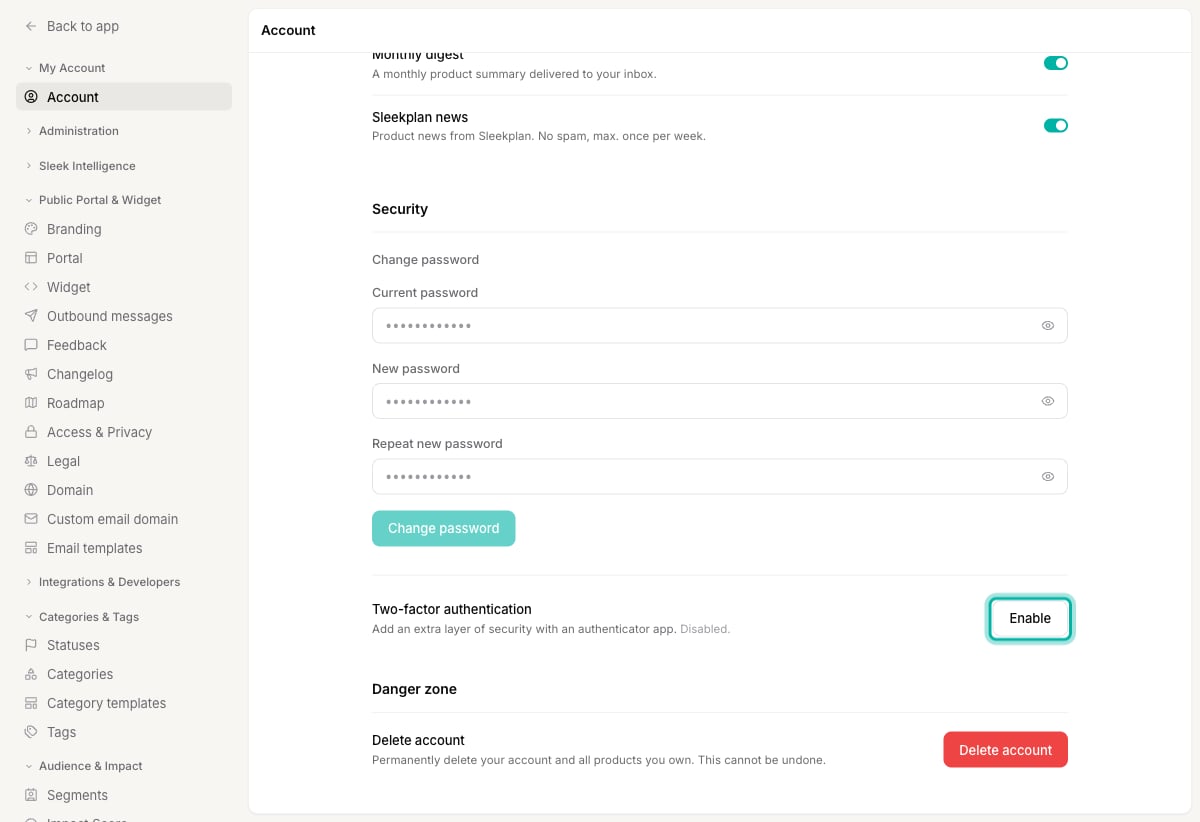
Go to [**Settings → Account**](https://app.sleekplan.com/settings/account) and scroll to the **Security** section. Next to **Two-factor authentication**, click **Enable**.
 Open your authenticator app, add a new account, and scan the QR code shown in the dialog. Your app will start generating a fresh 6-digit code every 30 seconds.
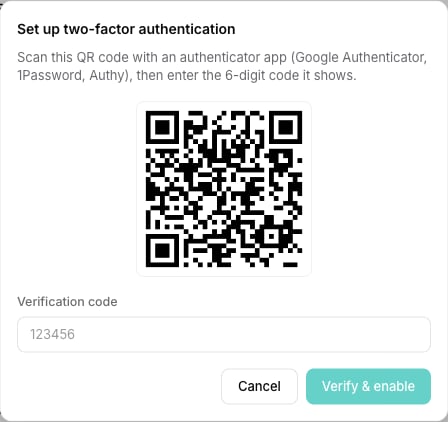 Type the current 6-digit code from your app into the **Verification code** field, then click **Verify & enable**. This confirms your app and Sleekplan are in sync.
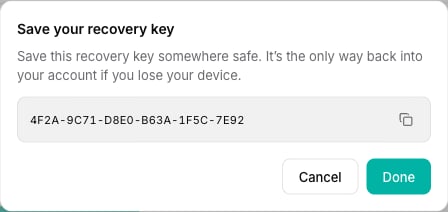
Sleekplan shows a one-time **recovery key**. Copy it and store it somewhere safe, such as a password manager. It's the only way back into your account if you lose your phone. When it's saved, click **Done**.
Type the current 6-digit code from your app into the **Verification code** field, then click **Verify & enable**. This confirms your app and Sleekplan are in sync.
Sleekplan shows a one-time **recovery key**. Copy it and store it somewhere safe, such as a password manager. It's the only way back into your account if you lose your phone. When it's saved, click **Done**.
 Two-factor authentication is now on. The Security section shows **Enabled**, and your next sign-in will ask for a code from your app.
The recovery key is shown only once, right after you enable 2FA. It isn't displayed again, so save it before clicking **Done**. If you lose both your device and your recovery key, you'll need to contact support to regain access.
## Sign in with 2FA on
After 2FA is enabled, signing in has one extra step. Enter your email and password as usual, then enter the current 6-digit code from your authenticator app when prompted.
If you don't have your phone, use your **recovery key** in place of the code to get back into your account.
## Turn off two-factor authentication
You can disable 2FA at any time. You'll need a current code from your authenticator app to do it.
Go to [**Settings → Account**](https://app.sleekplan.com/settings/account) and scroll to the **Security** section. Next to **Two-factor authentication**, click **Disable**.
Enter a current 6-digit code from your authenticator app, then click **Turn off**. Two-factor authentication is removed from your account, and future logins only need your password.
After turning 2FA off, delete the old Sleekplan entry from your authenticator app so you don't confuse it with an active one. If you want 2FA again later, enable it fresh to generate a new QR code and recovery key.
## Related
Control what each teammate can see and change in your workspace.
Manage your account, security, and workspace settings.
Two-factor authentication is now on. The Security section shows **Enabled**, and your next sign-in will ask for a code from your app.
The recovery key is shown only once, right after you enable 2FA. It isn't displayed again, so save it before clicking **Done**. If you lose both your device and your recovery key, you'll need to contact support to regain access.
## Sign in with 2FA on
After 2FA is enabled, signing in has one extra step. Enter your email and password as usual, then enter the current 6-digit code from your authenticator app when prompted.
If you don't have your phone, use your **recovery key** in place of the code to get back into your account.
## Turn off two-factor authentication
You can disable 2FA at any time. You'll need a current code from your authenticator app to do it.
Go to [**Settings → Account**](https://app.sleekplan.com/settings/account) and scroll to the **Security** section. Next to **Two-factor authentication**, click **Disable**.
Enter a current 6-digit code from your authenticator app, then click **Turn off**. Two-factor authentication is removed from your account, and future logins only need your password.
After turning 2FA off, delete the old Sleekplan entry from your authenticator app so you don't confuse it with an active one. If you want 2FA again later, enable it fresh to generate a new QR code and recovery key.
## Related
Control what each teammate can see and change in your workspace.
Manage your account, security, and workspace settings.