> ## Documentation Index
> Fetch the complete documentation index at: https://sleekplan.com/llms.txt
> Use this file to discover all available pages before exploring further.
# Companies and teams
> See your feedback rolled up by account: what a group is, how to read the list, and how to manage members.
A group is the account your customer belongs to, most often a company, sometimes a team or a
workspace inside a larger company. Grouping your customers this way answers a question
individual customers can't: are these twenty upvotes coming from twenty different trial
signups, or from three of your biggest accounts?
Companies and teams require a **Business plan or higher**. If your workspace is on a lower
plan, sign-ins won't create any groups, so you won't see the tabs described below until you
upgrade.
There's no button to create a group by hand. Groups are created automatically the moment one
of your customers signs in through [single sign-on](https://sleekplan.com/docs/authentication/single-sign-on)
with a company or team attached, using the `groups` field your developers add to the SSO
token. Once a group exists, everything below (editing it, assigning customers to it, and
deleting it) is available right here in the app.
## Companies, teams, or something else
"Company", "team" and "workspace" aren't fixed categories Sleekplan defines: they're whatever
your own system calls the accounts it sends over. If your product organizes customers into
companies, you'll see a "Companies" tab. If it's teams within one company, you'll see "Teams"
instead, or both side by side if your integration sends more than one kind.
## Finding your groups
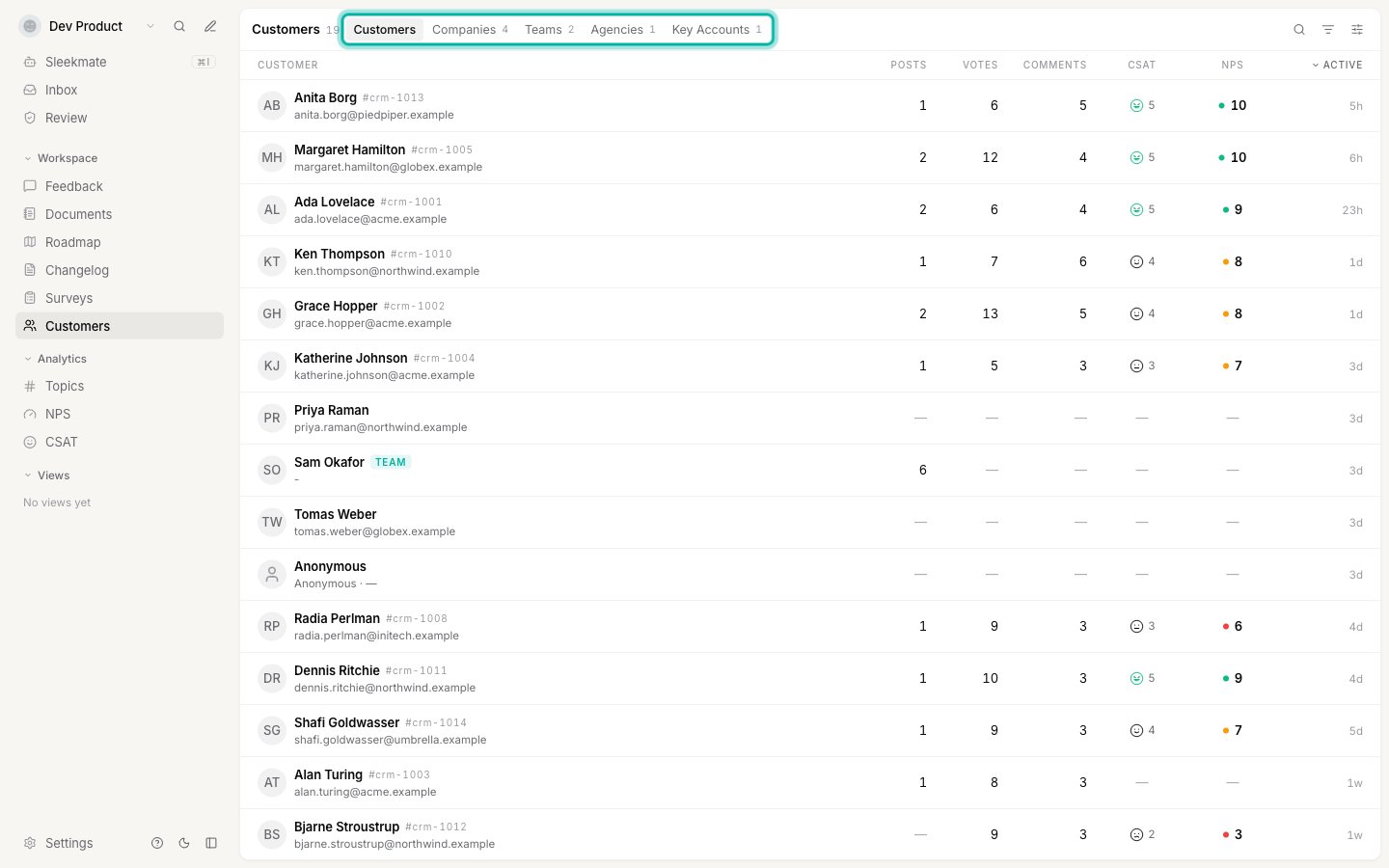
Open [**Customers**](https://app.sleekplan.com/customers) and look at the tab bar at the top.
Alongside **Customers**, you'll see one tab per kind of group your workspace has received,
each showing how many exist. Selecting a tab shows that group's list instead of your
individual customers.
 If you don't see any extra tabs yet, it's because no group has synced in through SSO for
this workspace so far, or your plan doesn't include the feature (see above). The tab bar
stays hidden entirely until the first group arrives.
## Reading the list
If you don't see any extra tabs yet, it's because no group has synced in through SSO for
this workspace so far, or your plan doesn't include the feature (see above). The tab bar
stays hidden entirely until the first group arrives.
## Reading the list
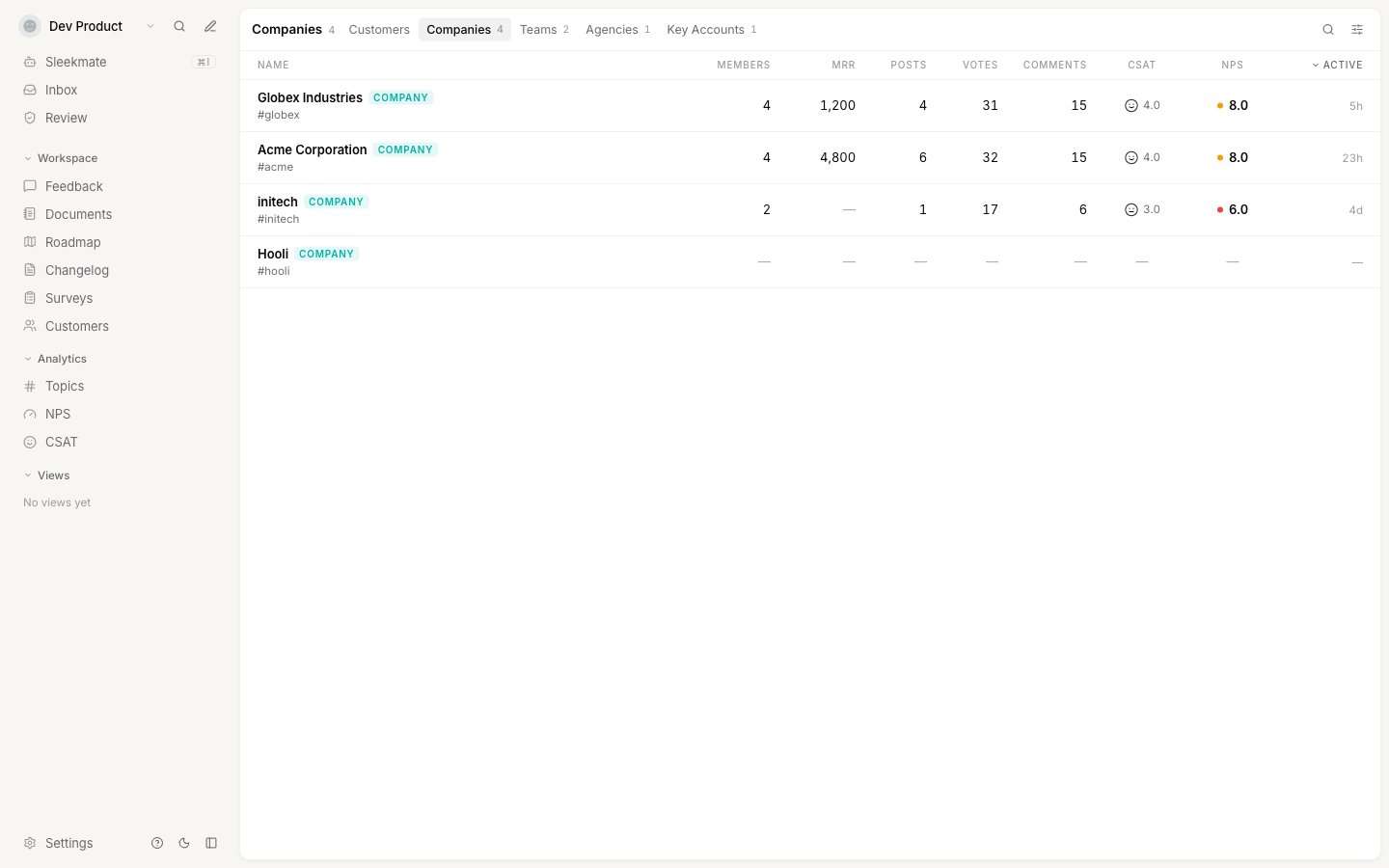 Each row is one group, with:
* **Name** and its type badge, plus the identifier your own system uses for it
* **Members**: how many of your customers belong to it
* **MRR**: the account's monthly recurring revenue, if your integration sends one
* **Posts**, **Votes**, **Comments**: totals across every member
* **CSAT** and **NPS**: averaged across members who actually answered a satisfaction or
promoter survey (a member who was never asked doesn't drag the average down)
* **Active**: the most recent activity from any of its members
Use **Search name, identifier…** to find a specific account, or select any row to open its
full profile.
## What Weight and MRR do
**Weight** (0 to 10) tells Sleekplan how much this account's votes should count toward a
post's [impact score](/help/feedback/impact-score), the same idea as the weight you can
already set on an individual [customer](/help/account-security/end-user-accounts). A weight of
0 means the account is tracked but deliberately excluded from prioritization.
**MRR** is the account's monthly recurring revenue in your workspace's currency. It's for your
own reference (sorting the list by your biggest accounts, seeing it on a group's profile)
rather than something Sleekplan calculates a total from.
Both arrive from your SSO integration and can be adjusted afterward from the group's profile.
## Opening a group's profile
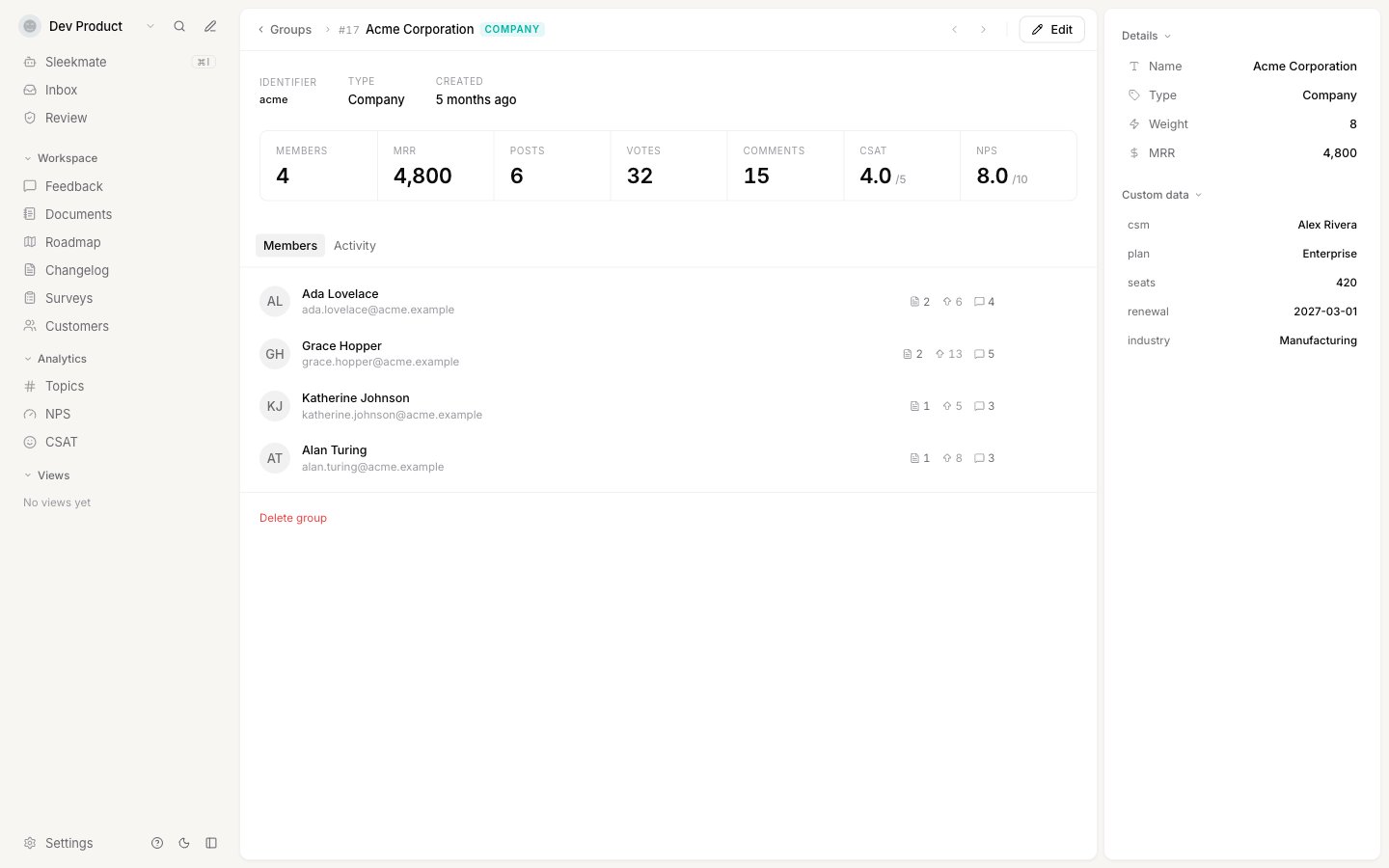
Select any row to see:
* An identity summary: the identifier, type, and when the group was first created
* A stat band with **Members**, **MRR**, **Posts**, **Votes**, **Comments**, **CSAT** and **NPS**
* A **Members** tab, listing every customer in the group
* An **Activity** tab, showing their combined feedback activity in one feed
* An inspector panel on the right, with the group's type, weight, MRR and any custom metadata
Each row is one group, with:
* **Name** and its type badge, plus the identifier your own system uses for it
* **Members**: how many of your customers belong to it
* **MRR**: the account's monthly recurring revenue, if your integration sends one
* **Posts**, **Votes**, **Comments**: totals across every member
* **CSAT** and **NPS**: averaged across members who actually answered a satisfaction or
promoter survey (a member who was never asked doesn't drag the average down)
* **Active**: the most recent activity from any of its members
Use **Search name, identifier…** to find a specific account, or select any row to open its
full profile.
## What Weight and MRR do
**Weight** (0 to 10) tells Sleekplan how much this account's votes should count toward a
post's [impact score](/help/feedback/impact-score), the same idea as the weight you can
already set on an individual [customer](/help/account-security/end-user-accounts). A weight of
0 means the account is tracked but deliberately excluded from prioritization.
**MRR** is the account's monthly recurring revenue in your workspace's currency. It's for your
own reference (sorting the list by your biggest accounts, seeing it on a group's profile)
rather than something Sleekplan calculates a total from.
Both arrive from your SSO integration and can be adjusted afterward from the group's profile.
## Opening a group's profile
Select any row to see:
* An identity summary: the identifier, type, and when the group was first created
* A stat band with **Members**, **MRR**, **Posts**, **Votes**, **Comments**, **CSAT** and **NPS**
* A **Members** tab, listing every customer in the group
* An **Activity** tab, showing their combined feedback activity in one feed
* An inspector panel on the right, with the group's type, weight, MRR and any custom metadata
 The activity feed covers up to the group's 500 most recently active members. For a very
large account that means the feed is representative rather than exhaustive, and the app
tells you when it's showing a partial view.
## Assigning a customer to a group
Go to a [customer](https://app.sleekplan.com/customers) and select the **Groups** tab,
alongside Activity, Pageviews, Emails and Announcements.
The activity feed covers up to the group's 500 most recently active members. For a very
large account that means the feed is representative rather than exhaustive, and the app
tells you when it's showing a partial view.
## Assigning a customer to a group
Go to a [customer](https://app.sleekplan.com/customers) and select the **Groups** tab,
alongside Activity, Pageviews, Emails and Announcements.
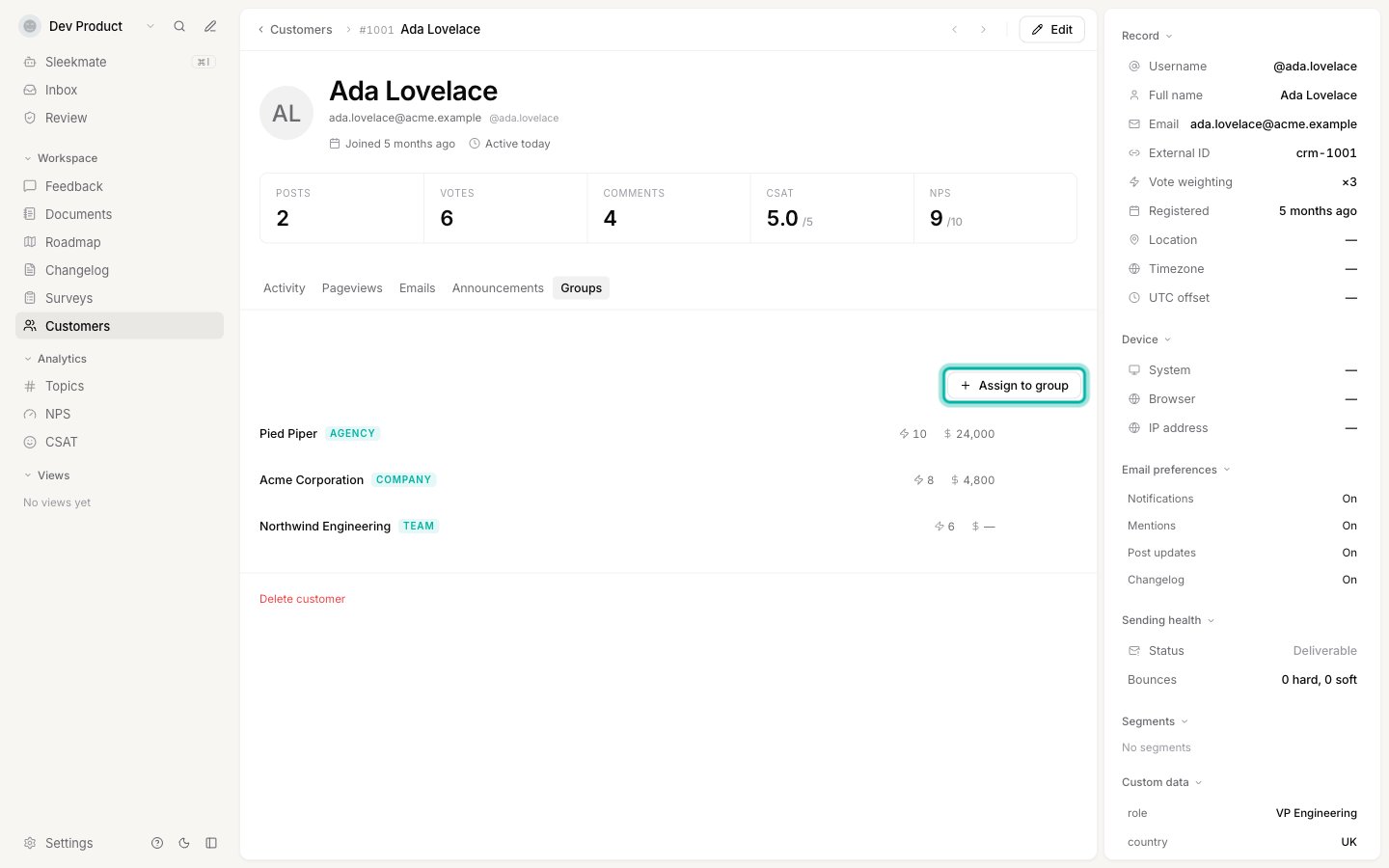 Select **Assign to group**, search for the group, and pick it. The customer is added
immediately, and the group's member count updates to match.
A customer can belong to more than one group at once, for example a company and a team inside
it, so assigning them to a second group never removes them from the first.
## Removing a customer from a group
You can do this from either side:
* **From the customer**: open the customer's profile, select the **Groups** tab, hover the
group you want to remove, and select **Remove**.
* **From the group**: open the group's profile, select the **Members** tab, hover the
customer's row, and select **Remove**.
Removing a customer only unassigns them. It never deletes the customer, and it never deletes
the group. Because sign-ins only ever add customers to groups and never remove them, this is
the way to take a customer out of a group if your source system stops sending them, or if
you assigned them somewhere by mistake.
## Editing a group
Open the group's profile and select **Edit** in the header. You can change:
* **Name**
* **Type**
* **Weight**
* **MRR**
* **Custom metadata**: add or remove key/value fields (up to 20), useful for anything your SSO
integration doesn't already send, like an account manager's name or a renewal date
Select **Save** to apply your changes, or **Cancel** to discard them.
Editing metadata here replaces the group's full metadata when you save. If your SSO
integration also sends metadata for this group, a later sign-in merges its fields back in
rather than overwriting what you just set, so a key you deliberately removed here can
reappear if your system still sends it.
You can rename a group here at any time. If your SSO integration also sends a name for it, a
later sign-in restores that name, so rename at the source when the change needs to stick. The
group's identifier can't be changed at all, here or later: it's what links the group to your
own system.
## Deleting a group
Open the group's profile and select **Delete group** at the bottom of the page. This removes
the group and unassigns every one of its members. It doesn't delete the customers themselves.
If your SSO integration still sends that group on a later sign-in, it's recreated from
scratch, with no memory of its previous metadata or membership.
Weight, metadata, and everything else you can see and set on an individual customer.
For your developers: how to add companies and teams to your SSO token.
Select **Assign to group**, search for the group, and pick it. The customer is added
immediately, and the group's member count updates to match.
A customer can belong to more than one group at once, for example a company and a team inside
it, so assigning them to a second group never removes them from the first.
## Removing a customer from a group
You can do this from either side:
* **From the customer**: open the customer's profile, select the **Groups** tab, hover the
group you want to remove, and select **Remove**.
* **From the group**: open the group's profile, select the **Members** tab, hover the
customer's row, and select **Remove**.
Removing a customer only unassigns them. It never deletes the customer, and it never deletes
the group. Because sign-ins only ever add customers to groups and never remove them, this is
the way to take a customer out of a group if your source system stops sending them, or if
you assigned them somewhere by mistake.
## Editing a group
Open the group's profile and select **Edit** in the header. You can change:
* **Name**
* **Type**
* **Weight**
* **MRR**
* **Custom metadata**: add or remove key/value fields (up to 20), useful for anything your SSO
integration doesn't already send, like an account manager's name or a renewal date
Select **Save** to apply your changes, or **Cancel** to discard them.
Editing metadata here replaces the group's full metadata when you save. If your SSO
integration also sends metadata for this group, a later sign-in merges its fields back in
rather than overwriting what you just set, so a key you deliberately removed here can
reappear if your system still sends it.
You can rename a group here at any time. If your SSO integration also sends a name for it, a
later sign-in restores that name, so rename at the source when the change needs to stick. The
group's identifier can't be changed at all, here or later: it's what links the group to your
own system.
## Deleting a group
Open the group's profile and select **Delete group** at the bottom of the page. This removes
the group and unassigns every one of its members. It doesn't delete the customers themselves.
If your SSO integration still sends that group on a later sign-in, it's recreated from
scratch, with no memory of its previous metadata or membership.
Weight, metadata, and everything else you can see and set on an individual customer.
For your developers: how to add companies and teams to your SSO token.