> ## Documentation Index
> Fetch the complete documentation index at: https://sleekplan.com/llms.txt
> Use this file to discover all available pages before exploring further.
# Check what happened to a customer's emails
> Open a customer's Emails tab to see every notification Sleekplan sent them and what happened to each one: sent, still queued, bounced, or never sent at all.
When a customer says they never heard about a status change or your latest changelog, the **Emails** tab on their profile answers it. It lists the notifications Sleekplan sent that person, newest first, and shows what happened to each one.
This is the per-message view. It tells you about one email at a time: whether it went out, whether it came back, or whether a rule stopped it before it left. For the address as a whole, and whether Sleekplan is still willing to email this person at all, see [sending health](/help/account-security/sending-health).
The tab lists notification emails only: new comments, mentions, status updates, and changelog updates. Sign-in codes are never shown here, because they are sent whatever else is going on with the account.
## Check a customer's emails
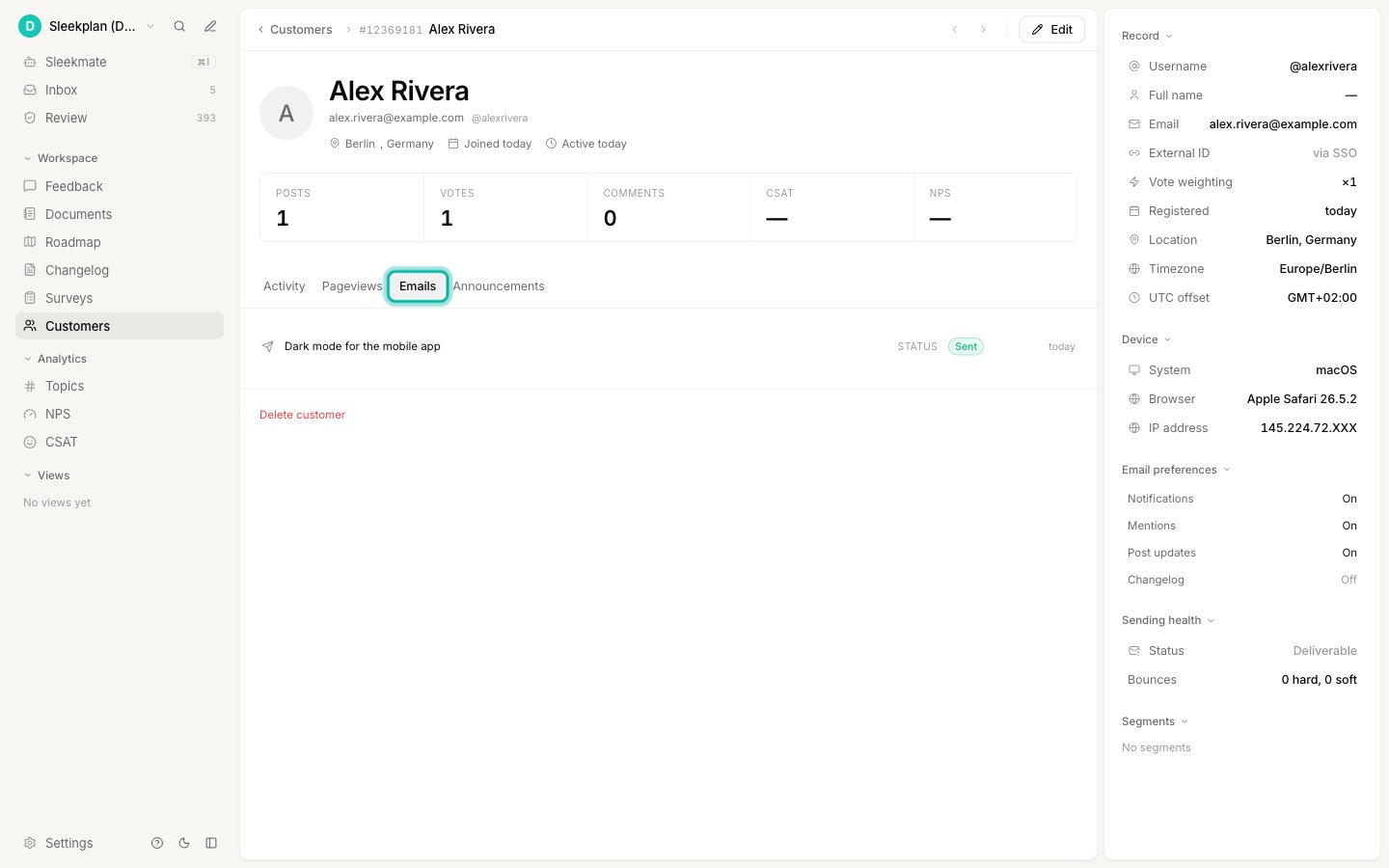
Go to [**Customers**](https://app.sleekplan.com/customers) and select the person who reported the problem.
The tabs sit below the customer's stats. **Emails** is the third one.
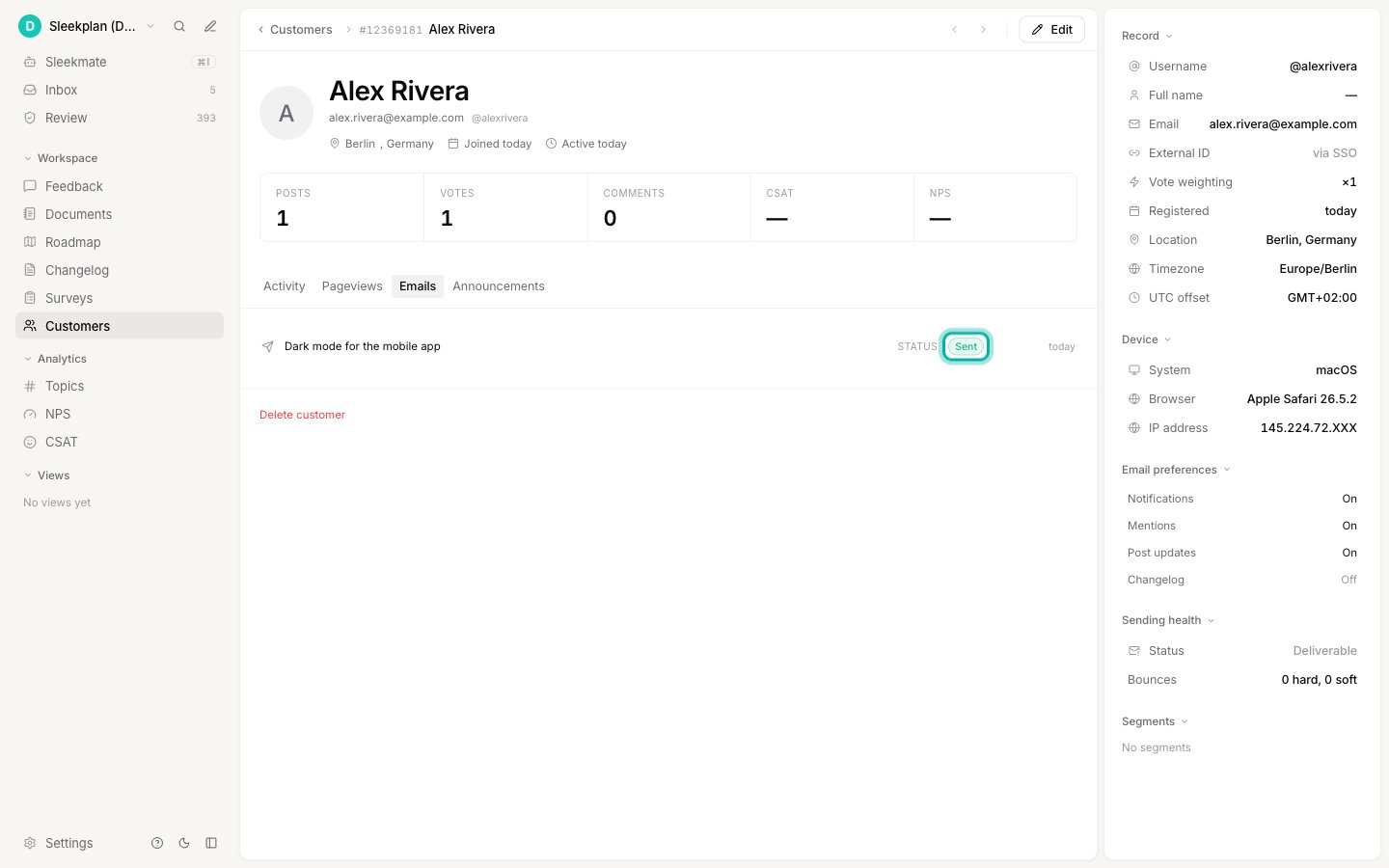
 Every row is one email. The middle column tells you what kind of notification it was (a status update, a comment, a mention, a changelog entry), and the pill on the right tells you what happened to it.
 ## What each status means
| Status | What it means | What to do |
| --------------- | -------------------------------------------------------------------------------------------------------------------- | ------------------------------------------------------------------------------------------------------------------------------------------------------------------------------ |
| **Sent** | Sleekplan handed the email to its mail provider and got a confirmation back. Nothing went wrong on our side. | Nothing. If the customer still cannot find it, ask them to check their spam folder. |
| **Queued** | The email is waiting to go out. | Nothing. Wait a few minutes and check again. |
| **Not sent** | A rule stopped the email before it was ever queued. See [Why an email was never sent](#why-an-email-was-never-sent). | Depends on the rule. Usually your own settings, your plan limit, or a blocked address. |
| **Failed** | Sleekplan tried repeatedly and could not get the email out. | Check [sending health](/help/account-security/sending-health) for that customer, and your [custom email domain](/help/portal-widget/custom-email-domain) if you send from one. |
| **Bounced** | The email left Sleekplan, and the receiving mail server rejected it. The address may be closed, misspelled, or full. | Confirm the address with the customer. A permanent bounce also blocks the address, which you can confirm in [sending health](/help/account-security/sending-health). |
| **Spam report** | The email arrived, and the recipient marked it as spam. | Do not email them again about this. Sleekplan stops sending from your address to that person automatically. |
**Sent** means the email left Sleekplan successfully, not that it landed in the inbox. Delivery to the mailbox happens after that and is outside what Sleekplan can see. **Bounced** and **Spam report** are the two signals that come back afterwards, and they replace **Sent** on the row when they arrive.
## Why an email was never sent
**Not sent** means Sleekplan decided against sending, so nothing was ever attempted. There are three reasons, and all three are visible to you:
1. **Email notifications are turned off for your whole workspace.** The **Disable email notifications** switch at [**Settings → General**](https://app.sleekplan.com/settings/general) stops all outgoing email to your users. It is useful during a bulk import, and easy to forget to turn back on.
2. **Your plan's monthly email limit is used up.** Notification emails pause until the limit resets. Sign-in codes keep working, so your users can still reach their account.
3. **The address is blocked.** A previous hard bounce or spam report stopped sending to that person. Their [sending health](/help/account-security/sending-health) panel shows the reason and, where it applies, the date sending resumes.
## Emails without a status
Rows older than this feature show no pill at all. The email was sent, but Sleekplan was not recording outcomes yet, so there is nothing truthful to display. A missing pill means "unknown", never "failed".
You may also see a pill stay on **Queued** for good. That happens in the rare case where the email was queued but Sleekplan could not record which queued message the notification belonged to. The email itself was still sent.
## Related
Check whether Sleekplan can still email a customer at all, and why it stopped.
Every email your end users can receive, and who gets each one.
## What each status means
| Status | What it means | What to do |
| --------------- | -------------------------------------------------------------------------------------------------------------------- | ------------------------------------------------------------------------------------------------------------------------------------------------------------------------------ |
| **Sent** | Sleekplan handed the email to its mail provider and got a confirmation back. Nothing went wrong on our side. | Nothing. If the customer still cannot find it, ask them to check their spam folder. |
| **Queued** | The email is waiting to go out. | Nothing. Wait a few minutes and check again. |
| **Not sent** | A rule stopped the email before it was ever queued. See [Why an email was never sent](#why-an-email-was-never-sent). | Depends on the rule. Usually your own settings, your plan limit, or a blocked address. |
| **Failed** | Sleekplan tried repeatedly and could not get the email out. | Check [sending health](/help/account-security/sending-health) for that customer, and your [custom email domain](/help/portal-widget/custom-email-domain) if you send from one. |
| **Bounced** | The email left Sleekplan, and the receiving mail server rejected it. The address may be closed, misspelled, or full. | Confirm the address with the customer. A permanent bounce also blocks the address, which you can confirm in [sending health](/help/account-security/sending-health). |
| **Spam report** | The email arrived, and the recipient marked it as spam. | Do not email them again about this. Sleekplan stops sending from your address to that person automatically. |
**Sent** means the email left Sleekplan successfully, not that it landed in the inbox. Delivery to the mailbox happens after that and is outside what Sleekplan can see. **Bounced** and **Spam report** are the two signals that come back afterwards, and they replace **Sent** on the row when they arrive.
## Why an email was never sent
**Not sent** means Sleekplan decided against sending, so nothing was ever attempted. There are three reasons, and all three are visible to you:
1. **Email notifications are turned off for your whole workspace.** The **Disable email notifications** switch at [**Settings → General**](https://app.sleekplan.com/settings/general) stops all outgoing email to your users. It is useful during a bulk import, and easy to forget to turn back on.
2. **Your plan's monthly email limit is used up.** Notification emails pause until the limit resets. Sign-in codes keep working, so your users can still reach their account.
3. **The address is blocked.** A previous hard bounce or spam report stopped sending to that person. Their [sending health](/help/account-security/sending-health) panel shows the reason and, where it applies, the date sending resumes.
## Emails without a status
Rows older than this feature show no pill at all. The email was sent, but Sleekplan was not recording outcomes yet, so there is nothing truthful to display. A missing pill means "unknown", never "failed".
You may also see a pill stay on **Queued** for good. That happens in the rare case where the email was queued but Sleekplan could not record which queued message the notification belonged to. The email itself was still sent.
## Related
Check whether Sleekplan can still email a customer at all, and why it stopped.
Every email your end users can receive, and who gets each one.