> ## Documentation Index
> Fetch the complete documentation index at: https://sleekplan.com/llms.txt
> Use this file to discover all available pages before exploring further.
# Set up Directory Sync (SCIM)
> Connect Okta, Microsoft Entra ID, or another SCIM directory so team seats and portal users are created, updated, and removed automatically when people join or leave.
Directory Sync keeps Sleekplan in step with your identity provider. When someone joins a team in Okta or Microsoft Entra ID, they appear in Sleekplan. When someone leaves, their access goes away without anyone remembering to remove it.
It uses SCIM, the standard your identity provider already speaks, so there is nothing to build. You connect a directory once and your provider pushes changes to Sleekplan from then on.
Directory Sync needs the **SAML single sign-on** [add-on](/help/account-security/add-ons) on a Business plan. Only **Owners** and **Admins** can add or remove connections. See [Team roles and permissions](/help/account-security/roles-permissions).
## Choose which directory you need
Sleekplan has two separate groups of people, and a directory connection serves one of them. Decide which before you start, because they do very different things.
Your **team**: the colleagues who sign in to the Sleekplan dashboard to triage feedback and publish updates. Syncing here creates and removes team seats.
Your **portal users**: the customers and staff who vote, post, and comment on your board. Syncing here creates and removes those end-user records.
Each **SAML single sign-on** add-on gives you **one directory and one SSO connection**, and you choose which audience each one serves. Most workspaces start with their portal users, because that is where the volume is. Once connected, a directory shows up in the list as **Admin · Directory Sync** or **Frontend · Directory Sync**.
To sync both audiences, book a second add-on. The same applies if you authenticate through more than one identity provider and need a connection for each. You can see how many you have booked, and add more, in the **Manage add-ons** dialog on the [Billing](https://app.sleekplan.com/settings/billing) page.
Team seats cost money and portal users do not. A backend directory that pushes your entire company will try to give every one of those people a paid seat. Scope it to the group that actually needs dashboard access.
## Connect a directory
Go to [**Settings → Access Management**](https://app.sleekplan.com/settings/identity). SAML connections are listed at the top and Directory Sync below them.
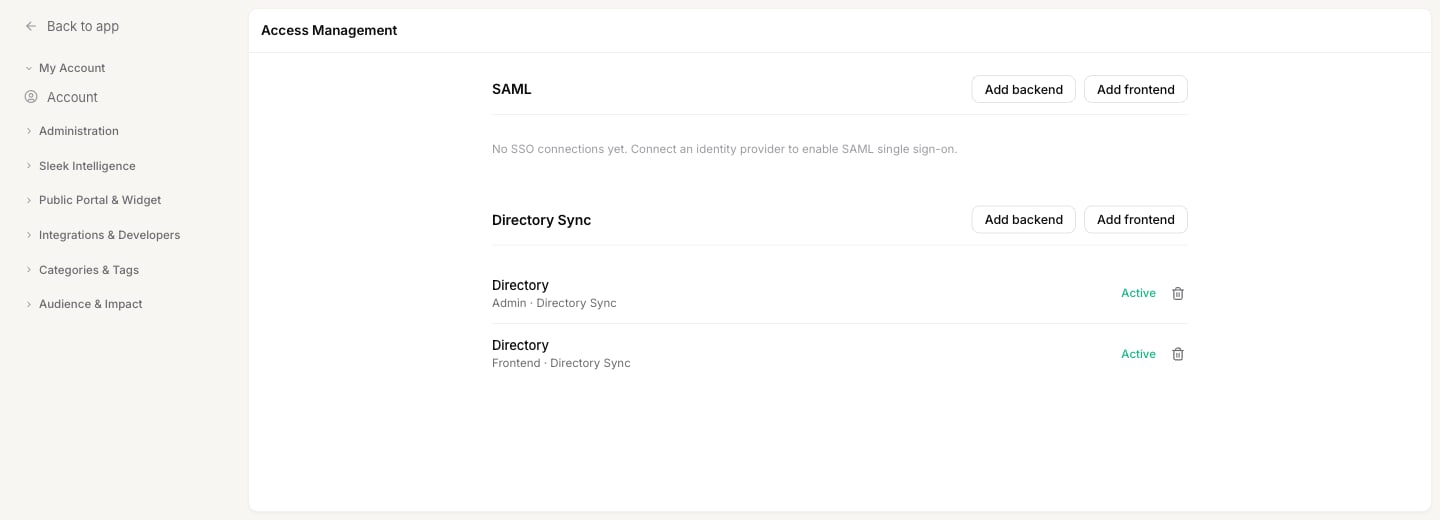 In the **Directory Sync** section, click **Add backend** for your team, or **Add frontend** for your portal users.
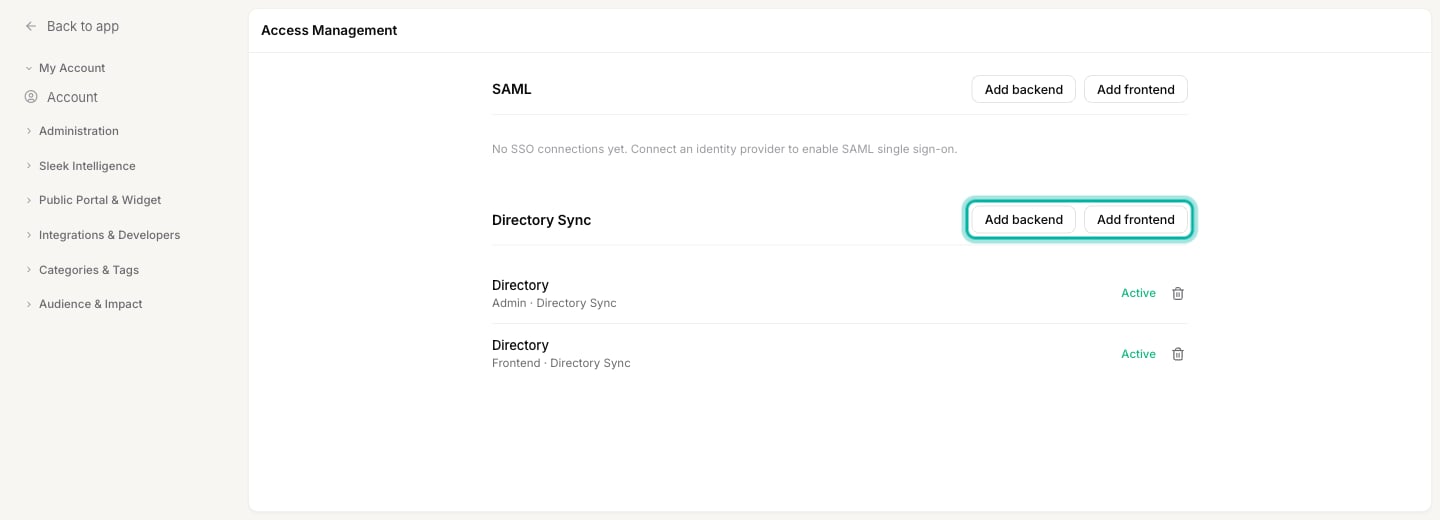 A setup page opens in a new tab with instructions for your provider, along with the SCIM endpoint and the token you need. Copy both into the provisioning settings of your Sleekplan app in Okta, Entra ID, or whichever directory you use.
The setup link is valid for **7 days**. If it expires before you finish, come back to this page and click the button again to get a fresh one.
Close the setup tab and return to Sleekplan. The new connection appears in the Directory Sync list marked **Active**. If it does not show up, reload the page.
## Choose who gets synced
Sleekplan syncs whoever your provider sends, so you decide the scope in your provider rather than here.
In Okta, Entra ID, and OneLogin, you assign the Sleekplan app to specific users or groups. Only assigned people are pushed. If you want just your support and product teams in the dashboard, assign the app to those two groups and nobody else arrives.
There is no group list to manage inside Sleekplan, and group names are not stored. Sleekplan reacts to people being added to or removed from a group your provider already syncs, which is why changing the assignment in your provider is all you need to do.
## What happens when your directory changes
### Backend directories (your team)
| In your directory | In Sleekplan |
| -------------------------------------------- | ---------------------------------------------------------------------------------------------------------- |
| Someone is added, or added to a synced group | They get a team seat with the **Member** role. No invitation email is sent, because they sign in with SSO. |
| Someone is suspended or deleted | Their seat is removed. Any pending invitation for that address is cancelled. |
| Someone is un-suspended | Their seat comes back. |
New people always arrive as Members. To make someone an Admin, [change their role](/help/account-security/roles-permissions#change-someones-role) in Sleekplan after they are synced. Your directory will not overwrite it.
Two things are deliberately protected. A workspace **Owner** is never removed by a directory, so losing access to your provider cannot lock you out of your own workspace. And if you are at your seat limit, the extra person simply is not added, rather than your bill going up on its own. Book more [team seats](/help/account-security/add-ons) if you need the room.
Names and email addresses on existing accounts are left alone. A Sleekplan account can belong to several workspaces, so the profile belongs to the person rather than to your directory.
### Frontend directories (your portal users)
| In your directory | In Sleekplan |
| -------------------------------------------- | ----------------------------------------------------------------------------------------- |
| Someone is added, or added to a synced group | A portal user is created, or an existing one with that email is linked to your directory. |
| Their name, email, or attributes change | Their portal profile is updated. |
| Someone is suspended or deleted | Their portal record is anonymized. |
For portal users, suspending and deleting are the same thing. Both anonymize the record permanently, and there is no undo. Their posts, votes, and comments stay on your board but no longer show an author.
If you un-suspend that person later, they come back as a brand new user rather than the original one, and their earlier activity stays with the anonymized record. Many providers, including Okta and Entra ID, send a suspension rather than a deletion when you offboard someone, so treat suspending as removing.
## Attributes become segments
This applies to **frontend** directories only.
Anything you map in your provider beyond name and email is stored on the portal user, in the same place the widget SDK stores custom data. That means a mapped `department` can become a [user segment](/help/account-security/segments), so you can filter your board by department without maintaining a single list by hand. Job title, office, and employee type work the same way.
It takes two steps, because Sleekplan needs to know an attribute exists before it can offer it as a condition:
In the provisioning settings of your Sleekplan app, add the attribute to the list your provider pushes. Nothing beyond name and email is sent until you map it.
In [**Settings → Segments**](https://app.sleekplan.com/settings/segments), add a [custom field](/help/account-security/segments#segment-on-your-own-data-with-custom-fields) whose **Identifier** is the attribute name in lowercase, such as `department`. The field then appears in the segment condition builder.
A few things to know when you set the mapping up:
* Attribute names arrive in lowercase. Whether your provider sends `Department` or `department`, use **department** as the identifier.
* Only single values are stored. Lists such as group memberships or multiple phone numbers are skipped, because a segment compares one value.
* Passwords are never stored, even if your provider is configured to send them.
Attributes refresh on the next change your provider sends for that person. If you add a mapping for people who are already synced, they pick it up when your provider next pushes an update for them.
## Remove a directory connection
Click the trash icon on the connection and confirm. Sleekplan stops receiving changes from that directory immediately.
Removing a connection does not remove the people it created. Team seats and portal users stay exactly as they are, they just stop being kept up to date. If you want those people gone, remove them in Sleekplan as well, from [**Settings → Team**](https://app.sleekplan.com/settings/team) for teammates or from your users list for portal users.
Directory connections cannot be edited. If something needs to change, remove the connection and add it again.
## When something does not sync
* **Nobody appears after setup.** Check that the Sleekplan app is assigned to the right users or groups in your provider. Nothing is pushed until it is assigned.
* **One person is missing.** Someone with a pending invitation is skipped, since that invitation already reserves their seat. They join when they accept it.
* **New teammates stopped appearing.** You are probably at your seat limit. Book more [team seats](/help/account-security/add-ons).
* **Someone came back as a new portal user.** That is expected after a suspension. See the warning above.
## Related
Book the SAML single sign-on add-on and extra team seats.
What Owners, Admins, and Members can each do.
Turn synced attributes such as department into segments.
Pick how visitors sign in, including Enterprise SSO.
A setup page opens in a new tab with instructions for your provider, along with the SCIM endpoint and the token you need. Copy both into the provisioning settings of your Sleekplan app in Okta, Entra ID, or whichever directory you use.
The setup link is valid for **7 days**. If it expires before you finish, come back to this page and click the button again to get a fresh one.
Close the setup tab and return to Sleekplan. The new connection appears in the Directory Sync list marked **Active**. If it does not show up, reload the page.
## Choose who gets synced
Sleekplan syncs whoever your provider sends, so you decide the scope in your provider rather than here.
In Okta, Entra ID, and OneLogin, you assign the Sleekplan app to specific users or groups. Only assigned people are pushed. If you want just your support and product teams in the dashboard, assign the app to those two groups and nobody else arrives.
There is no group list to manage inside Sleekplan, and group names are not stored. Sleekplan reacts to people being added to or removed from a group your provider already syncs, which is why changing the assignment in your provider is all you need to do.
## What happens when your directory changes
### Backend directories (your team)
| In your directory | In Sleekplan |
| -------------------------------------------- | ---------------------------------------------------------------------------------------------------------- |
| Someone is added, or added to a synced group | They get a team seat with the **Member** role. No invitation email is sent, because they sign in with SSO. |
| Someone is suspended or deleted | Their seat is removed. Any pending invitation for that address is cancelled. |
| Someone is un-suspended | Their seat comes back. |
New people always arrive as Members. To make someone an Admin, [change their role](/help/account-security/roles-permissions#change-someones-role) in Sleekplan after they are synced. Your directory will not overwrite it.
Two things are deliberately protected. A workspace **Owner** is never removed by a directory, so losing access to your provider cannot lock you out of your own workspace. And if you are at your seat limit, the extra person simply is not added, rather than your bill going up on its own. Book more [team seats](/help/account-security/add-ons) if you need the room.
Names and email addresses on existing accounts are left alone. A Sleekplan account can belong to several workspaces, so the profile belongs to the person rather than to your directory.
### Frontend directories (your portal users)
| In your directory | In Sleekplan |
| -------------------------------------------- | ----------------------------------------------------------------------------------------- |
| Someone is added, or added to a synced group | A portal user is created, or an existing one with that email is linked to your directory. |
| Their name, email, or attributes change | Their portal profile is updated. |
| Someone is suspended or deleted | Their portal record is anonymized. |
For portal users, suspending and deleting are the same thing. Both anonymize the record permanently, and there is no undo. Their posts, votes, and comments stay on your board but no longer show an author.
If you un-suspend that person later, they come back as a brand new user rather than the original one, and their earlier activity stays with the anonymized record. Many providers, including Okta and Entra ID, send a suspension rather than a deletion when you offboard someone, so treat suspending as removing.
## Attributes become segments
This applies to **frontend** directories only.
Anything you map in your provider beyond name and email is stored on the portal user, in the same place the widget SDK stores custom data. That means a mapped `department` can become a [user segment](/help/account-security/segments), so you can filter your board by department without maintaining a single list by hand. Job title, office, and employee type work the same way.
It takes two steps, because Sleekplan needs to know an attribute exists before it can offer it as a condition:
In the provisioning settings of your Sleekplan app, add the attribute to the list your provider pushes. Nothing beyond name and email is sent until you map it.
In [**Settings → Segments**](https://app.sleekplan.com/settings/segments), add a [custom field](/help/account-security/segments#segment-on-your-own-data-with-custom-fields) whose **Identifier** is the attribute name in lowercase, such as `department`. The field then appears in the segment condition builder.
A few things to know when you set the mapping up:
* Attribute names arrive in lowercase. Whether your provider sends `Department` or `department`, use **department** as the identifier.
* Only single values are stored. Lists such as group memberships or multiple phone numbers are skipped, because a segment compares one value.
* Passwords are never stored, even if your provider is configured to send them.
Attributes refresh on the next change your provider sends for that person. If you add a mapping for people who are already synced, they pick it up when your provider next pushes an update for them.
## Remove a directory connection
Click the trash icon on the connection and confirm. Sleekplan stops receiving changes from that directory immediately.
Removing a connection does not remove the people it created. Team seats and portal users stay exactly as they are, they just stop being kept up to date. If you want those people gone, remove them in Sleekplan as well, from [**Settings → Team**](https://app.sleekplan.com/settings/team) for teammates or from your users list for portal users.
Directory connections cannot be edited. If something needs to change, remove the connection and add it again.
## When something does not sync
* **Nobody appears after setup.** Check that the Sleekplan app is assigned to the right users or groups in your provider. Nothing is pushed until it is assigned.
* **One person is missing.** Someone with a pending invitation is skipped, since that invitation already reserves their seat. They join when they accept it.
* **New teammates stopped appearing.** You are probably at your seat limit. Book more [team seats](/help/account-security/add-ons).
* **Someone came back as a new portal user.** That is expected after a suspension. See the warning above.
## Related
Book the SAML single sign-on add-on and extra team seats.
What Owners, Admins, and Members can each do.
Turn synced attributes such as department into segments.
Pick how visitors sign in, including Enterprise SSO.