> ## Documentation Index
> Fetch the complete documentation index at: https://sleekplan.com/llms.txt
> Use this file to discover all available pages before exploring further.
# Billing, plans, and your subscription
> Understand how your free trial works, then upgrade, downgrade, or cancel your Sleekplan plan and manage payment details from one screen.
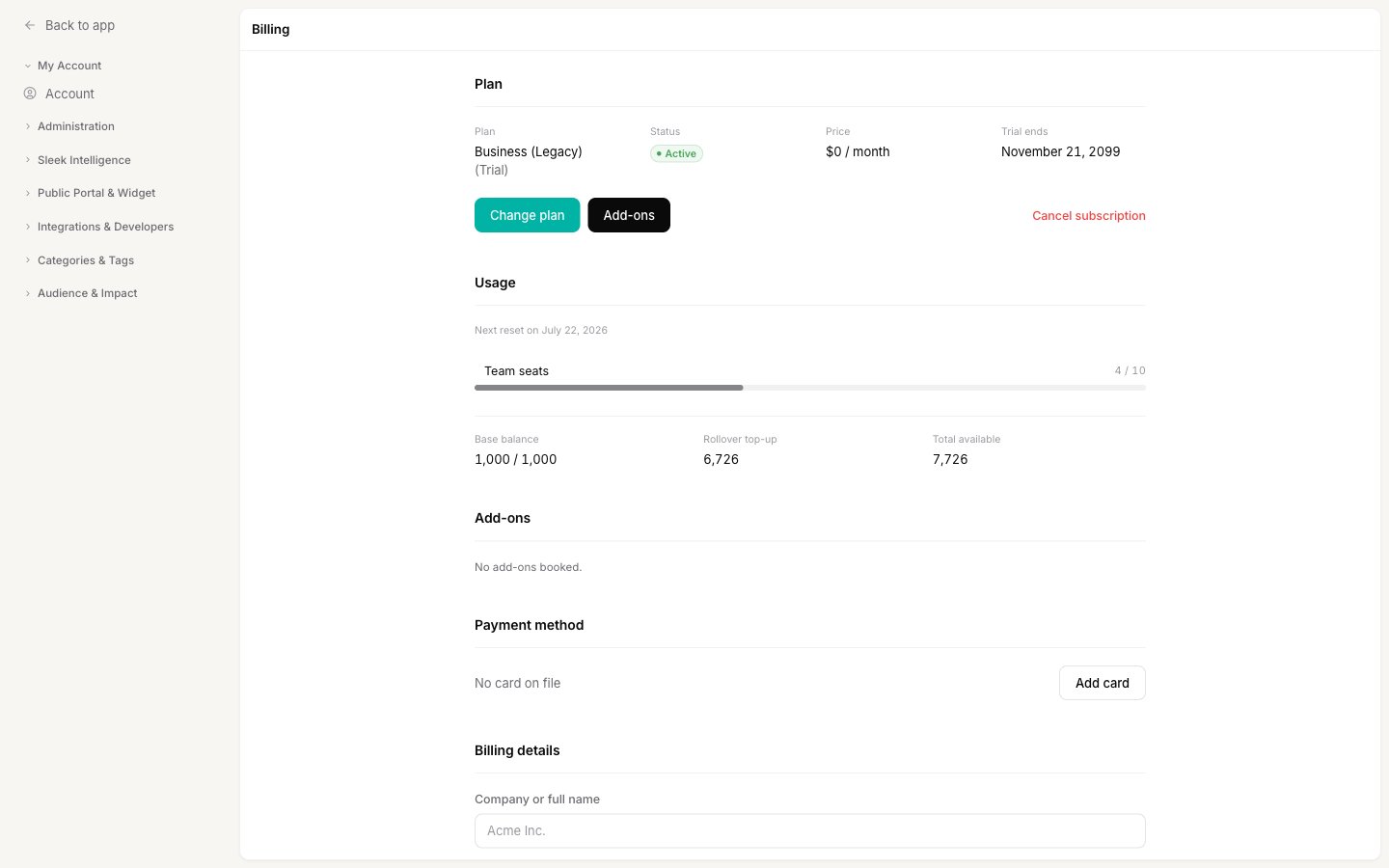
Everything about your subscription lives on one screen: your current plan, usage, add-ons, payment method, billing details, and past invoices. This guide explains how the free trial works and walks you through upgrading, downgrading, and cancelling.
Managing billing requires the **Owner** or **Admin** role. Members can use the app but cannot see or change billing. See [Roles and permissions](/help/account-security/roles-permissions).
## Where to find billing
Go to [**Settings → My Account → Billing**](https://app.sleekplan.com/settings/billing). Billing is scoped to a single workspace, so if you run more than one workspace, switch to the one you want and open its Billing screen.
 ## How the free trial works
Every new workspace starts on a **30-day full trial of the Business plan**, so you can explore every feature before deciding on a plan.
Your exact trial end date is always shown on the Billing screen under **Plan → Trial ends**. Treat that date as the source of truth for your workspace.
What the trial includes:
* **Full Business features** for the length of the trial, including custom domain, remove-branding, moderation, SSO, private boards, surveys, and every module (Feedback, Roadmap, Changelog, Satisfaction, NPS).
* **Sleek Intelligence enabled**, with a one-time grant of **3,000 [Sleek Intelligence credits](/help/sleek-intelligence/credits)** to try the AI features and Sleekmate.
* **No credit card required.** You can sign up and trial without entering any payment details.
**When the trial ends:** if you have not added a paid plan, your workspace automatically drops to the free plan (called **Indie**). Your feedback, roadmap, changelog, comments, and votes are never deleted. Features that are exclusive to paid plans are switched off, but your configuration is preserved and restored if you upgrade later. To keep Business features, [upgrade](#upgrade-to-a-paid-plan) before the trial ends.
## Plans at a glance
Sleekplan offers these plans:
| Plan | Who it is for |
| ---------------- | ------------------------------------------------------------------------------------------------------------------------------------------------------------- |
| **Indie** (Free) | Getting started with a public feedback board and changelog. |
| **Starter** | Small teams that need statuses, types, moderation, SSO, the API, and Sleek Intelligence. |
| **Business** | Growing teams that need custom domains, remove-branding, private boards, segmentation, surveys, [add-ons](/help/account-security/add-ons), and higher limits. |
| **Enterprise** | Custom contracts with tailored limits, invoicing, and a dedicated account manager. |
Live prices for Starter and Business (monthly and yearly, in your currency) are shown in the **Change plan** dialog. Enterprise is a custom plan: [contact us](mailto:support@sleekplan.com) to discuss it. If your workspace is already on Enterprise, plan changes, add-ons, and cancellation are handled by your account manager rather than the self-serve buttons.
## Upgrade to a paid plan
Upgrades take effect **immediately** and are prorated, so you only pay the difference for the time left in your billing period.
On the [Billing](https://app.sleekplan.com/settings/billing) screen, in the **Plan** section, click **Change plan**.
## How the free trial works
Every new workspace starts on a **30-day full trial of the Business plan**, so you can explore every feature before deciding on a plan.
Your exact trial end date is always shown on the Billing screen under **Plan → Trial ends**. Treat that date as the source of truth for your workspace.
What the trial includes:
* **Full Business features** for the length of the trial, including custom domain, remove-branding, moderation, SSO, private boards, surveys, and every module (Feedback, Roadmap, Changelog, Satisfaction, NPS).
* **Sleek Intelligence enabled**, with a one-time grant of **3,000 [Sleek Intelligence credits](/help/sleek-intelligence/credits)** to try the AI features and Sleekmate.
* **No credit card required.** You can sign up and trial without entering any payment details.
**When the trial ends:** if you have not added a paid plan, your workspace automatically drops to the free plan (called **Indie**). Your feedback, roadmap, changelog, comments, and votes are never deleted. Features that are exclusive to paid plans are switched off, but your configuration is preserved and restored if you upgrade later. To keep Business features, [upgrade](#upgrade-to-a-paid-plan) before the trial ends.
## Plans at a glance
Sleekplan offers these plans:
| Plan | Who it is for |
| ---------------- | ------------------------------------------------------------------------------------------------------------------------------------------------------------- |
| **Indie** (Free) | Getting started with a public feedback board and changelog. |
| **Starter** | Small teams that need statuses, types, moderation, SSO, the API, and Sleek Intelligence. |
| **Business** | Growing teams that need custom domains, remove-branding, private boards, segmentation, surveys, [add-ons](/help/account-security/add-ons), and higher limits. |
| **Enterprise** | Custom contracts with tailored limits, invoicing, and a dedicated account manager. |
Live prices for Starter and Business (monthly and yearly, in your currency) are shown in the **Change plan** dialog. Enterprise is a custom plan: [contact us](mailto:support@sleekplan.com) to discuss it. If your workspace is already on Enterprise, plan changes, add-ons, and cancellation are handled by your account manager rather than the self-serve buttons.
## Upgrade to a paid plan
Upgrades take effect **immediately** and are prorated, so you only pay the difference for the time left in your billing period.
On the [Billing](https://app.sleekplan.com/settings/billing) screen, in the **Plan** section, click **Change plan**.
 Use the **Annual billing** toggle at the top. Annual billing is charged once per year and is cheaper per month than paying monthly.
Click **Select** next to **Starter** or **Business**. Your current plan is labelled and cannot be re-selected.
If you have not entered them yet, add your company or full name and billing address. These appear on your invoices and are used to calculate tax.
Enter your card details. If you have a coupon, type it into the **Coupon code** field and click **Apply**. Then click **Subscribe**. If your bank requires extra verification (3-D Secure), you will be prompted to confirm the payment.
Your new plan and the higher limits are active as soon as the payment succeeds.
## Downgrade to a lower plan
Downgrading works from the same **Change plan** dialog: select a lower-tier plan (for example, Business to Starter) and confirm.
Downgrades are **scheduled for the end of your current paid period**, not applied immediately. You keep your current plan and its limits until then, so you do not lose the time you have already paid for. The Billing screen shows a "Scheduled downgrade" banner with the date it takes effect.
Before a downgrade takes effect, make sure your workspace fits within the lower plan's limits (for example, [team seats](/help/account-security/invite-team) and monthly [credits](/help/sleek-intelligence/credits)). To move to the free plan, use [Cancel subscription](#cancel-your-subscription) instead: this is the only path to the free plan, and it captures a short survey so we can improve.
## Cancel your subscription
Cancelling moves your workspace to the free **Indie** plan. On a paid plan, your paid features stay active until the end of the current billing period, and only then does the workspace drop to free. On a trial, cancelling takes effect right away.
On the [Billing](https://app.sleekplan.com/settings/billing) screen, in the **Plan** section, click **Cancel subscription**.
Use the **Annual billing** toggle at the top. Annual billing is charged once per year and is cheaper per month than paying monthly.
Click **Select** next to **Starter** or **Business**. Your current plan is labelled and cannot be re-selected.
If you have not entered them yet, add your company or full name and billing address. These appear on your invoices and are used to calculate tax.
Enter your card details. If you have a coupon, type it into the **Coupon code** field and click **Apply**. Then click **Subscribe**. If your bank requires extra verification (3-D Secure), you will be prompted to confirm the payment.
Your new plan and the higher limits are active as soon as the payment succeeds.
## Downgrade to a lower plan
Downgrading works from the same **Change plan** dialog: select a lower-tier plan (for example, Business to Starter) and confirm.
Downgrades are **scheduled for the end of your current paid period**, not applied immediately. You keep your current plan and its limits until then, so you do not lose the time you have already paid for. The Billing screen shows a "Scheduled downgrade" banner with the date it takes effect.
Before a downgrade takes effect, make sure your workspace fits within the lower plan's limits (for example, [team seats](/help/account-security/invite-team) and monthly [credits](/help/sleek-intelligence/credits)). To move to the free plan, use [Cancel subscription](#cancel-your-subscription) instead: this is the only path to the free plan, and it captures a short survey so we can improve.
## Cancel your subscription
Cancelling moves your workspace to the free **Indie** plan. On a paid plan, your paid features stay active until the end of the current billing period, and only then does the workspace drop to free. On a trial, cancelling takes effect right away.
On the [Billing](https://app.sleekplan.com/settings/billing) screen, in the **Plan** section, click **Cancel subscription**.
 Choose the main reason for cancelling. If you pick **Other**, add a short note. This quick survey is required to continue.
Click **Cancel subscription**. To keep your plan instead, click **Keep subscription**.
See the [FAQ](#frequently-asked-questions) below for exactly what is kept and what is switched off when you cancel.
## Payment method, billing details, and invoices
* **Payment method:** Sleekplan bills through Stripe. In the **Payment method** section, click **Add card** or **Update card** to manage the card on file. Your saved card shows only the last four digits.
* **Billing details:** add your company or full name, address, and tax ID (VAT) so they appear on your invoices. Set a dedicated **Billing email** if invoices should go to your finance team rather than your login email. Tax is calculated automatically from your address.
* **Invoices:** once you are on a paid plan, past invoices appear in the **Invoices** section, each with a link to view or download the PDF.
## Frequently asked questions
Your core content is never deleted when you cancel or when a trial ends. Feedback posts, roadmap, changelog entries, comments, and votes all stay in place.
What changes is that paid-only features are switched off when the workspace moves to the free plan: for example, Sleek Intelligence, custom statuses and types, custom domains, and other Business-only settings. Your configuration for those features is safely backed up, so if you re-subscribe later it is restored rather than rebuilt from scratch. You also drop to the free plan's monthly limits (emails, popups, announcements, team seats, and credits).
Card payment through Stripe is the standard method for all self-serve plans.
Pay-by-invoice is available in two cases:
* **Enterprise** customers can pay by invoice for international payments in **EUR, USD, GBP**, and for customers in **Brazil**.
* **Business** customers on **annual (yearly) billing** can [contact support](mailto:support@sleekplan.com) to set up pay-by-invoice, in **EUR only**.
In both cases, reach out to our team and we will arrange it for you.
No. **Upgrades are immediate** and prorated, so you get the new features and limits right away and only pay the difference for the remainder of the period. **Downgrades and cancellations take effect at the end of your current billing period**, so you keep what you have paid for until then.
Self-serve plans are billed in **USD** or **EUR**, detected automatically and shown in the Change plan dialog. Additional currencies (such as GBP or BRL) are available for Enterprise invoicing. [Talk to us](mailto:support@sleekplan.com) if you need a specific currency.
No. You can sign up and use the full trial without entering any payment details. You only add a card when you decide to move to a paid plan.
Your workspace automatically switches to the free **Indie** plan. Nothing is deleted; paid-only features are switched off and your configuration is preserved. Upgrade any time to turn those features back on.
Yes. On the Business plan you can book [add-ons](/help/account-security/add-ons) for extra team seats, emails, popups, announcements, and SAML SSO. Extra [Sleek Intelligence credits](/help/sleek-intelligence/credits) can be topped up on Starter and Business.
Only workspace **Owners** and **Admins** can see and change billing, payment methods, and plans. See [Roles and permissions](/help/account-security/roles-permissions) for the full breakdown.
## Related
Book extra seats, emails, popups, announcements, SAML SSO, or credits.
See how AI credits work and which actions consume them.
Add teammates to your workspace and manage seats.
Control who can manage billing and settings.
Choose the main reason for cancelling. If you pick **Other**, add a short note. This quick survey is required to continue.
Click **Cancel subscription**. To keep your plan instead, click **Keep subscription**.
See the [FAQ](#frequently-asked-questions) below for exactly what is kept and what is switched off when you cancel.
## Payment method, billing details, and invoices
* **Payment method:** Sleekplan bills through Stripe. In the **Payment method** section, click **Add card** or **Update card** to manage the card on file. Your saved card shows only the last four digits.
* **Billing details:** add your company or full name, address, and tax ID (VAT) so they appear on your invoices. Set a dedicated **Billing email** if invoices should go to your finance team rather than your login email. Tax is calculated automatically from your address.
* **Invoices:** once you are on a paid plan, past invoices appear in the **Invoices** section, each with a link to view or download the PDF.
## Frequently asked questions
Your core content is never deleted when you cancel or when a trial ends. Feedback posts, roadmap, changelog entries, comments, and votes all stay in place.
What changes is that paid-only features are switched off when the workspace moves to the free plan: for example, Sleek Intelligence, custom statuses and types, custom domains, and other Business-only settings. Your configuration for those features is safely backed up, so if you re-subscribe later it is restored rather than rebuilt from scratch. You also drop to the free plan's monthly limits (emails, popups, announcements, team seats, and credits).
Card payment through Stripe is the standard method for all self-serve plans.
Pay-by-invoice is available in two cases:
* **Enterprise** customers can pay by invoice for international payments in **EUR, USD, GBP**, and for customers in **Brazil**.
* **Business** customers on **annual (yearly) billing** can [contact support](mailto:support@sleekplan.com) to set up pay-by-invoice, in **EUR only**.
In both cases, reach out to our team and we will arrange it for you.
No. **Upgrades are immediate** and prorated, so you get the new features and limits right away and only pay the difference for the remainder of the period. **Downgrades and cancellations take effect at the end of your current billing period**, so you keep what you have paid for until then.
Self-serve plans are billed in **USD** or **EUR**, detected automatically and shown in the Change plan dialog. Additional currencies (such as GBP or BRL) are available for Enterprise invoicing. [Talk to us](mailto:support@sleekplan.com) if you need a specific currency.
No. You can sign up and use the full trial without entering any payment details. You only add a card when you decide to move to a paid plan.
Your workspace automatically switches to the free **Indie** plan. Nothing is deleted; paid-only features are switched off and your configuration is preserved. Upgrade any time to turn those features back on.
Yes. On the Business plan you can book [add-ons](/help/account-security/add-ons) for extra team seats, emails, popups, announcements, and SAML SSO. Extra [Sleek Intelligence credits](/help/sleek-intelligence/credits) can be topped up on Starter and Business.
Only workspace **Owners** and **Admins** can see and change billing, payment methods, and plans. See [Roles and permissions](/help/account-security/roles-permissions) for the full breakdown.
## Related
Book extra seats, emails, popups, announcements, SAML SSO, or credits.
See how AI credits work and which actions consume them.
Add teammates to your workspace and manage seats.
Control who can manage billing and settings.